
Tax Rule
In ERPNext, a Tax Rule computes taxes on transactions automatically based on a predetermined condition.
Which Tax Template (Sales or Purchase Taxes and Charges Template) should be applied to a transaction is up to you to decide. The following is used to determine this:
- Client or Client Group
- Customer or Customer Group
- Supplier or Group of Suppliers
- Item or Group of Items
- Tax Category
Accessing Tax Rule
To view the Tax Rule list, visit: Go to:
1. Prerequisites
Before establishing a Tax Rule, ensure that you have established:
- Sales Taxes and Charges Template (for sales transactions)
- Purchase Taxes and Charges Template (for Purchase transactions)
Note: Avoid using the same Sales/Purchase Template directly in both a Tax Rule and an Item Tax Template. If you want identical rates, create a separate template with a different name to prevent Conflicts.
2. How to Create a Tax Rule
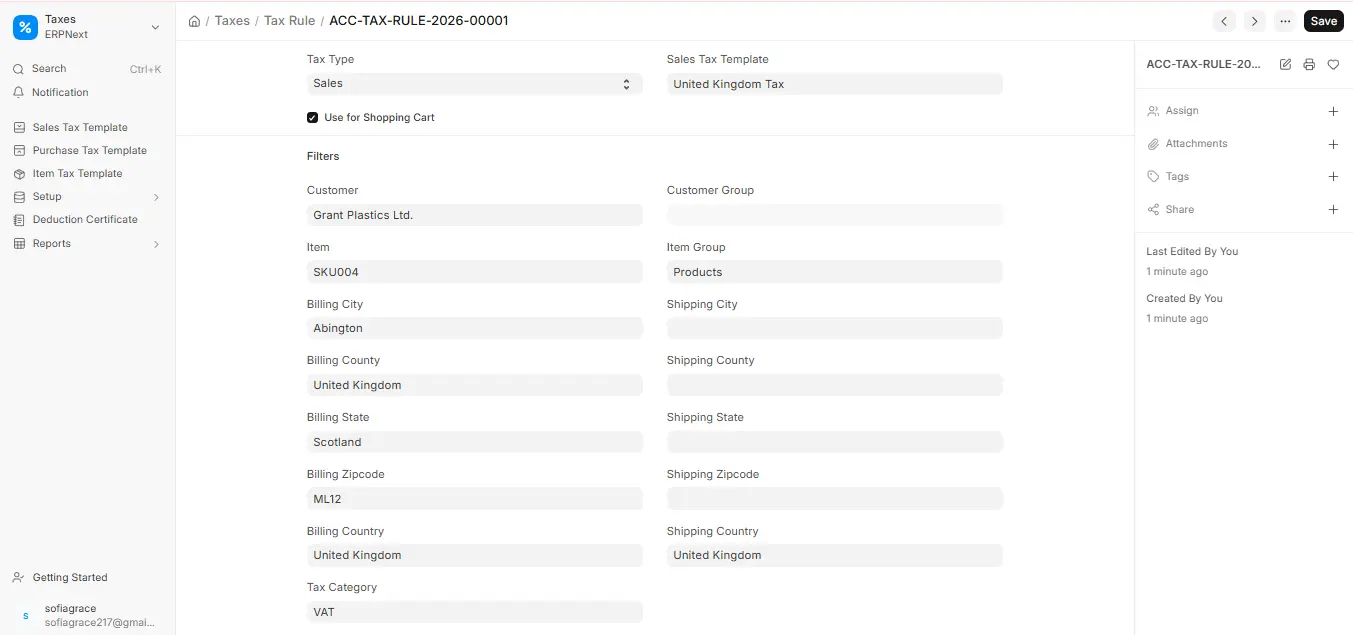
- Go to the Tax Rule list and click New.
- Select whether the rule should apply to purchases or sales under Tax Type.
- Select the appropriate tax template.
- Define criteria such as:
- Client or Client Group
- Supplier or Supplier Group
- Item and Item Group
- Category of Taxation
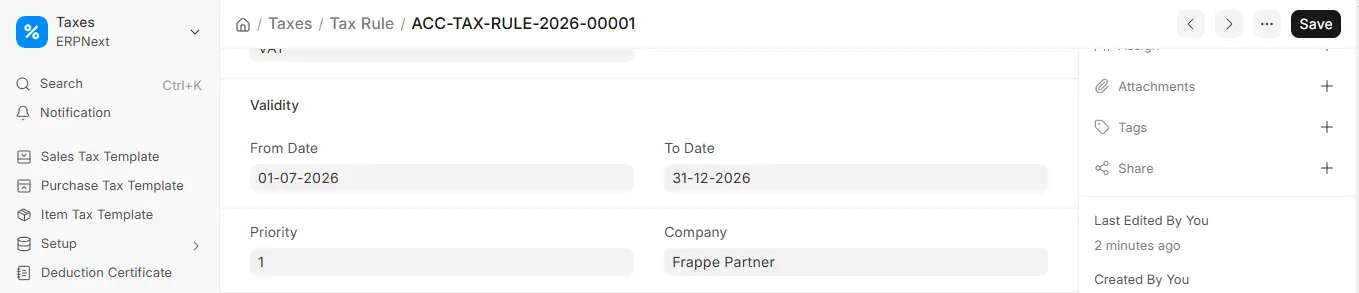
- Indicate the start and end dates if the rule is only applicable for a specific time frame.
- Set priority:
- Priority 1 is the highest.
- Lower priorities are priorities 2, 3, …
- Save the document.
3. Features
3.1 Auto-Applying Tax Rule Based on Customer / Supplier
- If only that party is subject to the tax, select a customer or supplier.
- If the tax rule applies to all, leave it blank (all suppliers/customers).
- The billing and shipping addresses of a selected customer or supplier will also be automatically retrieved.
3.2 Auto-Applying Tax Rule Based on Item / Item Group
- In the tax rule, define an item or group of items.
- Each time those items are included in a transaction, the rule will be automatically applied.
3.3 Setting a Tax Category
- Depending on the circumstances, a transaction can apply multiple Tax Rules by assigning a Tax Category.
- In their master records, suppliers and customers may be given a tax category.
3.4 Validity
- For time-based tax regulations, use Start Date and End Date.
- The rule is always applicable if both fields are empty.
3.5 Priority
- If multiple Tax Rules apply to the same transaction, priority establishes the priority.
- Higher priority is indicated by a lower number.
4. How Does Tax Rule Work?
When you create a new sales or purchase transaction, ERPNext verifies all tax rules. It will automatically apply the appropriate tax template based on the following: Customer, Supplier, Item, Tax Category, and Address.

