
Stock Reservation
Stock Reservation is the process of setting aside a specific quantity of goods in your warehouse for a specific purpose, like a project, a client, or a sales order, sometimes referred to as inventory reservation.
1. Prerequisites
Before using Stock Reservation, you need to enable it.
Go to: Stock > Settings > Stock Settings
Enable the checkbox: Enable Stock Reservation
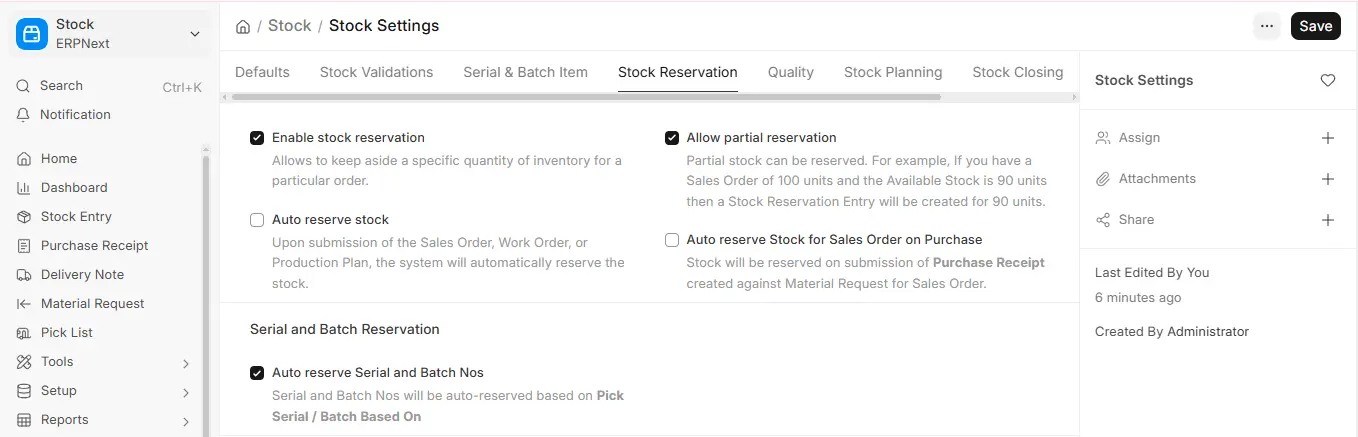
2. Stock Reservation against Sales Order
- Create a Sales Order.
- Check the reserve stock for items you want to reserve.
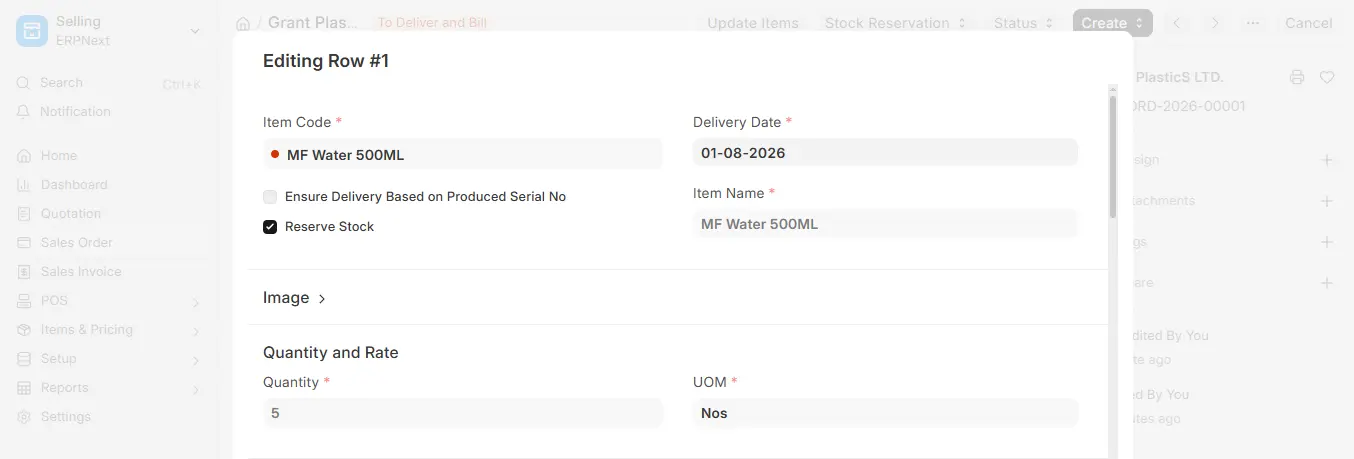
- Click on Stock Reservation, then select Reserve. Choose the warehouse and quantity, then click on the Reserve Stock button.
3. Stock Reservation from Pick List
1. Create a Sales Order
- Go to Selling > Sales Order
- Add items and Save, Submit the document
2. Create a Pick List
- From the Sales Order, click Create > Pick List
- The Pick List will auto-populate items from the order
3. Open the Pick List and Reserve Stock
- Go to the newly created Pick List
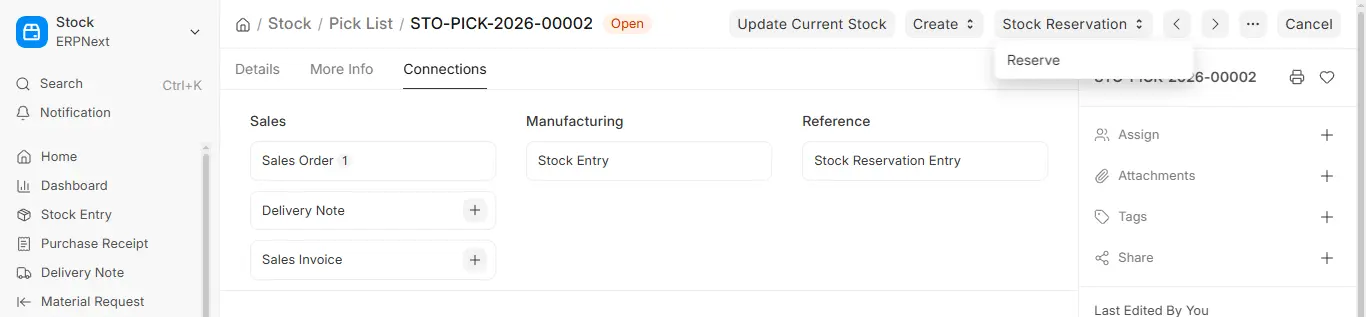
- Click on the “Stock Reservation” button
- Select “Reserve”
- Choose the appropriate warehouse and quantity, if not already set
- Click “Reserve Stock”
4. Auto Reserve Stock on Purchase
ERPNext can automatically reserve that stock as soon as it is received (via Purchase Receipt) when you create a sales order and then buy items to fulfil it.
This implies that ERPNext handles stock reserving for you, saving you the trouble.
1. Activate the Auto Reservation Configuration
Select Stock > Stock Settings.
Turn on the “Auto Reserve Stock for Sales Order on Purchase” option.
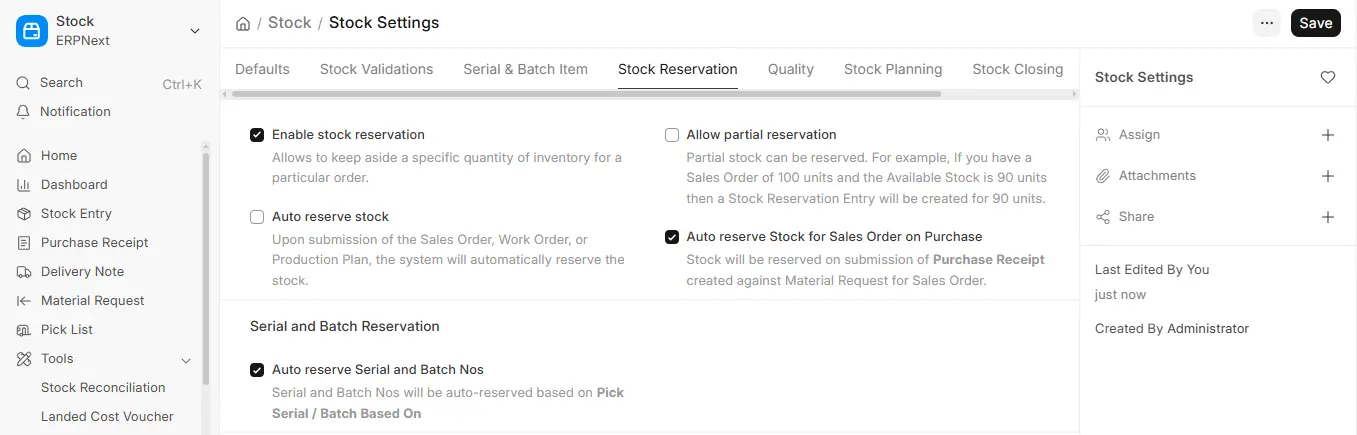
Select “Save.”
2. Process Flow:
- Create a Sales Order
Together with the customer and the items, create a new sales order. Save it, then submit it.
- Create a Material Request
Click on Create > Material Request from the Sales Order.
Select “Purchase” as the Request Type, then click “Submit.”
- Create a Purchase Order
Click on Create > Purchase Order from the Material Request.
Select the supplier and then submit the purchase order.
- Create a Purchase Receipt
Click Create > Purchase Receipt from the Purchase Order.
Enter the quantity that was received and then submit it.
5. Stock Unreservation
If you no longer want to keep stock reserved (for example, if the order is canceled or changed), you can unreserve the stock.
ERPNext allows two ways to do this.
Unreserve from Sales Order or Pick List
You can directly unreserve stock from the document it was reserved for.
- Open the Sales Order or Pick List
- Click on the item row where stock is reserved
- Click the Stock Reservation button
- Click Unreserve
This will cancel the Stock Reservation Entry, and the stock will be Released (made available again for other use).

