Address Template
Address Templates enable you to set and maintain region-based address formats for your documents (e.g., Quotations, Purchase Invoices, Delivery Notes). This guarantees the correct Presentation of the address depending on the country or region, following local standards.
1. Main Features of Address Templates
- Region-Based Formats: Make address templates specific to the address format of certain countries or regions.
- Customizable Fields: Add, delete, or modify fields (e.g., PIN code to ZIP code, add County, etc.).
- Default Template: A default template gets applied to nations that don’t have a template assigned.
To set up or edit Address Templates: – Use the Awesome Bar and search for Address Template. – Or go to
Address Template list (opened from the Search bar)
2. Default Address Template
When you install ERP Next, a default Address Template is installed. This is the one used for all countries and places where there is no special template. You can modify the default template or you can create new templates for individual countries.
2.1. Creating an Address Template
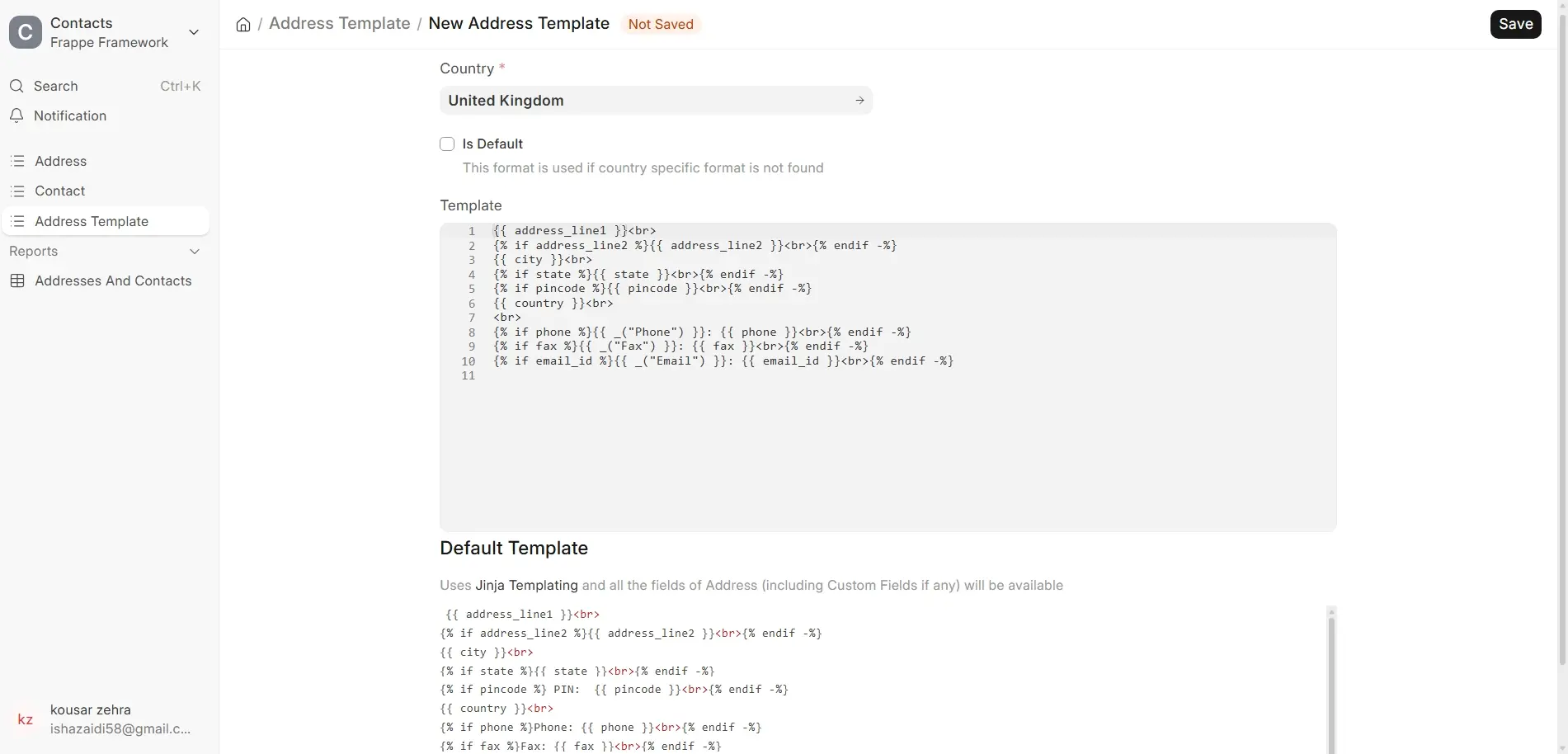
To create a new Address Template, follow these steps:
- Go to the Address Template List.
- Click the button Add Address Template.
- Enter the following information:
- Country: Choose the country for which the template is being designed.
- CSS: Make the styling of the address customizable (optional).
- Jinja Template: Adapt the address format via Jinja templating (optional).
- Default: Check this box if the template should be the system default.
- Click Save.