
Amending Sales Order after Submit
Amending Sales Order after Submit in ERPNext v16 without having to cancel or create a new document. Just use the Update Items feature. This feature lets users with permission change the Rate and Quantity (Qty) of items even after the Sales Order has been sent, while still keeping the data accurate and easy to check.
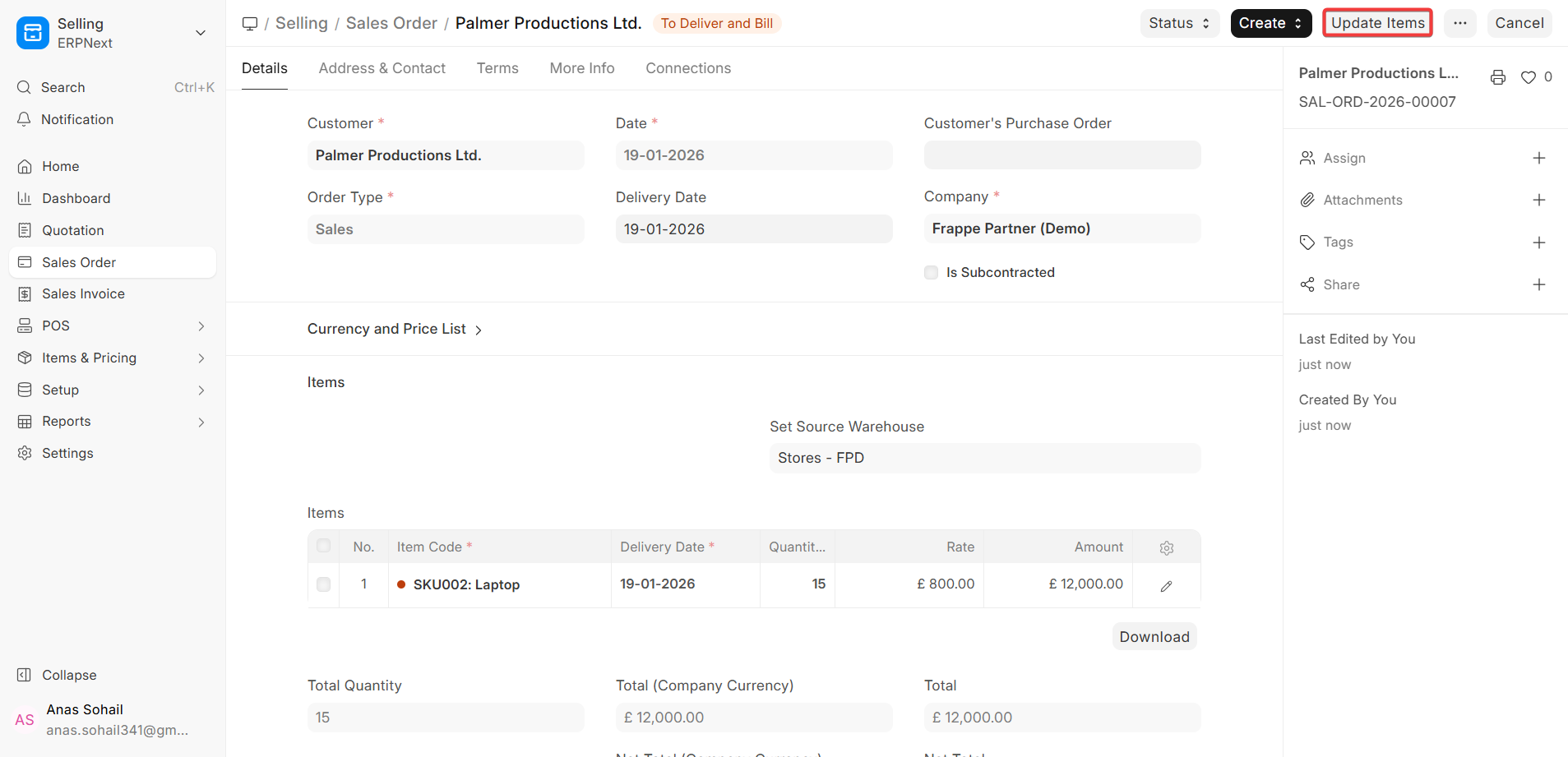
This feature is especially helpful when business terms change after Confirmation, like when prices are renegotiated, quantities are changed, or orders are only partially filled.
You can now change the Rate and quantity in a Sales Order after you click Submit by using the Update Items button. After you send a Sales Order, the document toolbar will have the Update Items button (if your user permissions and system settings allow it). This option lets you make controlled changes without having to cancel the Sales Order.
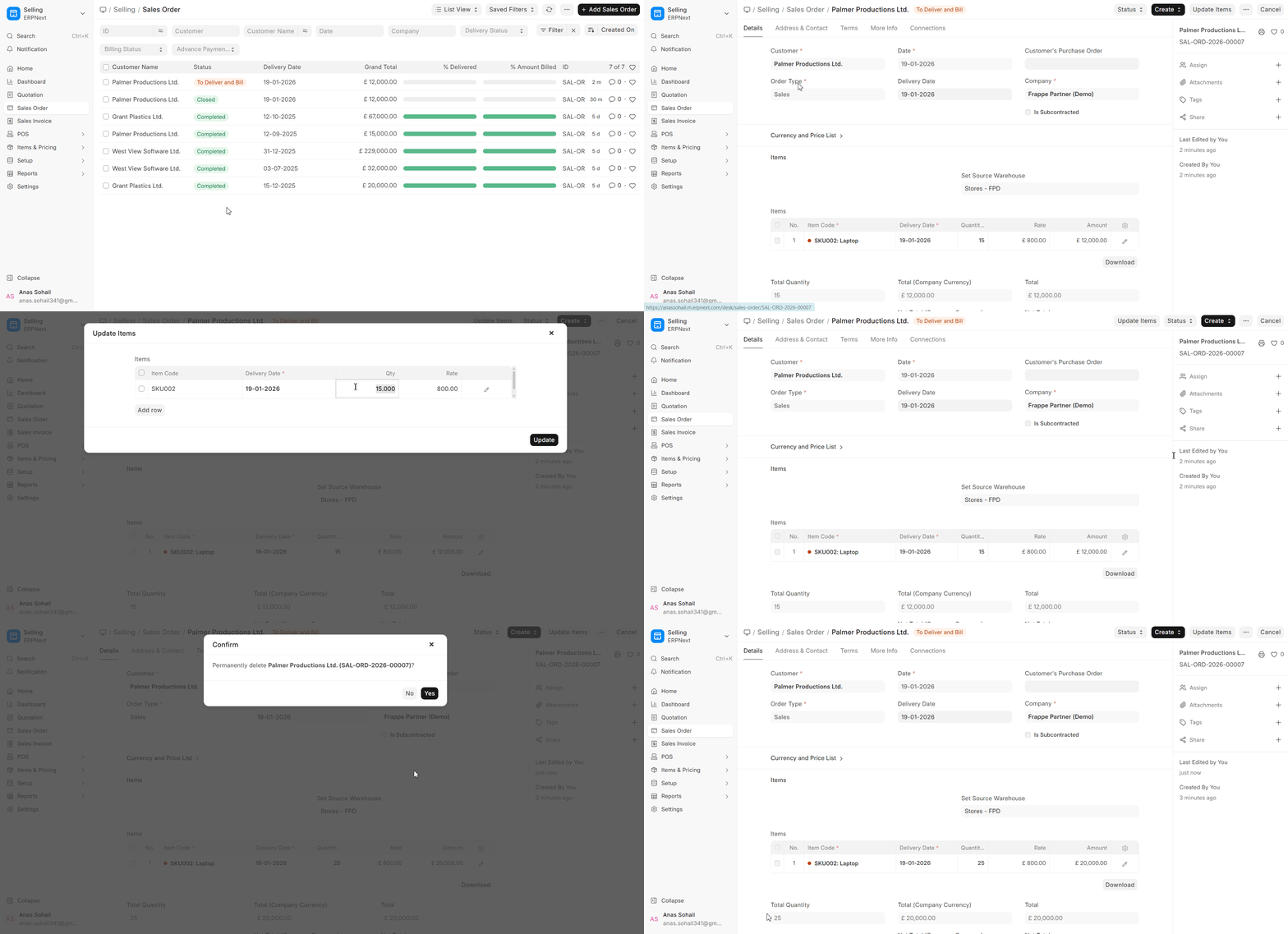
Click the Update Items button to change the rate and quantity in a submitted sales order. A window will open up so you can make the change.
When you click on “Update Items,”
- A modal dialogue box opens with the Sales Order’s item table in it.
You can change:
- Amount (Qty)
- Rate
The system does the maths again:
- Amounts of Items
- Taxes and Fees (if they apply)
- Total Amount and Rounded Amount
Once you save the changes, they are recorded and shown in the Sales Order, but the document stays in a submitted state.
Please take note of the following validations and use cases:
- Update Items checks to see if the Sales Order has a Delivery Note and a Sales Invoice.
ERPNext checks to see if the Sales Order is linked to Delivery Notes or Sales Invoices before letting any changes happen. How much you can change depends on whether the order has been fulfilled and billed.
You can change the quantity for a Sales Order that hasn’t been delivered yet or for a Partial Delivery Note. The new quantity can never be less than the quantity already delivered.
You can change the amount:
- If there is no Delivery Note made
- If the Sales Order is only partially delivered, the new quantity must be at least as large as the quantity that has already been delivered.
If the following conditions are met, the quantity cannot be changed:
- Everything on the Sales Order has been delivered.
- You can change the rate for a Sales Order that hasn’t been billed or has only been partially billed. The rate cannot be set so that the item amount becomes less than the amount already billed.
You can change the rate:
- If a Sales Invoice hasn’t been made yet
- If the Sales Order is only partially invoiced, the rate can be changed as long as the new amount is not less than the amount already billed.
- The full amount has already been sent in on a sales invoice.
Important Notes (ERPNext v16):
- The document’s version history keeps track of changes made with Update Items for audit purposes.
- The integrity of stock, accounting, and taxes is maintained because the amounts that have already been delivered or billed are never changed.
- Role permissions might keep people from using the Update Items feature.
- In most real-world situations where you need to make changes, this feature means you don’t have to cancel Sales Orders.

