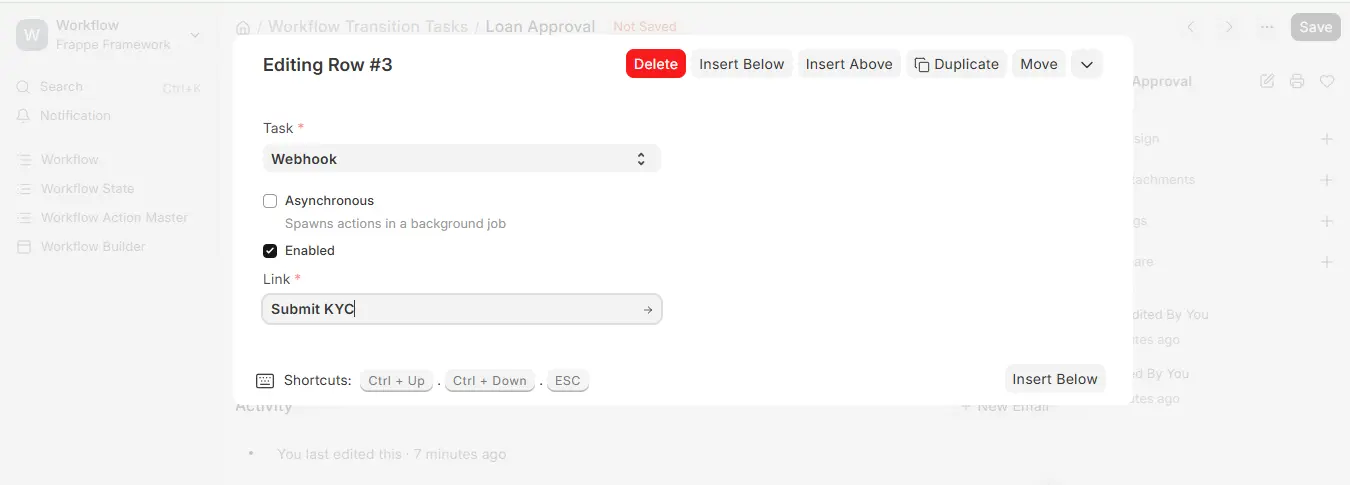
Workflow Transition Tasks
- Workflow Transition Tasks are automated activities that execute when a document transitions from one Workflow State to another.
- In previous versions, workflows only managed approvals (Approve/Reject/Move Forward). In Version 16, they have been extended so that when a transition occurs, the system can also execute automated actions such as:
- Running backend scripts
- Calling external APIs via webhooks
- Executing pre-defined methods from apps
- This allows workflows to be much more robust and aids in minimizing manual steps in business processes.
- You can associate one or more Transition Tasks with each Workflow Transition so that you can add approvals with your own business logic.
- A Typical Set of Transition Tasks
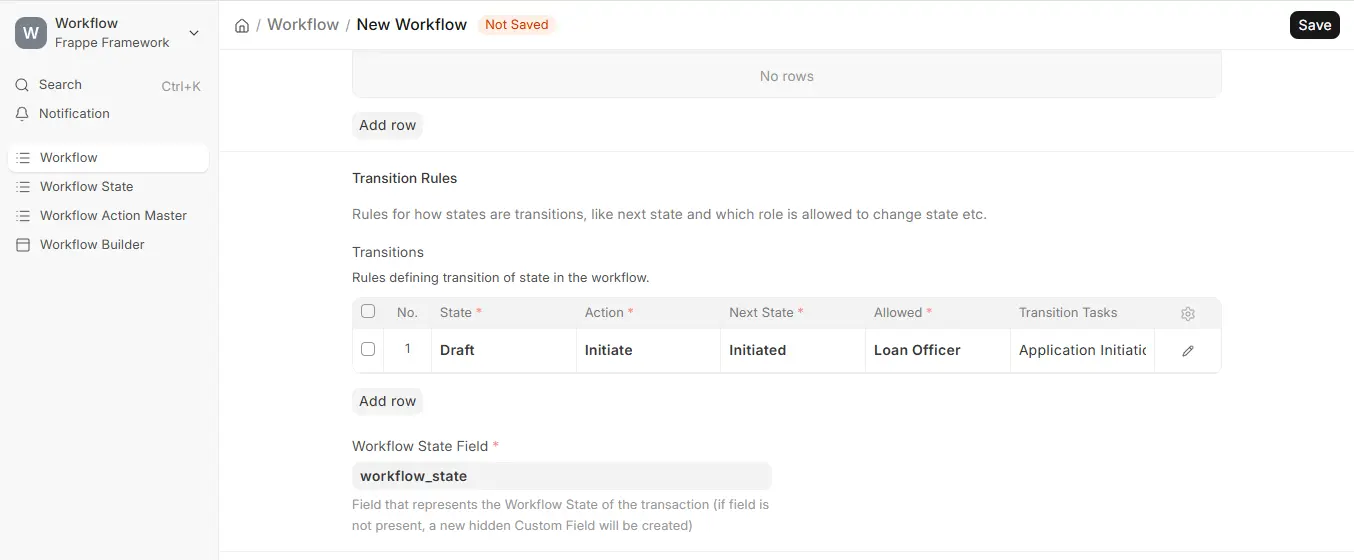
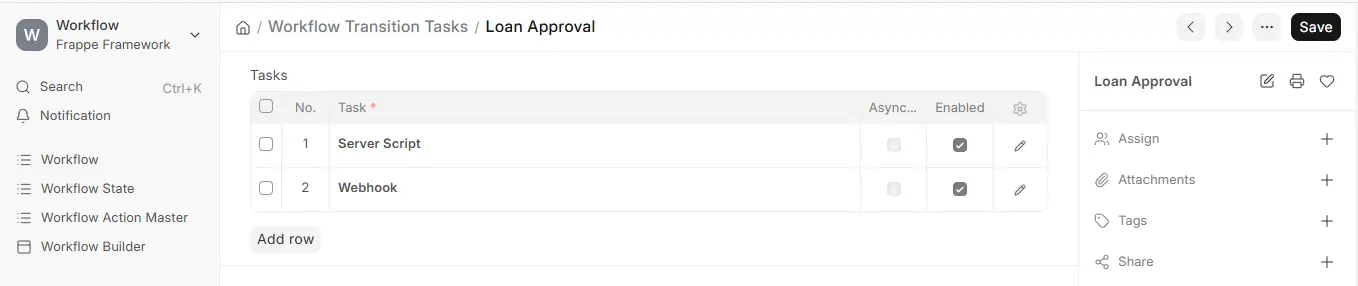
You can make a Workflow Transition Task execute any of the following types of actions:
- App-Defined Actions – Predefined methods exposed by installed Frappe/ERPNext apps (controlled through hooks.py).
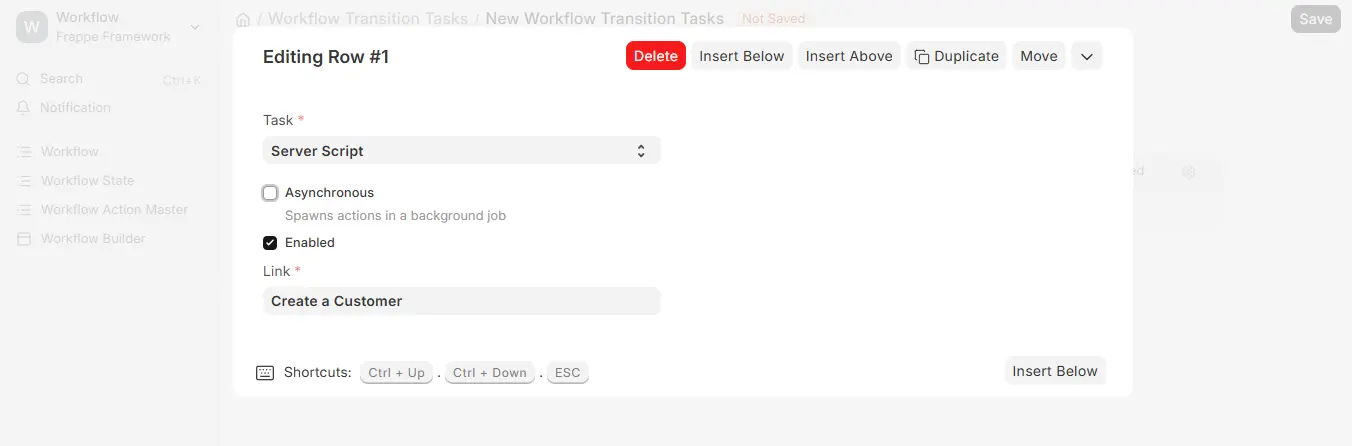
- Server Scripts – Custom code directly in the ERPNext UI to perform certain Logic.
- Webhooks – External API calls that are invoked when the workflow transition occurs.
- This allows approvals to be integrated both with internal automations (such as creating linked records) and external systems (such as pushing data to CRMs, HRMS, or other services).
- A Server Script Transition Task
Transition tasks can execute in two modes:
Synchronous (Default):
- Tasks execute sequentially as soon as the transition is started.
- If one task fails, the whole transition is rolled back.
Example:
If your transition task is to “Create a Customer Record” and it fails, the approval will not be approved.
Asynchronous (Optional):
- Triggered using the “Asynchronous” checkbox.
- Tasks execute once the transition has finished, in the background.
- These tasks do not block or impact the state change.
Example:
- A webhook that informs Slack of an approval can be executed asynchronously so the approval is not held up.
- This enables you to decouple important actions (need to succeed) from non-important actions (notifications, logs, integrations).
App-Defined Actions
- Every Frappe app can implement custom workflow tasks using the workflow_methods hook in hooks.py.
- These methods must take a doc: Document parameter, i.e., the document to be executed with the state transition.
Example:
Creating a custom action in an app
hooks.py
workflowmethods = [ { “name”: “Create a customer”, “method”: “myapp.shop.doctype.kirana.createcustomer” } ]
myapp/shop/doctype/kirana.py
def createcustomer(doc): customer = frappe.newdoc(“Customer”) customer.customername = “Customer ” + doc.name customer.customertype = “Individual” customer.save()
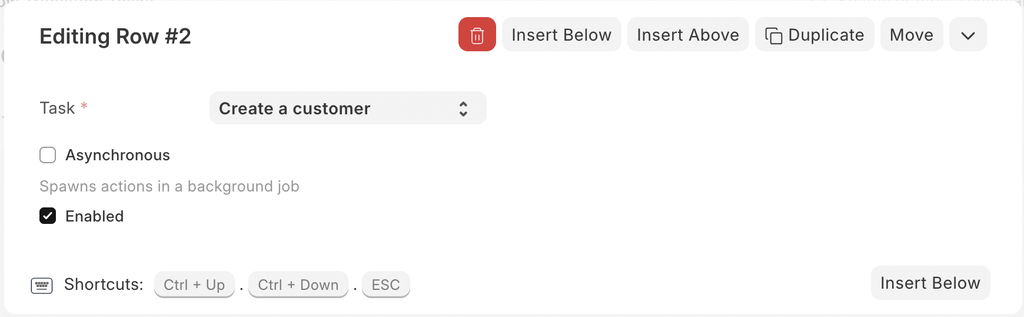
- This action will be accessible once created in the “Tasks” dropdown while setting up Workflow Transition Tasks.
Note:
End users do not author app-defined actions themselves. They are forced to depend on developers to author them in apps. Server Scripts are the recommended choice for user-level customizations.
Server Scripts
- Server Scripts allow you to perform custom logic without modifying app code.
- Script Type: Workflow Task
- Parameter: doc: Document (the document being transitioned).
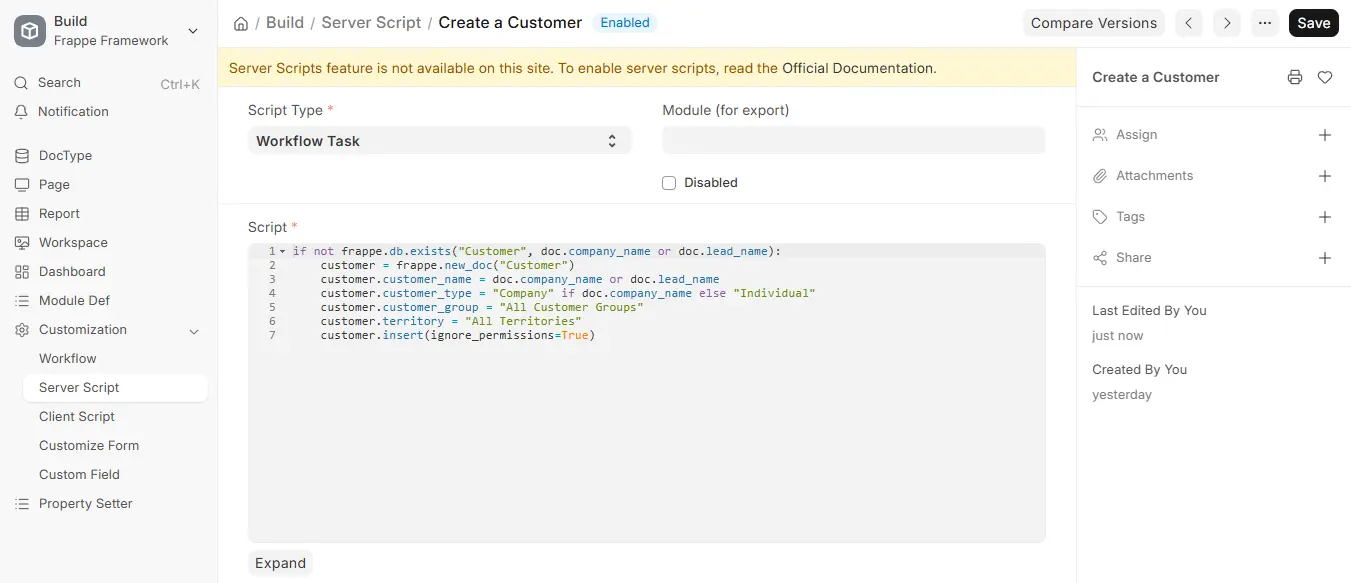
- You can put in any Python logic such as validations, field updates, or creation of related records.
Example
- Automatically assign a project manager when a Project is approved.
- Update a custom status field on a related document.
- Validate business rules before approving.
- Once established, these scripts may be applied to a Workflow Transition Task just like app-defined actions.
Webhooks
- Webhooks provide a means by which ERPNext can notify external systems about workflow transitions.
- Build a Webhook with the Doc Event field as workflow_transition.
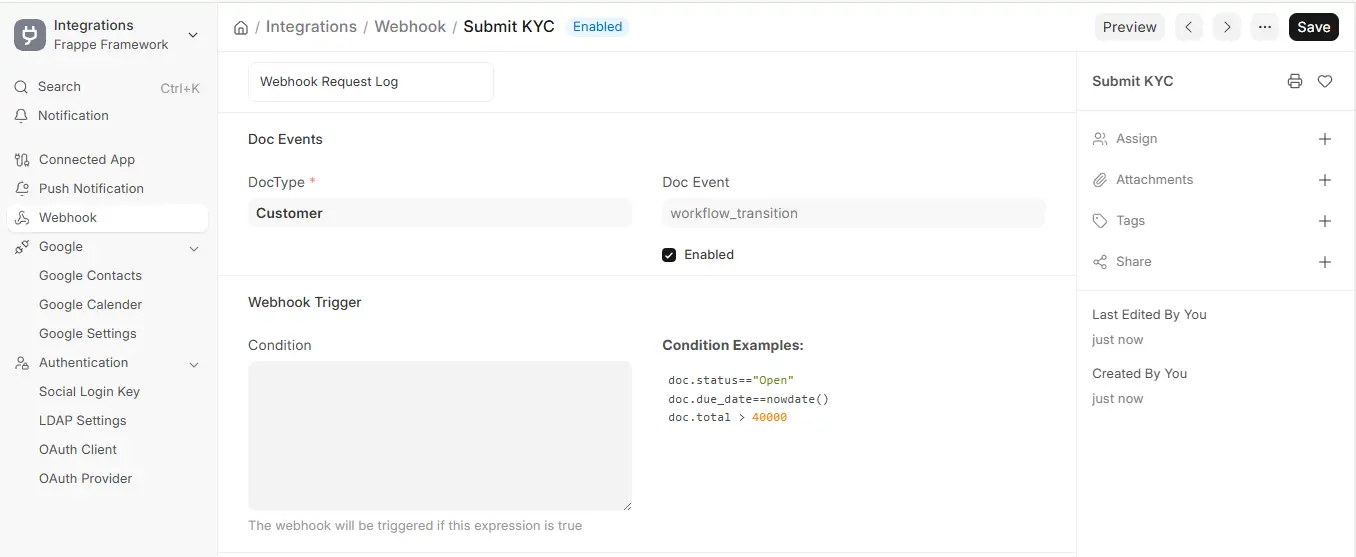
- Link this webhook to your Workflow Transition Task.
When transitioning, the webhook will trigger and submit the document data to the supplied external endpoint.
Some of the examples are:
- Notify to enternal Hr system that employees leave is approved.
- Push approved Purchase Orders to a third-party supplier API.
- Send notifications to Slack, Microsoft Teams, or WhatsApp integrations.