
Show or Hide Modules
You can hide or show some modules globally by changing the module visibility settings in ERPNext. For instance, if you are in a services business and would like to hide the Manufacturing module, you can do so with these tools.
Check/uncheck the items to show or hide modules.
Module Settings
In ERPNext v16, every module appears as an icon on the Desktop (the home screen). To show or hide a module icon:
- Log in as a user who has permission to change module visibility (e.g., System Manager).
- Type Desktop Icon in the search bar and open the Desktop Icon list.
- Open the icon of the module you want to change (for example, Quality). Tick Hidden to hide it, or untick it to show it again, and click Save.
- After making changes, reload the desk (browser) so the visibility updates.
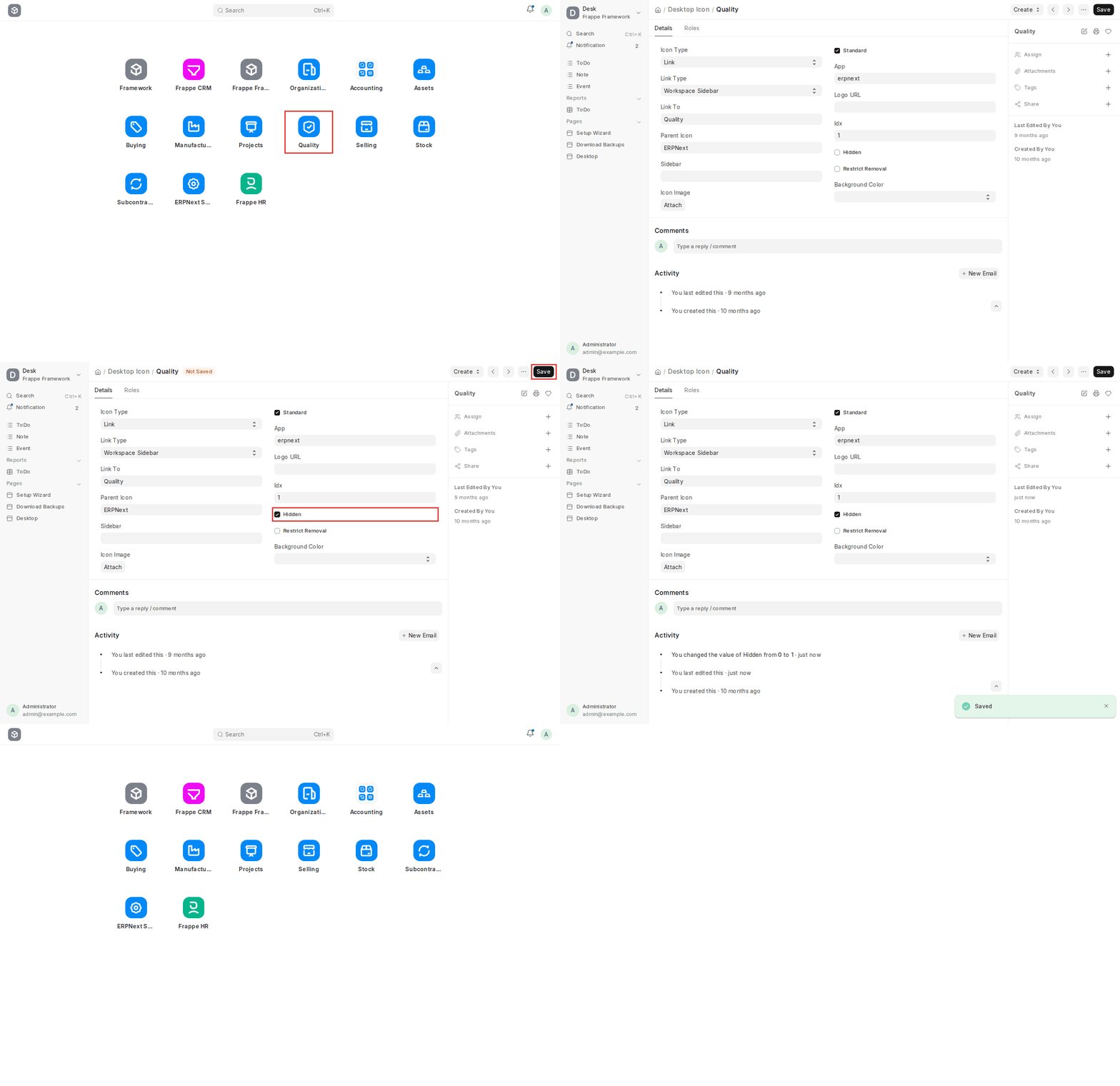
Icons hidden this way are hidden for everyone who uses the default Desktop layout. Each user can also arrange their own Desktop by right-clicking on it and choosing Edit Layout; Reset Layout in the same menu restores the default layout.
Note: Modules will also automatically hide for users who have no permissions on any doctypes within that module.
For versions older than v12:
Click your username in the top right, click on “Everyone”, then Module Settings (or Modules) and check / uncheck modules to show/hide Issues to Consider Even if a module is checked (visible), a user still won’t see it if they don’t have any permissions on the doctypes inside that module.
If you want to hide a module for some users but not globally, you’ll need to adjust Allow Modules in the User record or assign a Module Profile to the user. After changes, sometimes a cache clear or reload may be needed for the UI to reflect the updates.

