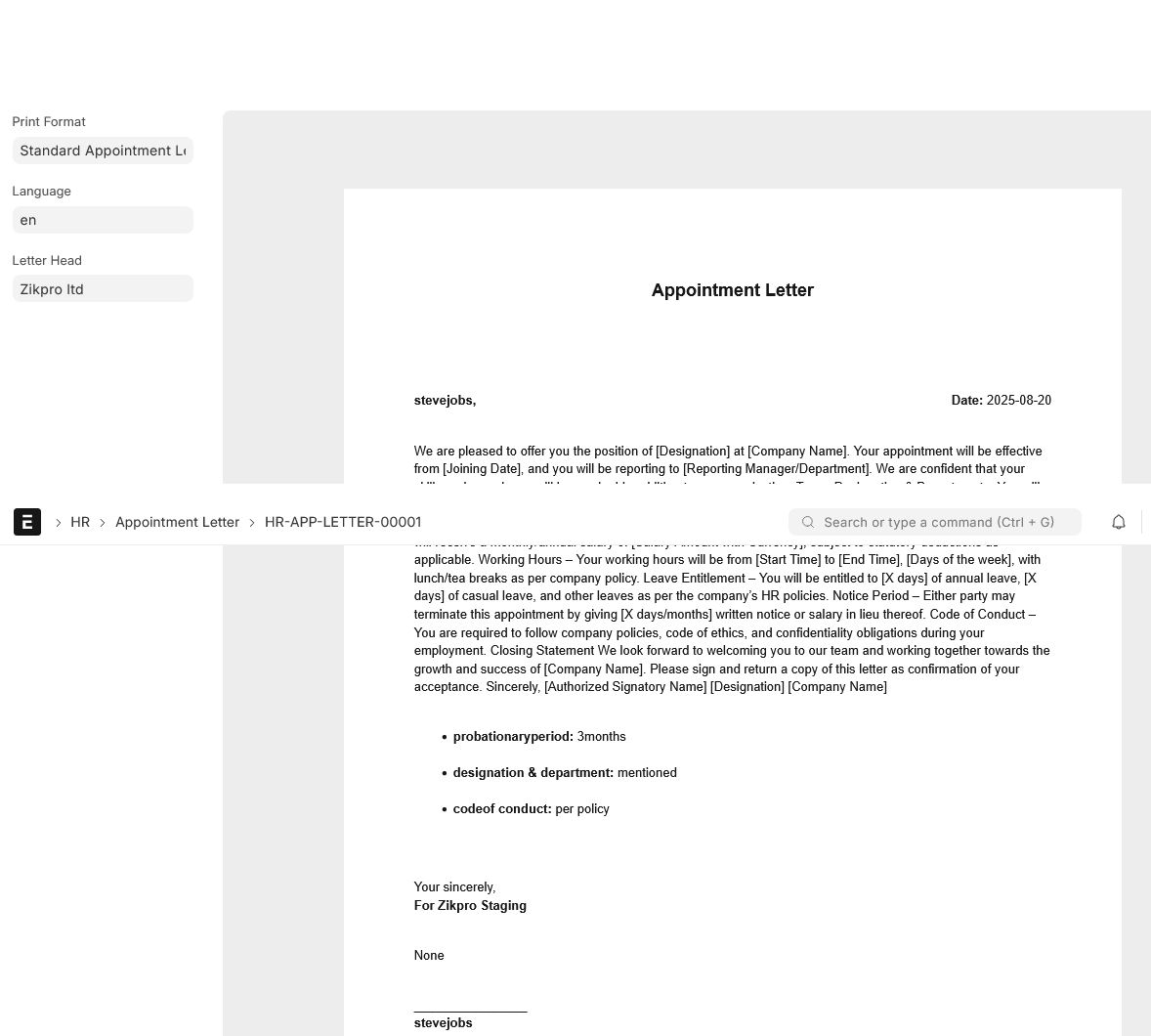
Appointment Letter
The Appointment Letter is a business letter by the employer requesting the selected candidate to work within the organization in a specific role.
- It is an official notification of employment and consists of vital details such as the role, responsibilities, and how to become a member.
- You can create, maintain, and send Appointment Letters to candidates in a default format through Frappe HR.
- This also keeps things the same across all hiring processes and ensures that the move from job offer to onboarding is seamless.
How to reach the appointment letter: Go to:
Desktop > Frappe HR > Recruitment > Appointment Letter
1. What you need to do first
When creating an Appointment Letter, it’s a good practice to have the following in the system for link purposes.
- Job Applicant: Ensure the applicant is already on the Job Applicant doctype, since Appointment Letters are always created for applicants.
Tip: You can only generate an Appointment Letter for a Job Applicant, and it can’t stand alone without this relationship
2. Creating a letter of appointment
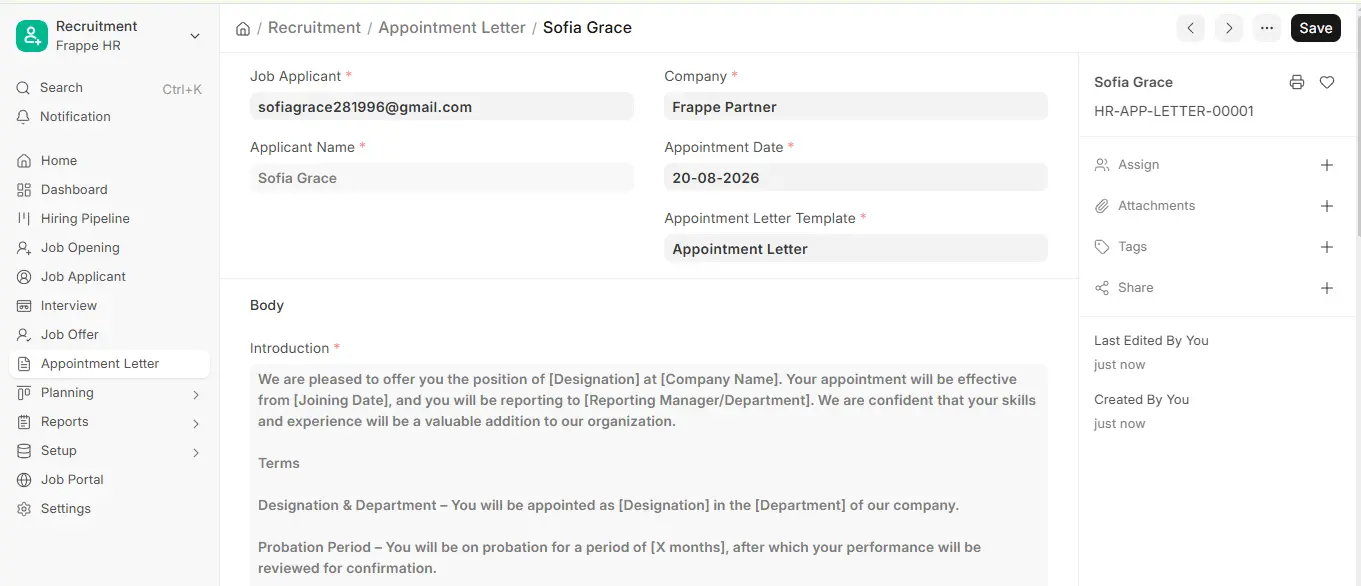
- Navigate to the Appointment Letter list and click on Add Appointment Letter to create a new record.
- Select the Job Applicant and enter the Appointment Date, when the employee will join the company.
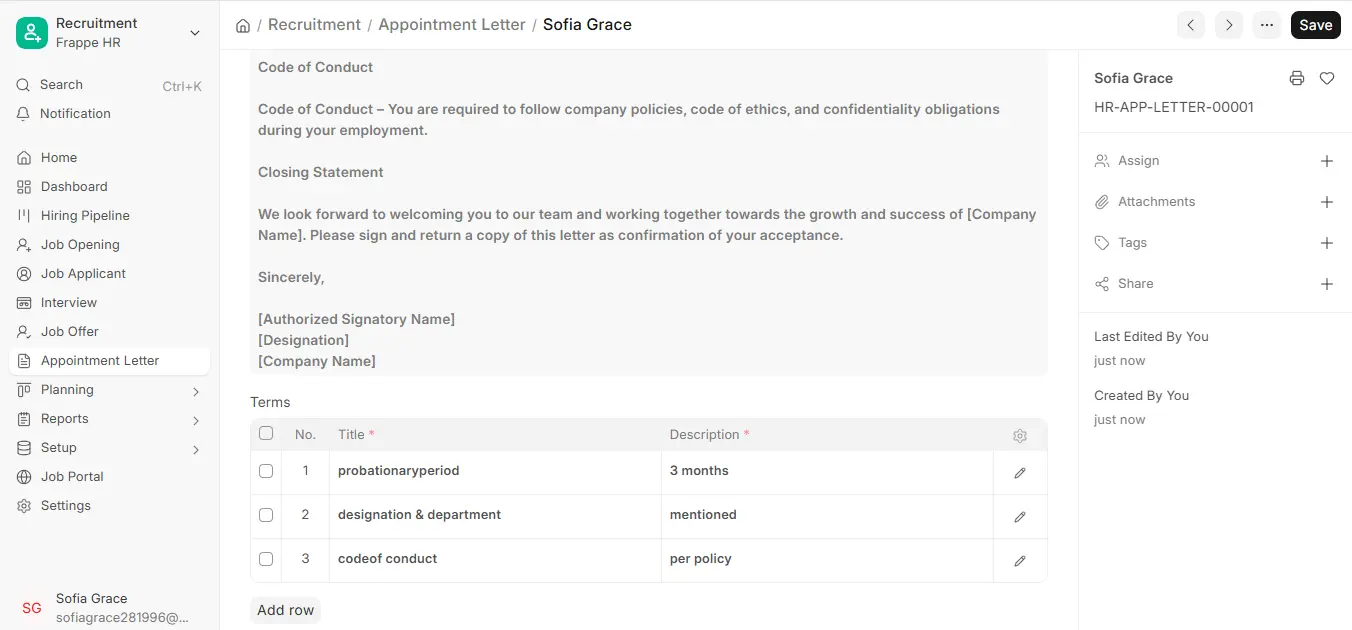
- You may either write your own Introduction, Terms, and Closing Statement or an Appointment Letter Template to automatically fill them in.
- You may also create new appointment letter templates that other candidates can use so that you do not have to do it repeatedly and you can maintain consistency.
- Click on “Save” to save the Appointment Letter in the system once the content is ready.
- Once saved, go to the Print View to view the Appointment Letter. You can then download or save a PDF copy to send to the candidate.
Tip: You can only generate an Appointment Letter for a Job Applicant, and it can’t stand alone without this relationship.
3. Things to Look For
3.1 Appointment Letter Template
- You may also create a reusable Appointment Letter Template so that it will be easier and quicker to write template-based letters.
- To achieve this, go to Recruitment > Setup > Appointment Letter Template, select Add Appointment Letter Template, and key in the Introduction, Terms, and Closing Statement.
- When you create new Appointment Letters, you can select this template, and the data will be populated for you.
- This saves time for HR users and ensures that all Appointment Letters have a professional and uniform tone.
3.2 Printing Format
- You can design new print formats or utilize the standard ones which are already available for Appointment Letters with ERPNext.
- You can include your imagination branding materials, such as a logo, letterhead, or electronic signatures, into the print mode.
- This ensures that the structure of the Appointment Letters is official and professional before releasing them to candidates.