Bank Reconciliation
ERPNext Bank Reconciliation helps you match your company’s financial records with your bank statement. This is to make sure that cleared, uncleared, and unmatched transactions are correctly identified. It is especially helpful when payments are made by cheque or when banks take a long time to process deposits and withdrawals.
1. What is a Bank Reconciliation Statement?
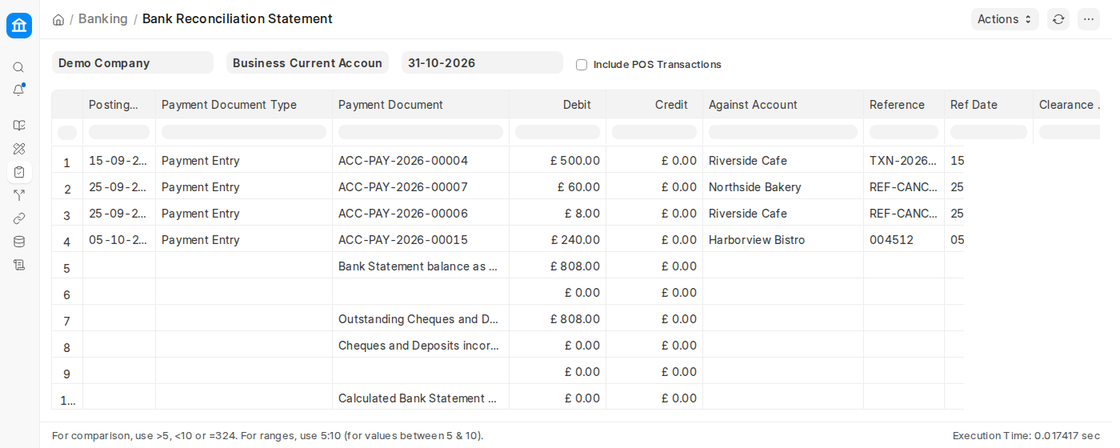
The Bank Reconciliation Statement report (Home > Banking > Reconciliation Statement) shows the difference between the balance in your ERPNext Chart of Accounts and the balance in the bank’s statement.
- If the balance is the same, it means that all of the transaction’s Clearance Dates were updated correctly.
- When there is a difference, it is usually because some bank entries are still waiting to be cleared. They are listed in the report and totalled as Outstanding Cheques and Deposits to clear.
2. How to Update Bank Transaction Dates
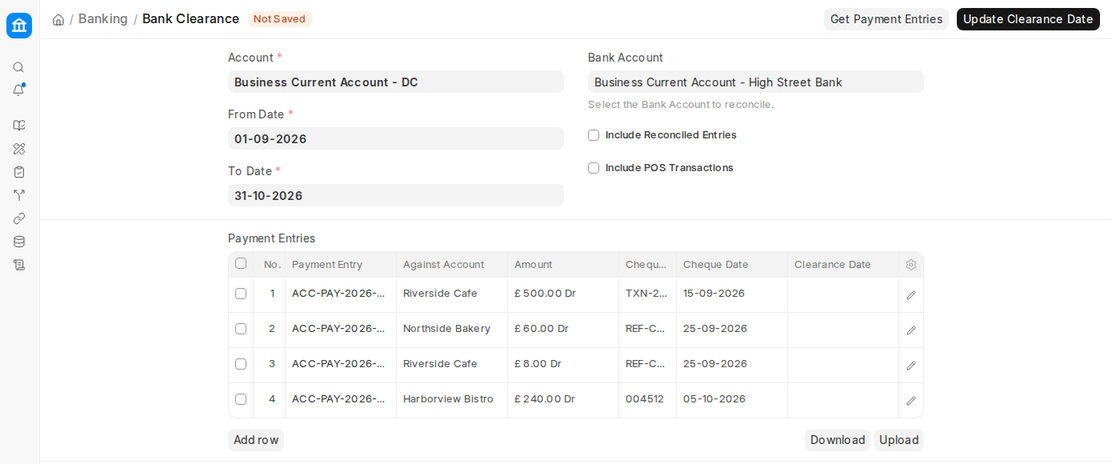
- Go to Home > Banking > Bank Clearance.
- Pick the Account (the bank’s ledger account) and, optionally, the Bank Account.
- Choose a From Date and a To Date.
- (Optional) Tick Include Reconciled Entries and Include POS Transactions.
- Click Get Payment Entries.
- Enter the Clearance Date for each transaction that has cleared in the bank.
- To save, click on Update Clearance Date.
3. Reconciliation Methods in ERPNext
ERPNext has two tools:
3.1 Manual Bank Reconciliation Tool
- The Bank Clearance tool described above lets you set the clearance dates for Payment Entries, Sales Invoice Payments (POS) or Journal Entries.
- Useful for keeping track of transactions by hand.
3.2 Semi-automatic Bank Reconciliation Tool
This is a more advanced method that works in three steps:
(a) Import Bank Statement
- Get your bank statement as a CSV or Excel file.
- Open the Bank Reconciliation Tool and click Upload Bank Statement. This opens a Bank Statement Import for the selected company and bank account.
- Map the columns for Date, Debit, Credit, Currency, and Reference.
- Click “Start Import” to make bank transactions automatically.
(b) Synchronising Bank Accounts (via API)
- ERPNext works with companies like Plaid to get transactions straight from the bank.
- The synced transactions are saved as Bank Transaction records (set up in Plaid Settings).
(c) Automatic Party Matching
- Go to Accounts Settings and, in the Banking section, tick Enable Automatic Party Matching.
- You can also turn on Enable Fuzzy Matching, which is helpful when the name of the customer or supplier is a little different from what is in the system.
- When it is enabled, ERPNext automatically sets the Party on new Bank Transactions.
3.3 Reconciling Bank Statements
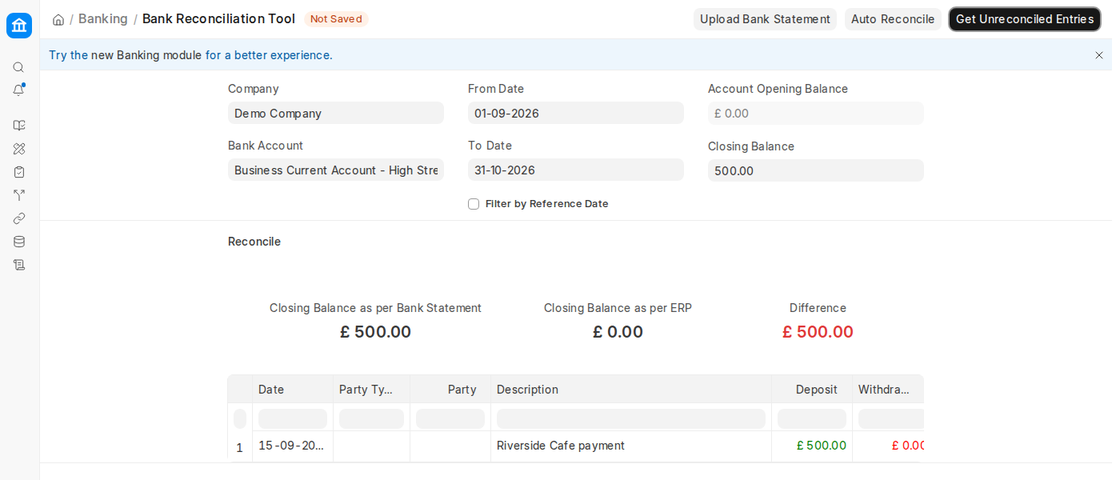
- Go to Home > Banking > Bank Reconciliation (the Bank Reconciliation Tool).
- Pick a company, a bank account, and start and end dates.
- Compare the Account Opening Balance in ERPNext to the opening balance on the bank statement.
- Enter the Closing Balance from the bank statement and click Get Unreconciled Entries.
- The system shows:
- Closing Balance as per Bank Statement, Closing Balance as per ERP (the account balance counting only cleared entries) and the Difference
- The unreconciled Bank Transactions for the period
- Use to match:
- Amount
- Date
- Reference (Cheque No. and Txn ID)
- Click Actions on a transaction and choose:
- Match Against Voucher (link to an entry that already exists)
- Create Voucher (a new Payment Entry or Journal Entry)
- Update Bank Transaction (change its reference number or party)
3.4 New Banking Page (Beta)
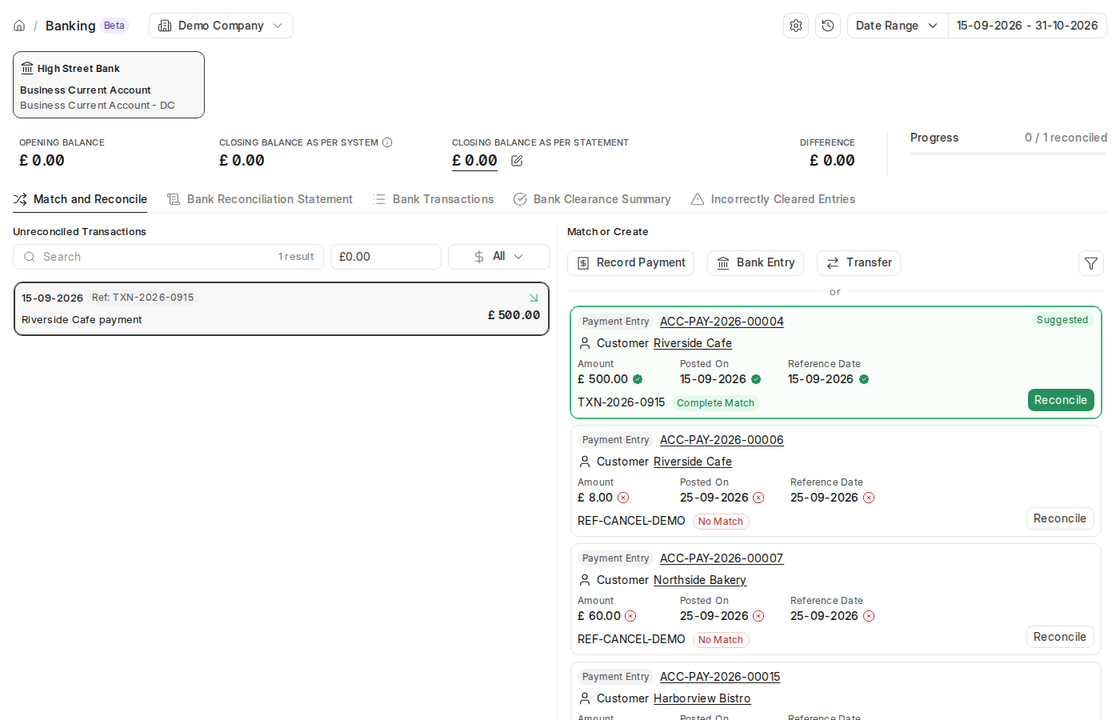
ERPNext v16 also has a new Banking page (marked Beta), linked from the top of the Bank Reconciliation Tool (“Try the new Banking module”). It shows the opening and closing balances, the reconciliation progress, the unreconciled transactions and, for a selected transaction, the suggested matching vouchers with a Reconcile button. You can also create a Payment, Bank Entry or Transfer from there. Tabs give quick access to the Bank Reconciliation Statement, Bank Transactions, Bank Clearance Summary and Incorrectly Cleared Entries.