
Stock Transfer with VAT or GST
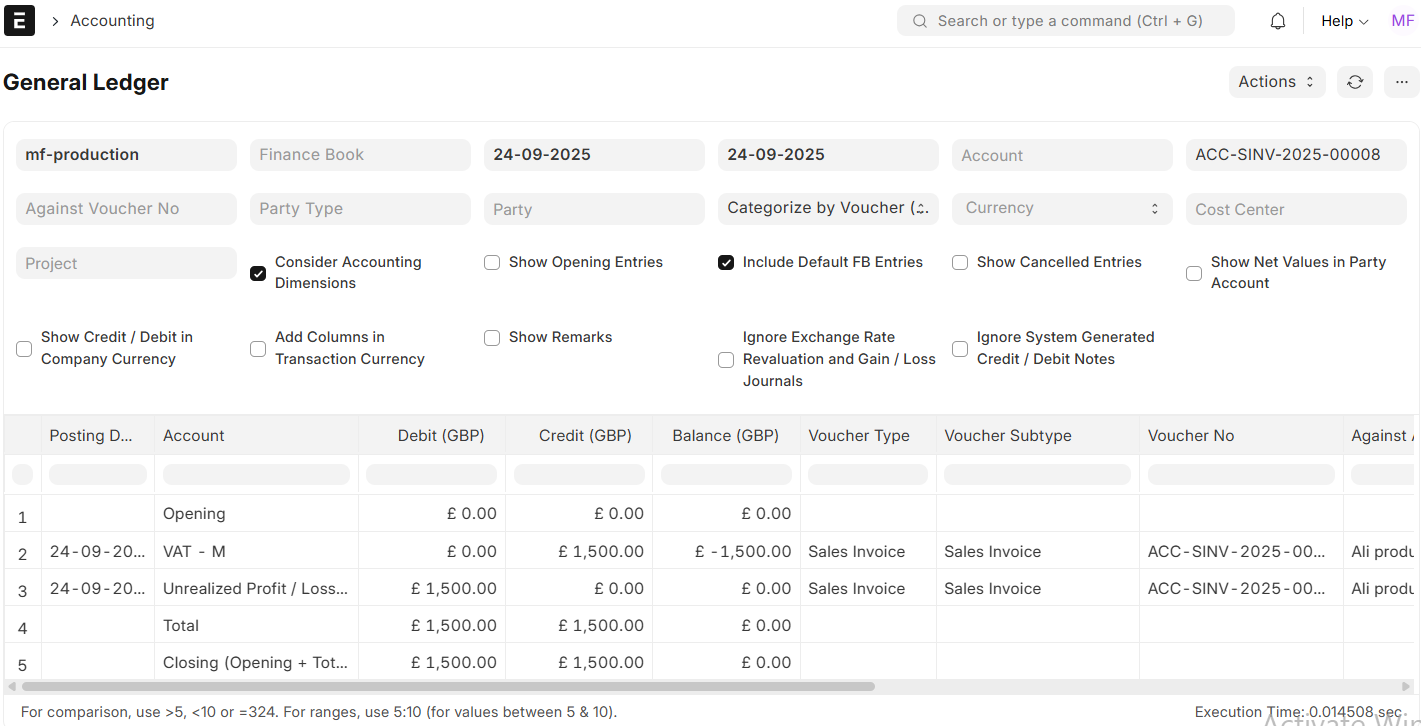
In certain situations, taxes must be applied to Stock Transfer with VAT or GST in accordance with statutory requirements. Using sales and purchase invoices rather than stock entries makes handling these transfers simpler.
Use these procedures to Stock Transfer with VAT or GST between multiple branches:
Step 1: Company Setup
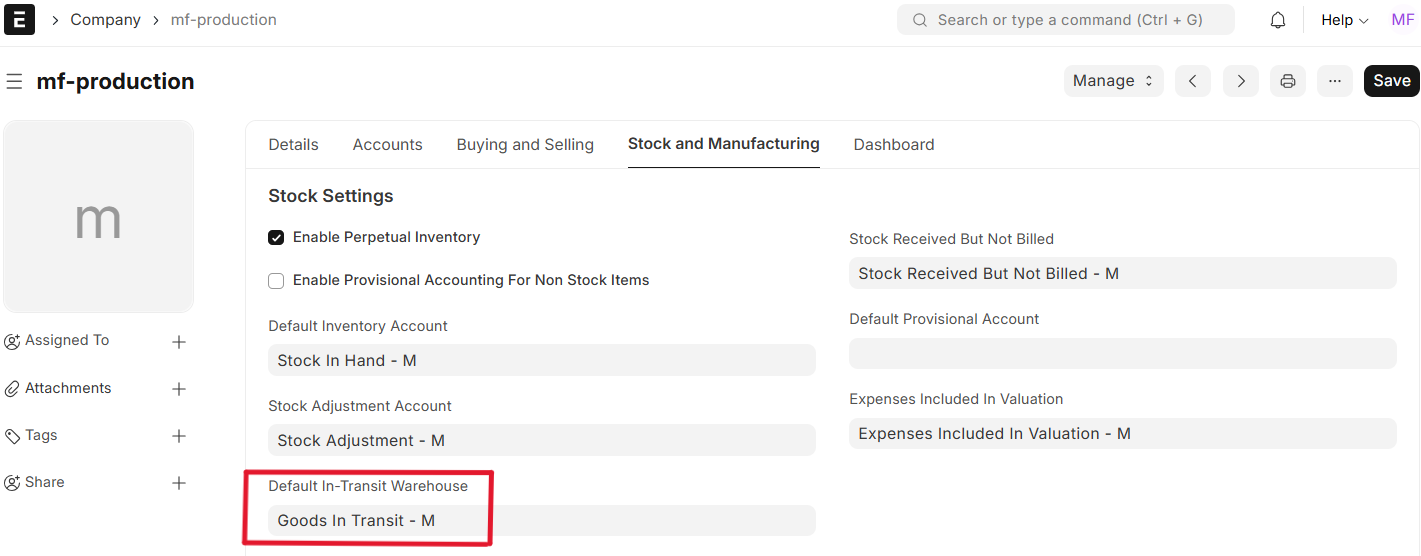
Incorporate the Default In-Transit Warehouse and the Default Unrealised Profit and Loss Account into the Company master.
Step 2: Create Internal Parties
- Establish an internal supplier and an internal customer, and permit them to do business with the same organisation.
- Give both parties the accurate address and VAT/GST information.
Step 3: Create a Sales Invoice
- Select the Internal Customer that was established in Step 2.
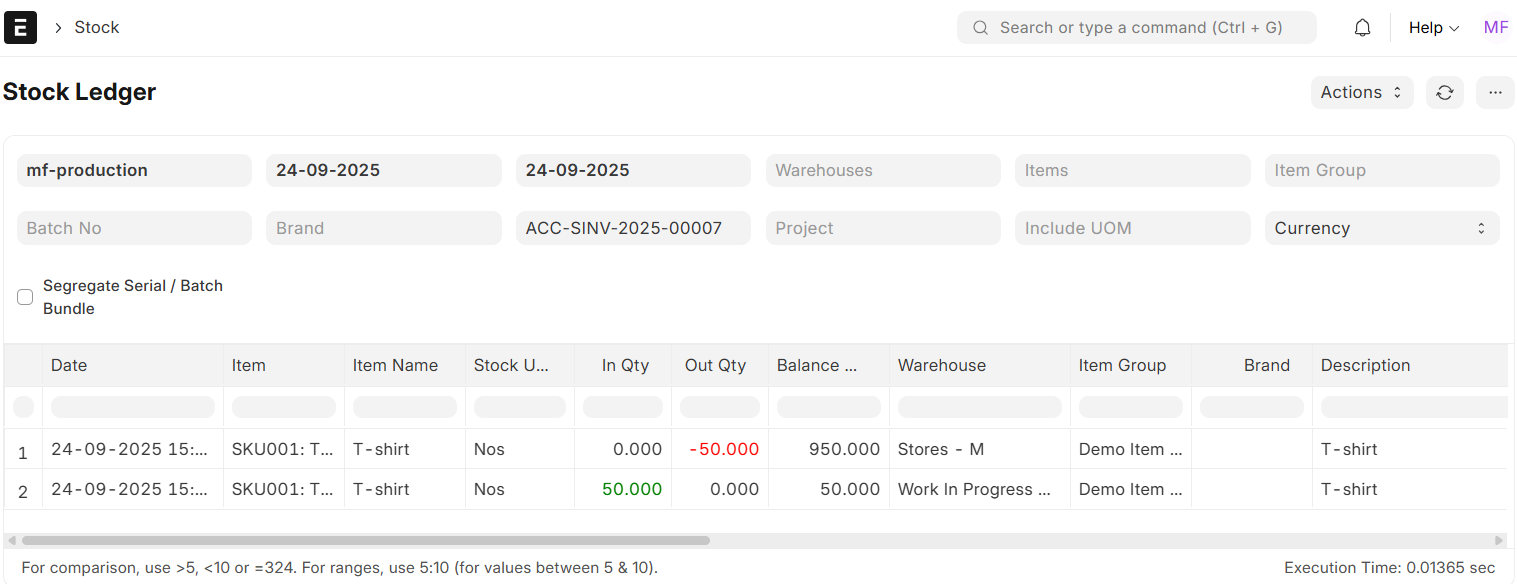
- Update Stock for Tick.
- Select the Source and Target warehouses as the In-Transit warehouses when adding items to be moved.
- Save, then submit.
Step 4: Create Purchase Invoice
- From the Sales Invoice, click on Create Internal Purchase Invoice.
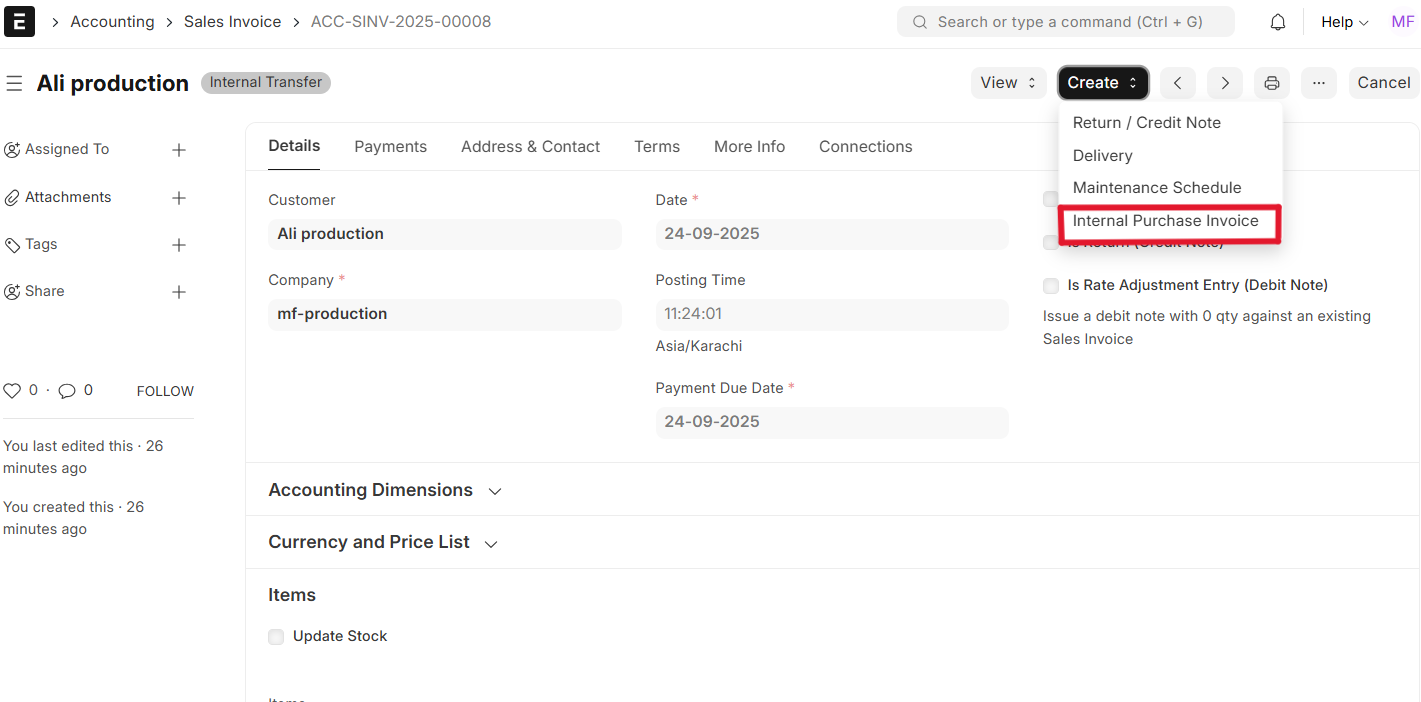
- Select the Accepted Warehouse (the warehouse where stock has been received).
- Save and Submit.
Notes: Your tax template configuration determines whether VAT or GST is applied automatically on invoices.
- Make sure that:
- The appropriate tax templates (inter-branch GST, domestic VAT 20%, etc.) are set up.
- Internal parties are assigned the correct VAT/GST numbers and have the correct addresses.

