
Lower Deduction Certificate
Before you start working with Lower Deduction Certificates (LDCs), make sure you understand and have set up the following:
Supplier (Vendor/Party) The supplier master should have a valid PAN or other applicable tax identification number. Tax Withholding Category (TDS/TCS) Defines the withholding section, applicable rate, thresholds, and accounts where the withheld tax will be booked.
1. Tax Withholding Category
1.1 Create a New Category
- Go to:
Desktop > Accounting > Taxes > Setup > Tax Withholding Category
- Click Add Tax Withholding Category.
- Enter details:
- Name(e.g., “Section 194C – Individual”)
- Category Name (Professional Fees, Dividends, etc.)
- Rates table: Tax Withholding Rate with its From Date and To Date
- Thresholds (in each Rates row): Transaction Threshold, Cumulative Threshold
- TDS/TCS Account: Ledger where withheld tax will be posted
- Save.
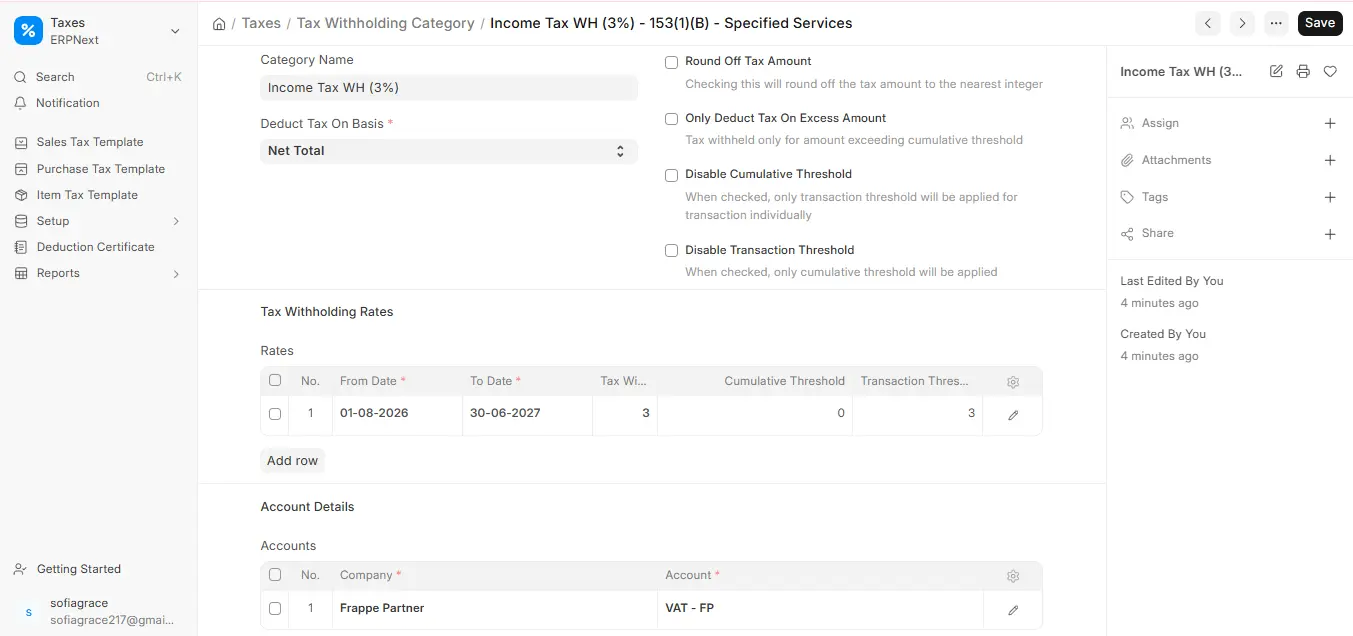
1.2 Assign to Supplier
In the Supplier Master, mark the Tax Withholding Category field and save.
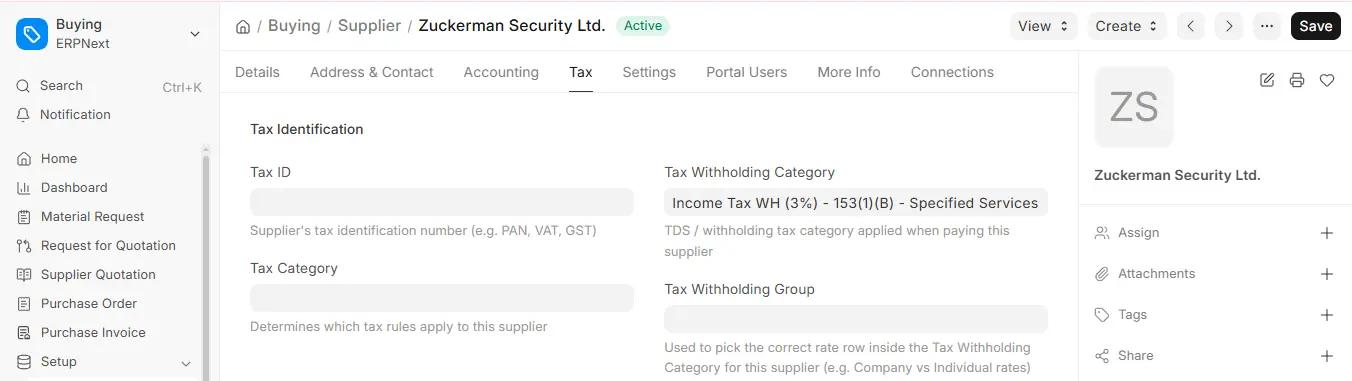
1.3 Thresholds in Action
- When an invoice value is less than both single and cumulative thresholds, withholding is not applied.
- As soon as the cumulative value for a supplier is above the threshold, withholding applies automatically.
1.4 Usage in Transactions
- Purchase Invoice:
If a supplier with a withholding category is chosen, a Consider for Tax Withholding checkbox is visible. Saving the invoice automatically applies the withholding in the Taxes & Charges table.
- Payment Entry (for Advances):
When advances are paid to the supplier, withholding will also be applied if specified in the policy.
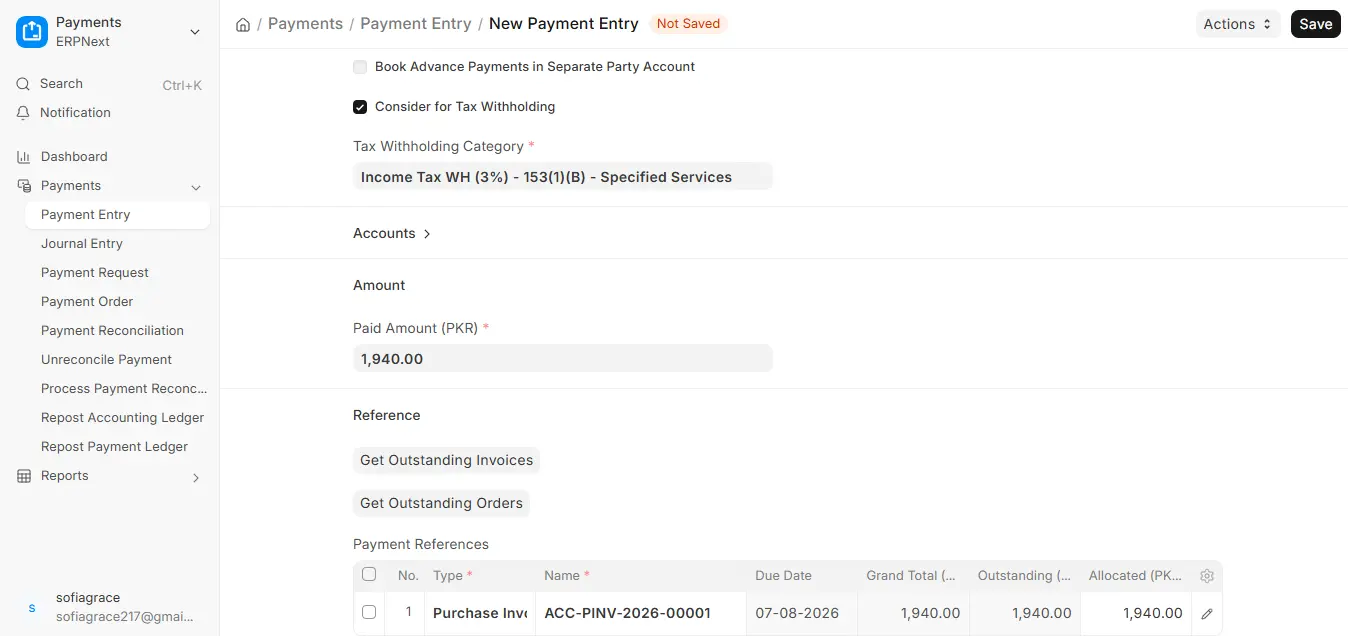
2. Lower Deduction Certificate (LDC)
2.1 Purpose
A taxpayer can sometimes lack taxable income or be qualified for a lower TDS rate. Where so, the tax department releases a Lower Deduction Certificate (LDC) allowing the payer to deduct tax at reduced or NIL rate in lieu of the regular rate.
2.2 Generate a Lower Deduction Certificate
- Go to Accounting > Taxes > Setup > Deduction Certificate (Lower Deduction Certificate list).
- Click on Add Lower Deduction Certificate.
- Enter:
- Certificate No
- Tax Withholding Category and Company
- Fiscal Year
- Supplier and its PAN No (required)
- Valid From & Valid Up To dates
- Rate Of TDS As Per Certificate
- Certificate Limit (amount that can be covered under this certificate)
- Save.
2.3 Application of the Certificate in Purchase Invoice
- When saving a purchase invoice:
- Choose a supplier associated with both a tax withholding category and a valid lower deduction certificate.
- Check Consider for Tax Withholding.
- While saving, ERPNext will compare:
- Standard TDS Rate from category
- Reduced/NIL Rate from certificate
- If the certificate is within dates and within limit, ERPNext uses the lower rate.
Example:
- Tax Withholding Category rate = 5%
- Lower Deduction Certificate rate = 1%
- Invoice of 20,000: Only 1% (200) will be deducted, not 5% (1000).

