
Discount Accounting
ERPNext’s Discount Accounting functionality creates separate ledger accounts for discounts, helping firms monitor and track them. Discounts can be posted into a designated Discount Account instead of directly subtracting them from revenue or expenses.
Improved transparency of discounts given to customers (sales invoices) is guaranteed by this feature. By keeping discounts distinct from sales or purchase amounts, it also facilitates reporting, analysis, and compliance.
Discounts can be applied in two ways:
- On individual items in a bill.
- As an additional discount applied to the amount on the bill.
1. Enabling Discount Accounting
- Go to: Desktop > ERPNext Settings > Selling Settings
- Check Enable discount accounting for selling
- Once activated, the Discount Account field is displayed on:
- Sales invoices (for additional discounts and item-level pricing)
- Item Defaults (for Default Discount Account)
Note: In v16 the setting is called “Enable discount accounting for selling” and applies to Sales Invoices only. There is no such setting in Buying Settings, and discounts on Purchase Invoices are not posted to a separate Discount Account.
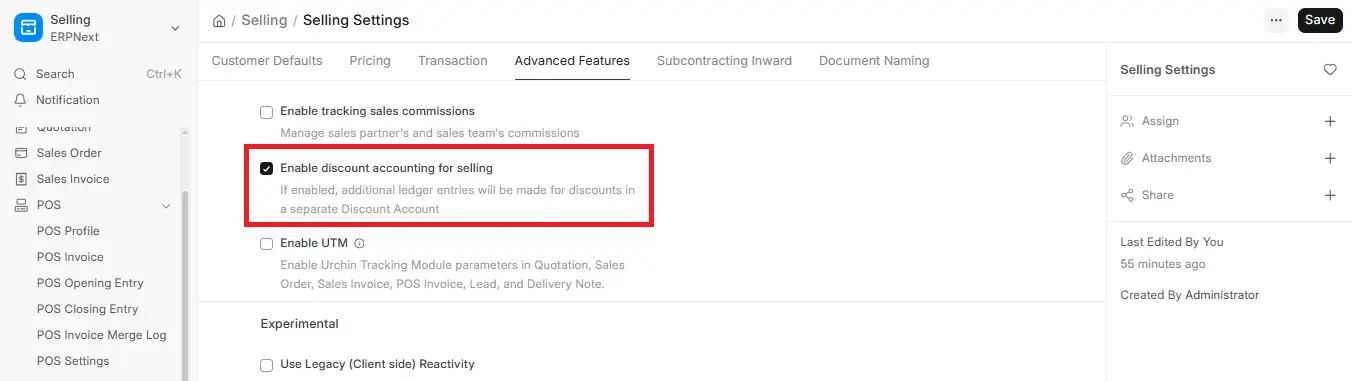
2. Applying Discounts in Invoices
Generate a sales invoice upon enabling the feature. Discounts are available at the item level or invoice level.
a) Discount at the item level
- In the Items table, expand the Item row.
- Type the discount (in terms of percentage or amount) in the Discount and Margin section.
- Go to the Accounting Details section.
- Select into which Discount Account the discount is to be posted.
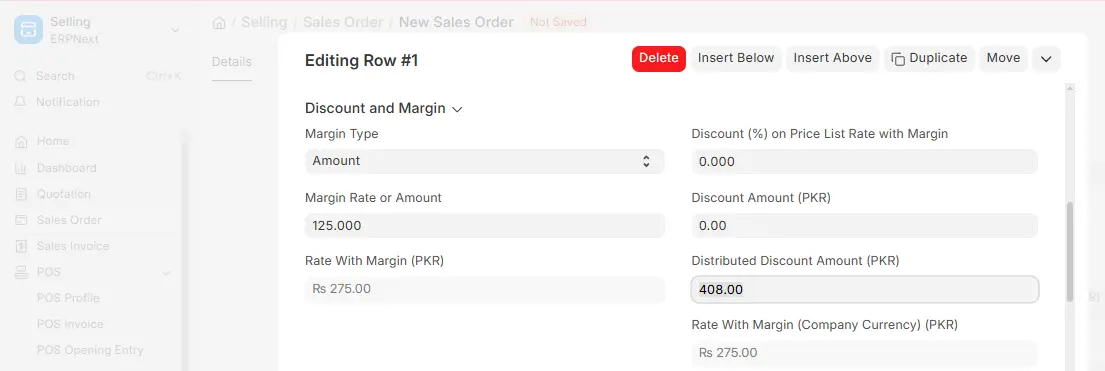
b) Invoice level (additional discount)
- Scroll down to access the Additional Discount section.
- Enter the discount as a percentage or as a fixed amount.
- To post the discount entry, select the Additional Discount Account.
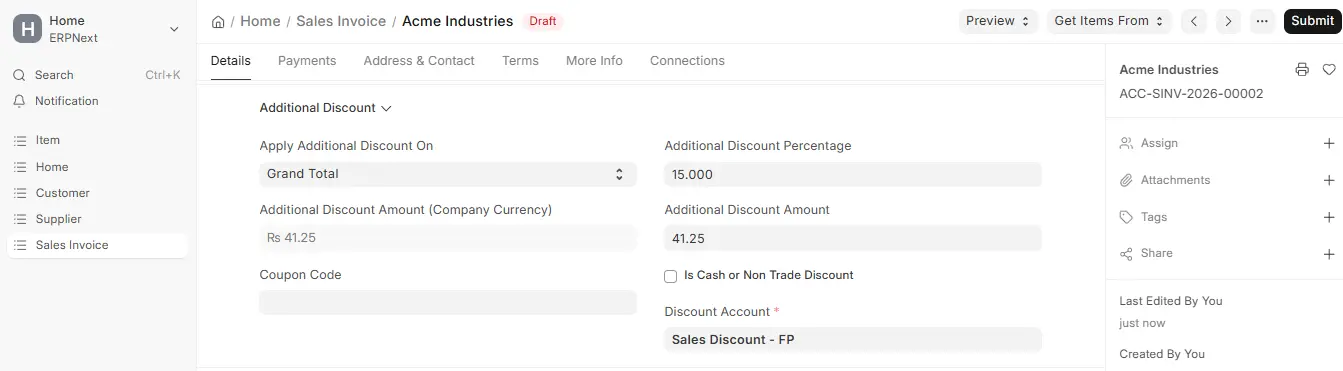
3. Submission of the invoice
After discounts have been applied:
- Save the invoice and submit it.
- ERPNext posts discounts into the specified Discount Account by way of automatically populating ledger entries.
- Sales invoices (discount offered to customer) get their own discount entries.
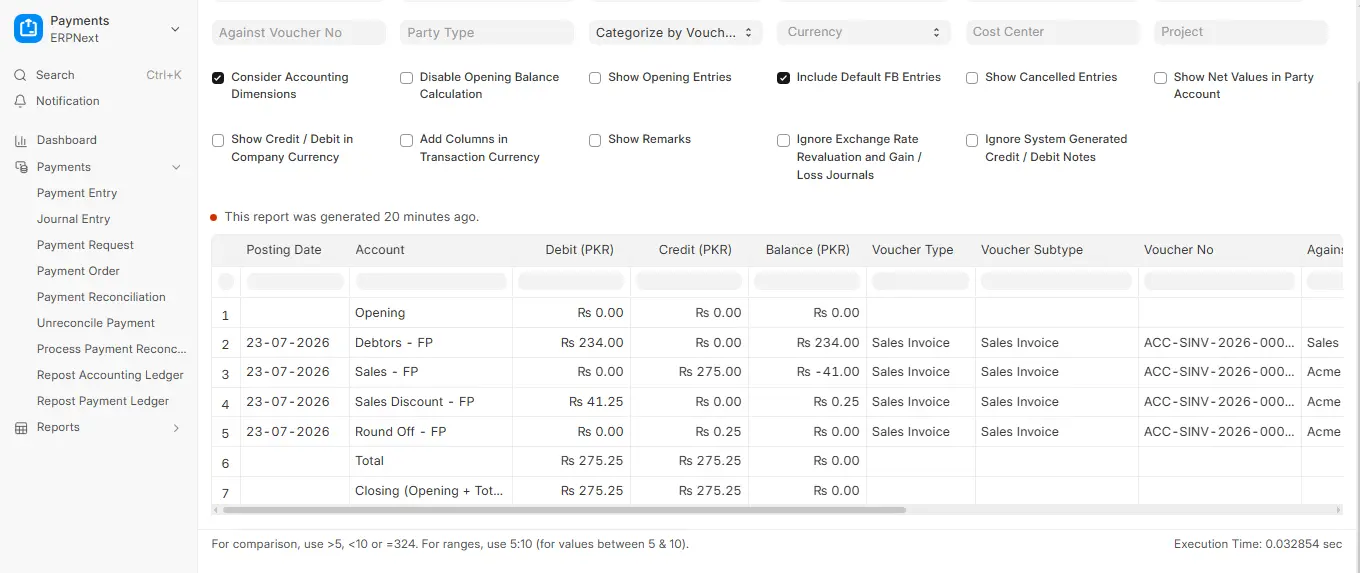
4. Default Discount Account for Items
ERPNext allows you to set a Default Discount Account at the item level to post discounts automatically. This ensures uniformity and time savings.
Steps to follow:
- The document of the item must be opened.
- Go to the Item Defaults table in the Accounting tab.
- Expand the row of your choice.
- Enter the Default Discount Account.
When creating invoices with this item, ERPNext automatically fetches this account.

