
Downloading Backups
Downloading Backups: A Database backup manually from ERPNext.
To obtain the latest database backup:
Home > Tools > Download Backups
- A Backup is created every 8 hours.
- Click on the link to download the desired time’s backup.
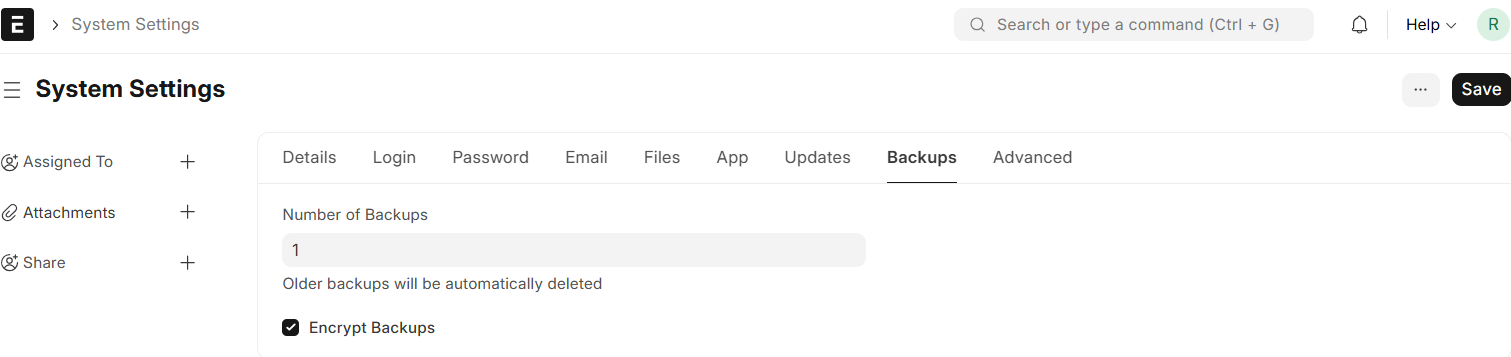
- To determine how many backups are downloadable at one time, click Set Number of Backups → you will be taken to System Settings where you can set the limit.
Downloading Files Backup
- Click Download Files Backup to get an email with download links for private and public files.
- Email must be set up in ERPNext for this feature to function.

Getting the Backup Encryption Key
- Click the Get Backup Encryption Key button.
- After verifying your system password, ERPNext will show the encryption key.

Automating Backups to Cloud Storage
ERPNext can automatically upload backups to a cloud storage platform. Platforms currently supported:
- Amazon S3
- Dropbox
- Google Drive
- Microsoft Azure Blob Storage
- WebDAV (Nextcloud, OwnCloud, etc.)
- Custom S3-compatible storage (e.g., DigitalOcean Spaces, MinIO)
You can set these up under:
Home > Settings > Integrations > Cloud Backup

