Notes
Notes in ERPNext are a basic yet useful utility meant for team or individual documentation. Whether saving personal reminders, reference content, terms of conditions, commonly used templates, or even confidential information such as internal procedures or credentials (with proper access control), Notes assist in maintaining an organized knowledge area in the system.
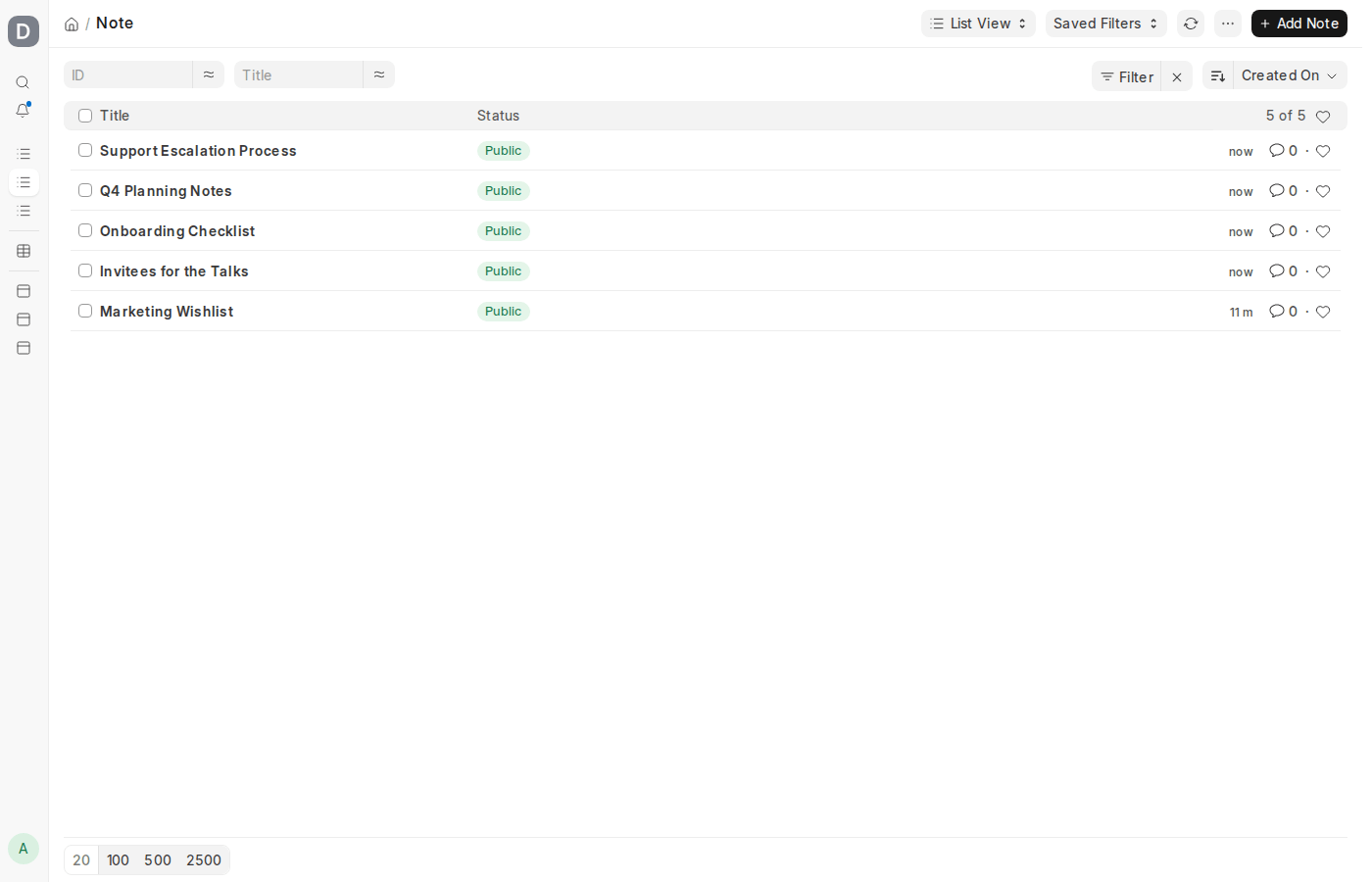
To view Notes, use the search bar at the top of the screen and type “Note”, or go to:
How to Create a New Note
Making a note is fast and simple in ERPNext:
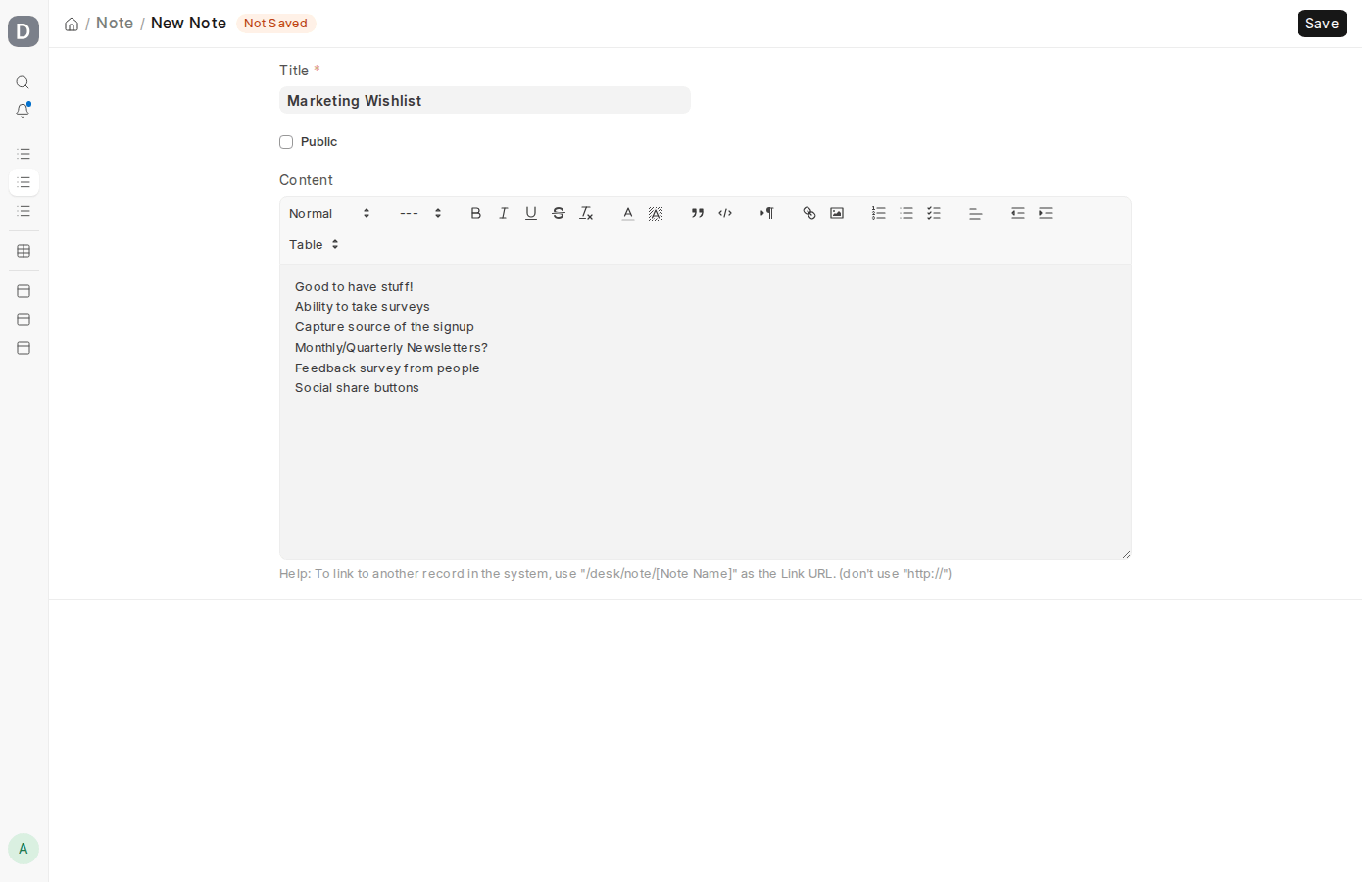
- Navigate to the Note list and hit New.
- Type the Title of your Note. This makes it easy to identify.
- Type the Content of the Note using the integrated rich text editor. The editor includes formatted text, bullet points, images, tables, and links—with the ability to organize content in a logical manner.
- Hit Save.
This is particularly handy for internal documentation, SOPs (Standard Operating Procedures), meeting minutes, or reminders.
Visibility of Notes
ERPNext gives you flexibility regarding who can view your Note:
- You can declare a Note as Public if it must be seen by all users in your ERP system. This comes in handy when broadcasting internal notices, critical updates, or group knowledge articles.
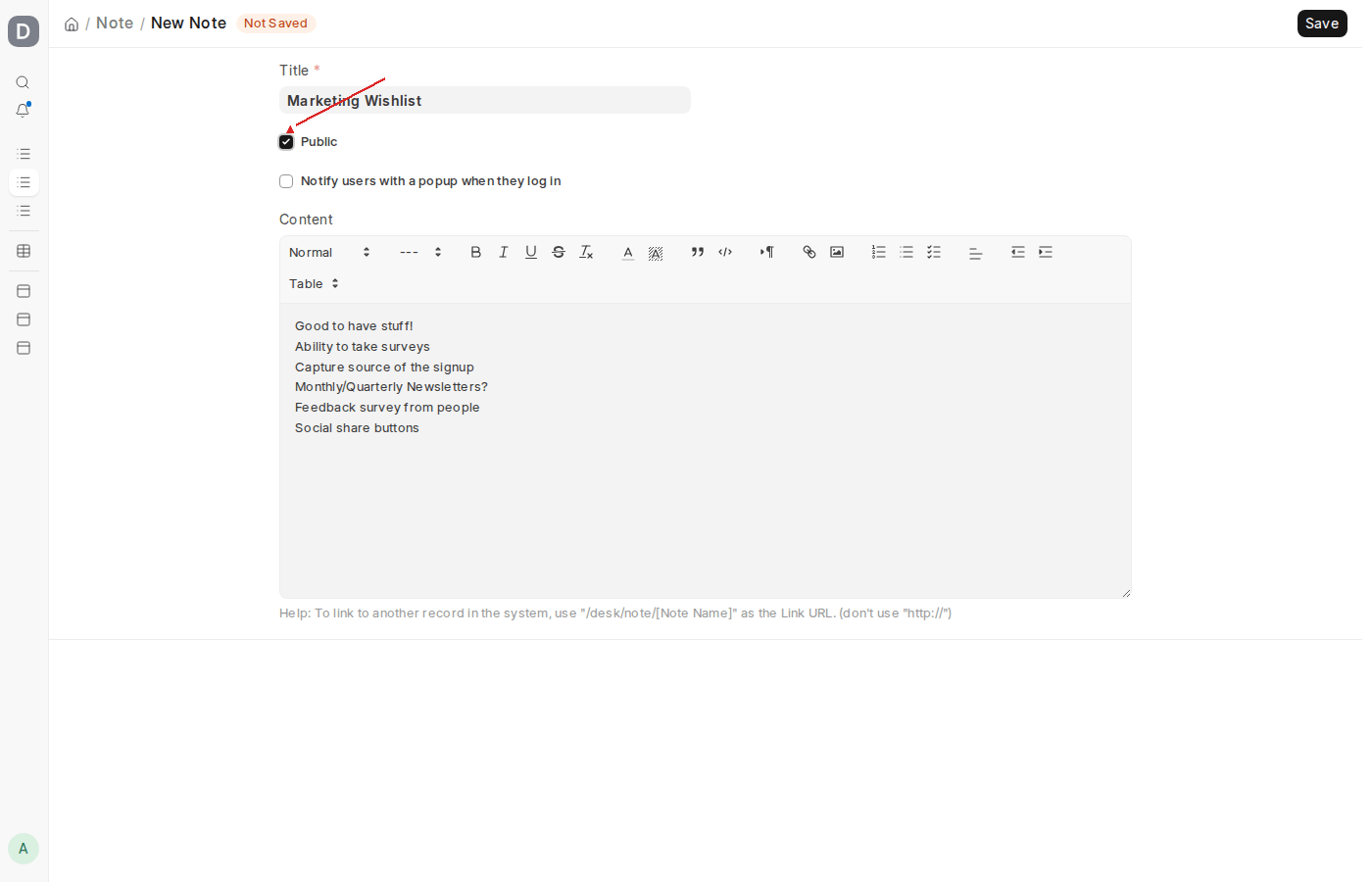
- Once a Note is marked Public, you will also find the option: “Notify users with a popup when they log in”.
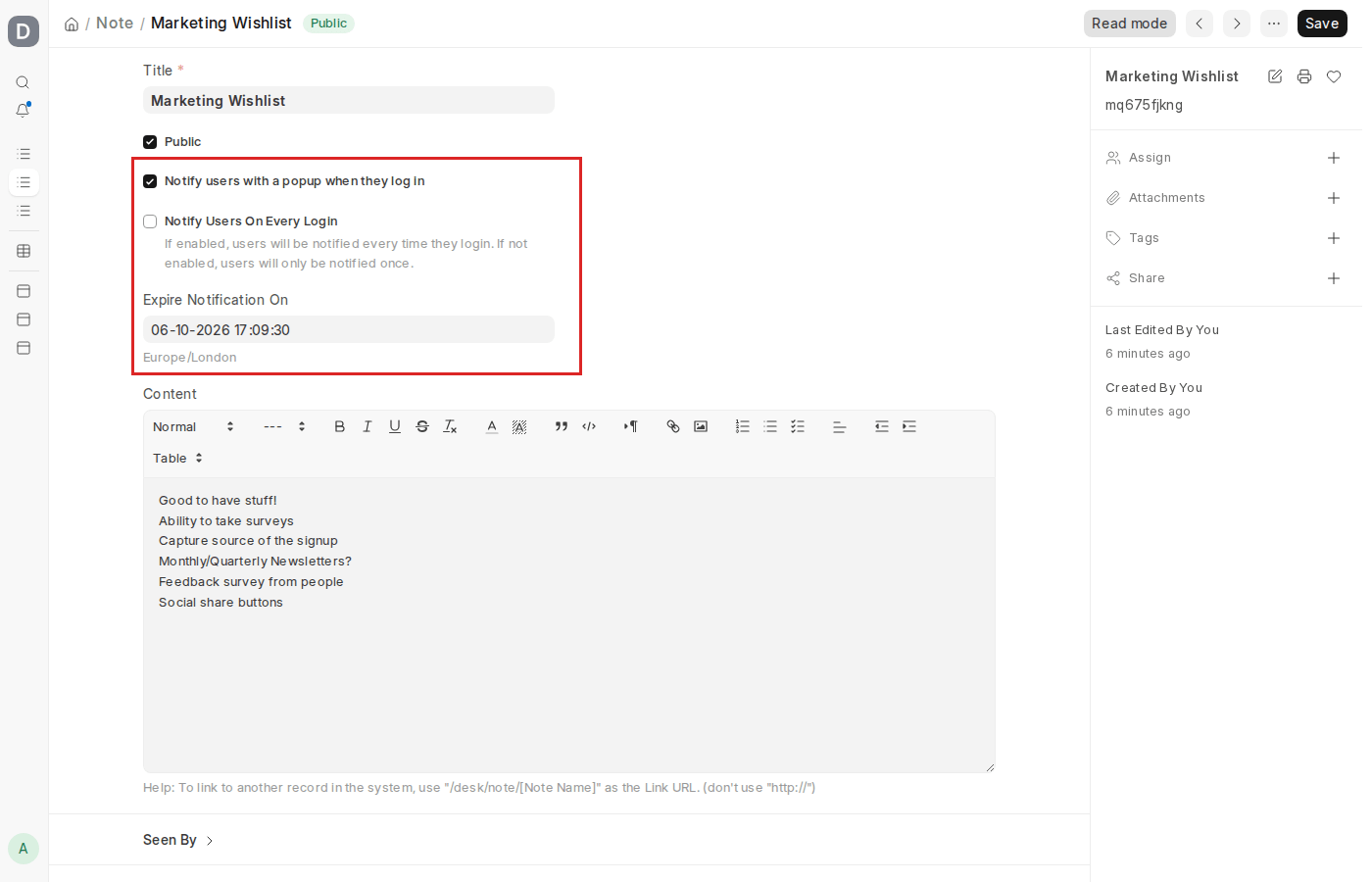
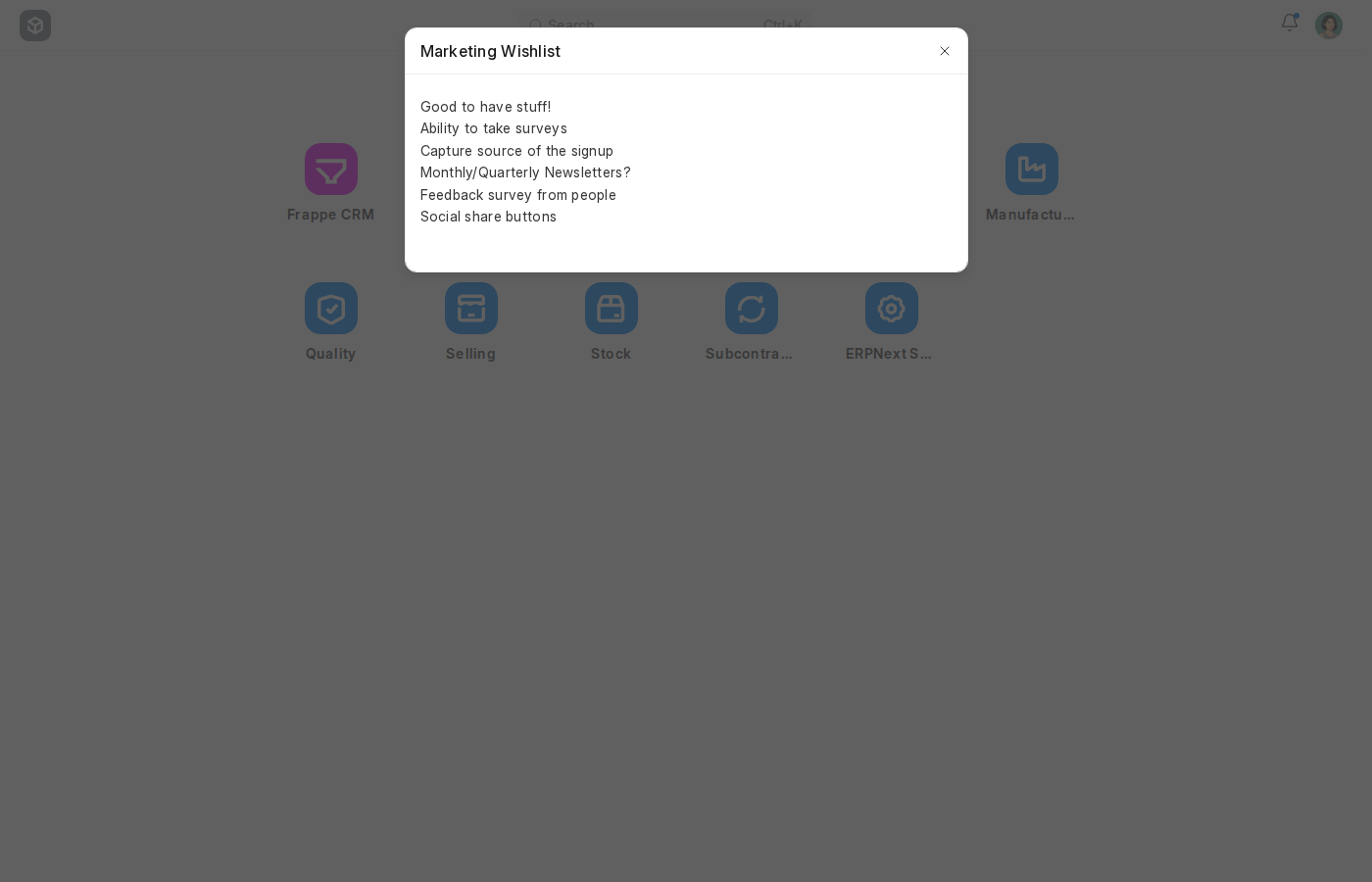
Activating this will show a pop-up with the content of the Note to all users on their next login into their ERPNext account. This is perfect for alerts that need to be time-specific, policy updates, or notifications to users across the system.
Sharing Notes with Specific Users
For even finer control of access to Notes, ERPNext provides powerful user permissions:
- Utilize the “Share” option found in the right sidebar of a Note to determine who can:
- Read the Note
- Write/Edit the Note
- Share it with others
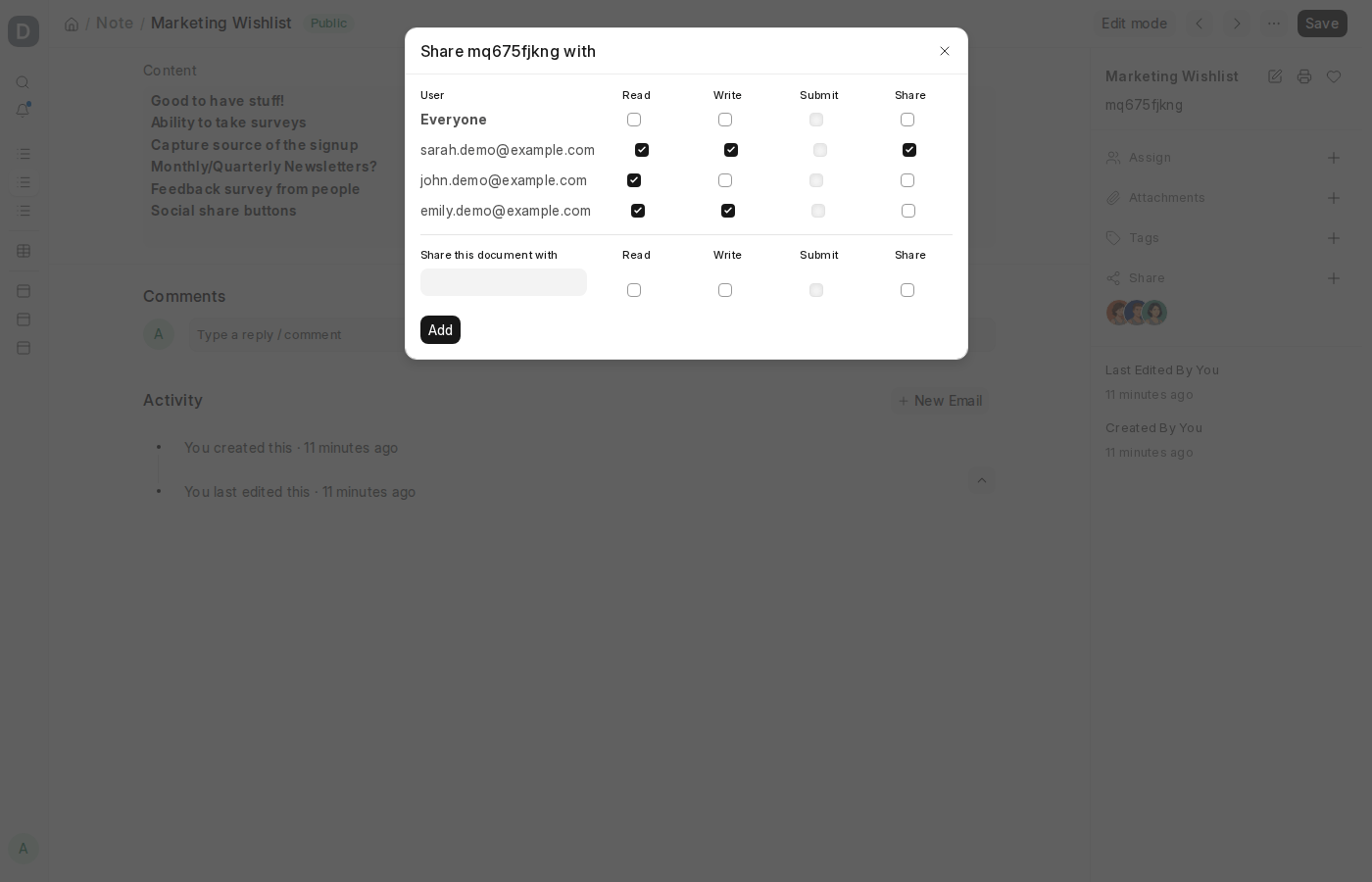
This provides for an open collaboration methodology wherein team members can edit common documentation while limiting visibility of confidential notes to only certain users or roles.
Notification for Notes
If the “Notify on Login” checkbox is checked in a Note (public or shared), ERPNext will display a pop-up notice with the note content whenever the chosen user(s) log in. This feature comes in handy when:
- Emphasizing critical updates
- Displaying reminders
- Notifying policy changes or scheduled maintenance notices