Asset Movement
The Asset Movement module in ERPNext is an important function to monitor real-time relocation or reassignment of assets within your organization. From moving an asset from one place to another, issuing it to staff, to recording the return of the asset, the functionality provides clear audit trails, accountability, and Accurate asset records.
Asset Movement has the following activities:
- Transfer: Transfer an asset from a physical location to another (e.g., from Branch Office to Head Office).
- Issue: Allocate an asset from a location to a particular employee or between employees (e.g., a Laptop issued to a recruit).
- Receipt: Return an asset from an employee to a location (e.g., laptop returned by a departing employee).
This dynamic bookkeeping is particularly beneficial for businesses with travelling workforces, more than one site, or shared tools among departments.
1. Prerequisites
Before creating and using Asset Movement, it is advised to create the following first:
Viewing Asset Movement
You may view or manage asset movement records from:
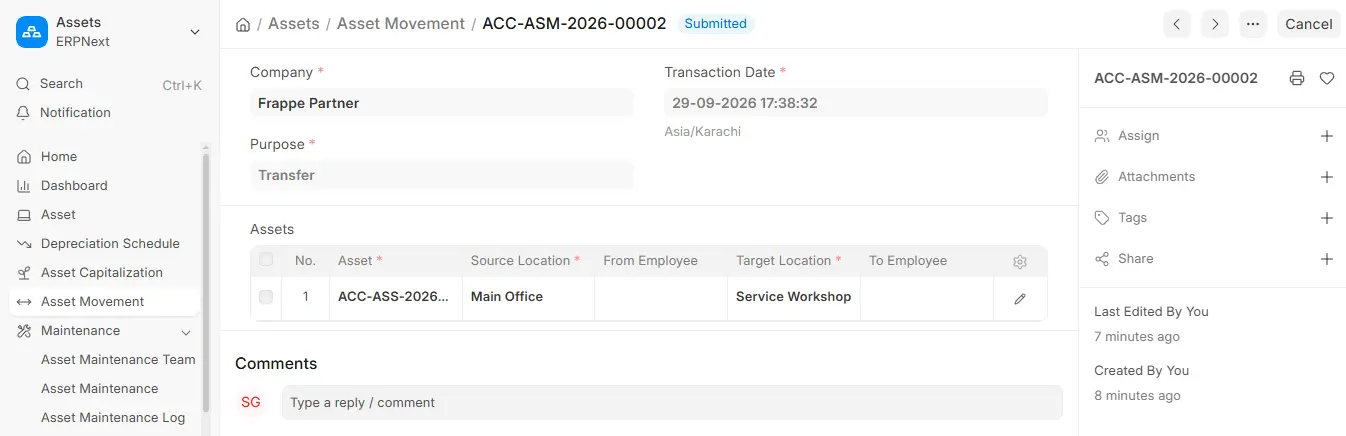
Creating an Asset Movement
To log a new Asset Movement:
- Navigate to Asset Movement list by clicking on Add Asset Movement.
- Choose the Purpose of the movement:
- Transfer: For between-locations movement.
- Issue: To allocate asset to an employee.
- Receipt: To indicate return of an asset from an employee to a location.
- Transfer and Issue: To move an asset to a new location and issue it to an employee in one step.
Based on the type of purpose selected, the other compulsory data such as present location or custodian will be automatically updated.
- Enter the Transaction Date, which is the date when the movement actually took place.
- Choose one or more Assets to be transferred. ERPNext will automatically fill in their current location and custodian.
- You can (optionally) relate the movement to the documents connected with it by selecting:
- Reference Document Type (e.g., Delivery Note, Stock Entry)
- Reference Document Name (e.g., a particular document ID)
- Click Save, then Submit the document to complete the movement.
Bulk Asset Movement
To transfer in bulk a number of assets:
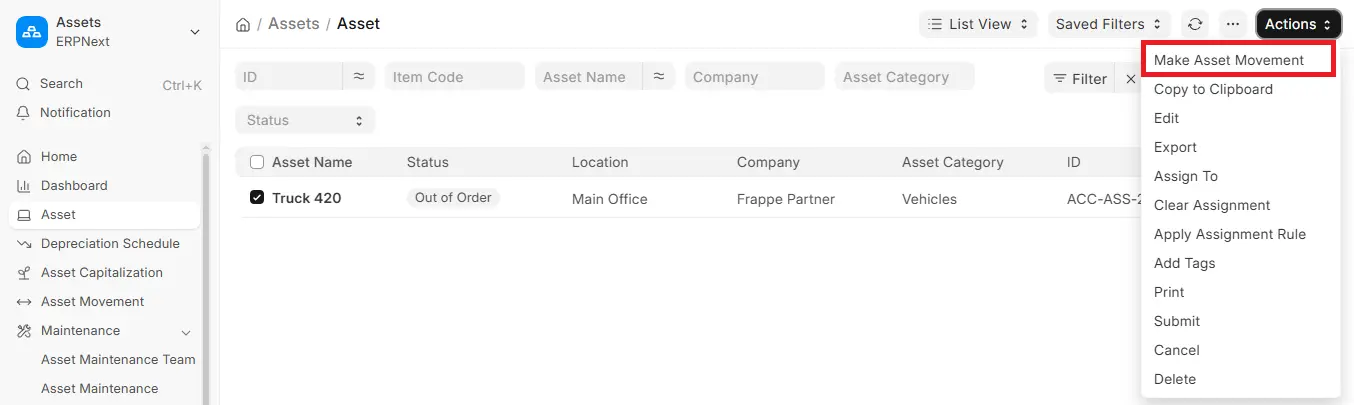
- Go to the Asset List, check mark the assets you want to transfer.
- Open the Actions dropdown at the top-right and choose Make Asset Movement.
- This creates a pre-populated Asset Movement form with all the checked assets listed, avoiding the time wastage of manual inputs.
Quick Asset Transfer from Asset Form
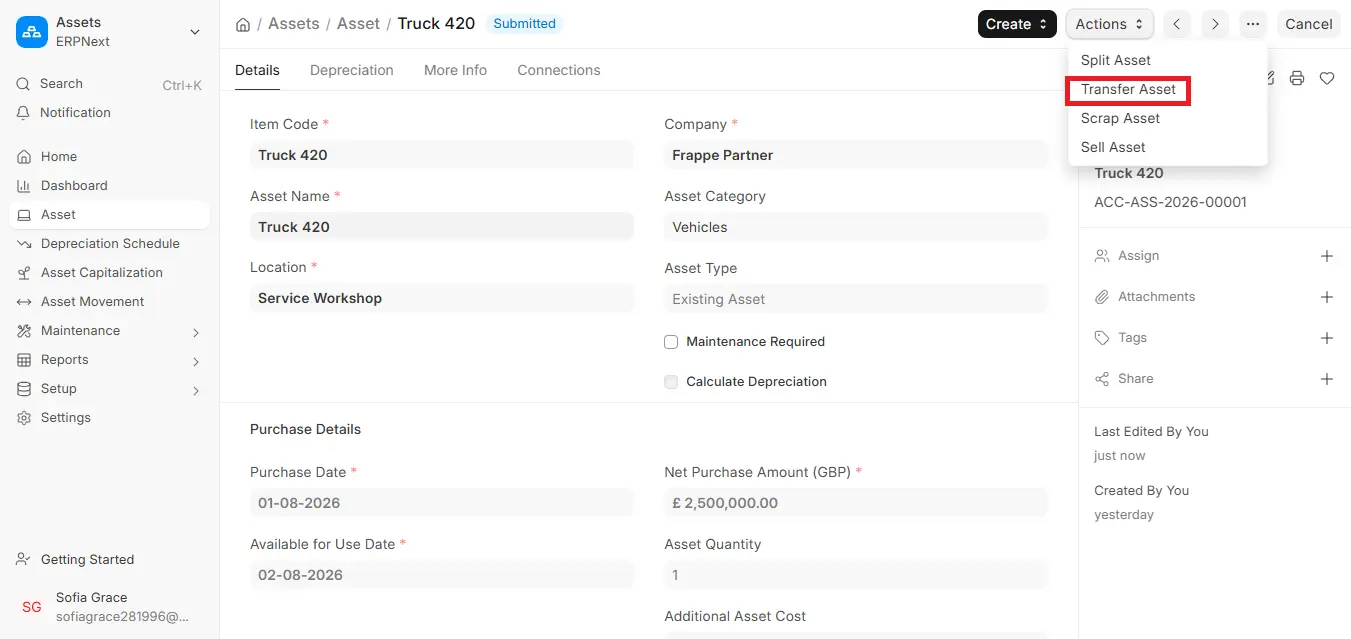
An alternative easy approach is by invoking the Transfer Asset choice under the Actions menu of an individual Asset’s form. This fills the Asset Movement form automatically with appropriate information from the current asset, such as:
- Current Location
- Custodian
- Default purpose (Issue, Transfer, or Receipt depending upon the context)