
BOM Costing in Alternate Currency
In ERPNext, BOM Costing in Alternate Currency can modify the Currency of a Bill of Materials (BOM) before Submission. This feature helps users determine manufacturing expenses in a desired currency corresponding to their purchasing or sales requirements. The material cost is calculated according to the chosen Price List currency or any other available rate source.
The functionality is particularly useful where the materials are purchased in foreign currency, or you want to examine the cost of manufacture in a global pricing perspective.
Scenario Example for BOM Costing in Alternate Currency:
Suppose that you have your business headquarters in the United Kingdom (GBP), and you purchase the plastic granules in Japan, and your supplier charges you in Japanese Yen (JPY). You would like your BOM to display the actual procurement price in JPY.
How to do BOM Costing in Alternate Currency in ERPNext:
- Open the More Info tab of the BOM and expand Cost Configuration. Under Rate Of Materials Based On, select Price List.
- Ensure that the Buying Price List used in these raw materials is set in JPY, e.g. a Price List named Import Japan.
- Set the Currency of the BOM to JPY and check the Conversion Rate to your company currency.
- The item rates established within this Price List will then be utilized to determine the cost within the BOM, shown in JPY.
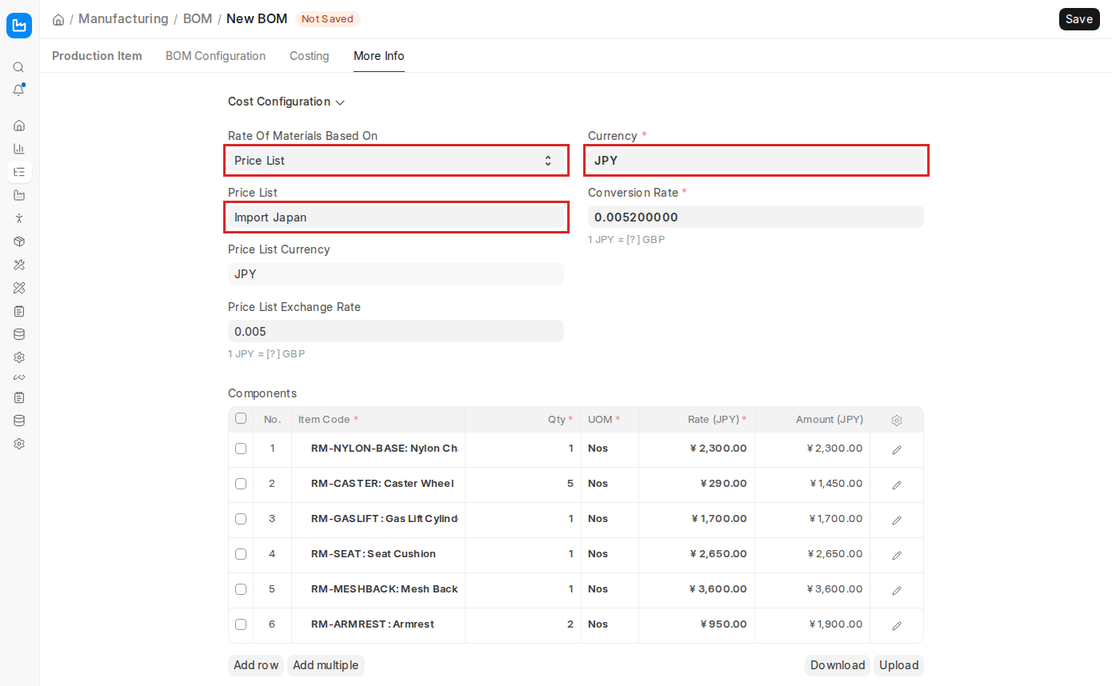
This structure helps to achieve adequate cost representation in circumstances when a foreign supplier is involved and gives an improved cost visibility to decision-making.
Other Rate Source Options ERPNext also enables you to select Valuation Rate or Last Purchase Rate in the field Rate Of Materials Based On. Here’s what each does:
- Valuation Rate: ERPNext pulls the rate from the Item master. It is typically kept in your company’s base currency. When you select an alternate currency in the BOM, ERPNext automatically converts the valuation rate to the selected currency at the system’s exchange rate.
- Last Purchase Rate: This field pulls in the rate from the latest Purchase Invoice for that item. If that invoice was issued in a foreign currency, ERPNext will convert it accordingly using the exchange rate prevailing at the time of calculation.
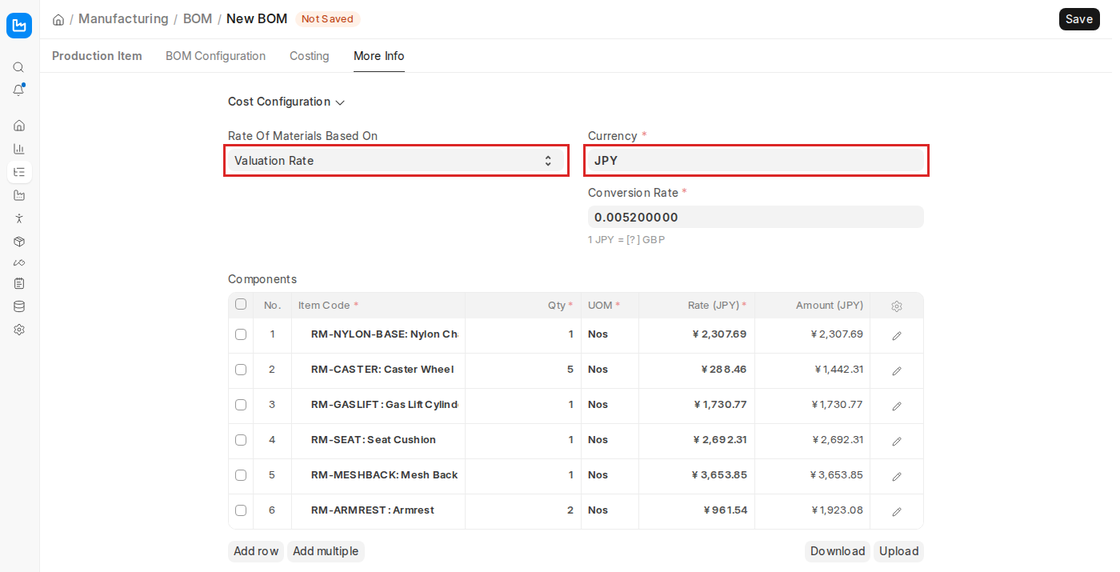
Through enabling costing in multiple currencies, ERPNext allows flexibility in managing multi-currency transactions, particularly in the case of firms involved in international procurement or export-oriented manufacturing.