
Bill of Materials BOM
A Bill of Materials BOM is a list of parts and sub-assemblies with quantities needed to produce an Item. A BOM might also include the manufacturing operations needed to produce the Item.
A Bill of Materials (BOM) is central to the Manufacturing system and the most critical document that will assist in the generation of other document types, such as Work Orders and Job Cards. ERPNext allows multi-level BOMs where you can develop intricate product hierarchies with as many nested sub-assemblies as required. Where a sub-assembly itself contains a BOM, ERPNext interprets it as a new branch in the BOM tree.
BOM is a chart of all materials (purchased or produced) and activities involved in making a finished good or sub-assembly. In ERPNext, every item (sub-assembly) may have its own BOM, thereby creating a tree of Items with various levels. Furthermore, every BOM may define components, operations, secondary items (such as scrap), source warehouses, and cost allocation.
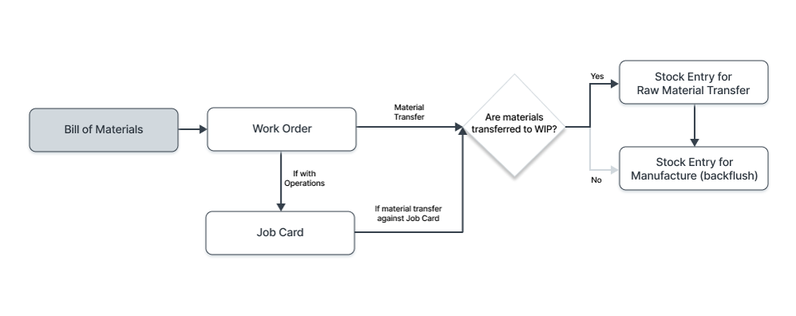
In order to make proper Purchase Requests, you should always have proper BOMs. Proper BOMs make material planning, procurement, and costing rely on real consumption and production structure, reducing stockout and over-stock.
In order to view the BOM list, follow these steps:
Remember that a BOM once submitted cannot be directly edited. To change it, use Actions > New Version on the submitted BOM, which creates an editable copy; make your changes and then submit the new one. You can mark the new BOM as the default version and keep the older BOMs for audit and traceability. Changes after submission are time consuming, since BOM entries refer to Costing, Work Orders, Stock Ledger, and Material Planning modules.
1. Prerequisites
Before generating and utilizing a BOM, it is recommended that you establish the following first:
- Item: Set up finished goods, semi finished, and purchased items with settings such as default unit of measure, item group, valuation method (FIFO, LIFO, Moving Average), and procurement type (Buy, Manufacture, Subcontract).
- Operation: Establish manufacturing steps and, if required, set default operation time and associated workstation.
- Workstation: Set up a workstation or production cell with information such as work hours, capacity, hourly cost rate, holiday schedule, and cost center.
- Routing: Build a collection of common Operations (sequence, time, cost, batch setup) to be reused on multiple BOMs in order to ensure consistency in manufacturing processes.
2. How to Create a Bill of Materials
- Navigate to the Bill of Materials list and then click New.
- Choose the Company and the Item to Manufacture. ERPNext will automatically retrieve the Item name, Unit Of Measure, and currency from the Item master record.
- Specify the Quantity (Output Qty) of the finished Item to be made through this BOM. This quantity will be utilized to calculate costs and plan accordingly.
- In the Components table (on the Production Item tab), specify the raw materials needed:
- Choose the raw material Item used in production.
- Specify the Quantity of raw material needed to produce the BOM quantity.
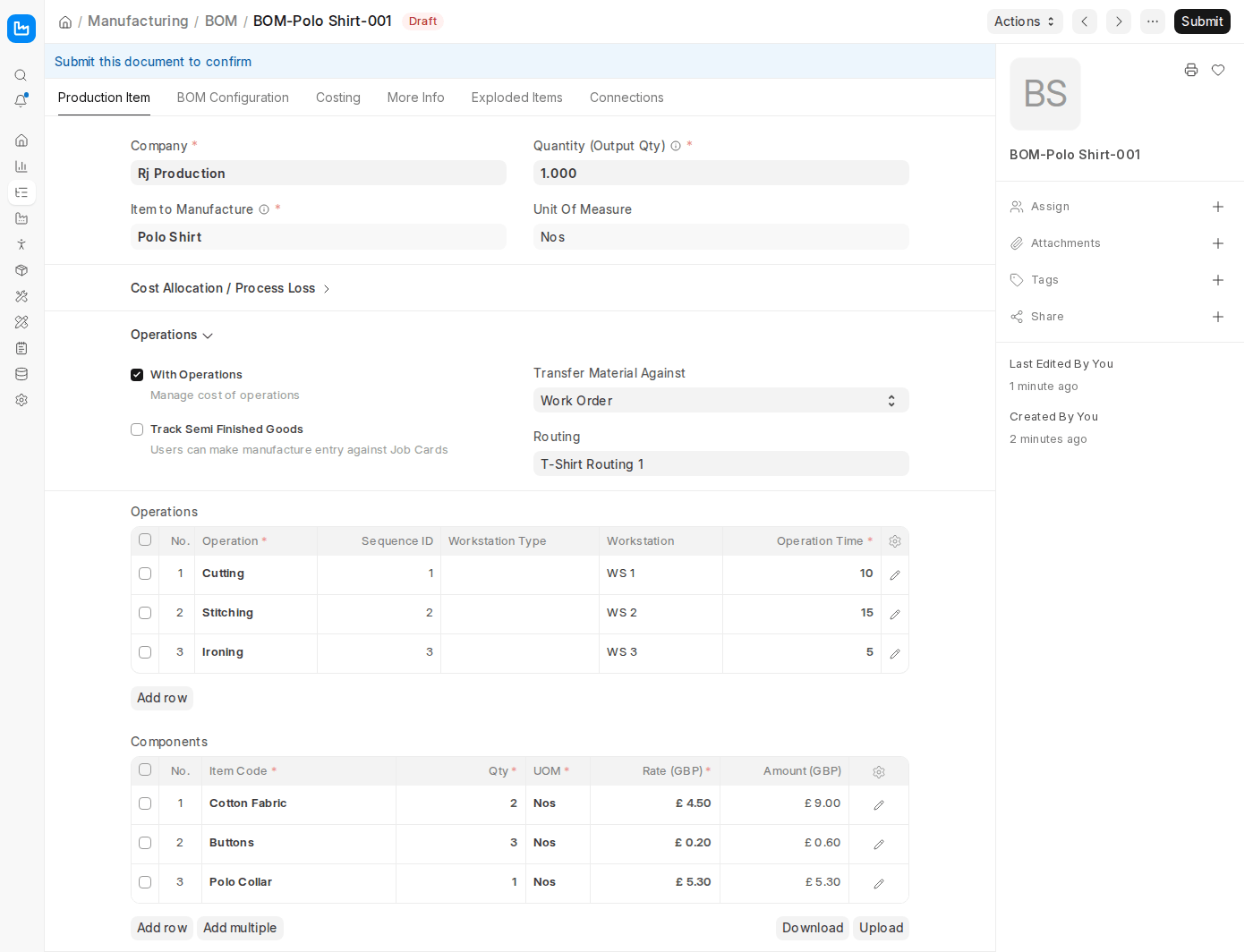
- Set an Item Operation if this material is being used in a particular step of manufacturing. This allows Job Cards to reference precisely which step when it uses up the material.
- If the selected raw material is a sub-assembly with its own default BOM, ERPNext links that BOM in the component’s BOM No field and treats it as a nested structure by default.
- Select the Source Warehouse to specify where the material will be taken from. When left empty, the system will pick up the default warehouse assigned for the Item. In ERPNext v16 you can also set a Default Source Warehouse and Default Target Warehouse for the whole BOM on the BOM Configuration tab.
In ERPNext v16, scrap and other by-products are recorded in the Secondary Items table (this replaces the Scrap Items table of earlier versions):

- Choose the Type of the secondary item: Co-Product, By-Product, Scrap, or Additional Finished Good.
- Choose the Item Code to be produced as a result of manufacturing.
- Input its Quantity.
- If the secondary item has a residual value, enter a Cost Allocation % on its row. ERPNext allocates that percentage of the raw material cost to the secondary item and deducts it from the cost of the finished good. The finished good’s own share is shown as % Cost Allocation in the Cost Allocation / Process Loss section.
- If you anticipate no scrap (100% material use), you can leave this table empty.
- To account for expected loss in production, enter a % Process Loss in the Cost Allocation / Process Loss section (or a Process Loss % on a secondary item row). ERPNext calculates the corresponding Process Loss Qty, reducing the net production quantity.
After entering materials and secondary item information, click Save and then Submit to save the BOM.
After being saved:
- In the Components table, check the Include Item In Manufacturing checkbox for raw materials you wish to consume.
- For Services or non-item expenses (e.g., chemical treatment process), do not check this box. ERPNext will include the expense in manufacturing but will not hold or consume an actual Item from inventory.
2.1 Bill of Materials with Operations
To add operations to your BOM, check the “With Operations” box in the Operations section of the Production Item tab (in earlier versions this was a separate Operations tab). This will make an Operations table visible. This is particularly handy for monitoring the cost and time of different manufacturing stages involved in manufacturing the Item. Operations may be entered directly or imported using a Routing template, maintaining standardization across many BOMs.
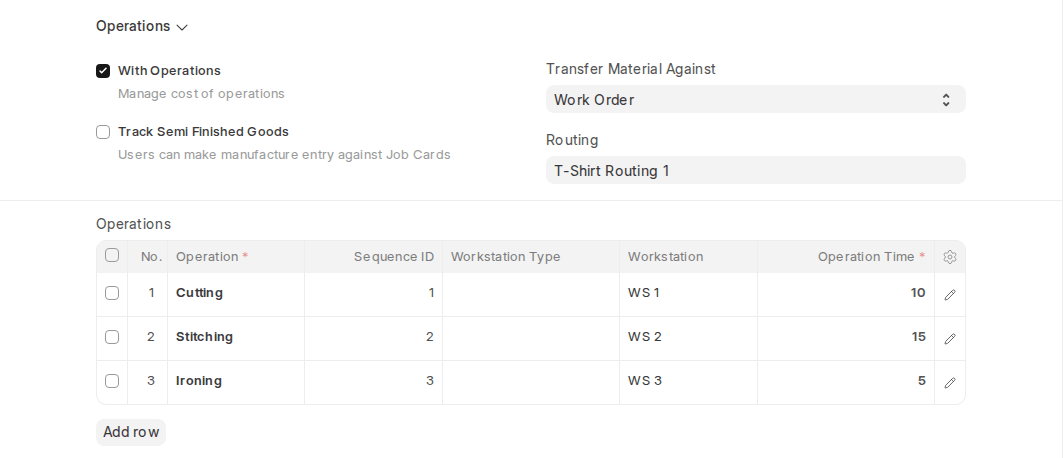
- In the Operations table, insert the steps required to produce this Item. You can either:
- Add each Operation manually, choosing from your existing Operation list, or
- Import from a Routing template, which imports Sequence ID, workstation, times, and rates automatically.
Task
For every operation added:
- Choose a Workstation where this operation is done. ERPNext fills in a default workstation based on the associated Operation document, but you may override it.
- The Hour Rate determines the cost per hour for this operation. It is taken from the Workstation’s Net Hour Rate.
- Enter the Operation Time in minutes, indicating how long the operation takes to process the batch.
- Batch Size, which the operation will be processing. This assists in costing per unit appropriately.
- The Operating Cost of the operation is calculated automatically as Hour Rate × (Operation Time ÷ 60), and the Cost Per Unit as Operating Cost ÷ Batch Size.
- Each operation row has a Sequence ID, inherited from the Routing template (or set manually). This allows Job Card execution to be correctly ordered, and operations will be prevented from being executed out of sequence by the system.
- Workstation Note: Workstations are not utilized for inventory tracking; they are only used for cost calculation and Job Card scheduling. Inventory consumption remains controlled by the Components table and allocated Warehouses.
Material Transfer Preference
- You need to configure Transfer Material Against when utilizing “With Operations.” This controls how raw materials are transferred during manufacturing:
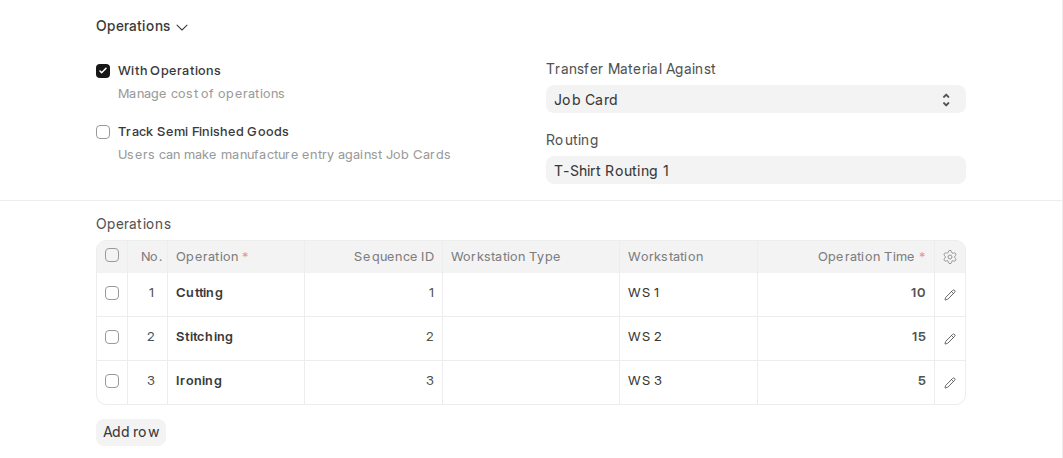
- Work Order: All the necessary materials are booked and shifted once at the beginning of the Work Order.
- Job Card: Materials are being used step by step as each operation’s Job Card is finalized.
- When to use which option:
- Transfer via Work Order is effective for fast, low-cost items with low complexity.
- Transfer via Job Card suits high-value items, multi-step manufacturing, or workflows requiring precise tracking (e.g., traceability, cost visibility per operation, or regulated processes).
The choice depends on parameters like production time, material value, batch complexity, and labor skills.
2.2 Additional options when creating a Bill of Materials
In ERPNext v16, most of these options are on the BOM Configuration tab.
- Is Active: An Item may also be produced by a different set of materials/operations. Uncheck this checkbox then, to inactivate this BOM and use another one instead. Inactive BOMs are excluded from production planning.
- Is Default: This BOM will be the default choice in Work Orders etc. when the Item is chosen.
- Quality Inspection Required: This will make ‘Quality Inspection’ a requirement for the raw material and final product. Choose the Quality Inspection Template after checking this box.
- Allow Alternative Item: Occasionally, in the production of a finished product, materials might not be found. If you check this, then you can create and choose an alternative item from the Item Alternative list. For instance, using plastic beads in place of plastic crystals.
- Set rate of sub-assembly item based on BOM: Activating this checkbox will set the rate of sub assembly items according to their BOMs. Unchecked, the rate will be retrieved from the Valuation Rate of the sub assembly Item.
- Rate Of Materials Based On (on the More Info tab): The Rate of raw materials consumed can be calculated on various parameters:
- Valuation Rate: The Valuation Rate established in the Item master.
- Last Purchase Rate: The Rate is retrieved from the last Purchase Receipt or Purchase Invoice.
- Price List: The Rate will be retrieved from the Item Price in the selected Price List.
3. Features
3.1 BOM Costing
The Costing part of a BOM provides an estimate cost of producing the Item.
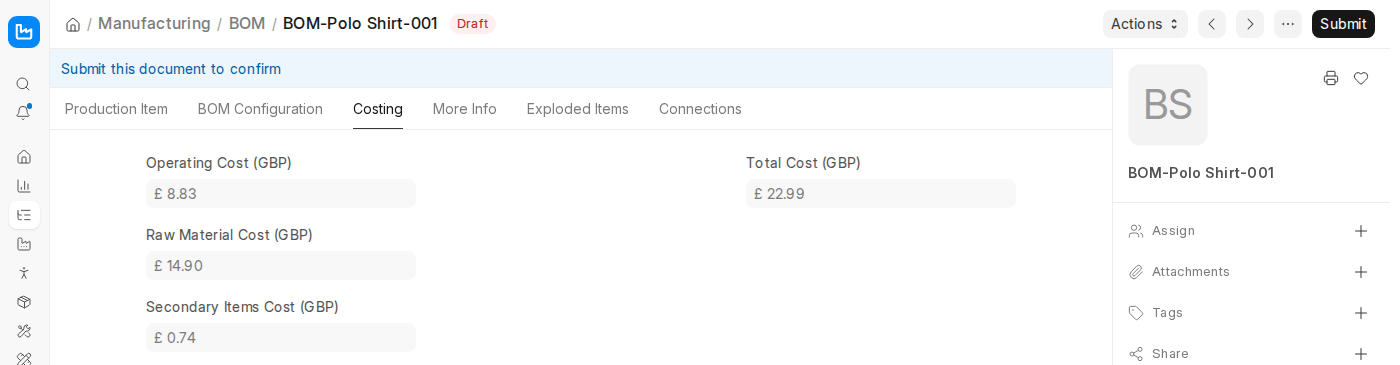
The costing is determined from the Valuation Rate of the raw materials/sub assemblies used and the Operation costs that can be added if With Operations is toggled on. The Total Cost is the Operating Cost plus the Raw Material Cost, minus the Secondary Items Cost.
- If the BOM was entered when the costs for Items/Operations were not refreshed, you can refresh the costs by clicking on Actions > Update Cost. This will retrieve the current price/costs.
- The BOM cost can also be configured to be automatically updated using Manufacturing Settings, via the ‘Update BOM Cost Automatically’ setting.
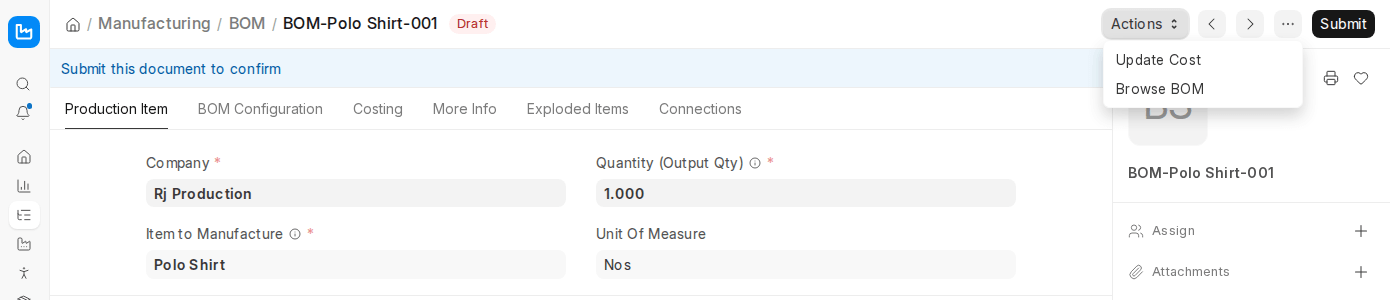
When Update BOM Cost Automatically is enabled, ERPNext refreshes BOM costs automatically once a day, without the need for manual intervention.
3.2 Materials Required (Exploded)
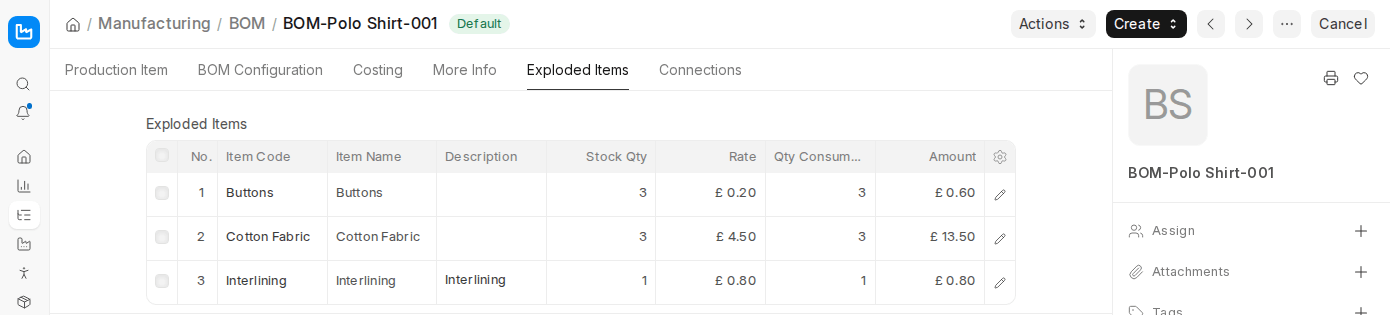
The Exploded Items tab shows all the raw materials needed to produce an Item. It also retrieves raw materials needed for sub-assemblies, as well as their numbers. The non exploded view (the Components table) will not show raw materials for sub-assemblies.
As an example, to produce a plastic shaving brush, you require some raw materials and then the bristles as an assembly. For the handle, you produce your own plastic, but for the bristles, raw plastic crystals are used. In the exploded view, you can see the crystals used for the bristles and the plastic used for the handle, giving a complete picture of total material requirements.
3.2.1 Exclude Exploded Items
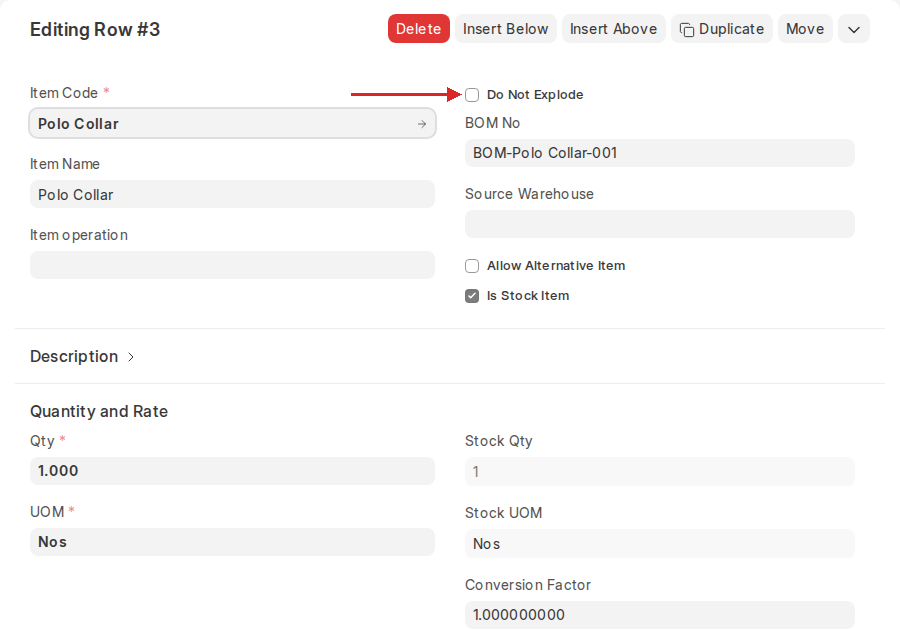
If a user does not wish to include exploded parts for a given sub-assembly in the BOM, they can activate the “Do Not Explode” checkbox on that row of the Components table. This inhibits listing the raw materials of the sub-assembly in individual form in the exploded view but reserves the top-level item quantity.
- This feature is helpful if you prefer BOMs to be brief, particularly for internal or confidential sub-assemblies.
- Internal cost accounting still takes into account the sub-assembly’s material needs unless otherwise set up.
3.3 Project and Website
- Project: The BOM can be associated with a Project (on the More Info tab) to track manufacturing progress, allocate costs, and monitor resources. In engineer-to-order processes, every order could relate to a Project, with sub-assemblies being individual Tasks.
- Website: In earlier versions, a BOM could be published on your website from its Website tab. In ERPNext v16, this tab is no longer shown on the BOM form.
3.4 BOM Template
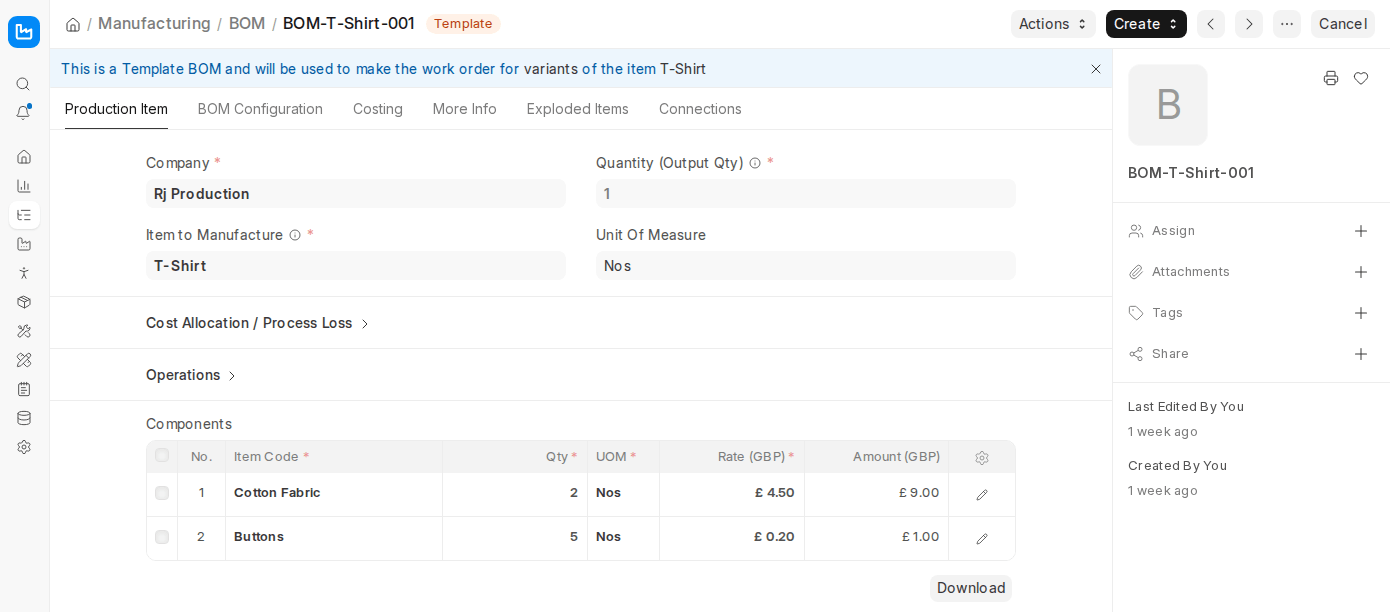
With BOM Template, you are able to build a master BOM for a template Item, which is the foundation used to generate variant Items. Such template BOMs may then be automatically transferred to manufacturing of any variant through Work Orders.
- You can have the template Item itself as a raw material included in the BOM.
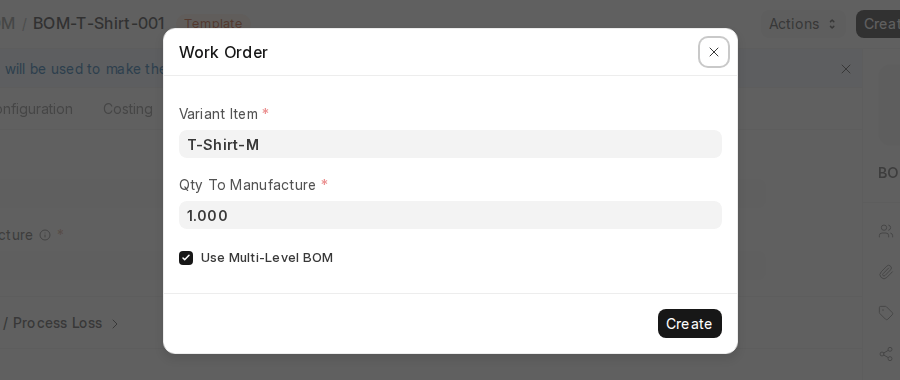
- While generating a Work Order based on a template BOM (Create > Work Order), ERPNext asks you to pick the specific Variant Item, the Qty To Manufacture, and whether to Use Multi-Level BOM.
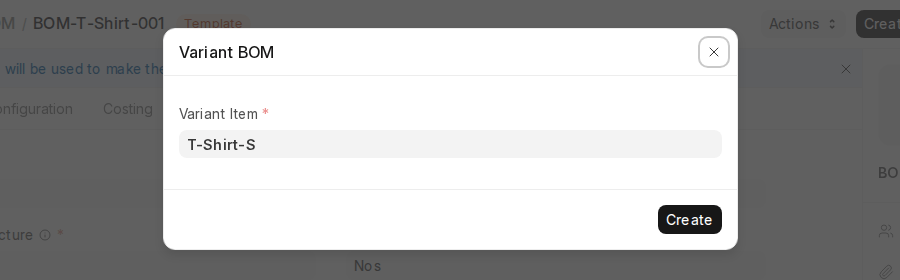
Generate a Variant BOM:
- Go to the BOM Template record.
- Click on the Create button.
- Choose Variant BOM.
- Select the Variant Item for which the BOM is to be generated.
- If one of the raw materials in the BOM happens to be a template Item, you will be asked by the system to enter their Item Variant while finalizing.
3.5 After Submitting
After the BOM is submitted, a Work Order can be created directly from the Create button, and the following linked documents can be viewed or created from the Connections tab:
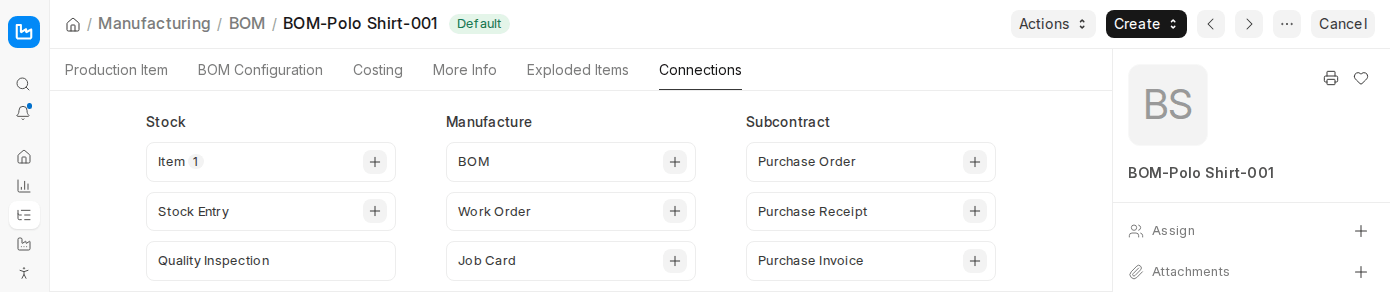
- Work Order – to start the production of the Item with the specified materials and operations in the BOM.
- Job Card – to capture time, workstation consumption, and labour progress on a per-man Operation in the BOM or Routing.
- Stock Entry – to transfer raw materials into Work-in-Progress or post finished goods through “Material Transfer for Manufacture” and “Manufacture” entry types.
- Quality Inspection – to record inspections of materials and finished goods produced against the BOM.
- Purchase Order, Purchase Receipt, and Purchase Invoice – for subcontracted manufacturing that uses this BOM.
These connections on the BOM simplify the Creation process and provide traceability back to the original BOM for costing, planning, and reporting.

