
Credit Note
A Credit Note is the document the Seller gives to the customer, informing him that a credit has been given to his account for goods being returned. It is the reversal of sales either in full or in part.
A Credit Note is created for the amount of goods that have been returned by the customer. It can be equal to the entire invoice amount (if it’s a complete return) or a lesser amount (if it’s a partial return).
1. How to Prepare a Credit Note
A Credit Note can be prepared in either of two ways:
A. From the Sales Invoice (recommended)
- Open the submitted Sales Invoice to be returned.
- Click on Create → Return / Credit Note.
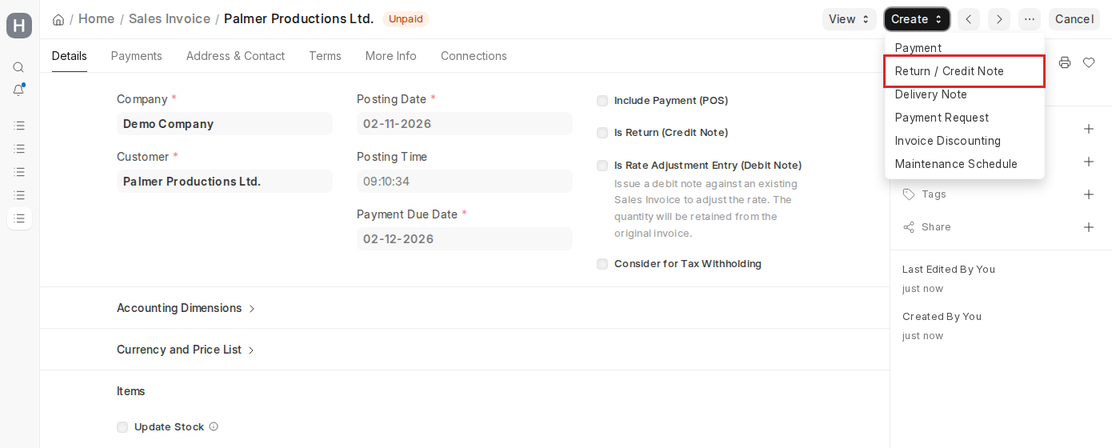
- A new Credit Note document is created, with pre-filled Customer, Item, Quantity, Rate, Taxes, and other information from the original invoice.
- Tweak the item quantities for how many goods are being returned. Insert notes for return reasons (e.g., “Damaged goods returned”).
- Update Outstanding for Self is ticked by default, so the Credit Note keeps its own negative outstanding. If the original invoice is still unpaid, untick it to reduce the outstanding of the original Sales Invoice directly, or reconcile the two later with Payment Reconciliation.
- If the customer has already partially or wholly paid, make a Payment Entry against the Credit Note to refund the amount, or keep the credit and allocate it to future invoices with Payment Reconciliation.
- Save and Submit the Credit Note.
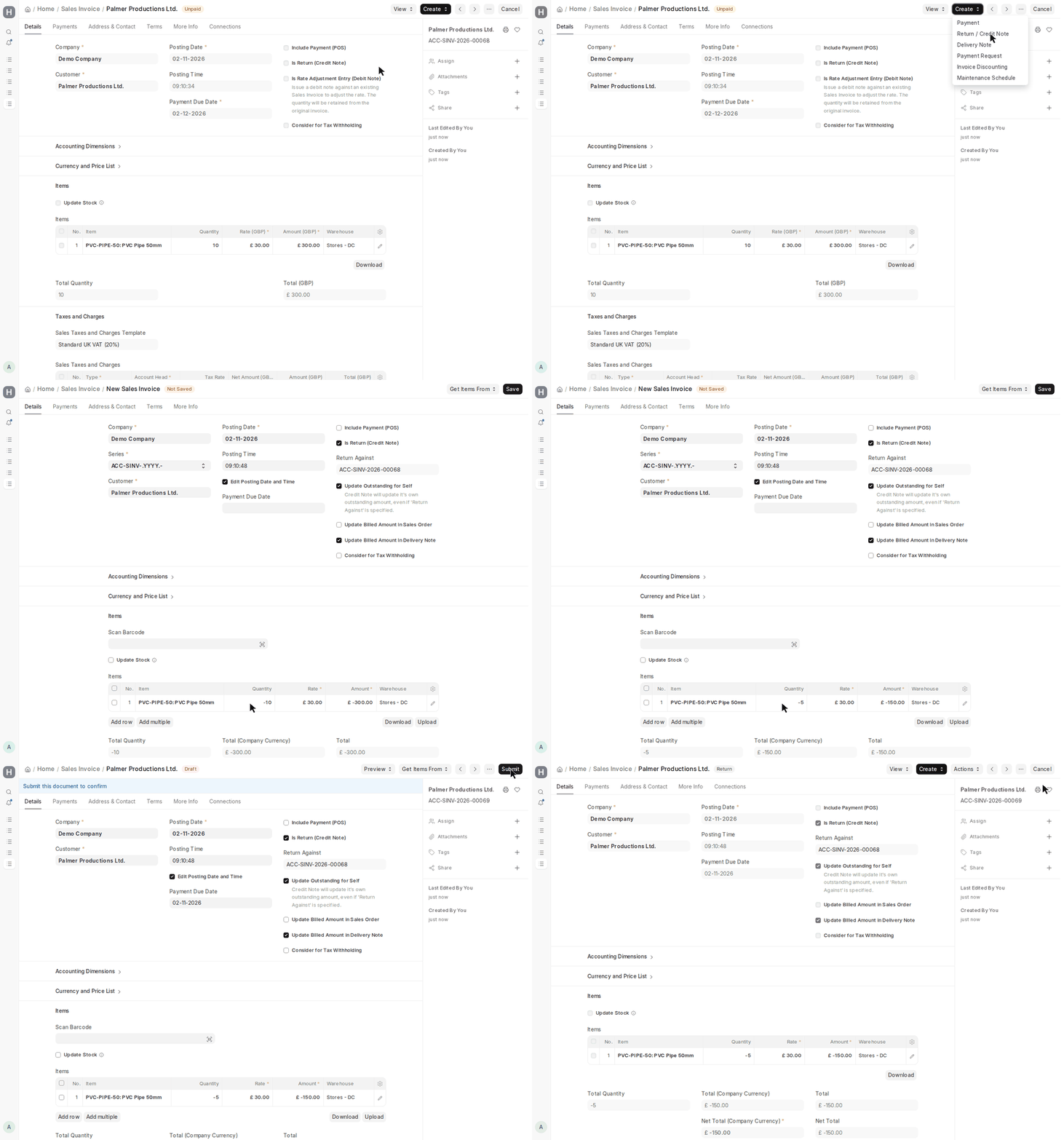
Upon submission, the system reverses the original invoice’s revenue and receivables for the items returned.
B. Create a Credit Note directly (without reference)
It may also be accomplished by generating a new Credit Note, without placing reference to an existing Sales Invoice. Then you will need to manually code the Customer, Items, Quantities and Taxes. ERPNext will subsequently consider it to be negative posting of sales, and deduct both revenue and receivables.
Since the workaround is functional, however, the use of the “Create from Sales Invoice” method is more accurate and appropriate.
2. How Credit Note Impacts Ledger
- The Credit Note undoes the income and receivables that were posted in the original Sales Invoice.
- If already paid by the customer, a Payment Entry (refund) has to be made against the Credit Note to reflect the refund.
- Until it is refunded or reconciled, the credited amount stays as a negative (credit) balance in the customer’s account and can be allocated against subsequent sales invoices of the same customer using Payment Reconciliation.
- The ledger account created by the Credit Note sees to it that revenue, taxes, and inventory (if inventory is accounted for) are adjusted downwards for returned items.
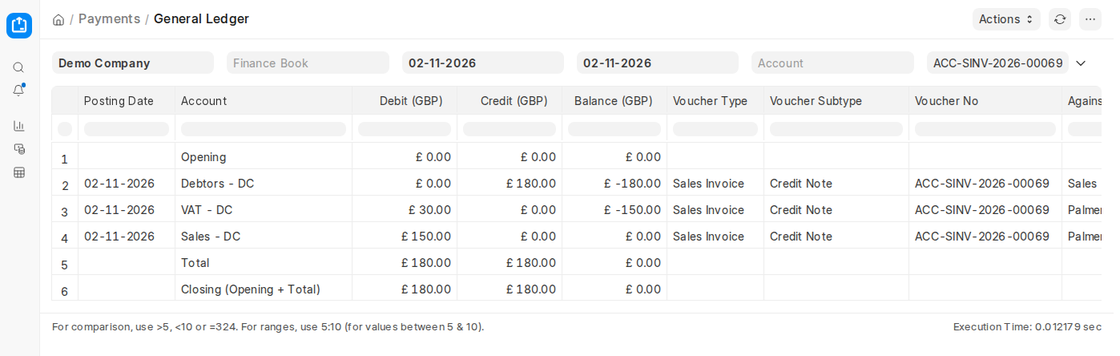
In brief, the Credit Note sees to it that the accounts book properly shows the decrease in income and receivables by reason of returns.
3. No Payment Was Made Against Sales Invoice
If payment has not been made against the original Sales Invoice and all goods are being returned, the simplest thing to do is just cancel the Sales Invoice.
But if one is returning only a portion of the order (e.g., 5 out of 10 items), cancellation is not feasible. In these situations, issuing a Credit Note is the proper method to revise the ledger and lower the amount of receivable while maintaining the validity of the original invoice for the remaining items.
Example:
Customer Palmer Productions Ltd. had bought PVC pipes of GBP 300 along with taxes, as applicable. When the customer received the pipes, it was found that the pipes were damaged. The goods were hence returned, so a Credit Note needs to be prepared.
To post this in ERPNext:
- Go to the Sales Invoice generated against Palmer Productions Ltd.
- Click Create → Return / Credit Note.
- Customer and Item information will be carried over to the Credit Note. Update the quantity of the item to the extent of returned goods. Make remarks like “Damaged PVC pipes returned.”
- If Palmer Productions Ltd. had already made payment for the Sales Invoice, make a Payment Entry against the Credit Note for the refund, or keep the credit for future invoices.
- Save and Submit the Credit Note.
After submission, ERPNext will:
- Deduct the sales revenue and accounts receivable for the returned goods.
- Update stock quantities if inventory is activated.
- Post the credited amount to Palmer Productions Ltd.’s account, which can be applied to subsequent purchases or refunded.