
Currency Exchange
In ERPNext, Users can define and save manual exchange rates between currencies by using the Currency Exchange form. ERPNext automatically pulls current exchange rates from the web, but companies have the option to use their own fixed rates for certain transactions. This is particularly helpful in areas where official or agreed rates deviate from the market or when dealing with contracts that call for locked-in rates.
ERPNext first looks for a saved rate in the Currency Exchange list (the latest one on or before the transaction date) before fetching a rate automatically. The “Allow Stale Exchange Rates” option in Accounts Settings (enabled by default) lets ERPNext use a saved rate however old it is; if you disable it, rates older than the Stale Days setting are ignored. The date, from currency, to currency and exchange rate must be specified for each entry. Sales, purchases, and accounting entries involving multi-currency Conversions then make use of these manual rates.
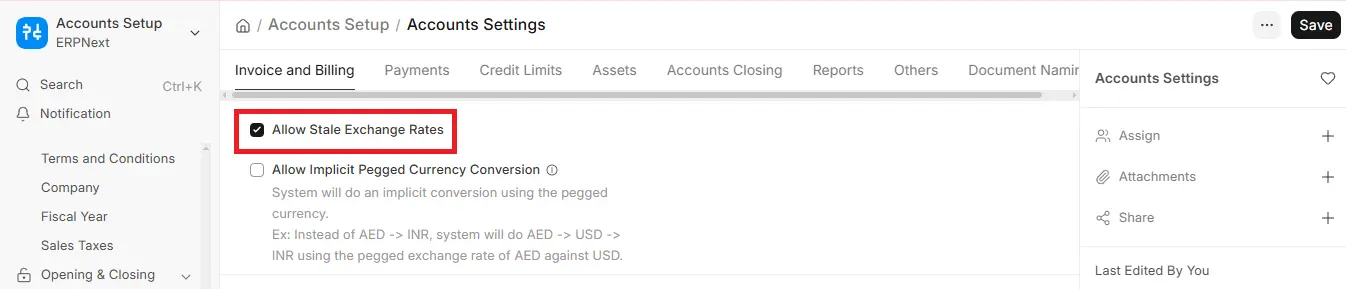
To access the Currency Exchange list, go to:
1. How To Create A Currency Exchange
1.1. Go to the Currency Exchange List and Click on New
Click the “Add Currency Exchange” button after opening the Currency Exchange list. This will open a new form where you can manually specify the exchange rate and currency pair.
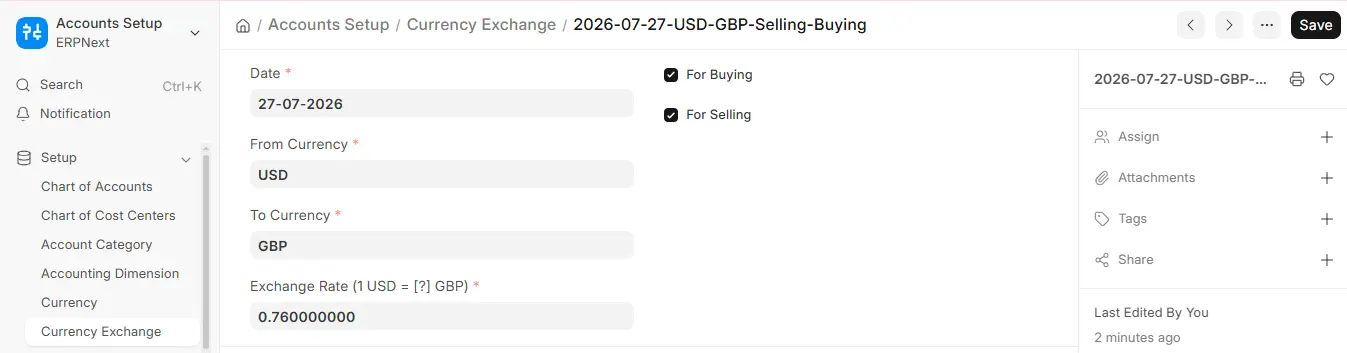
1.2. Enter the start date of this exchange rate’s validity.
Select the date that this rate should begin to apply in the Date field. After this date, ERPNext will process transactions automatically using the most recent applicable rate.
1.3. Set the From and To currency
The base currency, USD (U.S. Dollar), should be entered in the From Currency field. The currency you are converting to is GBP (British Pound), so enter it in the To Currency field.
1.4. Enter the Exchange Rate, e.g., 1 USD = 0.76 GBP.
Enter the precise conversion in the Exchange Rate field, such as 0.76 if 1 USD is equivalent to 0.76 GBP. This implies that this manual rate will be used to convert any USD transaction to GBP.
1.5. Decide if the exchange rate is applicable for buying, selling, or both.
Tick For Selling if this rate should be applied when you are selling products or services, and For Buying if it pertains to purchases. Both are ticked by default, so the rate applies to all kinds of transactions.
1.6. Select “Save.”
Click the Save button after entering all the information. As of the designated date, the exchange rate is now saved and will be applied to pertinent transactions.

