Drop Ship
Drop shipping is a Technique of supply chain management whereby the retailer does not hold stock in goods but sends the customer order and shipment information to either the manufacturer, another retailer, or a wholesaler, who sends the goods directly to the customer.
Drop shipping can also happen when a small store (which usually sells in small lots to the public) gets one huge order for a product.
The store can have the merchandise shipped directly to the customer from the distributor or manufacturer. Drop shipping is typical with high-cost products. No inventory is held by the store in either situation, merely serving as a go-between. In this article, we will observe how ERPNext gives a smooth drop-shipping experience.
Let’s consider a company that has to do business with computer monitors. Now, the shopkeeper has taken an order from a customer, ABC Inc., for 1000 Dell 24 inch monitors.
Drop Shipping In Action:
1. Item Configuration
- Set up the item with the required details. Untick Maintain Stock if you never hold this item in your own warehouse.
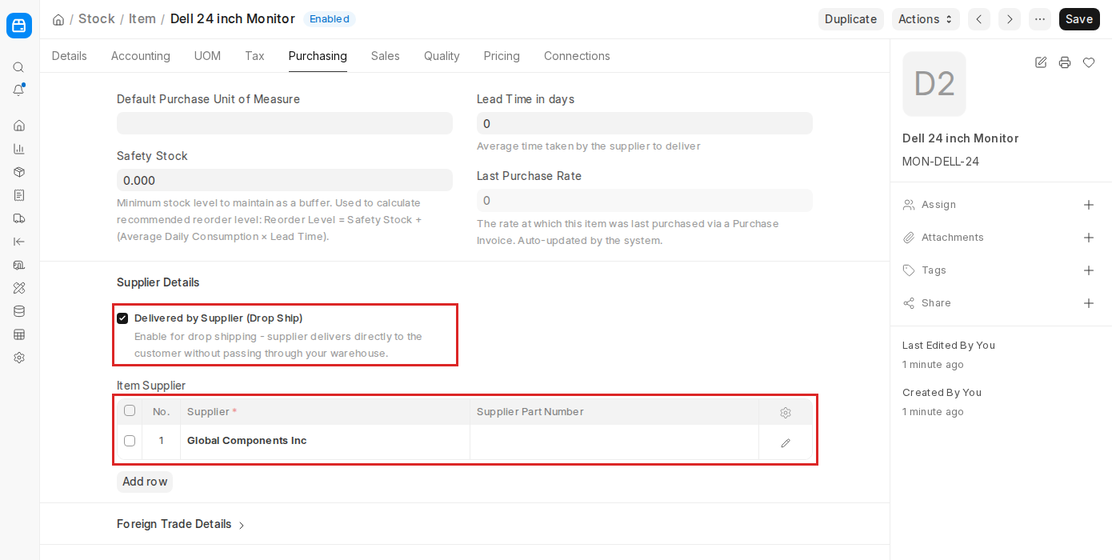
- Then, on the Purchasing tab, enable “Delivered by Supplier (Drop Ship)”.
- Add the supplier with whom the purchase order will be placed in the Item Supplier table (or set the Default Supplier on the Item Defaults).
2. Sales Cycle:
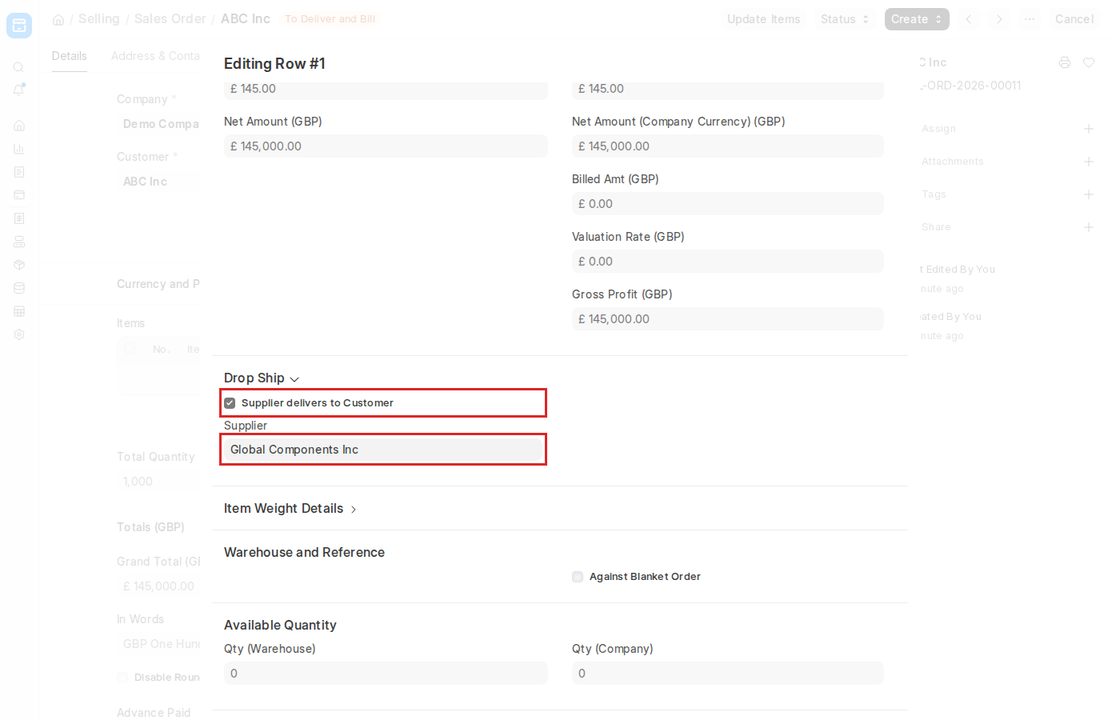
- Create Sales Order with Customer, Item, Qty, Rate, Taxes and so on. For a drop ship item, the Drop Ship section of the item row has Supplier delivers to Customer ticked and the Supplier filled in.
3. Order Fulfillment:
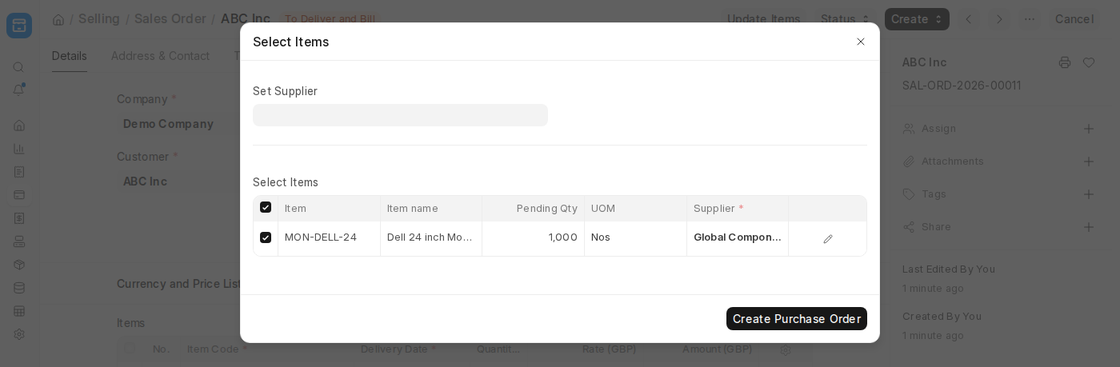
- From the submitted Sales Order, click Create > Purchase Order. In the Select Items dialog, check the items and supplier and click Create Purchase Order. The Purchase Order carries the customer’s shipping address, so the supplier ships directly to the customer.
- When the supplier has shipped the goods, click Status > Deliver (Dropship) on the Purchase Order; the delivered quantity is updated on the Sales Order. Then bill the customer with a Sales Invoice.