
Multi level BOM Creator
The Multi level BOM Creator provides the user with an efficient method to generate multi-level Bill of Materials (BOMs) through one screen, based on the level of complexity of assembly structure, due to the visualization and management of all levels of sub-assemblies and components in one place.
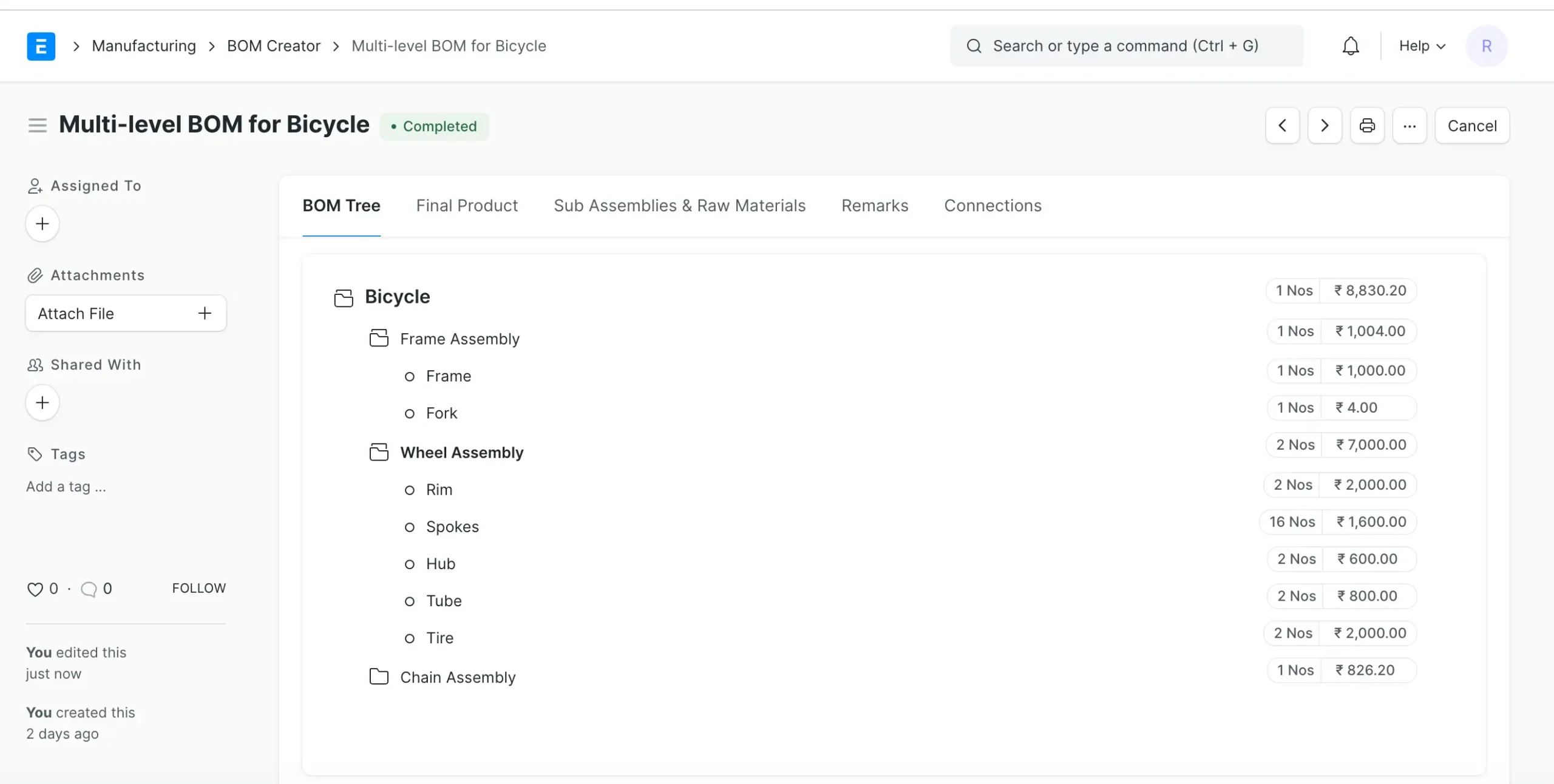
Why use the Multi level BOM Creator?
Users generally face difficulties while creating multi-level BOMs on the default BOM screen of ERPNext. Conventionally, users have to first develop individual BOMs for each sub-assembly item and then define the BOM of the final product. This manual process leads to a lot of back and forth among various forms of the BOM, which is prone to making errors and making the process slower.
Also, the default BOM view fails to give a proper visualization of the entire BOM hierarchy, and hence it becomes challenging to realize how all the components are interconnected—particularly in big or intricate manufacturing installations.
To address these concerns, ERPNext brings in the Multi level BOM Creator. This tool incorporates the whole BOM creation process into a single form. Employing a tree-based structure, users can construct the whole component hierarchy—including raw materials and nested sub-assemblies—without changing between different screens. This creates a more efficient, intuitive, and accurate BOM creation process.
Here’s how it works:
- Select the Final Product and Save the Record The user starts by choosing the end product upon which the multi-level BOM has to be generated. After selection, the record needs to be saved in order to move ahead.
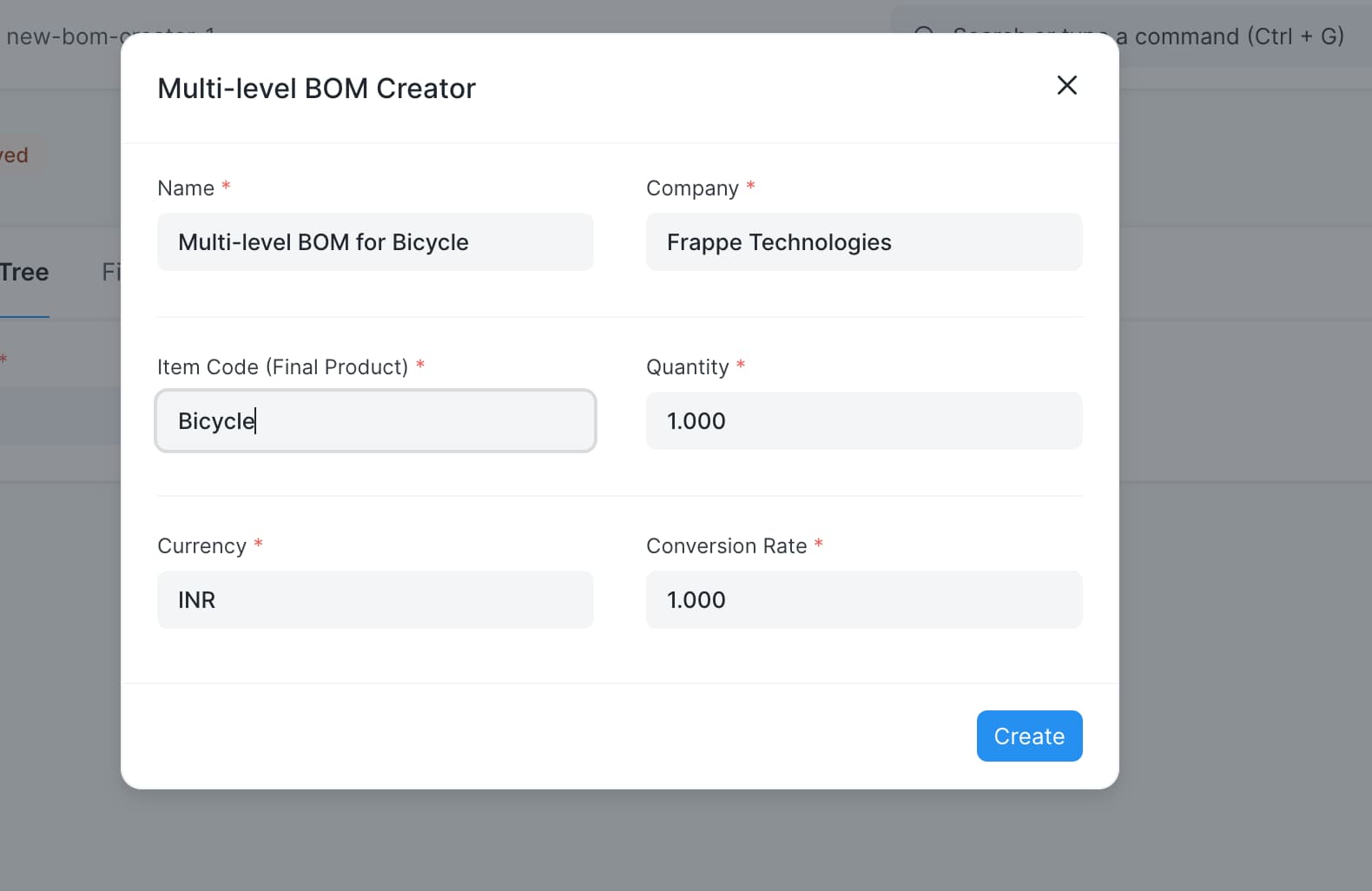
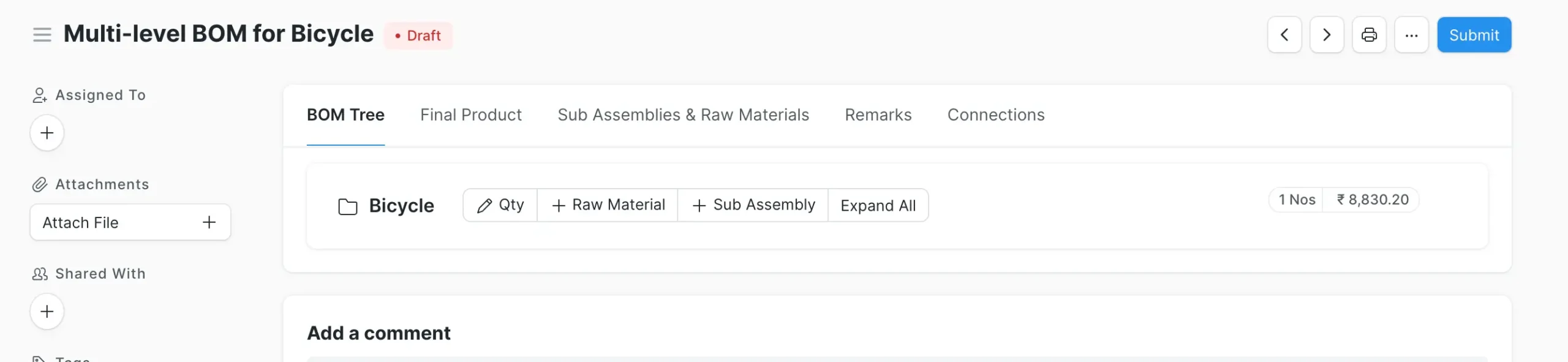
- Add Raw Materials and Sub-assembly Items Under the form, users are able to insert both raw materials and sub-assembly items specifically associated with the end product. The items are organized within the tree component so that users can see the assembly hierarchy and sub-assembly hierarchy clearly. In v16 each node has + Raw Material, + Sub Assembly and + Phantom Item buttons.
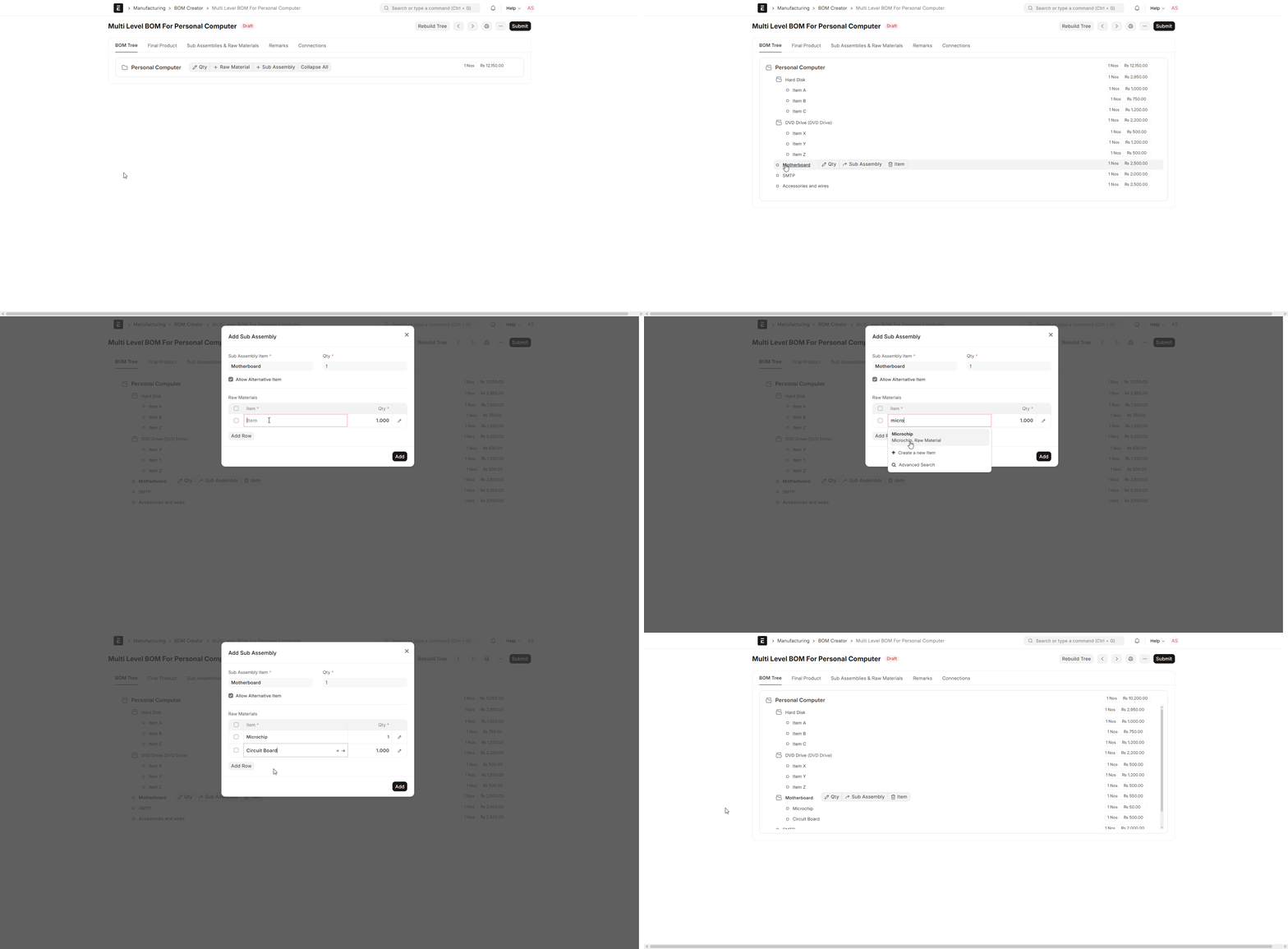
- Make Raw Materials Sub-assemblies If a user wishes to make a raw material into a sub-assembly (i.e., an item which will in turn have a BOM), they can merely click on the item in the tree and utilize the “Sub Assembly” button (with the move icon) shown on that item. The “Phantom Item” button next to it converts the item into a phantom item instead. This makes the chosen item into a node which can now take its own child items, creating a nested BOM.
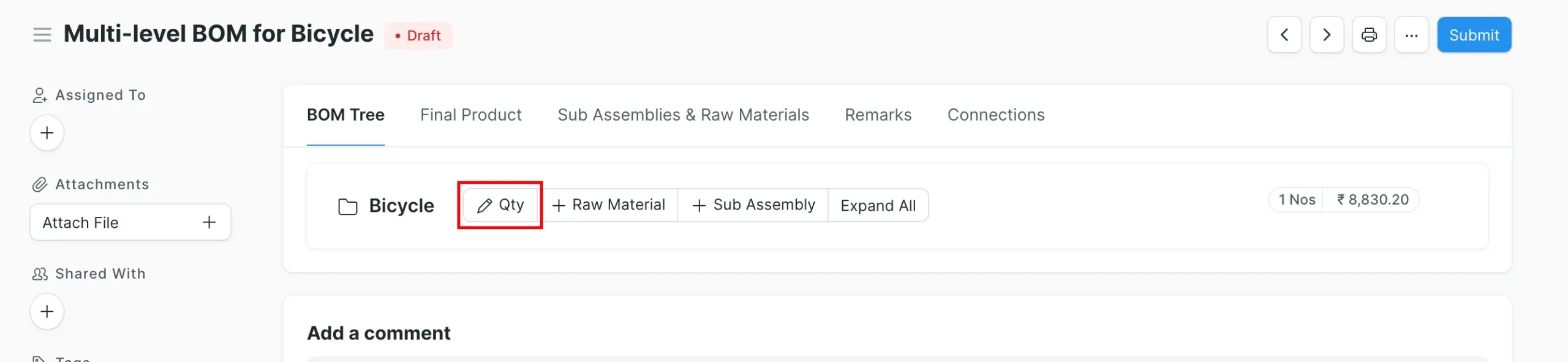
- Modify Quantity as Needed Users can specify or edit the quantity of every item in the structure directly in the tree component: click the BOM (edit) button on a node, change the Qty in the Edit BOM dialog and click Update. Quantities may be varied at any level according to the manufacturing needs.
Final Step
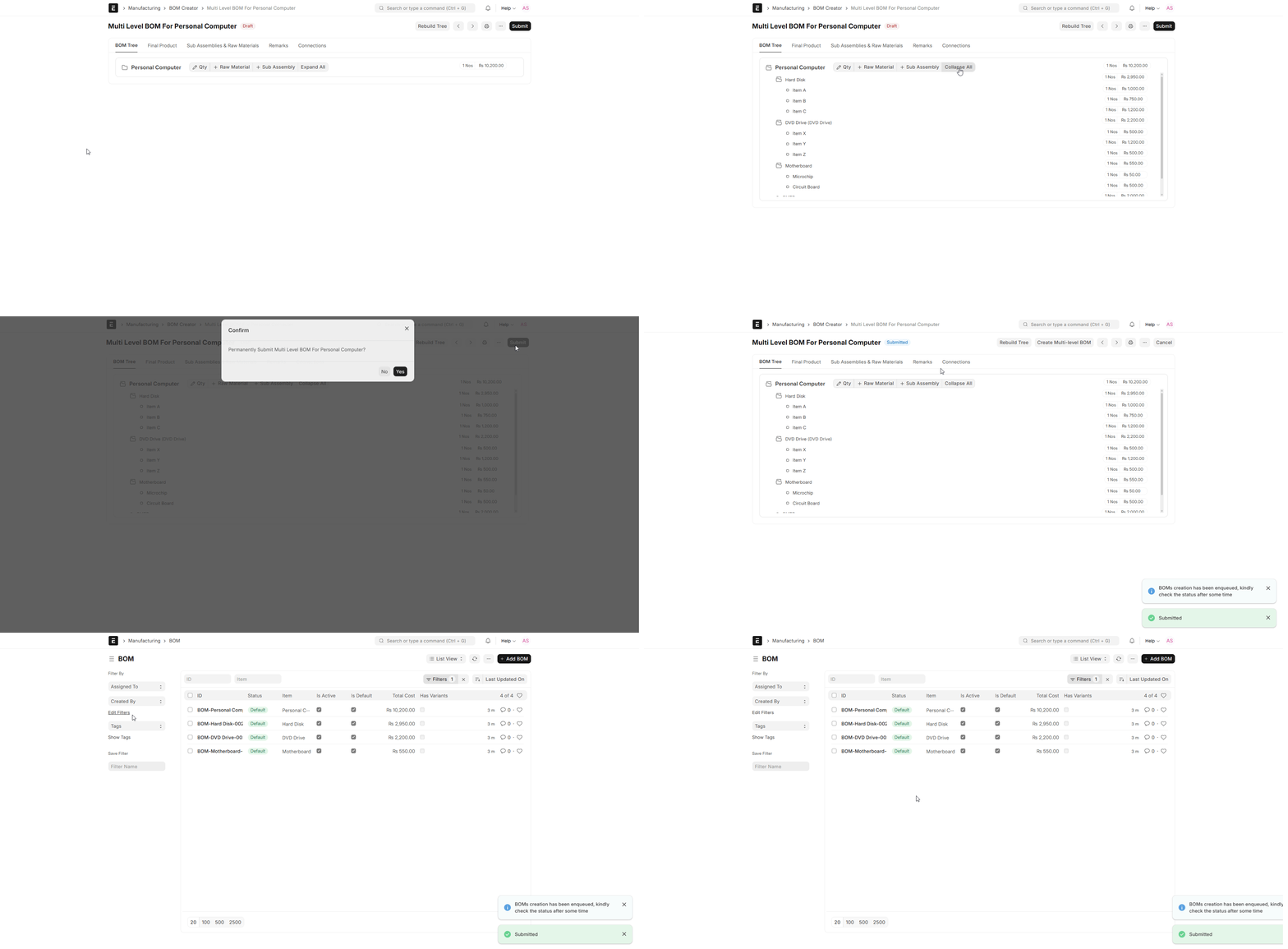
After building the multi-level structure of the BOM through the tree interface, the user submits the BOM Creator form. The system then initiates a background job that builds all the BOMs- of the final product and each of the sub-assemblies- based on the hierarchical structure defined in the tree.
This method simplifies the BOM Creation process, eliminates manual intervention, enhances data precision, and provides an overall picture of the whole production framework.

