
Opportunity
An Opportunity is a qualified lead — a potential deal in which there is an evident interest on the part of the lead or customer in your service or product.
If you recognize that a lead is looking for a product or service you provide, you can convert the lead to an opportunity. This Action allows you to monitor potential revenue, outline requirements, and drive the deal through the pipeline of sales. You can also create an opportunity against an existing customer directly if the deal is not coming from a new lead. ERPNext also allows you to keep multiple opportunities for one lead or customer, and you can track various deals separately.
To open the Opportunity list, go to:
1. How to Create an Opportunity
- Move to the Opportunity list and click on New.
- In Opportunity From, choose Lead if the opportunity is associated with a lead.
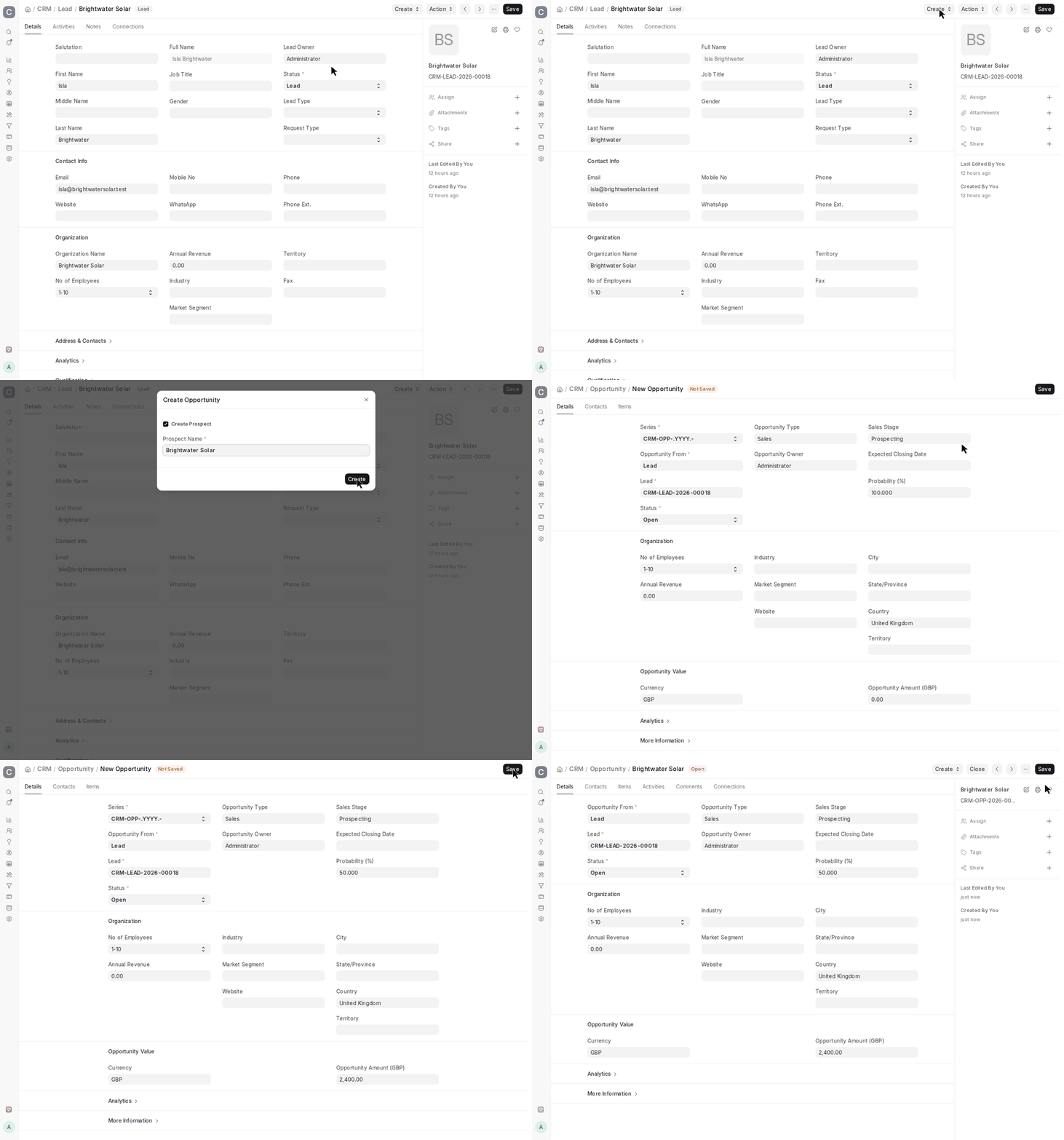
Alternatively, visit a lead with Open status and choose Opportunity from the Create dropdown. This will autopopulate the lead information into the opportunity form.
3. Choose the client from the Opportunity From drop-down menu if the opportunity is associated with an existing client.
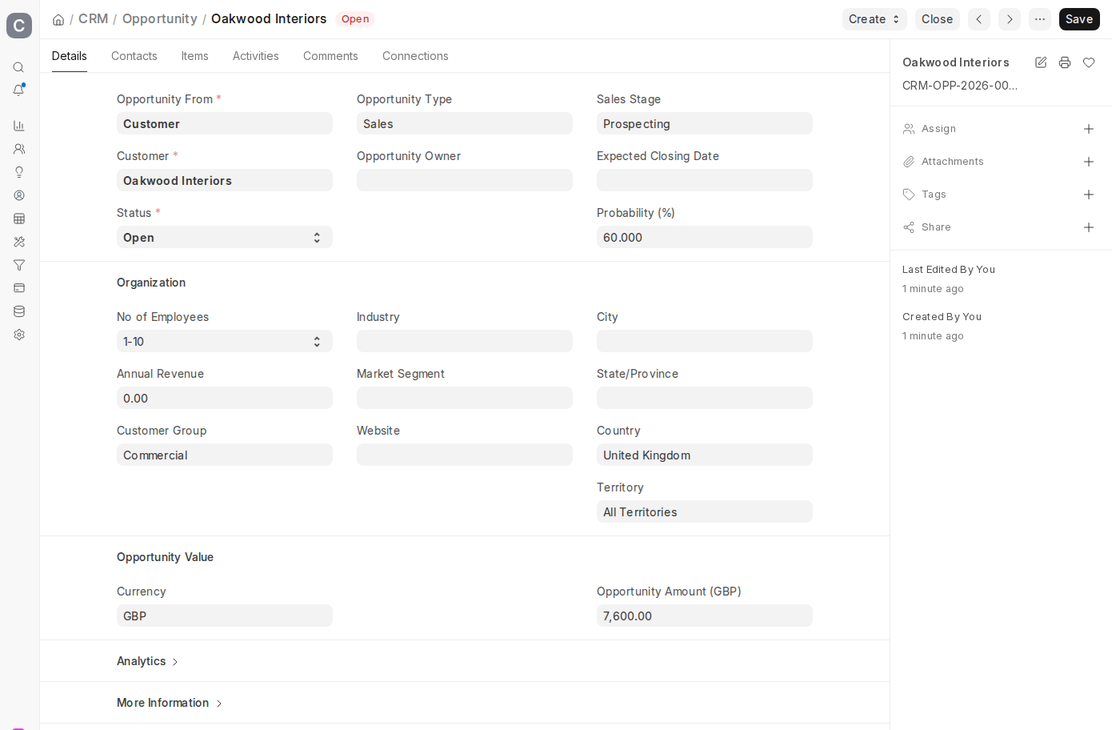
- Select the Opportunity Type—Sales, Support, Maintenance, or any other type you have configured in your system—to display the general group. Sorting and reporting are made simpler as a result.
- In the Sales section, include details such as:
- Opportunity Amount — the estimated value of the deal.
- Probability — the likelihood (in %) that this opportunity will convert into a sale.
- Currency — currency for which the value of the deal is calculated.
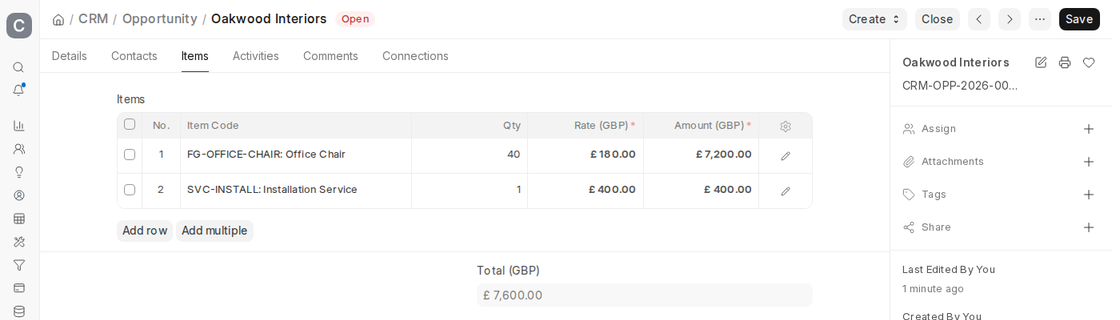
- If the opportunity involves particular products or services, open the Items tab and add each item, its quantity, and unit of measure in the Items table. ERPNext will also enable you to drag items from your item master, and price rules will apply automatically where appropriate.
- In the field Source, write down the origin out of which the opportunity was generated i.e. Website Inquiry, Referral, Advertisement or any other special source.
- After the file has been saved, you can already track the opportunity and place it in your pipeline.
2. Features
2.1 Follow-up Reminder on Opportunities
Regular follow-up is the way to advance an opportunity toward closure. In ERPNext v16, open the Activities tab of the Opportunity and click New Event or New Task to plan a follow-up. The event is linked to the Opportunity and appears on the Calendar of the assigned user, so the follow-up is not missed.
2.2 Auto-assign Opportunities to Sales Executives
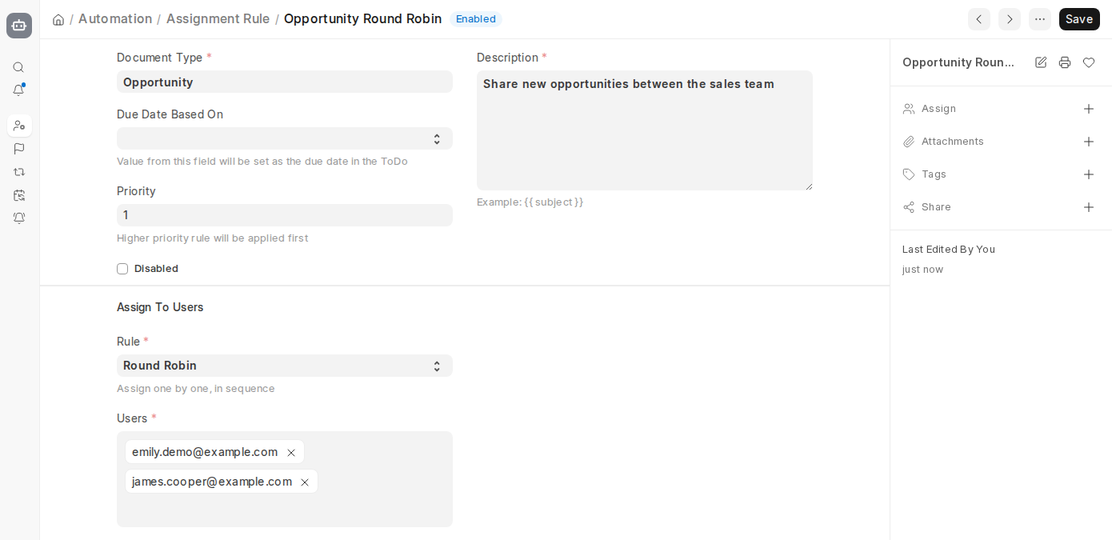
You may create Assignment Rules to automatically assign opportunities to appropriate sales executives depending on factors like territory, lead source, opportunity type, or value. This ensures timely handling and workload distribution in a balanced manner among the sales team. Logs for assignment are kept for auditing and tracking purposes.
2.3 Auto-close Opportunities
ERPNext allows you auto-closing stale opportunities in order to keep the sales pipeline clean and realistic. Opportunities with the status Replied are closed automatically after the number of days set in Close Replied Opportunity After Days in CRM Settings (15 by default). This avoids pipeline inflation and maintains reports correct.

2.4 Create a Quotation
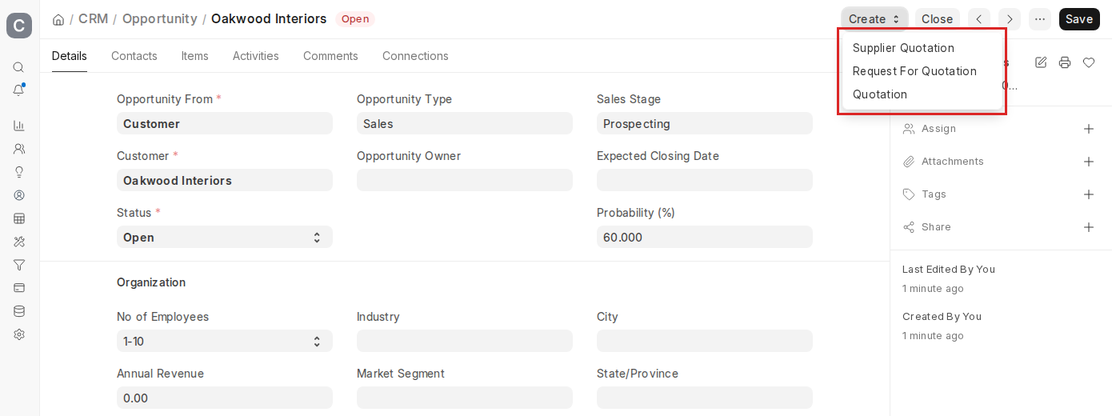
Directly from the Create dropdown in the Opportunity, you can create a Quotation. Customer details, items, and quantities all get automatically inherited from the Opportunity. This provides speed and accuracy in translating opportunities into finalized proposals.
2.5 Create a Supplier Quotation
If you must obtain products or services from a supplier prior to quoting your customer, you can generate a Supplier Quotation from the Opportunity. The item specifications and details transfer easily, enabling procurement teams to ask for and compare supplier quotes prior to generating the customer-facing quotation.
2.6 Record the Reasons and Competitors for Lost Opportunities
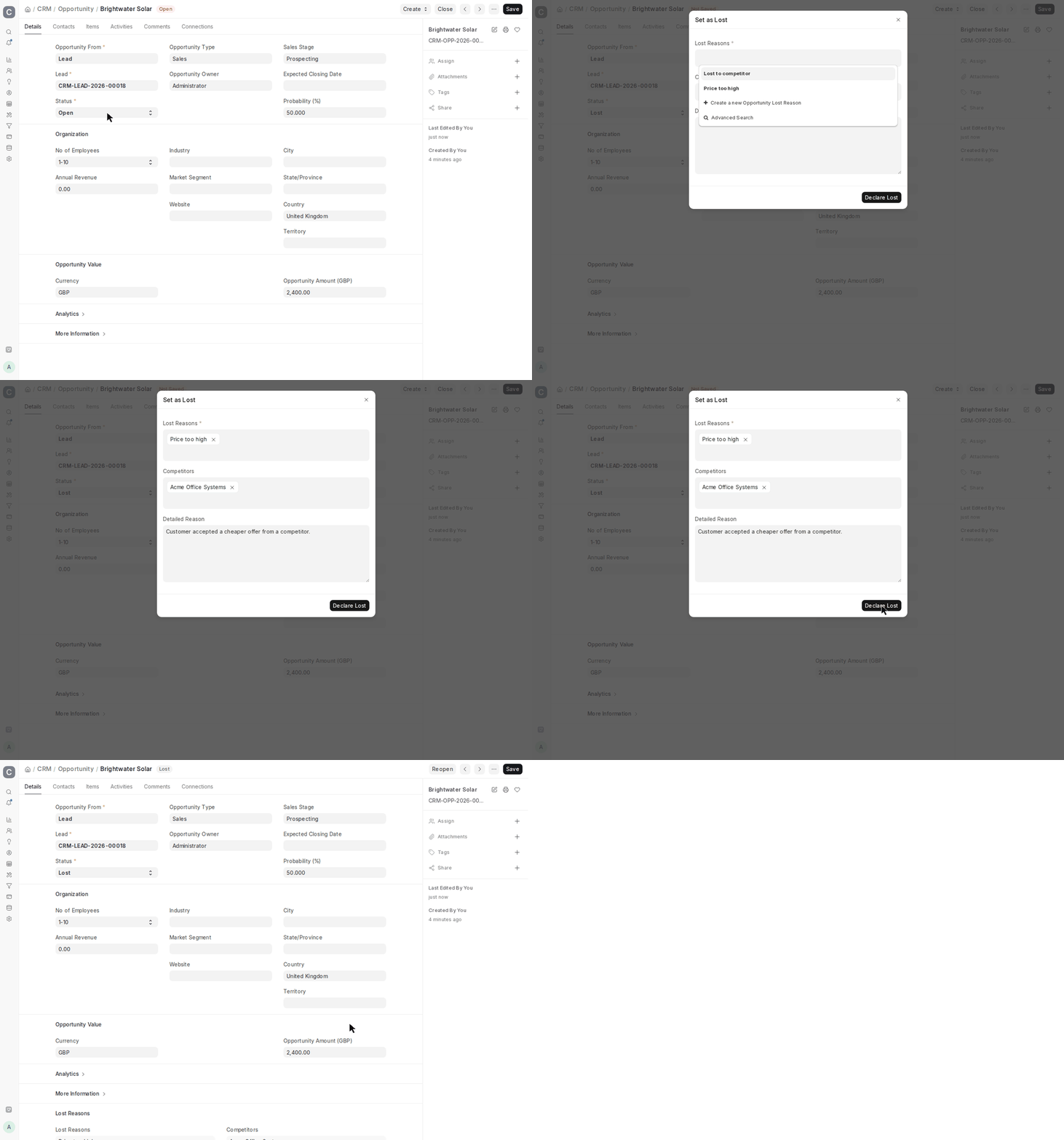
When you set the Status of an opportunity to Lost, a dialog asks for the Lost Reasons, the Competitors involved and a Detailed Reason. With time, these entries give insights into market issues, competitor positioning, and opportunity areas for improvement in sales strategy. ERPNext reporting tools enable trend analysis over time ranges, territories, or opportunity types.
2.7 First Response Time
ERPNext also calculates automatically the First Response Time upon sending the first reply via email to an Opportunity. The metric is shown in the More Information section of the Opportunity and rolled up within the First Response Time for Opportunity report. It can be used to monitor responsiveness that has a direct influence over conversion rates.