
Payroll Setup
Salary is a fixed financial sum or remuneration payable to an employee by an employer for his/her work. Payroll refers to the handling of accounting records of employees’ salaries, wages, bonuses, net pay, and deductions.
To process Payroll in Frappe HR
- Define Payroll Period (optional)
- Define Income Tax Slab (optional)
- Create Salary Structure with Salary Components (Earnings and Deductions)
- Assign Salary Structures to each Employee via Salary Structure Assignment
- Create Salary Slips through Payroll Entry
- Book the Salary in your Accounts
Payroll Period
Payroll Period, under Frappe HR, is an interval for which Employees are paid for their work with the Company. Payroll period facilitates you to specify the Tax slabs applicable for the interval, which allows you to handle modifications to laws easily. It also assists in payroll cycle tracking, producing correct reports, and maintaining compliance with statutory laws.
Salary Component
This document enables you to set up each Earning and Deduction element which can be used to generate a Salary Structure and, in turn, generate Salary Slip or Additional Salary. You are also able to set the type, condition, and formula as well as other setup which is explained below. You should be able to set up different combinations of the following options to set up each element as per your Company / Regional rules.
- Depends on Payment Days: (enabled by default) Leave Without Pay (LWP) occurs when an Employee exhausts the leaves they have been allocated or goes on a leave without an approval (through Leave Application). If activated, Frappe HR will deduct automatically the pay in ratio of LWP days to total working days of the month (dependent on the Holiday List).
Do Not Include in Total: If this flag is enabled, the component will not be added to the Earnings or Deductions total of the Salary Slip
Earning
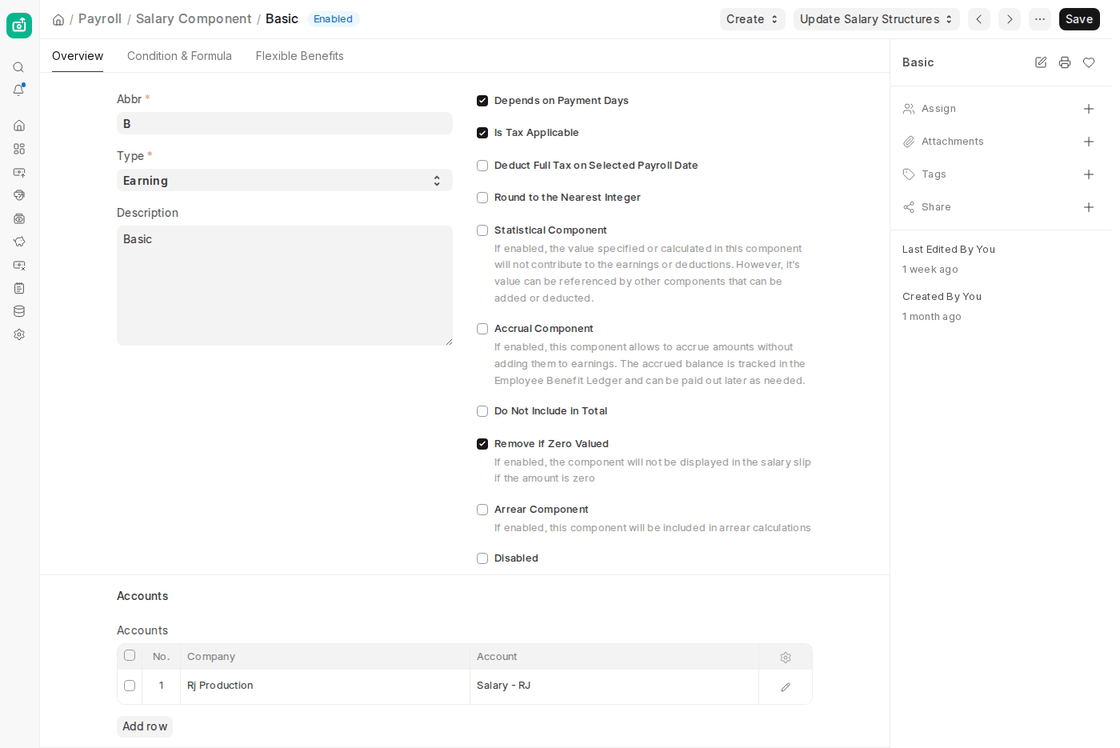
Salary Component Earnings
- Additional Salary: In v16 there is no separate “Is Additional Component” option. Any Earning component, such as Performance Bonus or on-site deputation pay, can be paid through an Additional Salary document when needed, and it will get added to the Salary Slip automatically.
- Is Tax Applicable: If a component should be eligible for Tax calculations as per the defined Payroll Period you might wish to include this option. You would need to have a Payroll Period and Income Tax Slab set up with valid Tax Slabs available for processing payroll.
- Is Flexible Benefit (Flexible Benefits tab): Flexible Benefits are earning parts which Employees can voluntarily receive on a pro-rata basis or at the time of yearly claiming for. These are largely exempt from tax, subject to non-claiming of Employee by sufficient bills / documents. If enabled, you can define the maximum benefit an employee can receive within a year in Max Benefit Amount (Yearly). Employees can create Employee Benefit Application with the ones they select. Note: Employee Benefit Application will only permit Employees to only select from the flexible components which exist in the Salary Structure allocated to the Employee
- Payout Method: Decides how a flexible benefit is paid. The options are “Accrue and payout at end of payroll period”, “Accrue per cycle, pay only on claim” (paid when the Employee makes an Employee Benefit Claim) and “Allow claim for full benefit amount”. You can also tick “Payout Unclaimed Amount in Final Payroll Cycle”.
Deduction
Salary Component Deduction
- Variable Based On Taxable Salary: This, when enabled, makes the component behave as the default Tax deduction component. The tax would be calculated from the Income Tax Slab associated with the employee.
Salary Structure
- Salary Structure depicts how the Salaries are structured and computed based on Earnings and Deductions. The salary structures are employed to assist companies in:
- Keeping pay levels competitive with the external labor market
- Maintain internal pay relationships among jobs
- Identify and reward differences in responsibility, skill, and performance, and control pay costs
- Typical elements of a salary structure (in India) are:
- Basic Salary: It is the tax base income and usually not exceeding 40% of CTC.
- House Rent Allowance: The HRA accounts for 40 to 50% of the basic salary.
- Special Allowances: Compensates for the remaining portion of the salary, predominantly less than the basic salary which is fully taxable.
- Leave Travel Allowance: Non-taxable amount given by the employer to the employee for vacations/trips with family within India.
- Gratuity: One-time amount given by the employer upon resignation or retirement of the employee.
- PF: 12% of the basic salary automatically credited to the employee provident fund.
- Medical Allowance: Exempted up to Rs.15,000
- Bonus: CTC portion that is taxable, typically a yearly lump sum amount
- Employee Stock Options (ESOPS) Inexpensive/free shares distributed to staff in an effort to retain employees
Submitted Salary Structure
Creating a New Salary Structure
- In the new Salary Structure:
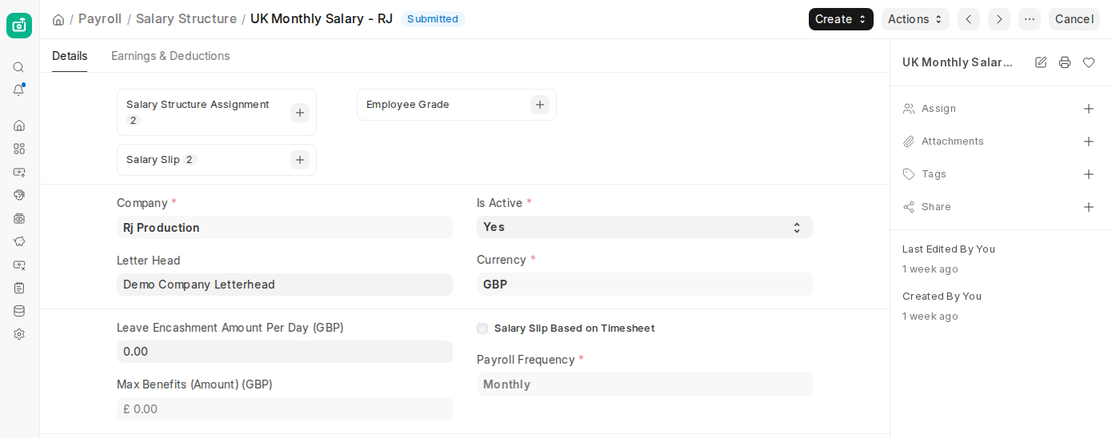
- Name the Salary Structure and assign company, letterhead to print Salary Slip, and payroll frequency
- Set the date from which this is applicable (Only one active Salary Structure for Employee at any given time)
- Configure Leave Encashment Amount per Day
- Max Benefits amount is the maximum value eligible as Flexible Components to employees
- Salary Slip Based on Timesheet
- Apply if you have timesheet-based payroll system
- Check “Salary Slip Based on Timesheet”
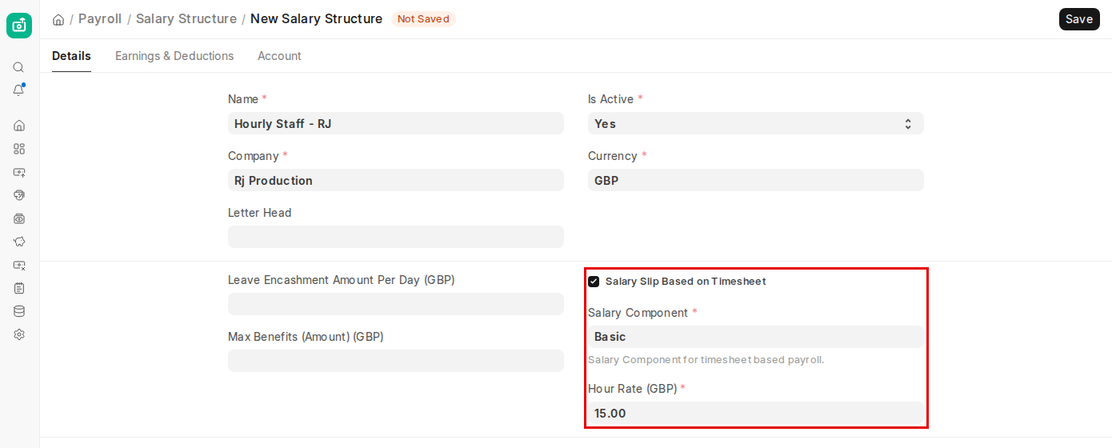
- Choose the salary component and input Hour Rate (This component will be added in Earnings in Salary Slip)
- Earnings and Deductions in Salary Structure
- Choose the Earnings and Deductions components
- Condition and formula set up in Salary Component will be duplicated by default
- You can also choose the Base component in the Earnings table
- Amount for each employee eligible should be set up in Salary Structure Assignment
If conditions or formulas are not set up in Salary Component, you can calculate amounts based on
Condition and Formula
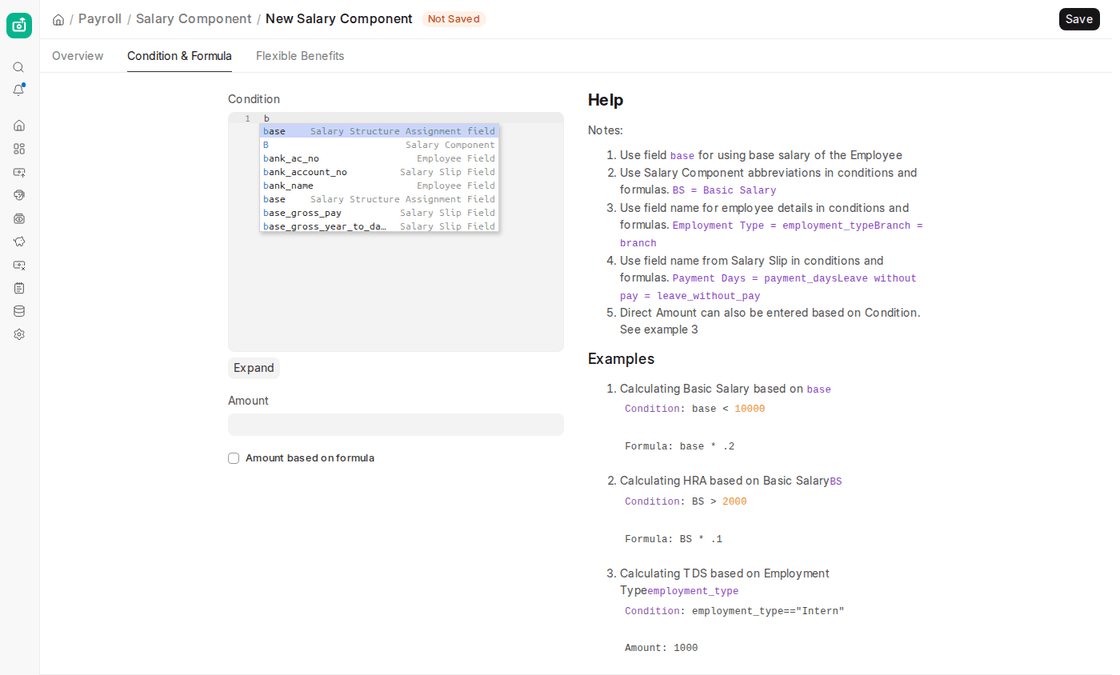
In conditions and formulas:
- Use field “base” for Employee’s base salary
- Use Salary Component abbreviations (e.g., BS for Basic Salary)
- Use employee detail field names (e.g., employment_type)
Account Details

Salary Structure Account
- Choose Mode of Payment and Payment Account for the Slips generated by this Salary Structure
- Save the Salary Structure
Leave Without Pay (LWP)
- LWP occurs when Employee exhausts allocated leaves or goes on leave without permission
- To automatically deduct salary for LWP, keep “Depends on Payment Days” checked in the Salary Components
- Leave unchecked if not using LWP
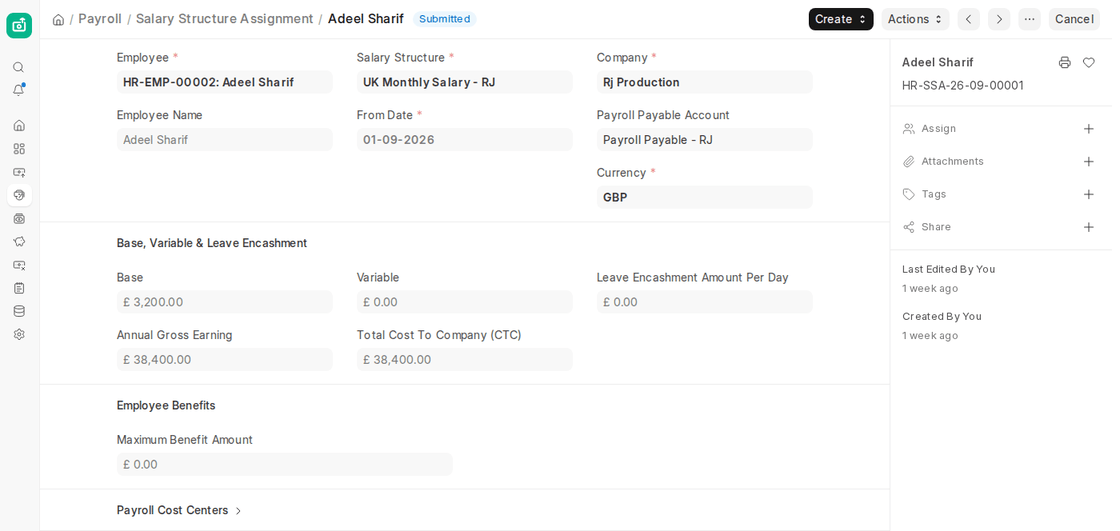
Salary Structure Assignment
- Assign Salary Structure and base pay for each employee
Processing Payroll
- Bulk process payroll by department, branch, or designation
- Process individually via Salary Slips
Payroll Entry:
Steps:
- Choose Company, Branch, Department, Designation, Project
- Verify Salary Slip based on Timesheet if provided
- Choose Posting Date and Payroll Frequency
- Click “Get Employees”, then “Create Salary Slips”
- Choose Start and End dates for Payroll Period
Optional deductions:
- Deduct Tax For Unsubmitted Tax Exemption Proof
- Choose Cost Center and Payment Account
- Save or Submit
- Draft Salary Slips may be checked and edited for LWP
- Clicking “Submit Salary Slip” books the default Payroll Payable account
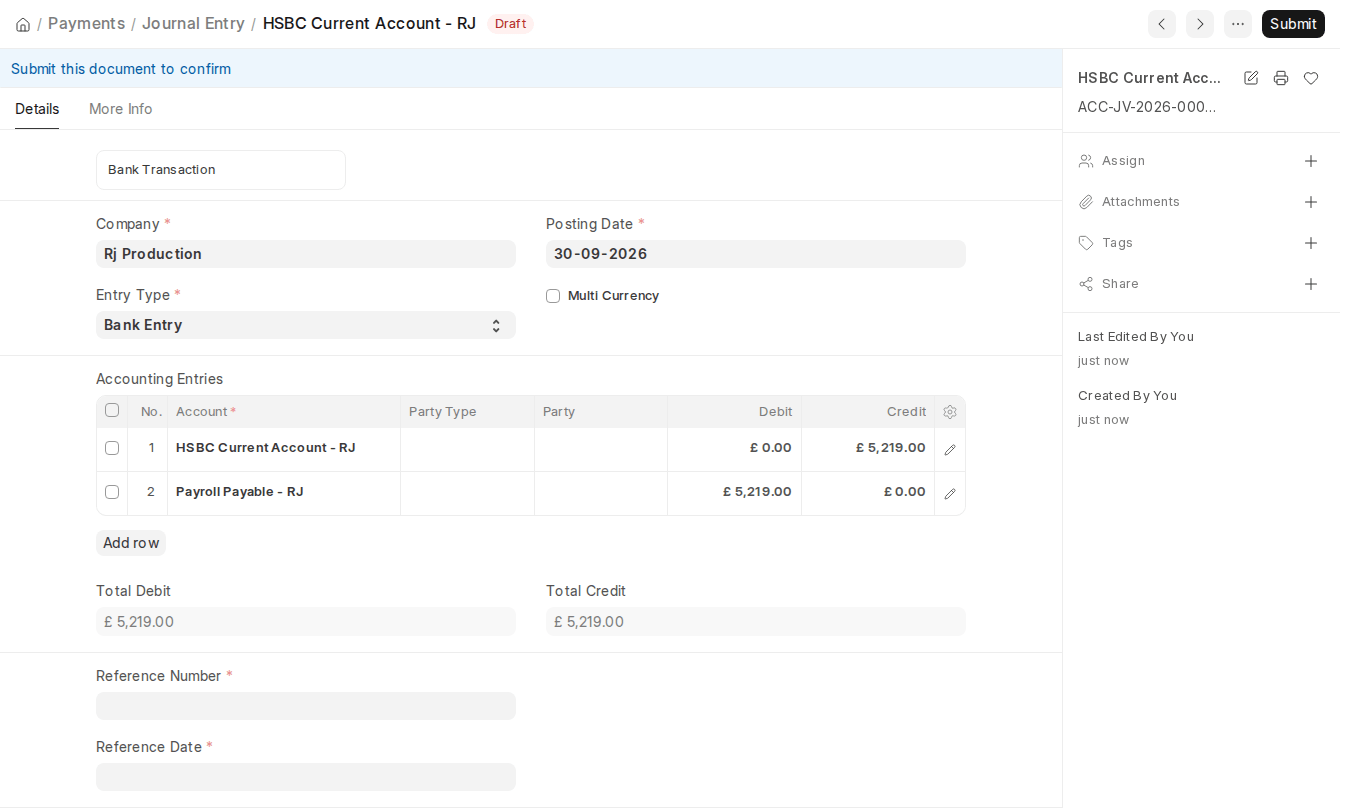
- Booking Salaries in Accounts
- Salary payments are normally issued as one block payment
- Journal Entry debits total Earnings and credits total Deductions
- To create salary payment voucher: Make Bank Entry
- Flexible Benefits with distinct payment make individual Journal Entries
Creating Salary Slips Manually
- Select Employee and Salary Structure
- Save or Submit
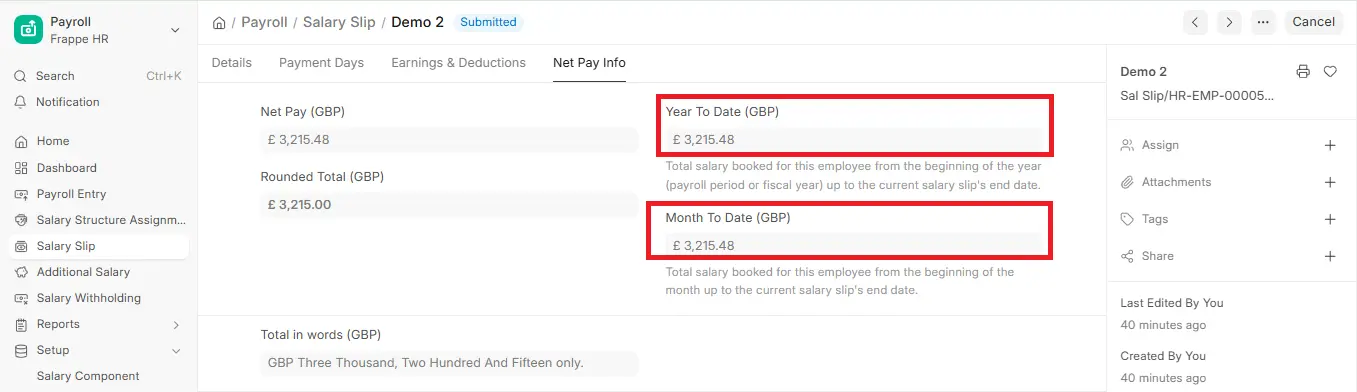
ERPNext computes Earnings, Deductions, LWP, Taxes, and Net Pay automatically

