
Plant Floor
In ERPNext, Plant Floor is a flexible visualization of machine and workstation positions in a factory. It enables real-time tracking of workstation action and job card processing in such a manner that production managers and floor supervisors can effectively supervise operations. Monitoring of bottlenecks, idle machines, and existing production activities is easily observed in the graphical interface.
How It Works
To utilize the Plant Floor functionality:
- Go to Home > Manufacturing > Plant Floor (in the Setup section of the sidebar) and click + Add Plant Floor. Enter the Floor Name and, on the Floor tab, select the Company and the Warehouse of this production area, which connects the physical floor to inventory information.
- Add your machines as Workstations and connect them to the Plant Floor by selecting it in the Workstation’s Plant Floor field (or use Create Workstation on the Plant Floor). Each workstation has to be connected to a Plant Floor to be displayed there.
- Set up the Illustration settings in the Workstation. In the Workstation, you can upload the images used for the machine’s Active Status and Inactive Status on the floor view. Without images, each workstation is shown with its initials.
- After configuring, open the Plant Floor. The Workstations tab shows every connected workstation with its Status (Production, Off, Idle, Problem, Maintenance or Setup). The status follows the Job Cards: a Job Card in progress sets the workstation to Production, a Job Card on hold sets it to Idle, and with no running Job Card it is Off.
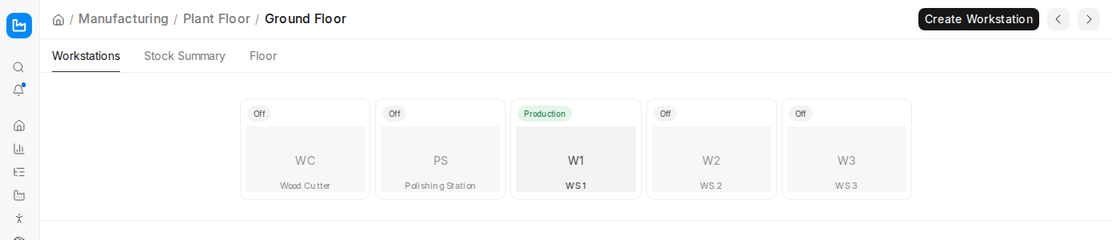
Visualize Stock Summary
Via the Plant Floor, users also have the ability to track the inventory held at the warehouse attached to the plant. The Stock Summary tab gives the overall real-time level of raw material and finished goods inventory at that particular Plant Floor.
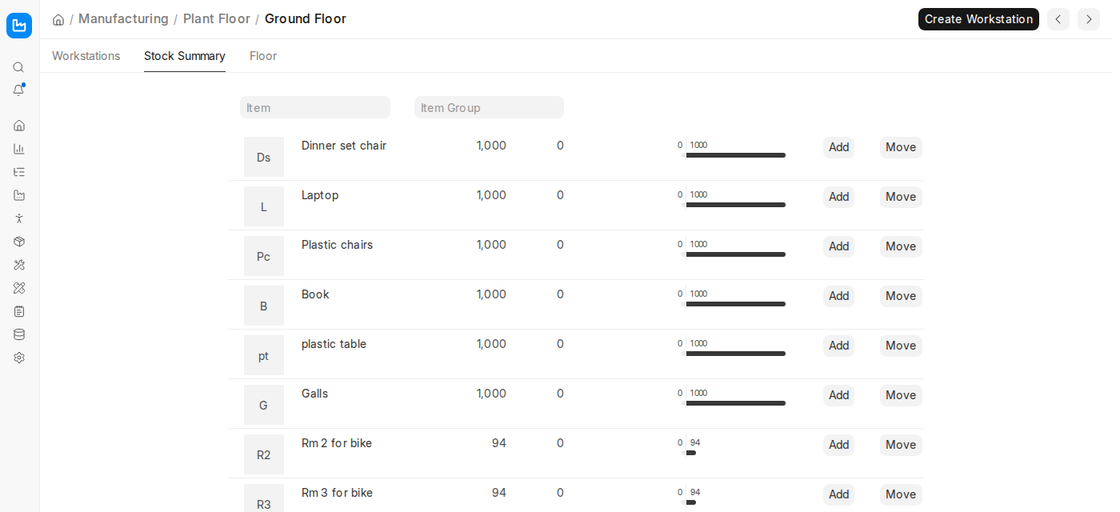
With the Add and Move buttons on each row, users can add or move inventory straight from the Plant Floor screen (ERPNext prepares the Stock Entry for you). It provides better visibility and control over inventory, allowing them to identify shortages easily, ensure on-time replenishment, and have smooth production flow without module switching.
Visualize Job Cards
The Plant Floor also gives access to the Job Cards of each machine. Click a workstation to open it on its Job Cards tab, which lists the open Job Cards with the item, quantity, operation and running time, and Start / Complete buttons. Operators can also scan a Job Card’s QR code in the Start Job and Complete Job fields.
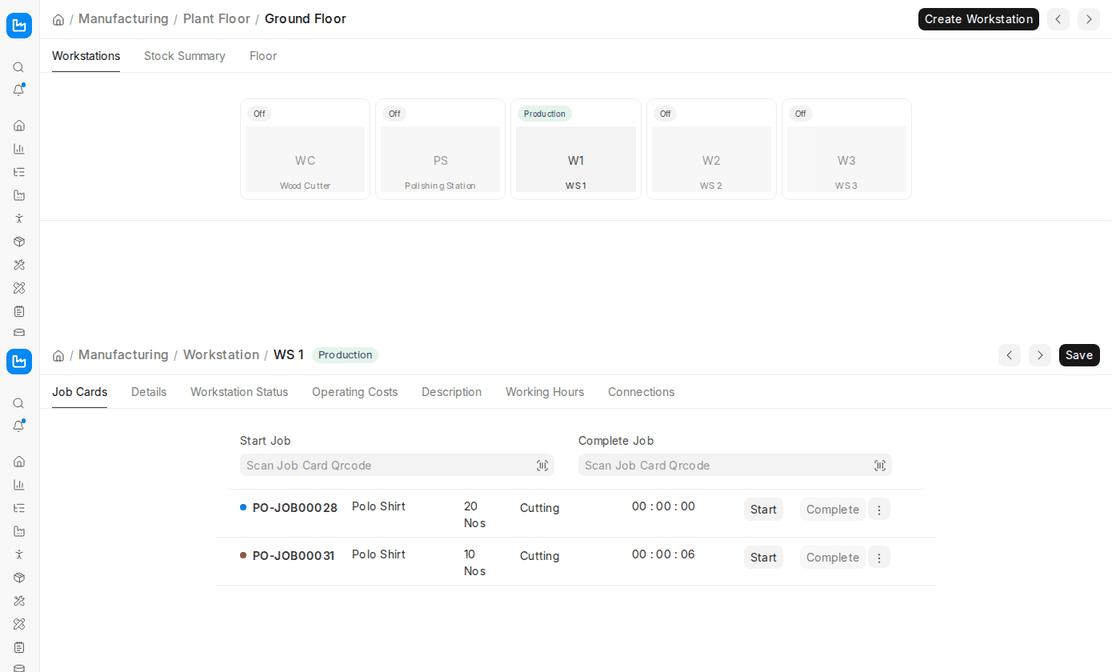
This transparency provides improved coordination of work, prevents resource conflicts and allows effective implementation of production schedules. It is possible for Supervisors to track job assignment and detect delays, allowing real-time decision-making to reschedule or redirect work to other machines if necessary.

