
Quality Action
Added in Version 12
A Quality Action is created on a Quality Review or Customer Comment to correct unsatisfactory outcomes or to anticipate potential problems from happening. It is a formal process for recording, executing, and monitoring corrective and preventive action.
Quality Action is a normal feature intended to provide compliance to industry standards like GMP, ISO 9001, ISO 14001, TSCA, REACH, and many more. It allows organizations not only to resolve short-term issues but also to remove root causes so that long-term process stability is maintained.
Quality Action workflows provide a controlled process, which leaves little room to repeat issues as it enforces responsibility, documentation, and formal follow-up. Scheduling activities, acts, and time requires responsible corrective and preventive measures to be carried out effectively.
Quality Actions can be prepared for a Quality Goal or for Customer Feedback that falls below the desired quality standards. Either a Corrective Action (CA) or a Preventive Action (PA) can be taken, depending on the situation, to provide proactive and reactive quality management.
To view Quality Action, proceed to:
1. Prerequisites
It is recommended that before inventing and using a Quality Action, the following should be created:
- Quality Review: Makes sure that there is a record of performance review against quality objectives.
- Quality Feedback: Records customer feedbacks or complaints that brings to the fore deviations or problems requiring attention.
They are the foundation documents on which Quality Action is raised.
2. How to Create a Quality Action
- Navigate to the Quality Action list and select the Add Quality Action option.
- Choose whether it is a Corrective or Preventive Action.
- Corrective Action (CA): Takes care of a detected problem to restore processes into compliance.
- Preventive Action (PA): Eliminates causes to prevent future occurrence.
- Link the source of the action: select the Review (Quality Review) or the Feedback (Quality Feedback). You can also link the Quality Goal and Quality Procedure.
- Enter the suggested Resolution of the identified issue in the Resolutions table. They may be modification of a process, training, design, or systems.
- Save the record to reflect the act.
- The Status field is set by the system:
- Open: Action in progress or under consideration.
- Completed: All resolutions are completed.
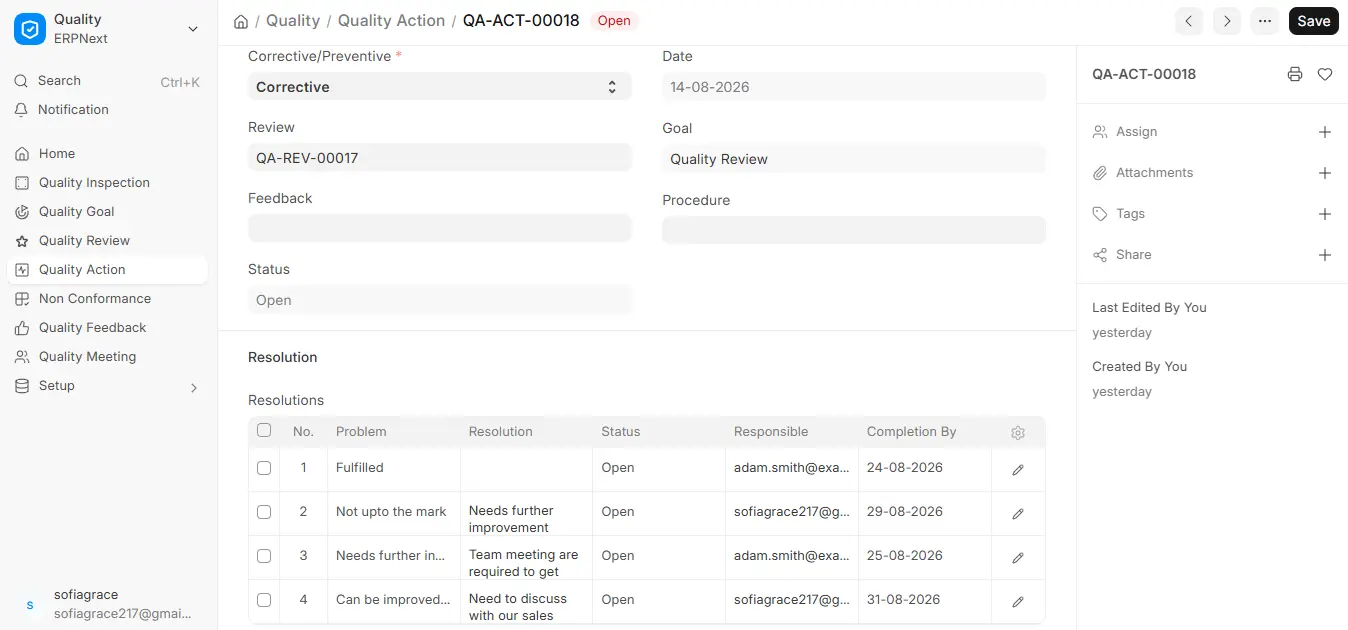
This gives everyone correct visibility and responsibility for all corrective and preventive actions undertaken.

