Track Semi Finished Goods
Note: This feature is available from ERPNext version 16.
Semi-finished goods are materials that result from the Completion of one operation and are used as raw materials to make final products or other semi-finished goods. In ERPNext, if you want to track semi-finished goods, you need to create an item for each semi-finished good and also have an active Bill of Materials for each one.
So we thought, why can’t we have a provision to define the finished/semi-finished goods against the operation, as well as raw materials? With this, once we complete the operation, the semi-finished goods will be produced, and the raw materials will be consumed. Similarly, after the completion of the last operation, the finished goods will be produced, and all semi-finished goods will be consumed.
The user has to create a Bill of Materials for each finished/semi-finished good and assign it to operations of the final Bill of Materials, or they can manually select the raw materials required to produce the finished/semi-finished goods.
To use this feature:
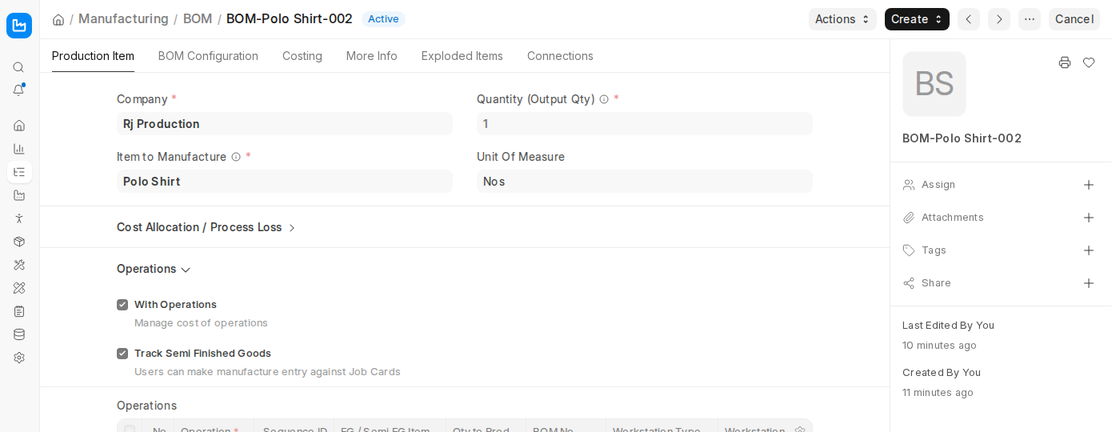
- Tick With Operations and Track Semi Finished Goods in the BOM (Operations section of the Production Item tab).
- In each operation row, you can define:
- FG / Semi FG Item and Qty to Produce: The semi-finished (or finished) good that is the output of the operation. Tick Is Final Finished Good on the last operation.
- Raw Materials: Through the BOM No of that item, or with Add Raw Materials when there is no BOM.
- You can configure:
- Workstation, Operation Time, Batch Size, Hour Rate
- Source Warehouse, WIP Warehouse and Finished Goods Warehouse per operation, plus Skip Material Transfer, Backflush Materials From WIP Warehouse and Is Subcontracted.
On submitting a Work Order:
- The system creates a Job Card per operation.
- Upon completing a Job Card, a Manufacture Stock Entry consumes the operation’s raw materials and creates its output item (the semi-finished good).
- At the final operation, all semi-finished goods are consumed and the finished item is created.
The system also supports:
- Material Transfer Based on Job Cards (or in bulk for the entire Work Order)
- Partial Job Card Completion per batch or per quantity
- Subcontracted Operations: create a Subcontracting Purchase Order from the Job Card (Make Subcontracting PO)
- Skip Transfer to WIP and Backflush Materials settings for flexible inventory movement
- Job Card QR Code Scanning for mobile-driven production operations
- Project Linkage to monitor progress of multi-stage jobs or custom orders
Tracking semi-finished goods helps with better production visibility, cost breakdown at each step, and stock traceability across complex manufacturing processes.
BOM (with Operations)
If you want to track “Semi Finished Goods”, you need to enable “With Operations” and “Track Semi Finished Goods” while making the BOM. While creating a BOM, the user will have the option to define the operation, operation time, workstation, and workstation type. The user will also have the option to set the warehouses per operation: source warehouse, work in progress warehouse, and finished goods warehouse.
If the user has set ‘Skip Transfer to WIP Warehouse’, they can consume materials directly from the source warehouse or work-in-progress warehouse, depending on the configuration set in the BOM Operation table.
If users perform specific operations through subcontracting, they will have options to define subcontracted operations. Users will also have the option to create a subcontracted purchase order against the subcontracted job cards.
In addition, the operation’s FG / Semi FG Item and raw materials define the expected output and the materials issued for a subcontracted operation. Job Cards will track consumption and production at each operation level, and material movement will align based on Track Semi Finished Goods and warehouse settings.
In the Work Order
In the example below, the Cutting operation produces the semi-finished good Polo Collar, and the final Stitching operation produces the Polo Shirt.
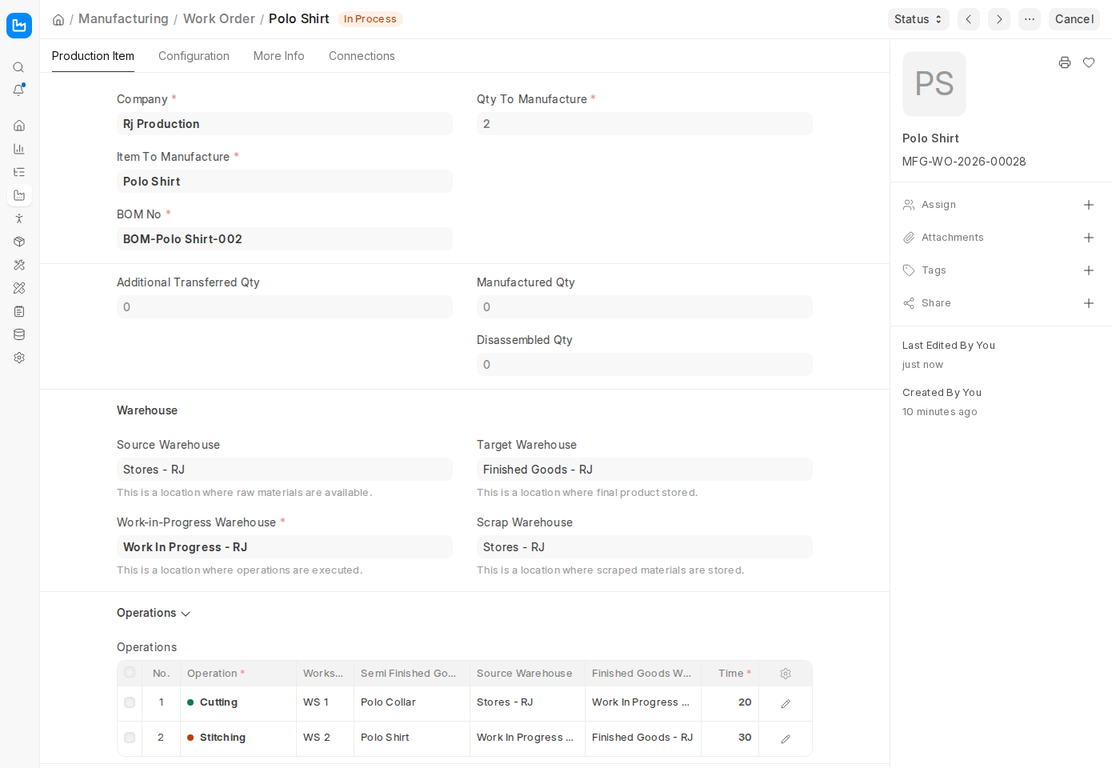
Users can see the finished/semi-finished good as well as raw materials against each operation. On submission of the Work Order, the system will create the Job Cards automatically, and users have to complete the Job Cards manually. Users can complete the Job Cards using the Job Card view or from the Workstation Dashboard. Below are different ways to complete the Job Cards:
- If the ‘Skip Material Transfer to WIP’ checkbox is enabled and the ‘Backflush Materials From WIP Warehouse’ checkbox is enabled, then users must consume raw materials from the ‘WIP Warehouse’. Users need to click the ‘Start Job’ button to begin the job and the ‘Complete Job’ button to stop the job.
- After that, the Job Card is completed with a Stock Entry that consumes materials from the WIP Warehouse and adds the finished/semi-finished goods to the Target Warehouse. The Job Card also records the time logs (actual time) and any Process Loss Qty.
- If the ‘Skip Material Transfer to WIP’ checkbox is enabled and the ‘Backflush Materials From WIP Warehouse’ checkbox is disabled, then users must consume raw materials from the ‘Source Warehouse’.Users need to click the ‘Start Job’ button to begin the job and the ‘Complete Job’ button to stop the job.
- After that, the Job Card is completed with a Stock Entry that consumes materials from the Source Warehouse and adds the finished/semi-finished goods to the Target Warehouse.
- If the ‘Skip Material Transfer to WIP’ is disabled, then users must have to transfer raw materials from the ‘Source Warehouse’ to ‘WIP Warehouse’.After that, users need to click the ‘Start Job’ button to begin the job and the ‘Complete Job’ button to stop the job.After that, users must submit the Job Card to create a Stock Entry to consume materials from the ‘WIP Warehouse’ and add finished/semi-finished goods to the Target Warehouse.
- The Job Card shows the Expected Start / End Date and Expected Time Required next to the actual Time Logs, and has a Secondary Items table for scrap and by-products.
Job Card
Users have to complete the Job Card, and once all Job Cards are completed, the system will complete the Work Order. From the Job Card, users must transfer materials from the Store to the Work In Progress Warehouse, if the Skip Material Transfer option is disabled on the respective Job Card.
After that, users need to create a Manufacture Stock Entry against the Job Card for the semi-finished or finished goods. The Job Card also supports serial/batch numbers for the goods produced and a Quality Inspection Template.
When you click Make Stock Entry on the submitted Job Card, the system asks “Do you want to submit the stock entry?”. If the user selects “Yes,” the system will create the Stock Entry in a Submitted state; otherwise, it will be created in a Draft state.
Workstation Dashboard
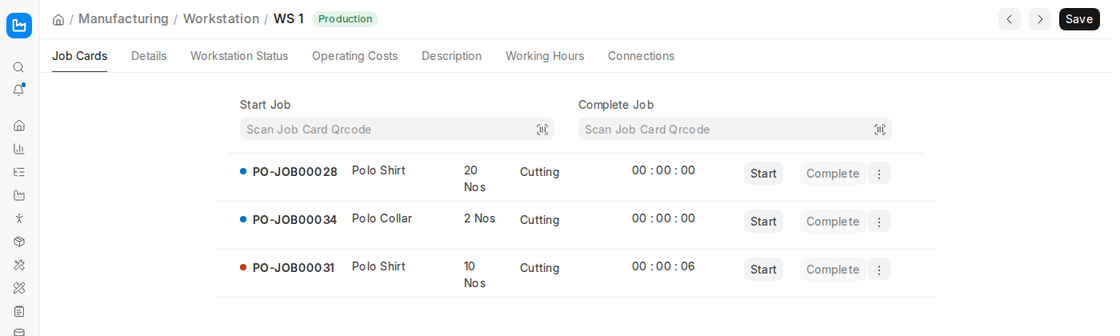
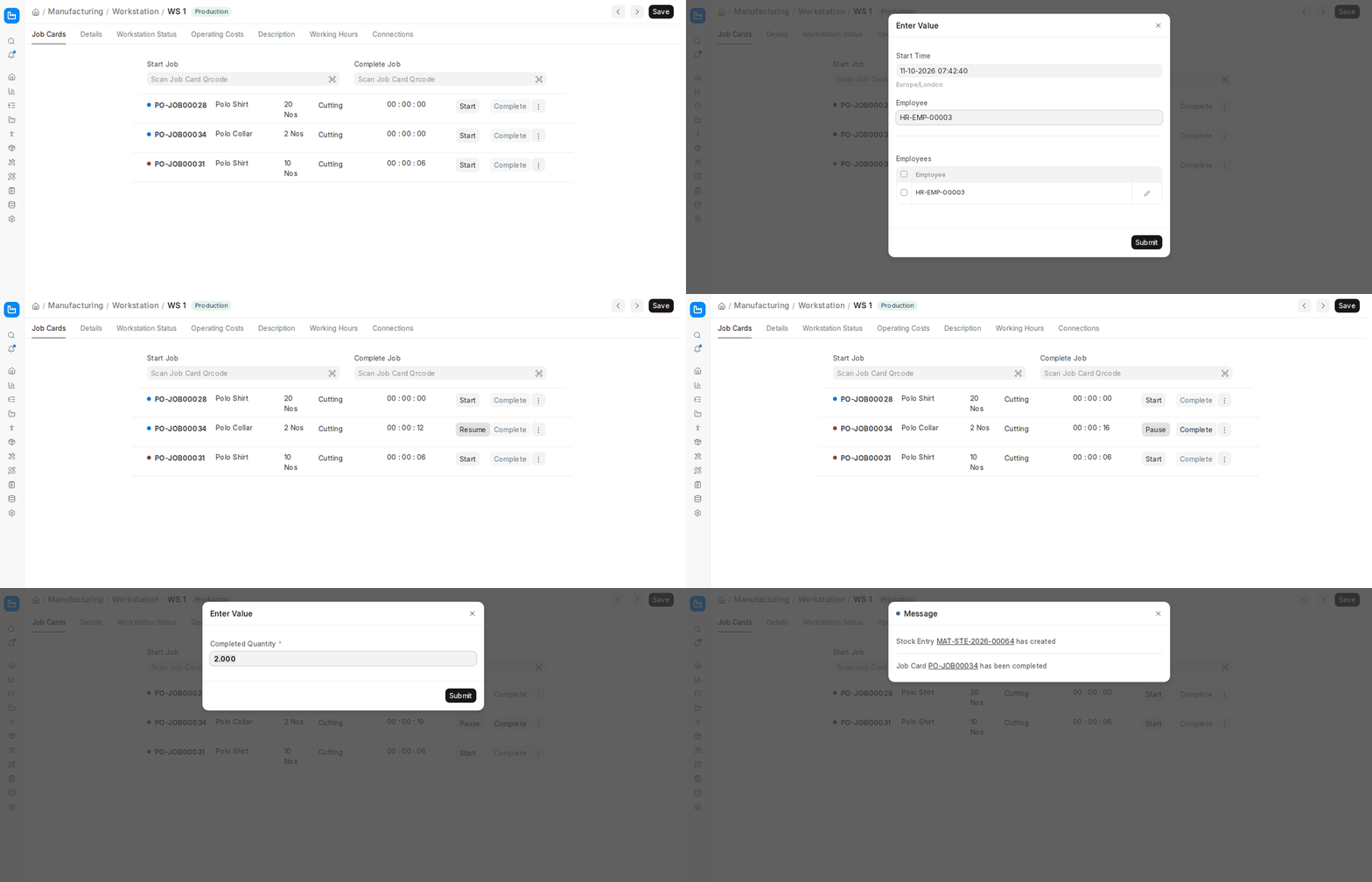
Using the Workstation Dashboard, users can start, pause, resume, and complete Job Cards.
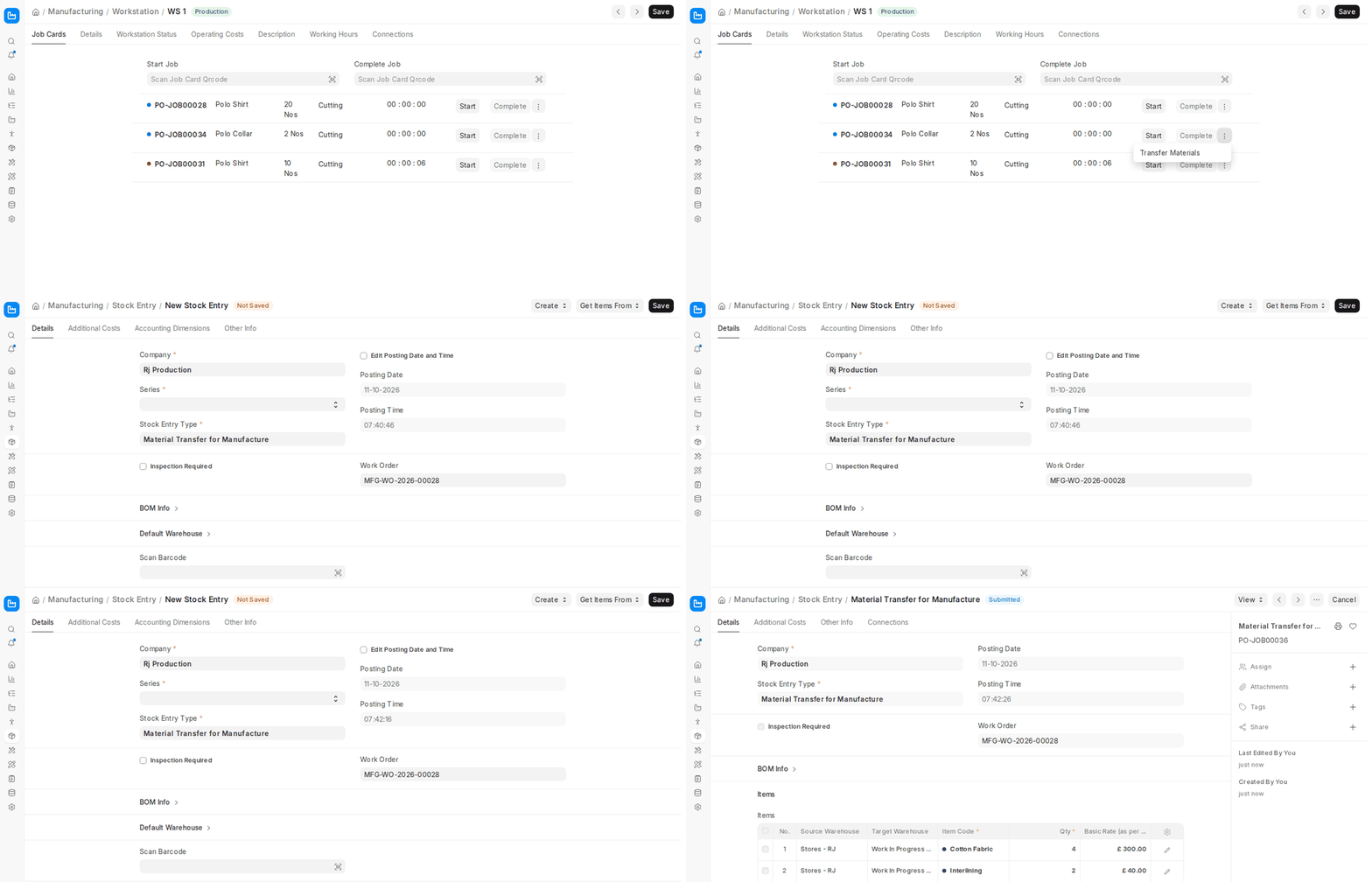
Also, users can transfer raw materials from the Source Warehouse to the WIP Warehouse against the Job Cards from the Workstation Dashboard (the Transfer Materials option in the row’s menu). If “Skip Material Transfer” has been enabled, then there is no need to transfer raw materials. Also, users don’t get the subcontracted operations in the Workstation Dashboard.
Open it from the Workstation’s Job Cards tab. Each open Job Card shows its item, quantity, operation and a running timer.
Transfer Materials
In the example, the Cutting operation needs Cotton Fabric and Interlining in the WIP Warehouse. Click Transfer Materials in the Job Card’s menu: a Raw Materials dialog shows the Required, Transferred and Available Qty of each material. Click Make Transfer Entry, then submit the Material Transfer for Manufacture Stock Entry. Operations with Skip Material Transfer enabled do not need this step.
Start Job
To start the job card, click its Start button. A dialog asks for the Start Time (current time by default) and the Employees working on the job; click Submit. The Job Card status becomes Work In Progress and the timer starts.
Pause Job
To pause the job card, click its Pause button. The timer stops until the job is resumed.
Resume Job
To resume the job card, click its Resume button. The timer continues.
Complete Job with Auto Stock Entry
On click of the Complete button, the system asks for the Completed Quantity and creates and submits a stock entry of type ‘Manufacture’ (“Stock Entry … has created”, “Job Card … has been completed”). This stock entry consumes the raw materials and adds the finished/semi-finished goods.
Note: The operating cost of the job is posted to the Default Operating Cost Account of the Company (Company > Stock and Manufacturing tab). If it is empty, completing the job fails with the message “Account is required”.
Start and Complete Jobs Using QR code
If you have QR codes for the job cards, you can use them to start and complete the job cards by scanning the QR codes in the ‘Start Job’/’Complete Job’ QR code fields.