
Assignment
Assignment is an ERPNext feature where you can assign a particular document or task to a specific user who will be responsible for further action on it. This holds everyone accountable, keeps everyone informed regarding the responsibility of tasks, and improves tracking of work progress throughout the system.
For instance, if a Sales Order should be reviewed and approved by the Sales Manager, the person who drafted it can assign it to them. The document automatically appears in the Sales Manager’s To-Do List after assignment, so it can easily be seen.
Likewise:
- A Delivery Note can be sent to a Stores/Material User for dispatch.
- A Sales Invoice can be delegated to an Accounts User to bill and process payment for.
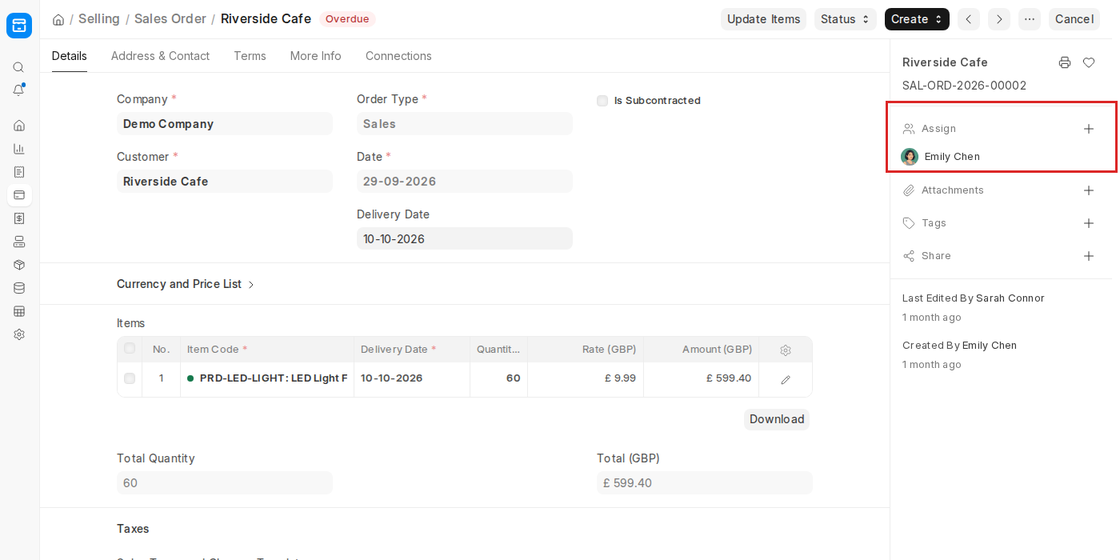
Assignments are not based on permission limitations—that is, a document may be assigned to any user who has their account active in the system, independent of their levels of access. Permissions, however, will still determine if that user can perform certain Activities (such as editing or submitting).
New Assignment
To assign a new one:
- Open the document you wish to assign.
- In the sidebar on the right of the document, click the + next to Assign.
- Choose the user(s) that you wish to assign the document to.
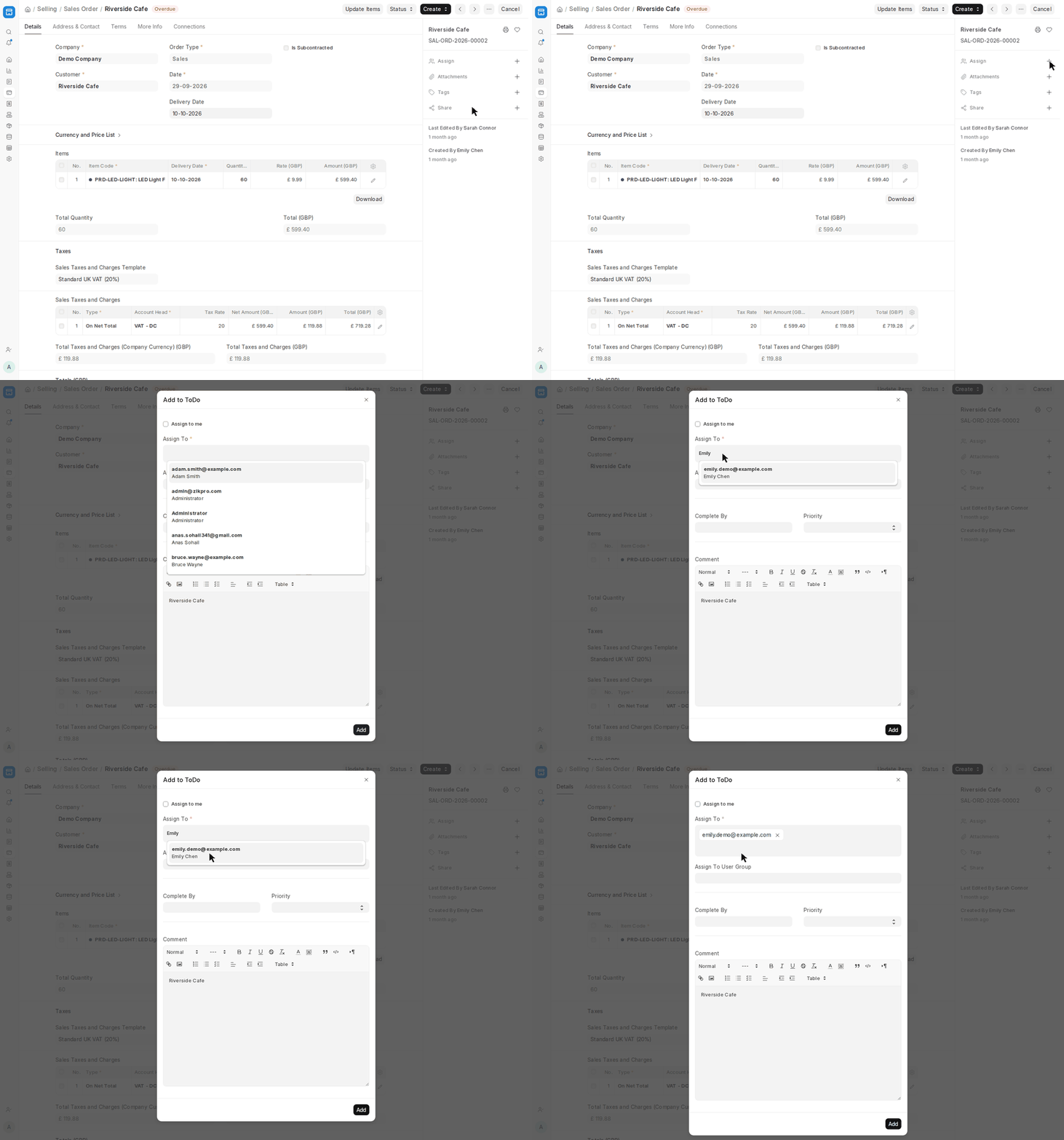
- Optionally, include a comment or instruction so the assignee knows more about the context or guidelines.
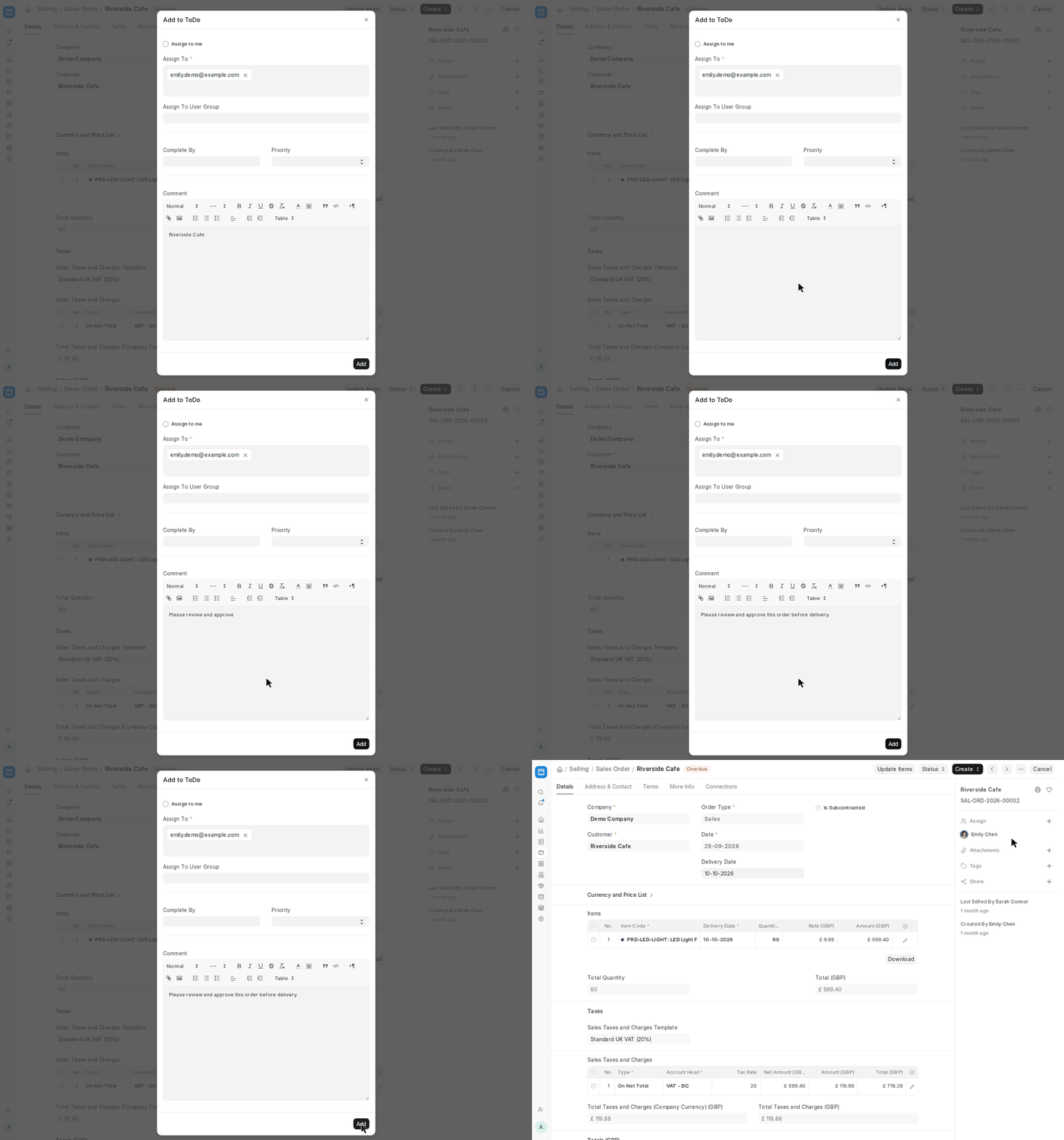
- Click Add to confirm the assignment.
ERPNext also allows you to assign a single document to many users at once, which allows it to alert many team members to the same task.
Assignee ToDo List
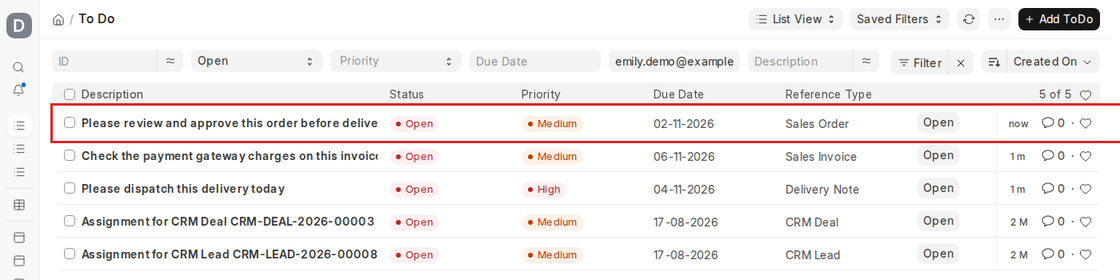
All assignments created for a user will be listed in their ToDo list, which is accessible from:
The ToDo list offers:
- Quick links to directly open the assigned document.
- A status field in which assignments can be denoted as Open, Closed or Cancelled.
- Due dates to make prioritization of tasks.
Assignments will also be able to have email and system notifications sent to their assignees on new assignments, which they may set based on their notification preferences.
Deleting or Marking an Assignment as Completed
If a task is completed, the assignee can:
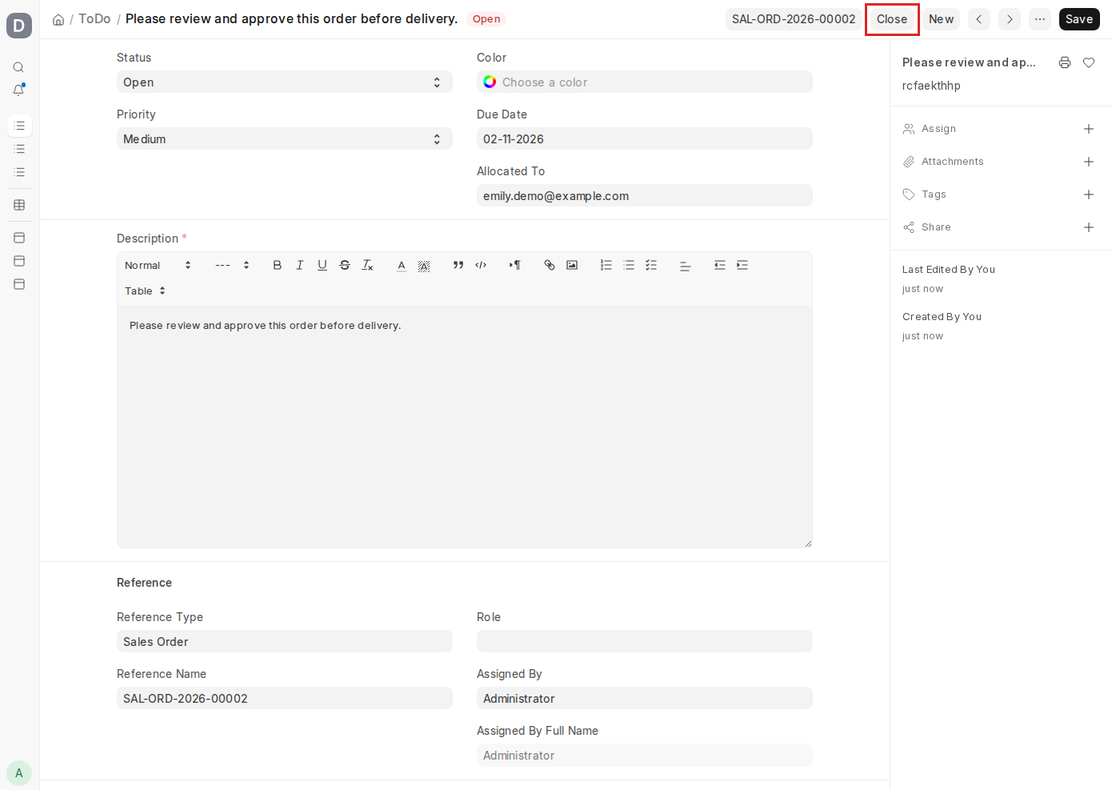
- Close the assignment by opening the ToDo and clicking the Close button.
- Alternatively, mark the task status in the ToDo list as closed directly.
Closing the assignment will automatically update the corresponding ToDo record to “Closed,” so both the document and the task list will stay up to date.
Assignments can also be deleted manually by the user who created them or the administrator, if they are no longer applicable.
With this improved Assignment feature in the new ERPNext, companies can guarantee more streamlined task allocation, real-time responsibility, and streamlined workflow management within teams.