Buying Settings
ERPNext provides you with options to set up Buying Settings and configurations that facilitate automation and streamlining of the buying process. To open them, go to Desktop > Buying > Settings. In v16 the settings are arranged in the tabs Defaults, Pricing, Transaction Settings, Subcontracting Settings, Request for Quotation and Document Naming.
Defaults and Pricing
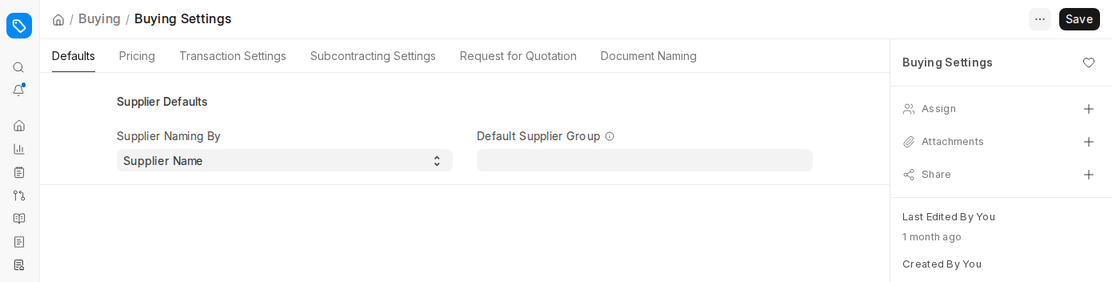
1. Supplier Naming By
When a Supplier is saved, system automatically creates a unique identity or name for the Supplier which can be utilized to refer the Supplier in different Buying transactions.
Unless otherwise configured, ERPNext takes the Supplier’s Name as the unique name. If you wish to refer to Suppliers by names such as SUPP-00001, SUPP-00002, or similar patterned series, choose the value of Supplier Naming By as “Naming Series”.
2. Default Supplier Group
Set what should be the default value of Supplier Group when adding a new Supplier. For instance, if the majority of your suppliers supply you with hardware, you can make the default ‘Hardware’.
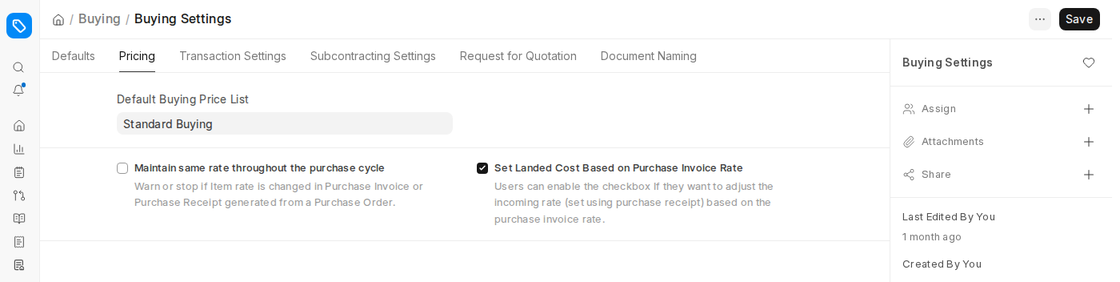
3. Default Buying Price List
Set what should be the default Price List when initiating a new Buying transaction, which is ‘Standard Buying’ by default. The prices of Items will be retrieved from this Price List. This field is on the Pricing tab.
4. Maintain Same Rate and Action if Same Rate is Not Maintained
These options are also on the Pricing tab. They are explained in detail under 5. Maintain Same Rate Throughout Purchase Cycle below. When Maintain Same Rate is ticked, you also choose the Role Allowed to Override Stop Action.
5. Default Purchase Taxes and Charges Template
There is no default tax template in v16 Buying Settings. To apply a tax template automatically, mark the template as Default in the Purchase Taxes and Charges Template, or use a Tax Rule.
Transaction Settings
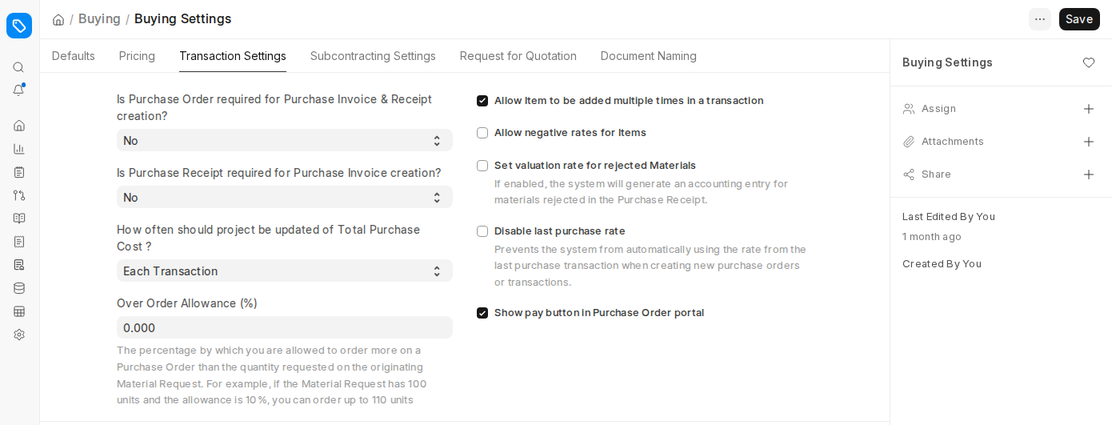
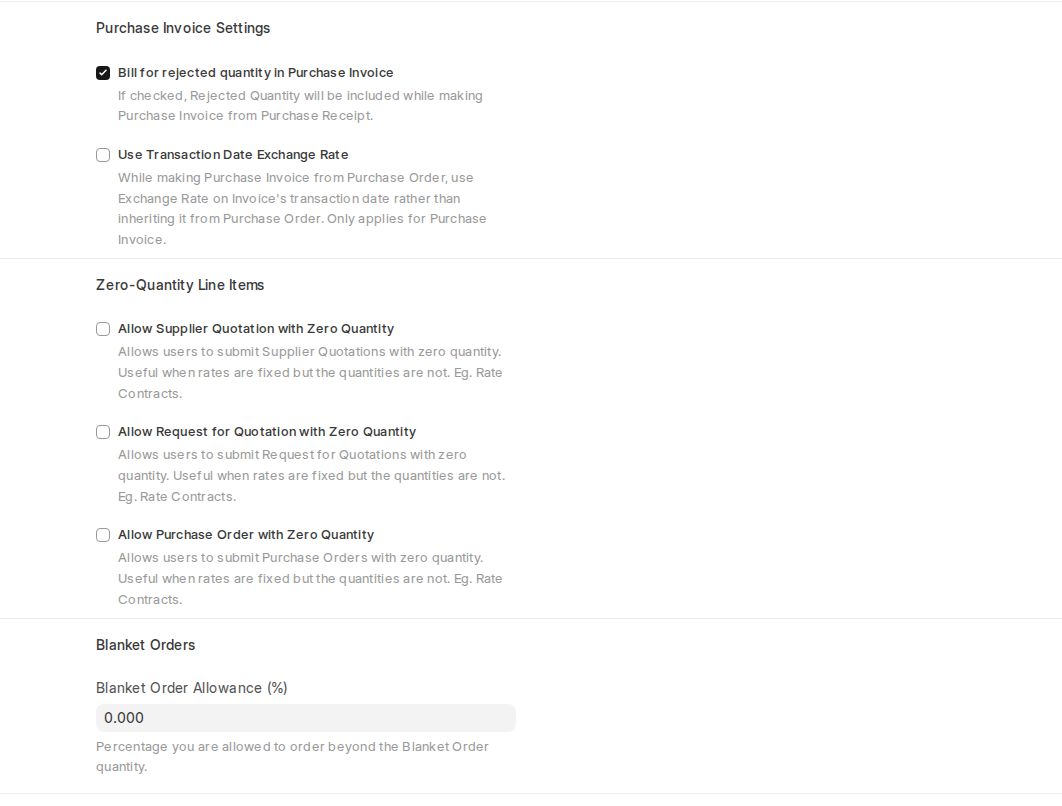
1. Is Purchase Order required for Purchase Invoice & Receipt creation?
If this setting is set “Yes”, ERPNext will not allow you to post a Purchase Invoice or a Purchase Receipt without first posting a Purchase Order.
If purchase transactions are being dealt with where the order occurs offline, then Purchase Orders may be avoided. If you are receiving sample Items, you may simply create a Purchase Receipt to accept the Items to your Warehouse.
This setup can be overridden for a specific supplier by making the “Allow Purchase Invoice Creation Without Purchase Order” checkbox available in supplier master.
2. Is Purchase Receipt Required for Purchase Invoice Creation?
If this option is set “Yes”, ERPNext will not allow you to create a Purchase Invoice unless you have first created a Purchase Receipt. You can create an invoice straight away if the transaction involves a service, as it won’t require a receipt.
By selecting the “Allow Purchase Invoice Creation Without Purchase Receipt” checkbox in the supplier master, you can override this setting for a particular supplier.
3. Blanket Order Allowance (%) and Over Order Allowance (%)
You may specify the percentage you are permitted to order more in relation to the Blanket Order Quantity. For instance: If you have a Blanket Order of Quantity 100 units and your Allowance is 10% then you are permitted to order 110 units. This field is in the Blanket Orders section.
Over Order Allowance (%) works the same way for Material Requests: it is the percentage by which you may order more on a Purchase Order than the quantity requested on the Material Request.
4. Update frequency of Project
It specifies how frequently should Project be updated of Total Purchase Cost.
5. Maintain Same Rate Throughout Purchase Cycle
This option is on the Pricing tab. If this is turned on, ERPNext will check if a change in an Item’s price is being done in a Purchase Invoice or a Purchase Receipt generated from a Purchase Order, i.e. it will assist you in keeping the same rate throughout the purchase process.
You can set what action system should perform if same rate is not kept in the “Action If Same Rate is Not Maintained” field:
- Stop: ERPNext will prevent you from modifying the price by raising a validation error.
- Warn: The system will allow you to save the transaction but alert you with a message in case the rate is modified.
Note: This field will only appear if Maintain Same Rate Throughout Purchase Cycle is activated.
6. Allow Item to be added multiple times in a transaction
When this checkbox is not selected, a line cannot be entered more than once in the same Purchase Order. But you can always explicitly modify the quantity. This is a validation checkbox to avoid duplicate purchase of the same item by mistake. This can be used for certain scenarios when there are multiple sources for the same material, say in production.
7. Bill for Rejected Quantity in Purchase Invoice
If it is marked, Rejected Quantity will be considered while generating Purchase Invoice from Purchase Receipt.
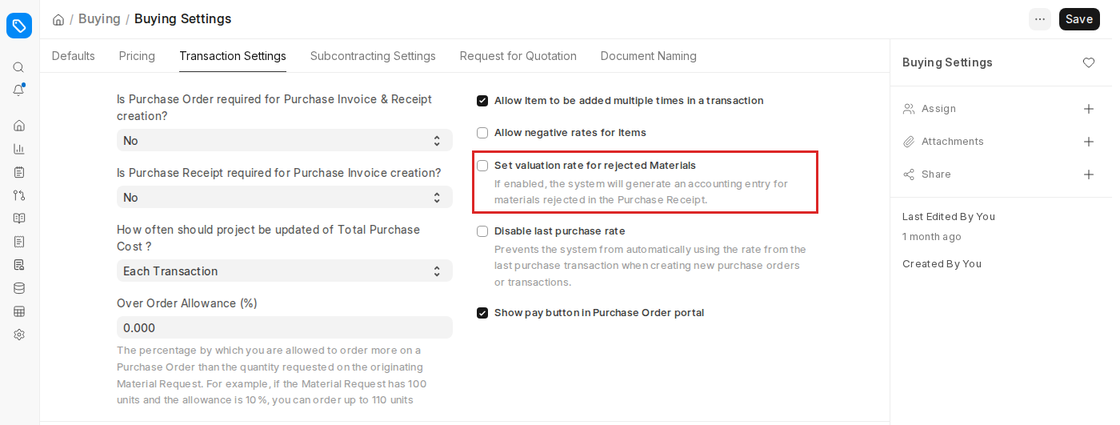
7.1 Set Valuation Rate for Rejected Materials
In cases of rejected materials, a valuation rate of zero is recorded and no accounting ledger entry is made on the purchase receipt on their part. To use a valuation rate and create accounting entries on rejected materials, set the option of Buying Settings:
Set Valuation rate on rejected materials. This alternative can only be applicable when the Bill of Rejected Quantity in Purchase Invoice has been enabled in the Buying settings.
8. Set Landed Cost Based on Purchase Invoice Rate
If the ‘Maintain Same Rate Throughout the Purchase Cycle’ is unchecked then this field appears on the Pricing tab of the buying settings. If the user is willing to adjust the valuation of the product based on the cost of purchase invoice then this option must be turned on.
How It Works
- Created Purchase Receipt for A with rate as 100
- System has booked Stock In Hand with 100 rate
- After 2 days, user created purchase invoice against the above purchase receipt
- After 2 days due to exchange rate change the rate in the invoice got changed to 150
- Now purchase receipt has rate 100 while Purchase invoice has rate 150
- If you wish to calculate the Stock In Hand with Purchase invoice Rate (150) then turn on “Set Landed Cost Based on Purchase Invoice Rate”.
Note: upon submission of the purchase invoice, system creates repost item valuation record to update purchase receipt cost. User must wait until posting the repost item valuation to view the effect of the invoice cost on the stock in hand.
9. Disable Last Purchase Rate
It doesn’t allow the system to automatically utilize the rate of the last purchase transaction while generating new purchase orders or transactions.
10. Use Transaction Date Exchange Rate
During creation of Purchase Invoice from Purchase Order, utilize Exchange Rate on Invoice’s transaction date instead of inheriting it from Purchase Order. Applies only to Purchase Invoice.
11. Other Transaction Options
- Allow negative rates for Items: Allows an item row to have a negative rate.
- Show pay button in Purchase Order portal: Shows a Pay button to suppliers in the portal.
- Zero-Quantity Line Items: Allow Supplier Quotations, Requests for Quotation and Purchase Orders to be submitted with zero quantity, for example for rate contracts.
Subcontracting Settings
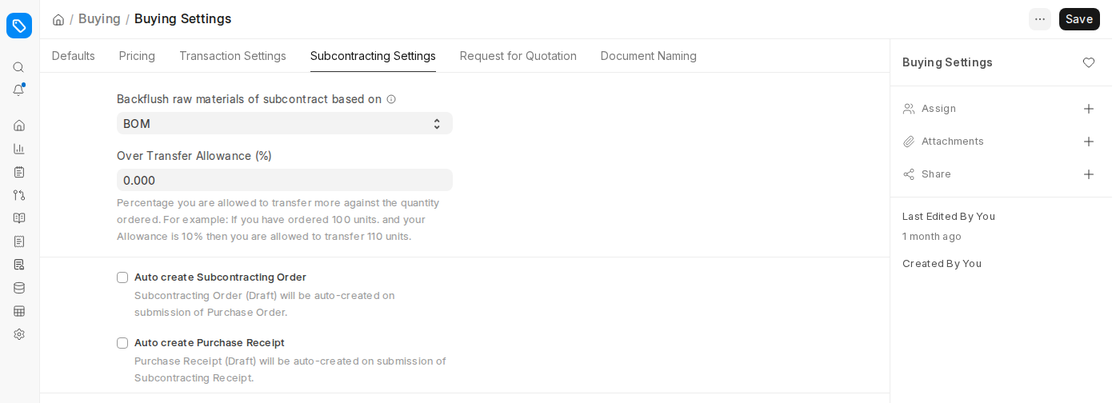
1. Backflush Raw Materials of Subcontract Based On
- BOM: System will consume raw materials in the subcontracting receipt as per the FG BOM
- Material Transferred for Subcontract: System will consume raw materials based on materials transferred against the Subcontracting Order. If no stock is transferred, no materials will be consumed.
2. Auto Create Subcontracting Order
System automatically creates subcontracting orders in Draft state when submitting Purchase Orders with “Is Subcontracted” Enabled.
3. Auto Create Purchase Receipt
System auto-creates a draft Purchase Receipt when a Subcontracting Receipt is submitted.
4. Over Transfer Allowance (%)
The percentage allowance for exceeding transferred quantities (e.g., 10% allowance on 100 units = 110 units max).
5. Validate Consumed Quantity (as per BOM)
When raw materials are backflushed based on Material Transferred for Subcontract, tick this option to check the consumed quantity against the BOM.
Request for Quotation
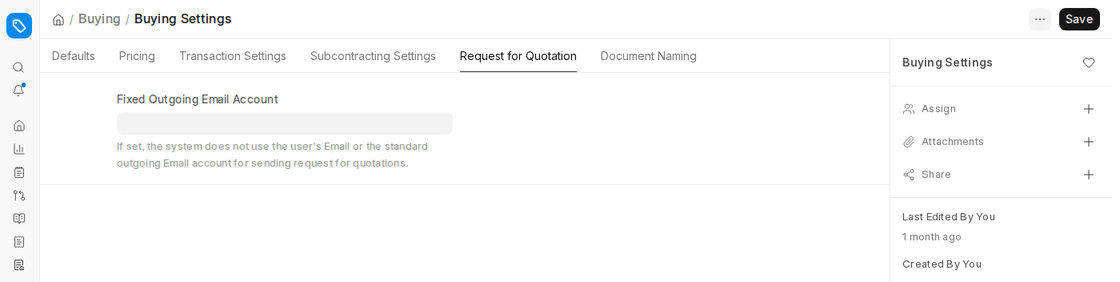
On this tab you can set a Fixed Outgoing Email Account that is always used to send Requests for Quotation to suppliers.