Capacity Planning based on Work Order
Capacity Planning based on Work Order: ERPNext’s Capacity Planning assists manufacturers in effectively monitoring and managing production jobs’ allocation to various workstations. By Analyzing available resources and scheduling operations, ERPNext optimizes production without causing any workstation overload.
This facility gives transparency on operation timelines, utilization of machines, and aids in taking intelligent production decisions to prevent delays or bottlenecks.
Operation:
To set up operations needed in the production process, go to Home > Manufacturing > Operation (Setup section). Each operation must be one specific task or step in the process to produce the final product. In the Operation, set the Default Workstation. The operation time is entered per operation in the BOM, and the hourly cost comes from the Workstation. These settings are used in scheduling and cost calculation.
Workstation:
Add each workstation in ERPNext from Home > Manufacturing > Workstation (Setup section). In the Workstation, set the hourly cost (Net Hour Rate), the Working Hours and, optionally, a Holiday List.
You may also set the Job Capacity, the number of Job Cards that can run in parallel on the workstation. Under this arrangement, realistic scheduling and monitoring utilization is easier.
Bill of Materials (BOM):
In the BOM, you can associate operations and their respective workstations, besides defining raw materials. Each operation is defined sequentially with the estimated time and workstation so that ERPNext can realize the complete production routing.
Bringing routing into the BOM facilitates the planning of detailed production and aids in capacity analysis at the time of creating work orders.
Work Order:
When a Work Order is submitted, ERPNext creates Job Cards of each itemized operation of the BOM. The Job Cards are displayed against the provided workstations in accordance with availability and working hours.
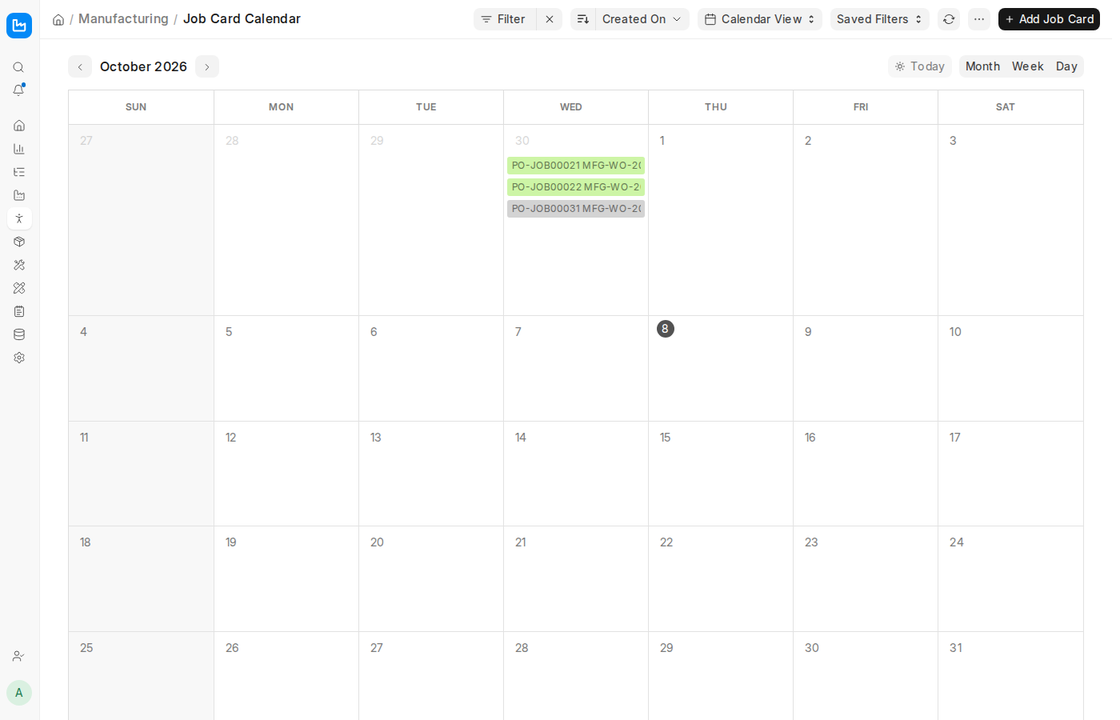
The time logs on the Job Cards record the actual hours taken versus the planned time, so it is possible to monitor performance and labour cost accurately. The Calendar view of the Job Card list shows the scheduled Job Cards. This gives clarity to implementation and helps in the examination of efficiency and delays.
Error due to Capacity Planning:
Capacity Planning in ERPNext ensures that every operation in a Work Order is planned considering workstation availability and set working hours. While submitting a Work Order, you can get an error if ERPNext cannot schedule one or more of the operations within these restrictions.
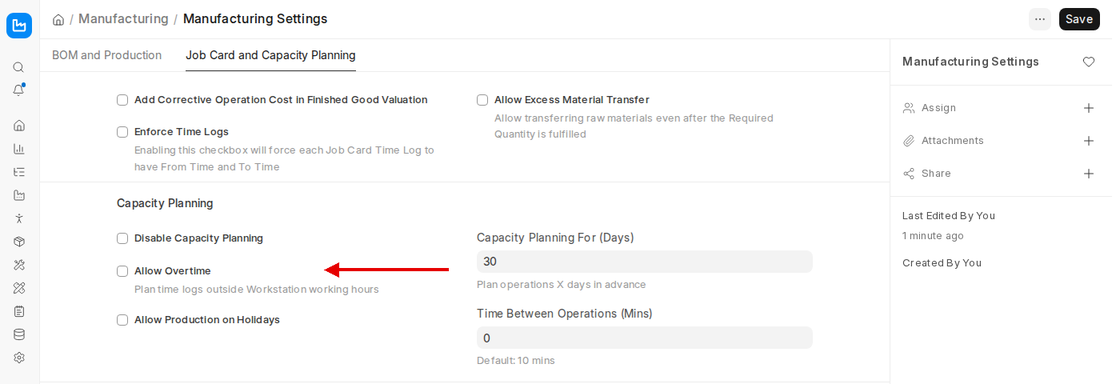
This generally happens when the operations need more workstation time than is free within the planning window set in Capacity Planning For (Days) in Manufacturing Settings (30 days by default).
Question: On Work Order Submission, we are receiving following error message.

The message reads: “Unable to find the time slot in the next {days} days for the operation {operation}. Please increase the ‘Capacity Planning For (Days)’ in the Manufacturing Settings.” It means ERPNext could not book the operation on its workstation within the workstation’s working hours (and existing bookings) in that period.
This occurs when the total operation time (operation time × quantity) is larger than the free working time of the workstation in the planning window. In the example above, Capacity Planning For (Days) was set to 1 and the Work Order needed 4,000 minutes of Cutting.
Role Desk Permission
Make sure users who are working with Work Orders and Workstations have the appropriate roles and permissions set. Roles like Manufacturing User or Manufacturing Manager must be able to create and edit Work Orders, Workstations, BOMs, and see the corresponding reports. These permissions can be set under Role Permission Manager.
Answer:
Check the following, then submit the Work Order again:
- Increase Capacity Planning For (Days) in Manufacturing Settings (Job Card and Capacity Planning tab), so ERPNext looks further ahead for free time.
- Verify the Working Hours and Holiday List in the Workstation. Too few working hours leave too little time to book.
- Raise the Workstation’s Job Capacity if it can run several Job Cards in parallel, or move the operation to another workstation.
- Check the operation times in the BOM, or split a very large Work Order into smaller ones.
- If you do not need ERPNext to schedule Job Cards at all, tick Disable Capacity Planning.
Avoid Working Hours of Workstation:
If you wish to enable overtime scheduling outside of the normal Working hours of a workstation, i.e., make it possible to work overtime, you can tick the “Allow Overtime” checkbox in Manufacturing Settings (Job Card and Capacity Planning tab, “Plan time logs outside Workstation working hours”). ERPNext then does not limit the scheduling to the workstation’s working hours, giving more flexibility. Similarly, Allow Production on Holidays lets ERPNext schedule on the workstation’s holidays.