
Common Party Accounting
ERPNext’s Common Party Accounting feature assists you in managing circumstances in which one party serves as both a supplier and a customer. For example, you may have a supplier that you typically raise purchase invoices to, but you may need to raise a sales invoice against them and then Deduct it from earlier purchases.
Common Party Accounting can be activated to accomplish this.
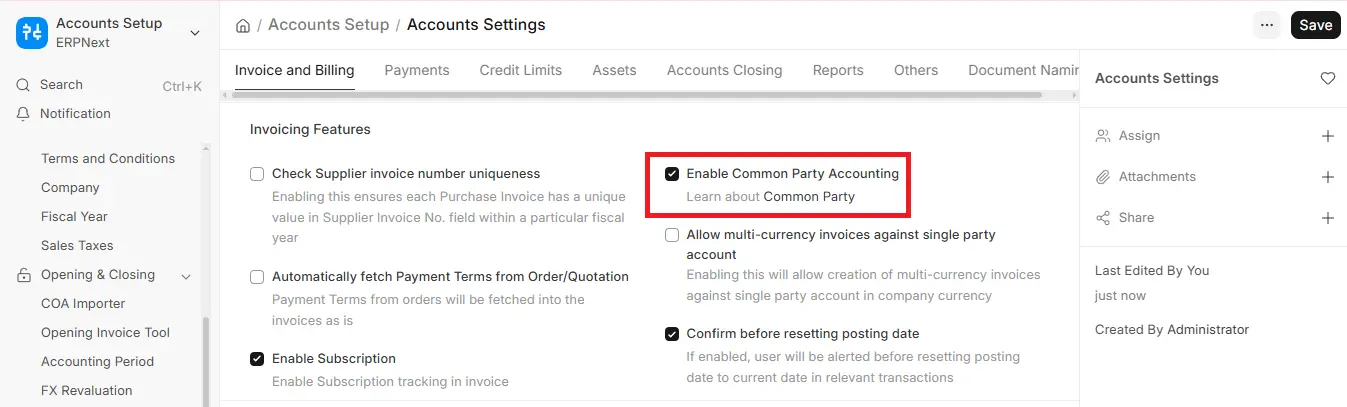
1. Enable Common Party Accounting
- Go to: Accounting > Accounts Setup > Accounts Settings.
- Click to activate Common Party Accounting in the settings form.
- Click Save.
2. Create a Sales Invoice
- Go to: Accounting > Invoicing > Sales Invoice
- Select Add Sales Invoice.
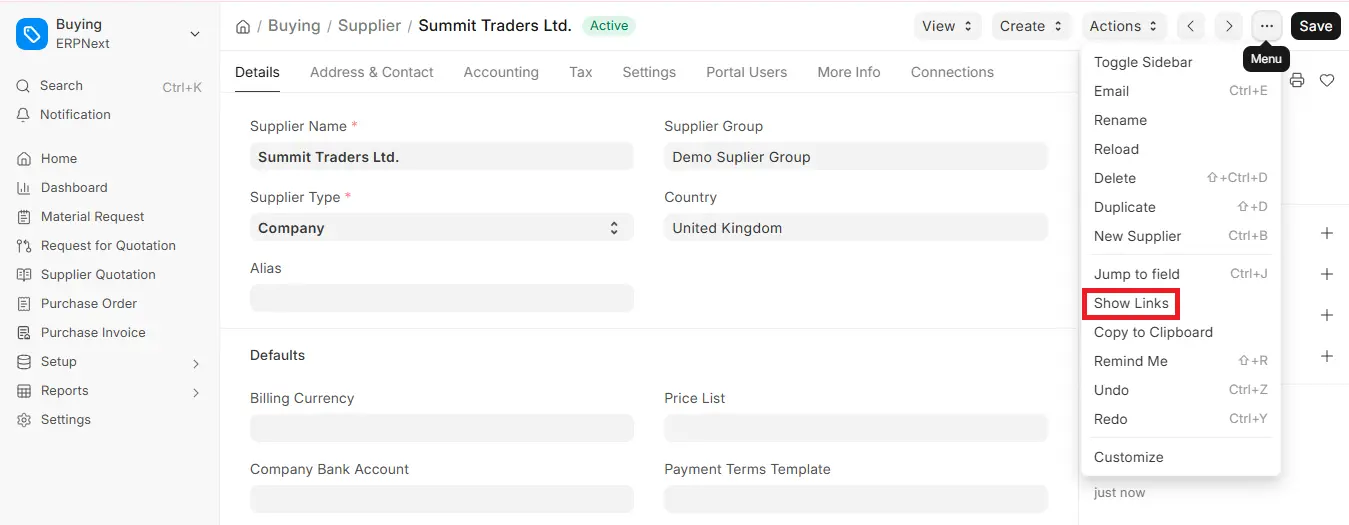
- Select the Customer that is linked to the supplier through a Party Link (create it from the Supplier with Actions > Link with Customer).
- Enter the invoice’s information (items, quantity, rate, taxes, etc.).
- Submit the sales invoice.
3. Automatic Journal Entry
After the sales invoice has been submitted:
- ERPNext will automatically generate a journal entry.
- An advance will be posted by this JE against the related supplier.
4. Reconcile with Purchase Invoice
- Go to: Accounting > Payments > Payment Reconciliation
- Select the supplier and the advance JE that was produced in the previous step.
- Compare it to the purchase invoice that is due.
- Reconcile and Submit
ERPNext makes it easier to handle common party transactions with this configuration, and connected suppliers and customers’ balances are accurately maintained and reconciled.

