
Data Export
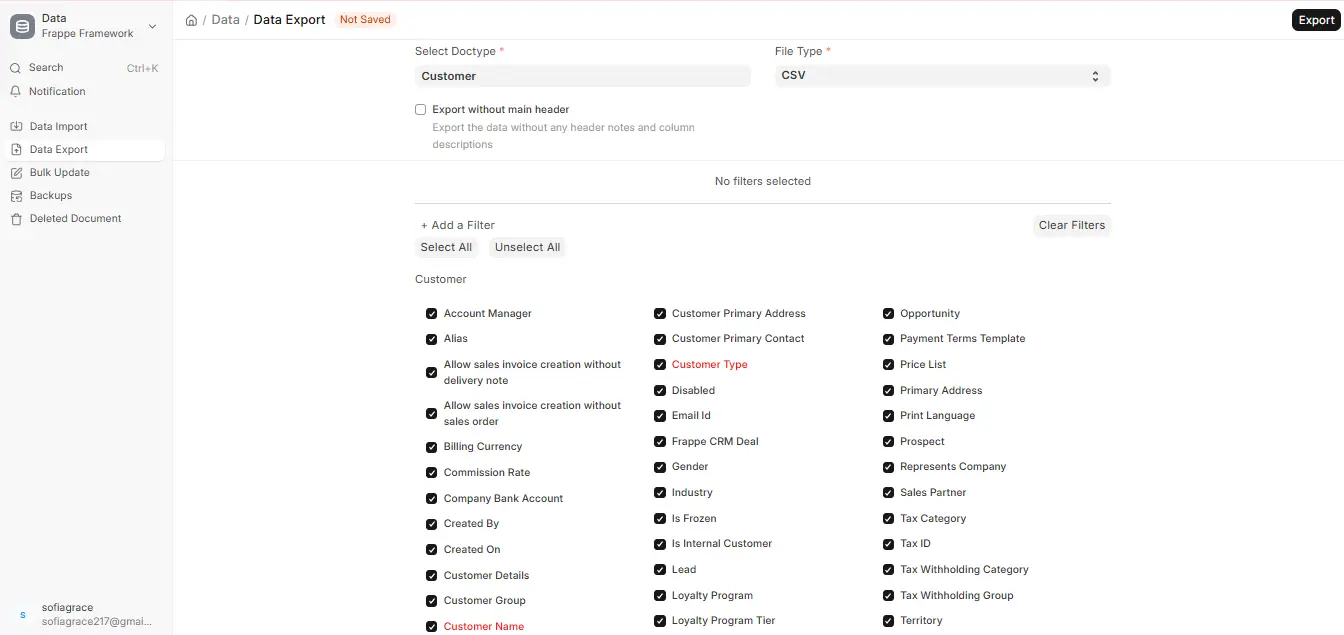
ERPNext’s Data Export feature enables you to pull out data of any DocType into a downloadable file in CSV or Excel format.
Go to:
Desktop > Framework > Data > Data Export
How to Use Data Export
- Open Data Export
- Go to Data Export from the search bar or menu.
- Select DocType (Required)
- Click on the “Select Doctype” field and select the DocType you wish to export (e.g., Customer, Item, Sales Invoice).
- Choose File Type
- In the “File Type” dropdown, choose:
- CSV (Comma-Separated Values)
- Excel (.xlsx)
- In the “File Type” dropdown, choose:
- Optional: Export Without Main Header
- Check “Export without main header” if you don’t want column descriptions and header notes to be included in the exported file.
- Select Fields to Export
- Mandatory fields are shown in red.
- You can select extra fields as required.
- Apply Filters (Optional)
- Add filters to restrict the export.
- Example:
Territory = Asia
This will export records where Territory is Asia.
- Click Export
- Click the Export button to save your file in the chosen Format.
Note: This feature is just like Data Import — you can also export child table data by choosing child table fields, and each record will be displayed separately in the export file.

