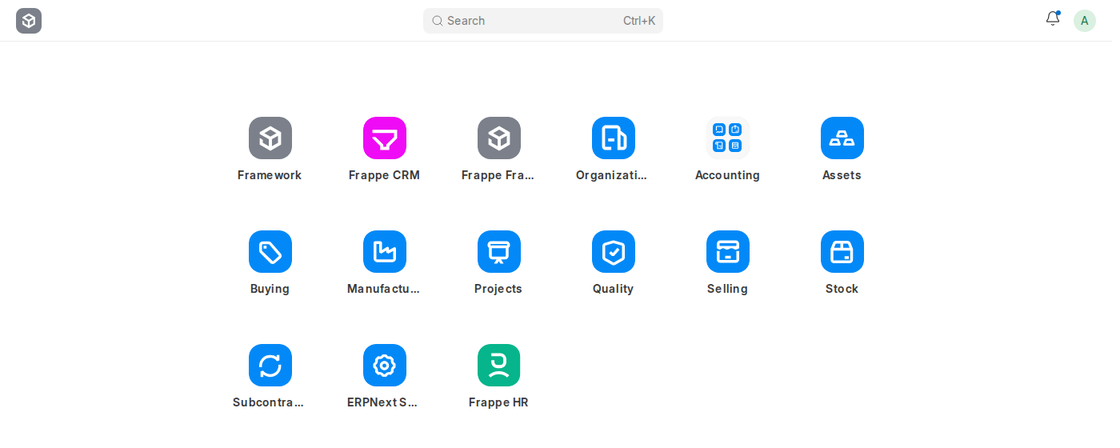
Desktop
Upon logging into ERPNext v16, a user lands on the Desktop, a clean grid of app icons for the modules the user has access to, such as Accounting, Assets, Buying, Selling, Stock, Manufacturing, Projects, Quality, Frappe HR and Frappe CRM. The Search bar at the top (Ctrl+K) lets you jump straight to any list, report or record.
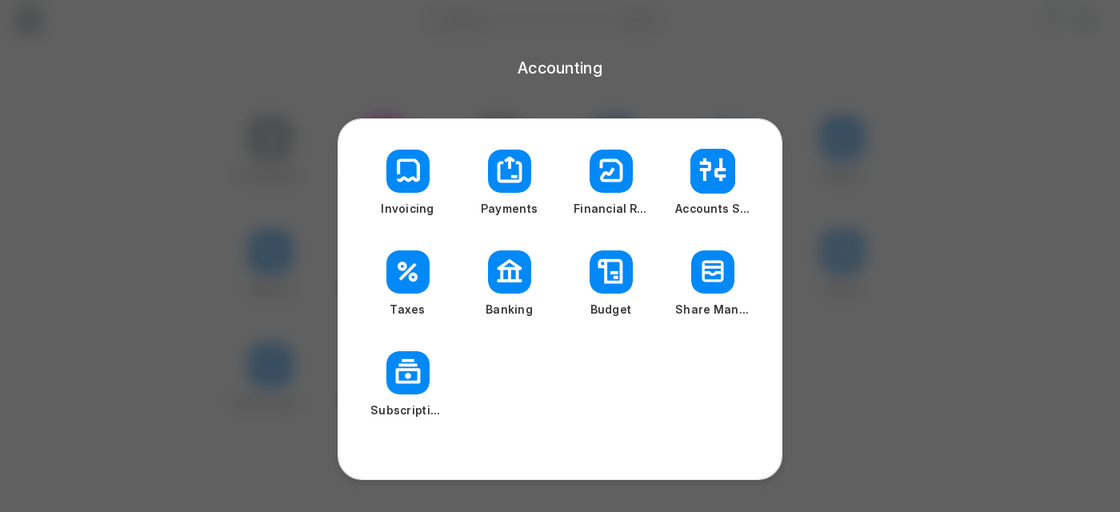
Desktop Icons and Folders
Each icon opens the workspace of that module. Some icons are folders that group related workspaces. For example, the Accounting folder contains Invoicing, Payments, Financial Reports, Accounts Setup, Taxes, Banking, Budget, Share Management and Subscription.
- Users only see the icons for modules their roles allow them to access.
- Apps installed on the site (for example Frappe HR or Frappe CRM) add their own icons to the Desktop.
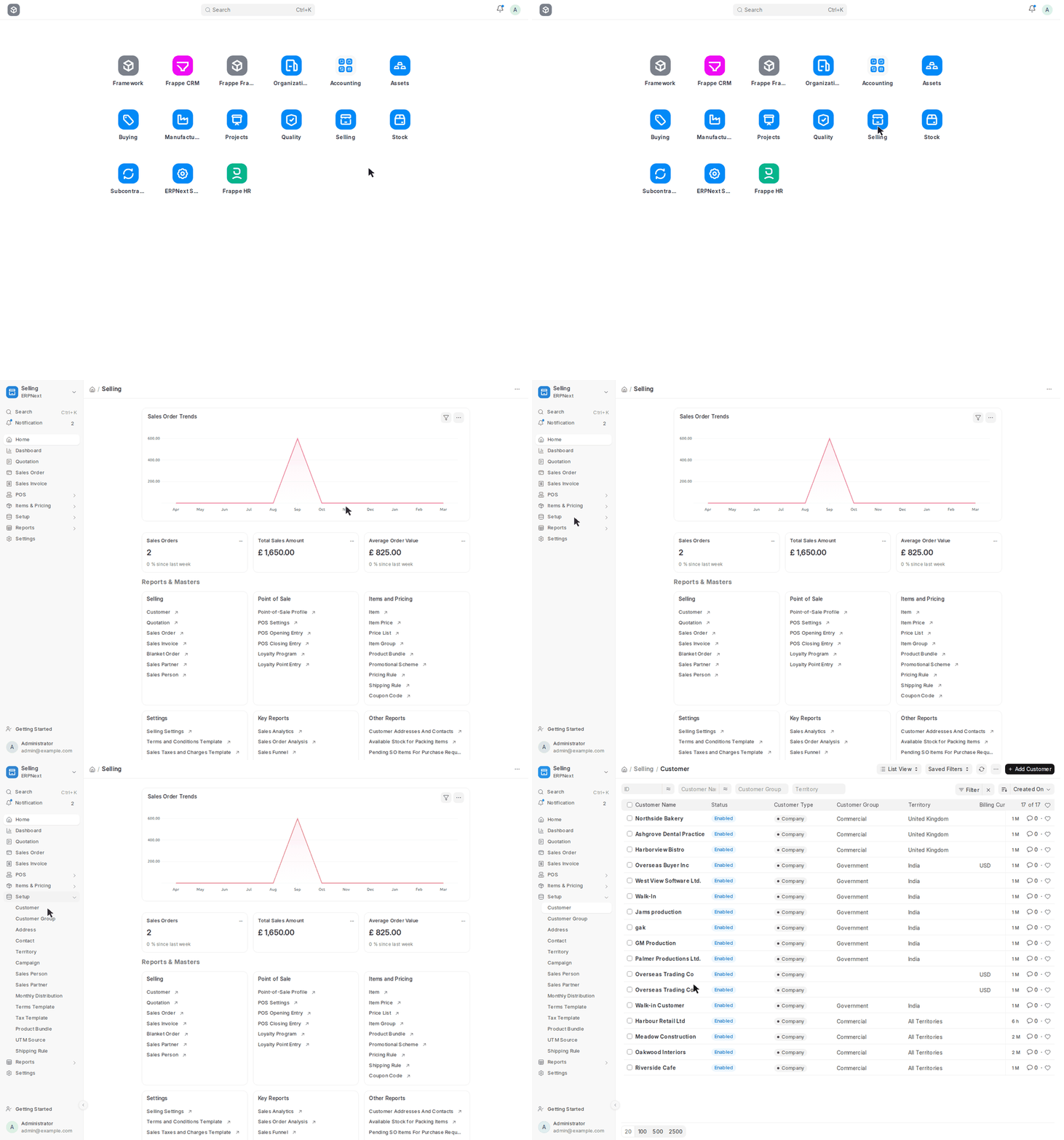
Navigation and Customization
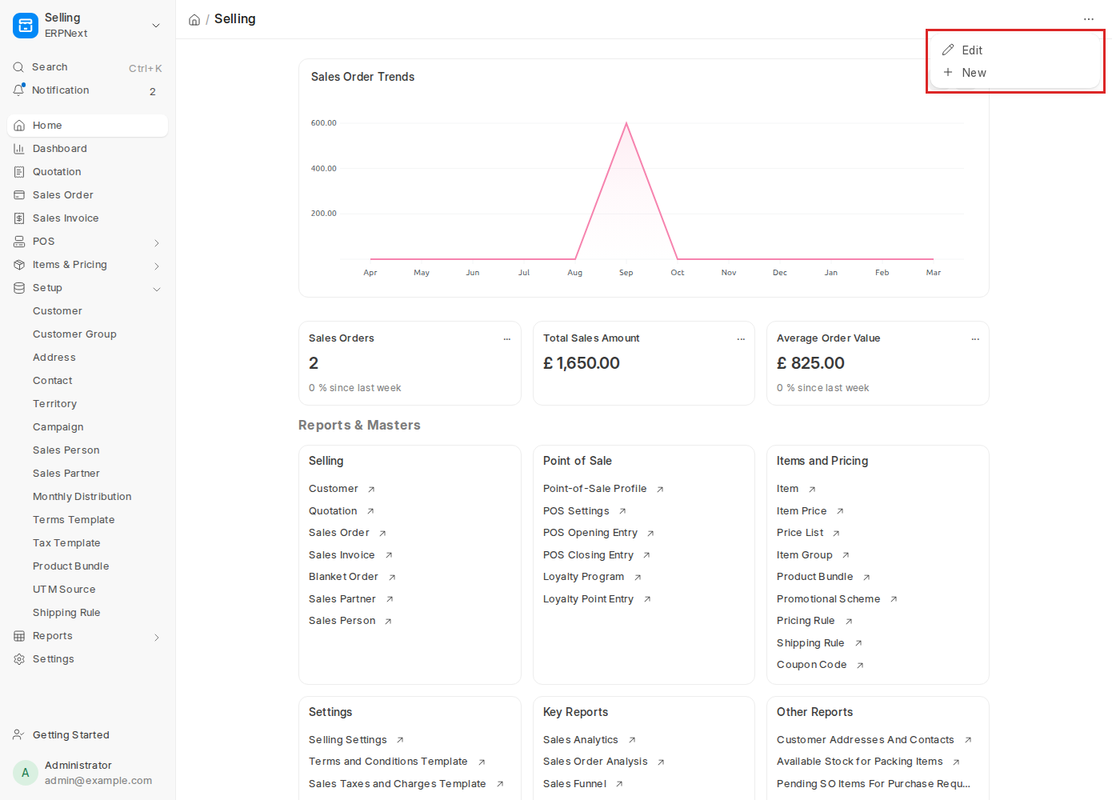
Clicking an icon opens its workspace. The sidebar on the left lists the most used documents of the module (for example Quotation, Sales Order and Sales Invoice in Selling) and collapsible sections such as POS, Items & Pricing, Setup and Reports. Click a section to expand it and click any link to open the list.
Workspace Page
The Home page of a workspace shows:
- Charts and number cards with key figures (for example Sales Orders, Total Sales Amount and Average Order Value)
- Reports & Masters cards with links to the doctypes, settings and reports of the module
- A Getting Started panel with onboarding steps for new users
Users with permission to manage workspaces can click the ⋯ menu at the top right and choose Edit to add, remove or reorder charts, number cards, shortcuts and cards, or New to create a new workspace.
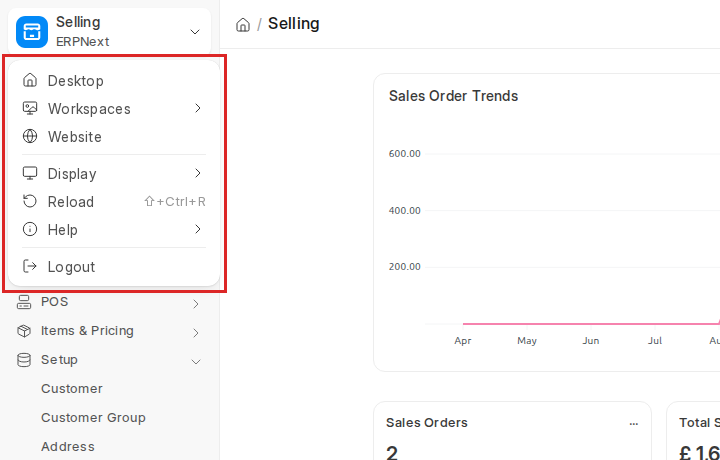
Switching Between Workspaces
Click the module name at the top of the sidebar to open the menu. From here you can go back to the Desktop, jump to another workspace under Workspaces, open the Website, change the Display theme, Reload the page, open Help or Logout.