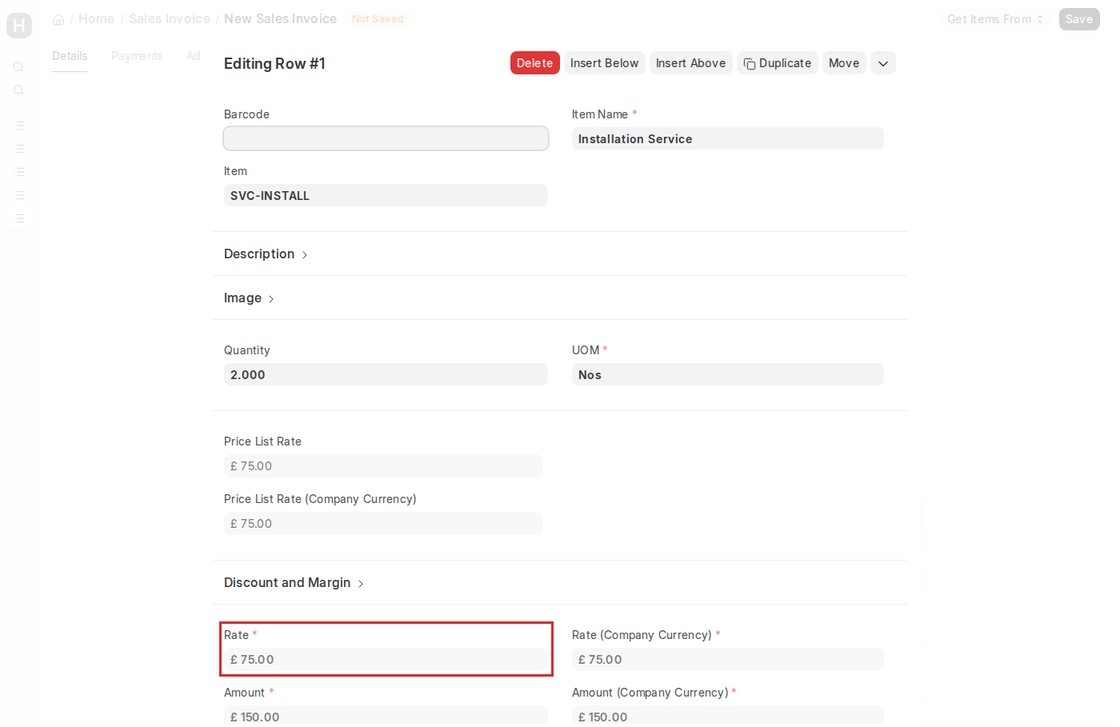
Field Level Permission Management
Field restriction based on Roles can be simply controlled with the help of Field Level Permission Management. This is a very Popular feature in companies due to the fact that it enables the administrator to decide precisely which users have permission to view or edit particular fields of a document.
By setting up Perm Levels and assigning them to Roles via the Role Permissions Manager, you can set specific fields read-only, hidden, or editable based on business requirements.
Scenario Example
Suppose an organization does not wish its Employees (Accounts Users) to modify the Rate of an Item when making a Sales Invoice. Users editing rates at will can cause inconsistent pricing, as well as accounting problems. The system must then make sure that the Item Rate is automatically retrieved from the Price List and is only visible, not editable.
This limitation can be done very simply by Field Level Permission Management via Perm Levels.
1. Customize the Field
- Navigate to Customize Form.
- Choose the DocType as Sales Invoice Item, as Item Rate is a field in that child table.
- Open the Form tab and click the Rate field to open its properties on the right. Type Perm in Search properties to find the Perm Level property.
- The input in the Perm Level field should be something such as “2” (any other number but 0).
- Click Update.
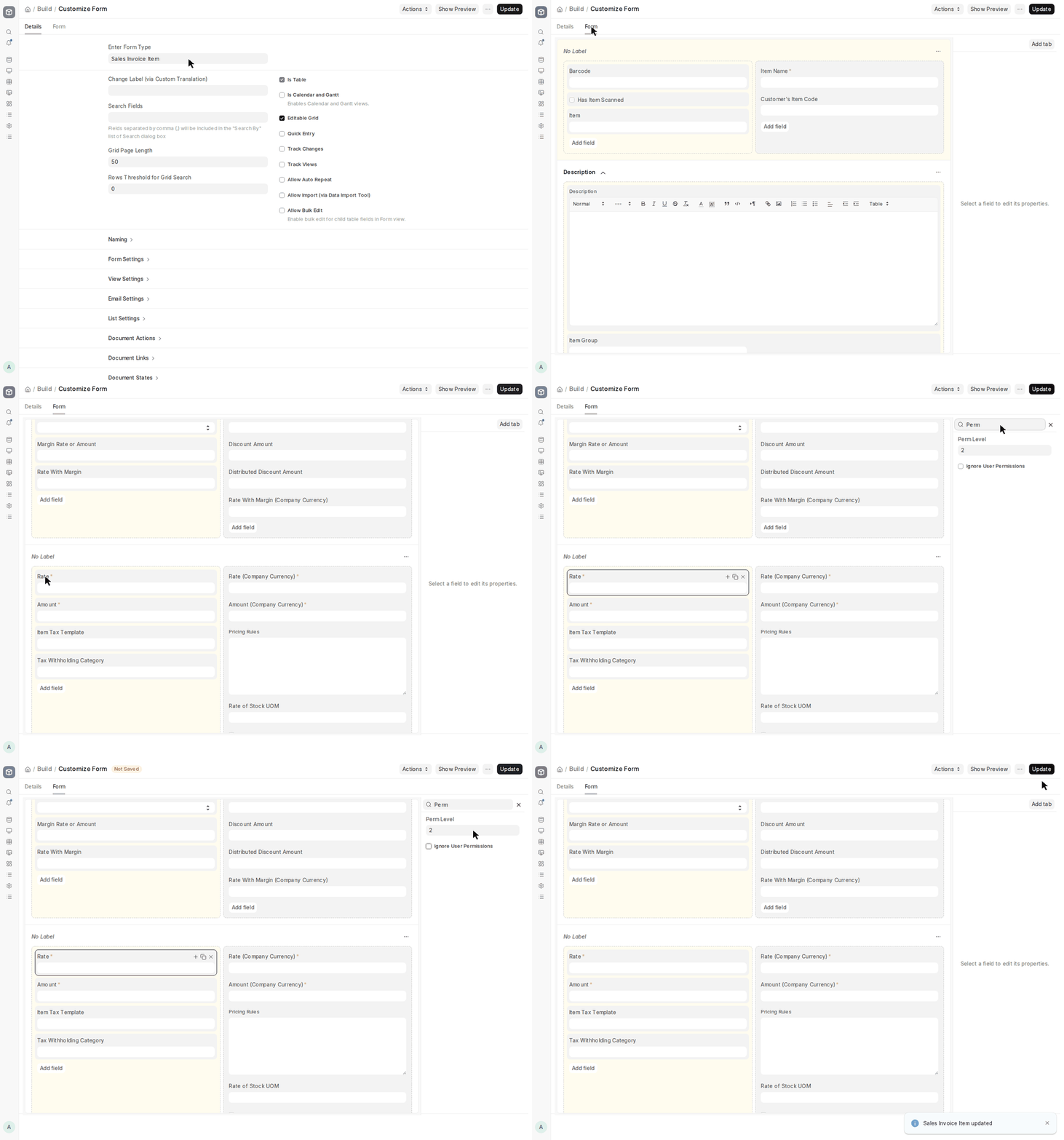
In so doing, the Item Rate field has been detached with the default permission level (0) and can henceforth only be accessed with a specific permission rule.
2. Establish the Permission Rule
- Go to Role Permissions Manager.
- Select Add a New Rule.
- Select the Document Type to be Sales Invoice (fields of a child table such as Sales Invoice Item follow the permissions of the parent document).
- Select that Role Accounts User as.
- Use Perm Level as “2”.
- Give this position Read access only at this level.
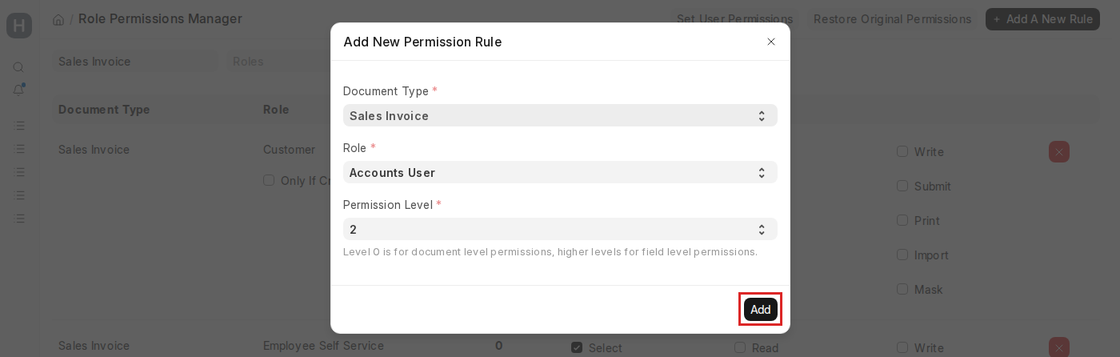
The users with the Accounts User role can see the field but not change it. Remember to give Read and Write at level 2 to roles that should still be able to change the rate, such as Accounts Manager.
3. Permission Rule Display
When we save the rule, a new row will appear in the Role Permissions Manager like down below:
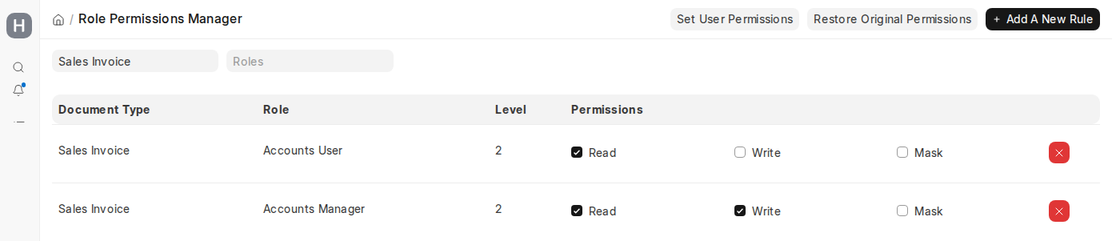
- Document Type: Sales Invoice
- Role: Accounts User
- Perm Level: 2
- Permitted Access: Read
This is in order to protect the Item Rate field and make it secured in account users with a higher level of control on certain pricing data.
4. Result in Sales Invoice
An Accounts User, on making a Sales Invoice now:
- The Item Rate field will automatically get filled as per the Price List.
- The field will not be editable, the user will not be able to manually update the value in the field and the field will be read-only.
- This not only dictates the pricing policies to be applied in the organization but the user can still view the rate.