
Kanban Board
The Kanban Board in ERPNext is a Graphical project and workflow management tool that allows an interactive, real-time view of your data by status. It lists documents as cards, placed into columns which signify various steps of a process (e.g., Open, In Progress, Completed).
Each card represents a document in a specific DocType, like Task, Lead, or Sales Order, and can be transferred from one column to another by simply dragging and dropping—changing its status immediately.
The Kanban view supports teams in the following ways:
- Visualize workflows in an easy-to-understand, stage-based structure.
- Tracing progress through various tasks or transactions.
- Collaborate in real time with other users.
- Pinpoint bottlenecks and efficiently distribute workloads.
Creating a New Kanban Board
You can make a Kanban board for any document type with a Select field (like Status) to show various stages.
To make one:
- Open the DocType list view, for example: Task List.
- Switch the view to Kanban View (or, if a board already exists, click Select Kanban > Create New Kanban Board).
- Enter the Kanban Board Name and choose the field in Columns based on (e.g., Status). For Tasks you can also pick a Project, so the board only shows that project’s tasks.
- Click Save. Each option of the chosen field becomes a column.
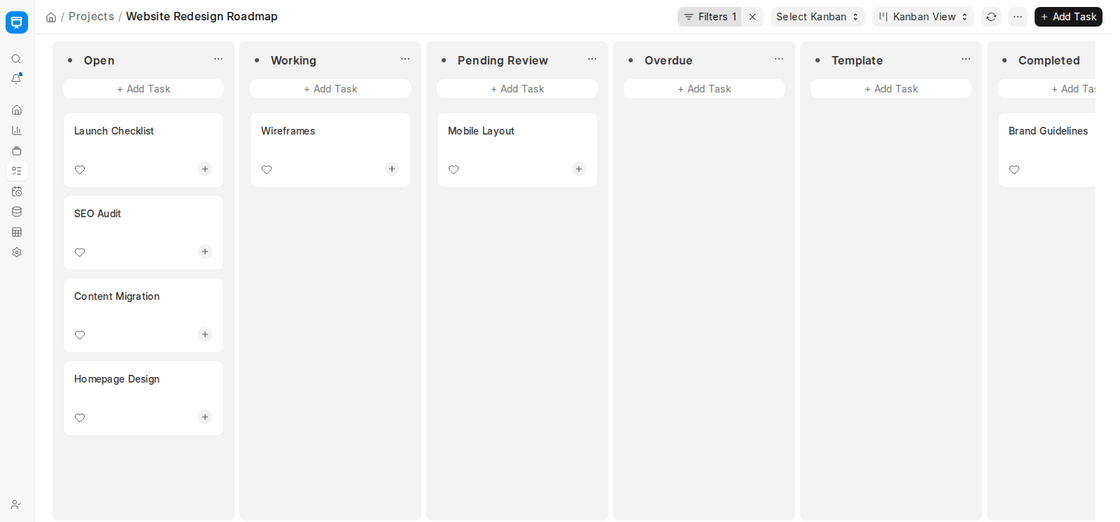
You may have several Kanban boards for the same DocType, each showing a different subset of records (e.g., by project, priority, or owner).
Adding New Card / Document
To add new cards from the Kanban Board directly:
- Click + Add Task (or the DocType’s equivalent) at the top of the column.
- Type the title of the new card.
- Press Enter. The card is created in that column, with the column’s status. (The + Add Task button at the top right of the page opens the full new Task form instead.)
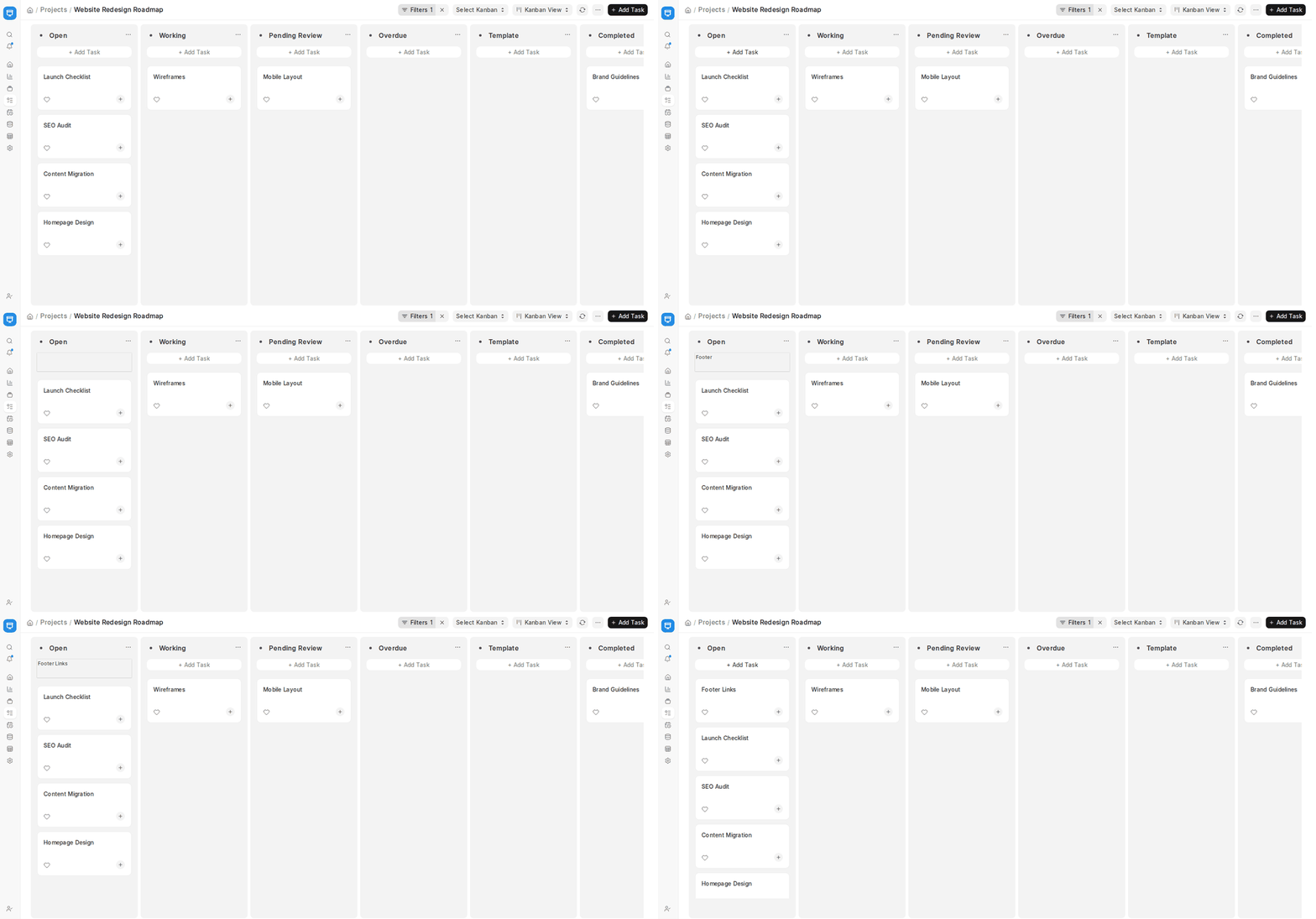
To edit a card, click its title. This opens the full document form (here, the Task), where you can make further updates, assign people, set deadlines, or add notes.
Updating Card / Document Status
Updating a document’s status is simply dragging and dropping its card to a different column. For instance:
- Move from Open → In Progress once work starts.
- When complete change In Progress to Completed.
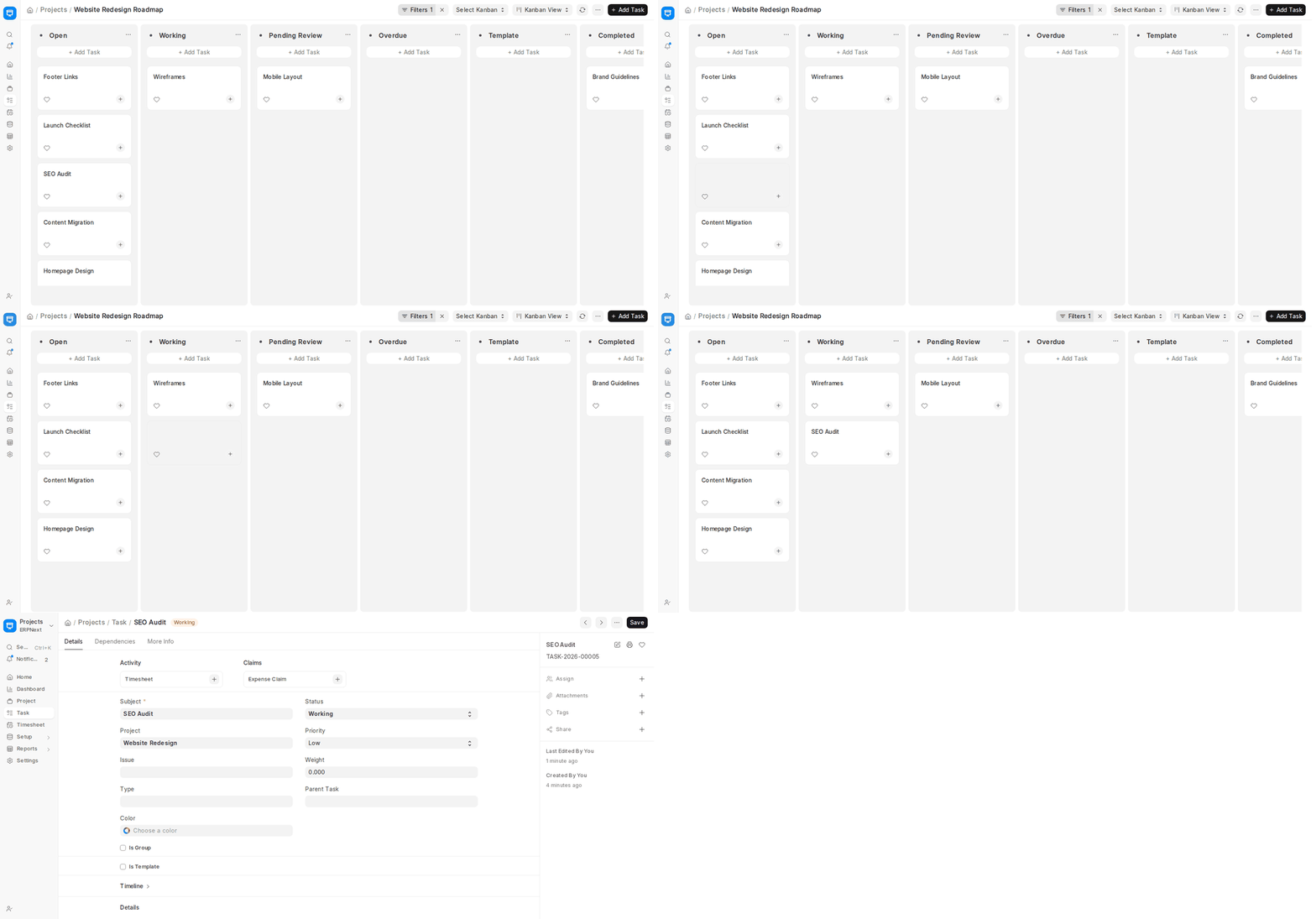
This update is automatically reflected in the database, devoid of manual overhauls, which keeps all of the group members updated.
Column Handling
Columns are different steps of your workflow. You can:
- Add columns: Click + Add Column at the end of the board, type a name and press Enter. In ERPNext v16 this button only appears when the board is grouped by a custom Select field. For standard fields such as the Task Status, the columns are the field’s own options, so the button is hidden.
- Column colour: Click the … menu on a column and pick a colour, for easy identification.
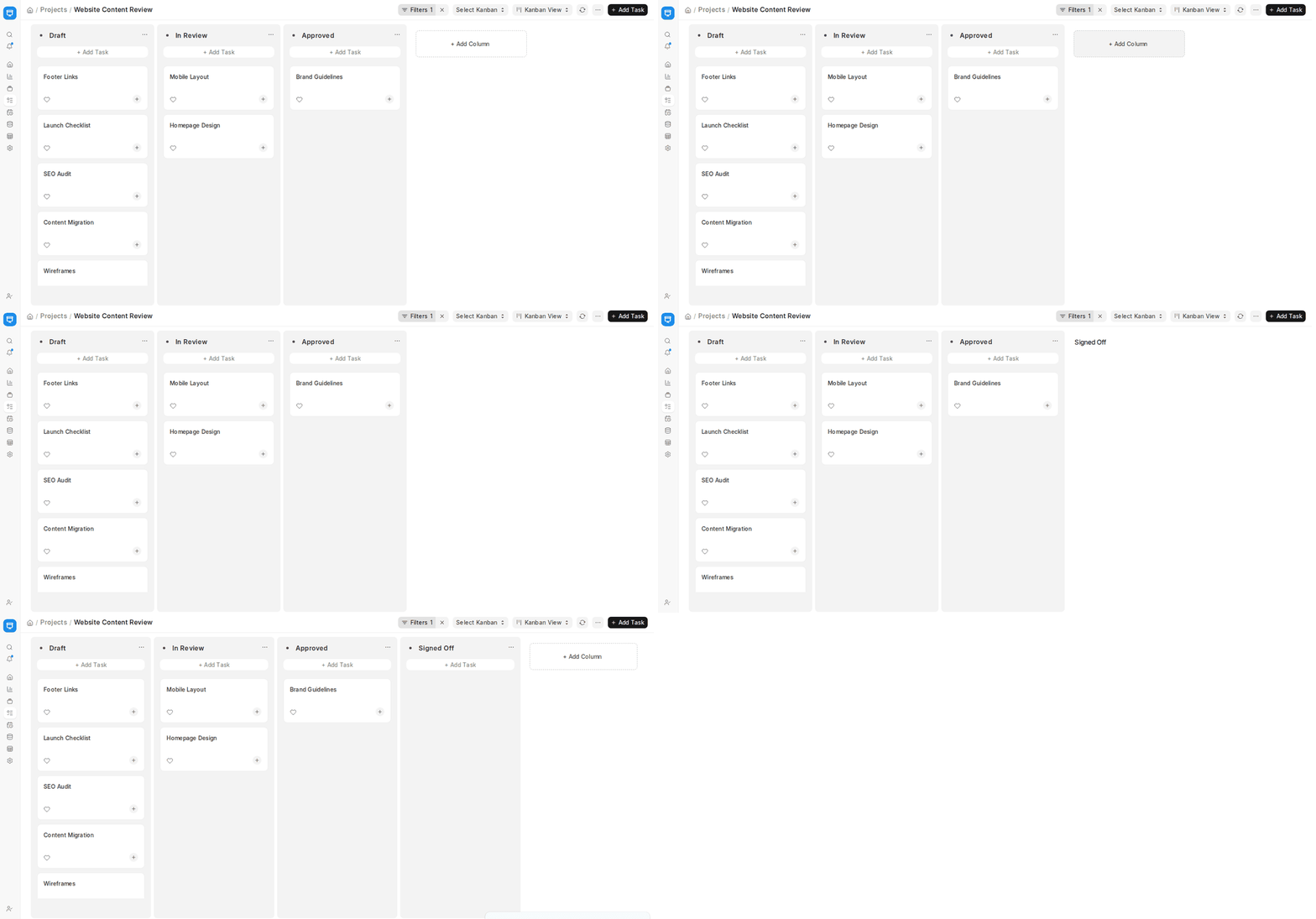
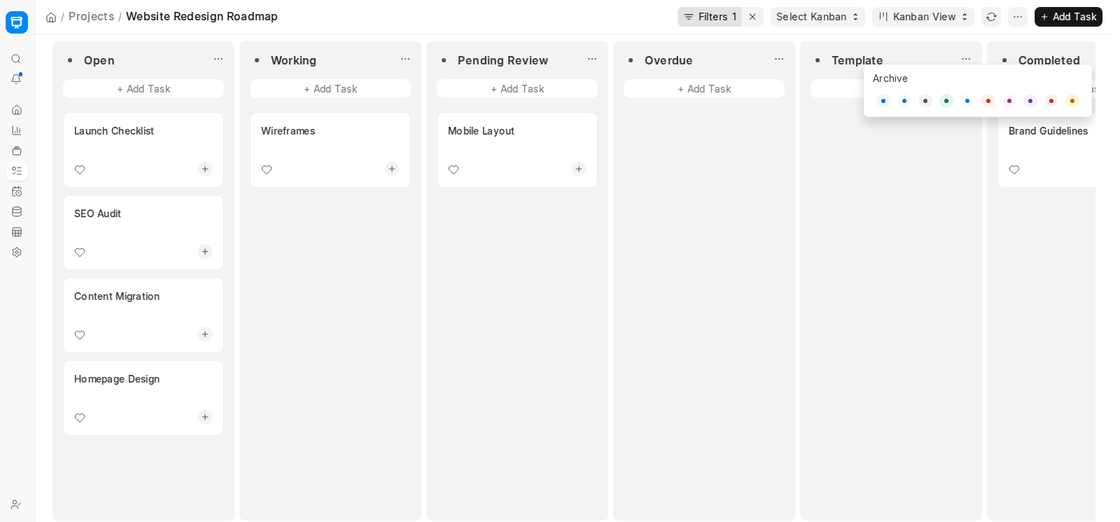
- Reorder columns: Drag columns left or right to rearrange the workflow sequence.
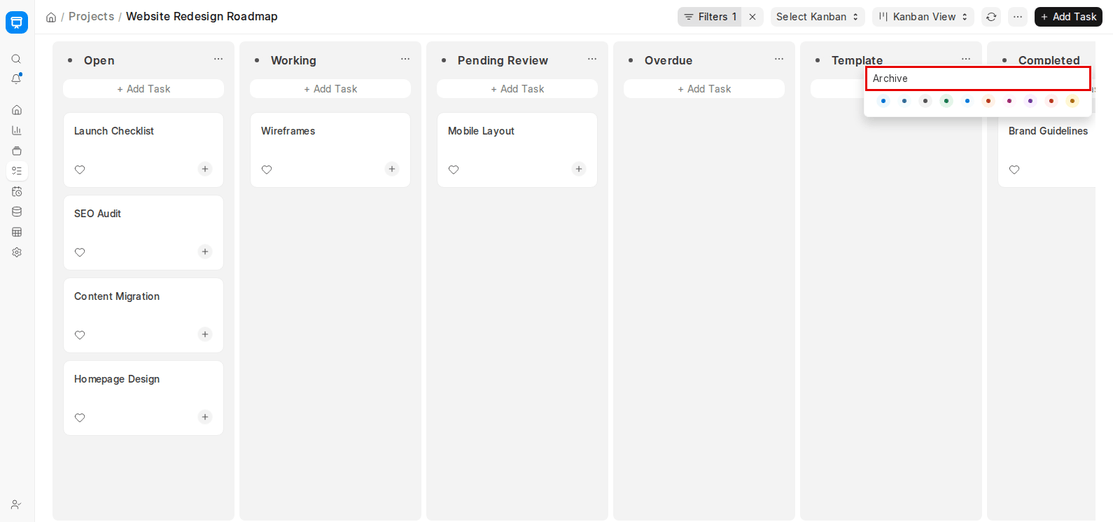
- Archive columns: Click the … menu on a column and choose Archive to hide a stage you no longer need. Archived columns can be restored later.
Applying Multiple Kanban Boards Using Filters
Multiple customized boards for the same document type can be created by applying filters. For instance:
- A Project-Specific board displaying tasks only for Project Alpha.
- Priority View of only High Priority tasks.
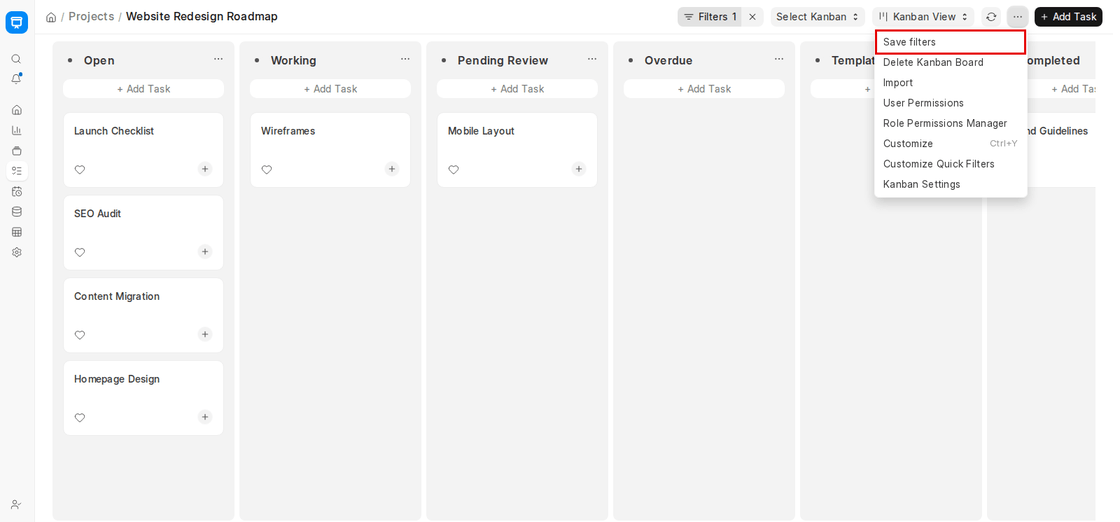
Once filters were applied:
- Click the … menu at the top right and choose Save filters.
- Name your board so that you have it at hand later.
Removing a Kanban Board
In a situation where a Kanban Board is not anymore required:
- Open the board.
- Click the … menu at the top right and choose Delete Kanban Board.
- Confirm the action.
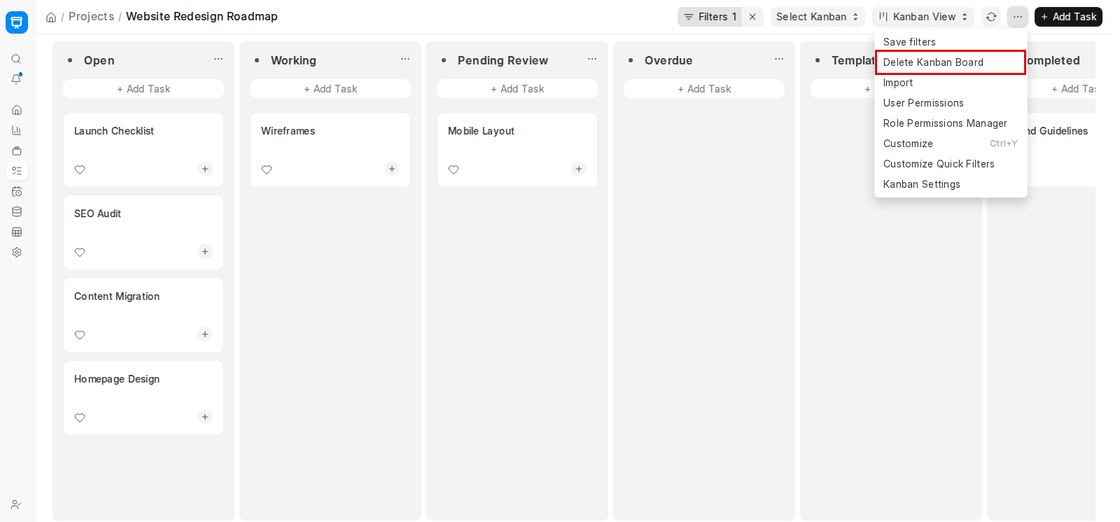
This removes only the board configuration—it does not delete the underlying documents.

