Project Views
Since projects are time-dependent, we have various types of Project Views to present information visually to users.
Besides the common list and report views for Project Views and Tasks, ERPNext also offers Project Views such as Gantt, Kanban, and Calendar views for Tasks. You can open them from the Task list by clicking the view switcher button at the top (it shows List View) and choosing Gantt, Kanban or Calendar. Filter the Task list by Project to see the tasks of one project.
Gantt View
The Gantt Chart displays tasks as bars along a timeline with their start and finish dates, duration, and dependencies. This allows project managers to quickly see the progress of tasks, overlaps, and the project timeline easily.
Tasks can be dragged across the timeline horizontally to change their Start and End Dates. These changes are stored directly within the task record. The chart can be customized by enabling you to set a Color field for each task, allowing for improved visual separation of various types or statuses of tasks.
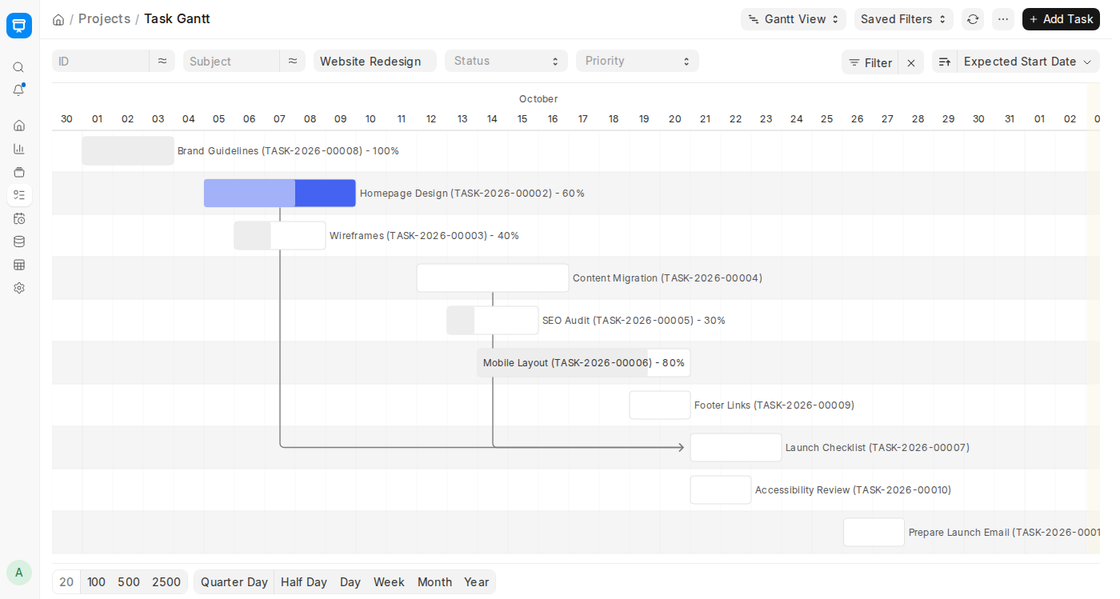
You can change the range of the chart by choosing Quarter Day, Half Day, Day, Week, Month or Year at the bottom of the chart. If you would like to personalize the chart further and make it more colorful, check out this article.
Kanban View
The Kanban View is a dynamic board on which tasks are displayed as cards under columns that usually represent their status (e.g., Open, Working, Pending Review, Completed).
Tasks are easily created within the Kanban interface (+ Add Task in a column) and dragged between columns. Columns can be color-coded to specify priority, urgency, or team-specific lanes for improved clarity and task handling. The columns are editable by the user, and each board is saved as a Kanban Board record, so other users can open the same board from Select Kanban (unless it is marked Private).
The Kanban View is best suited for agile teams and daily task tracking workflows.
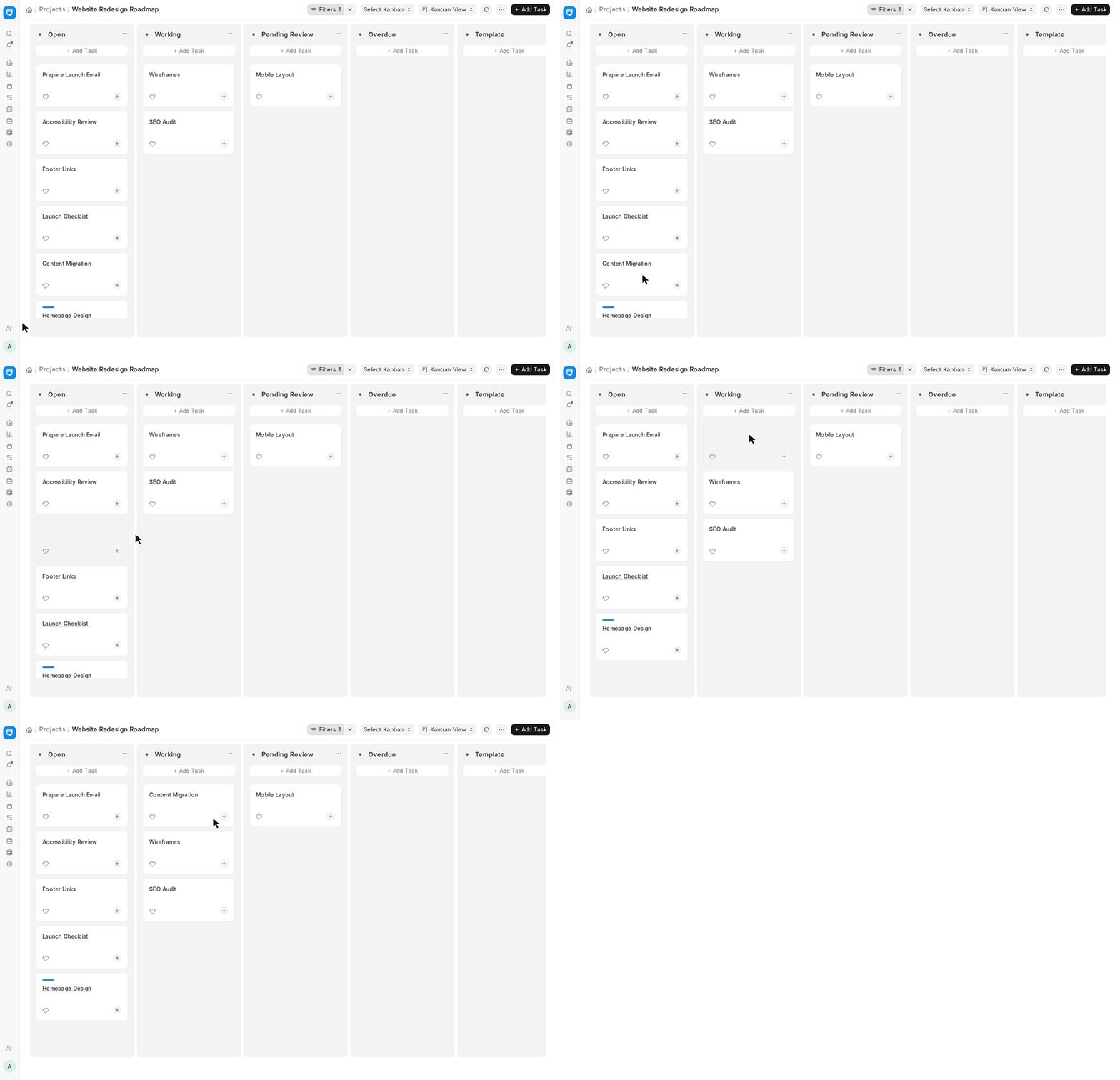
ERPNext displays the Kanban view according to Task status. Status can be updated by dragging cards between columns; the new status is saved on the Task straight away. Columns may also be color-coded for visual recognition.
Calendar View
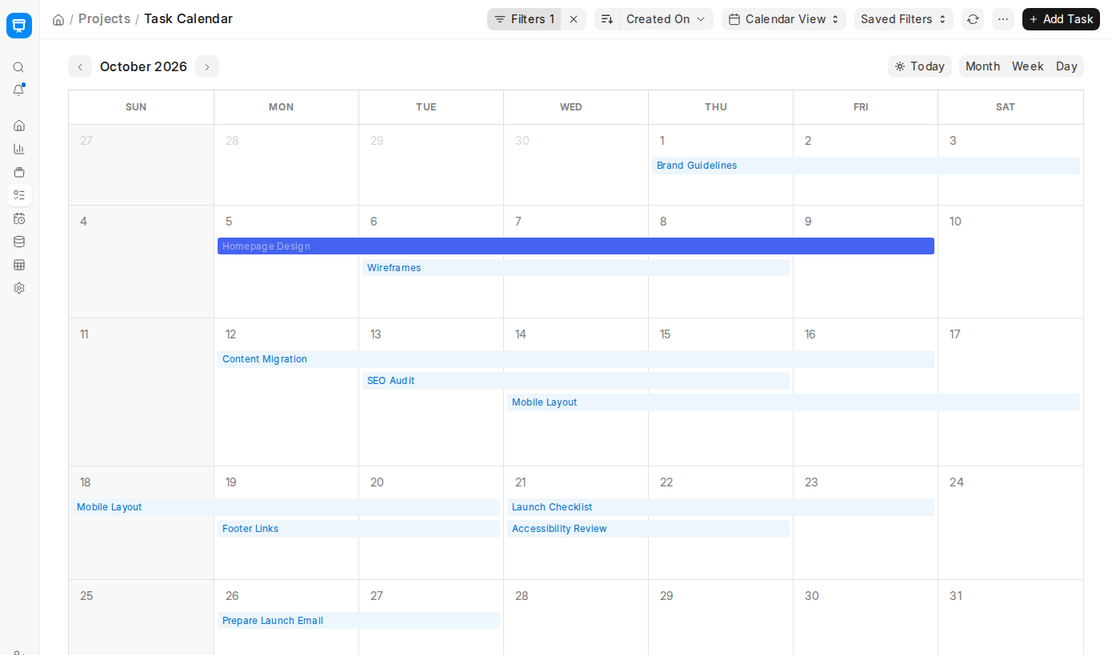
The Calendar View shows tasks across the classic calendar layout, showing task marked over the relevant dates. Tasks are located by their Expected Start Date and Expected End Date to let teams see workloads in the familiar calendar format. This view is particularly useful for resource planning, monthly scheduling, and synchronizing team activity with company calendars.
The Calendar View is ideal for Organizing and reviewing medium- and long-term tasks and group schedules.