
Scrapping an Asset
Scrapping an Asset is when an asset cannot be used further or has completed its useful life; it is scrapped.
You may scrap an asset at any time using the “Scrap Asset” option from the Actions menu on the Asset record (this menu was previously labelled “Manage” in older versions of ERPNext). You will be prompted to enter the date on which the asset should be scrapped. Enter the date and click Submit, and the asset will be scrapped.
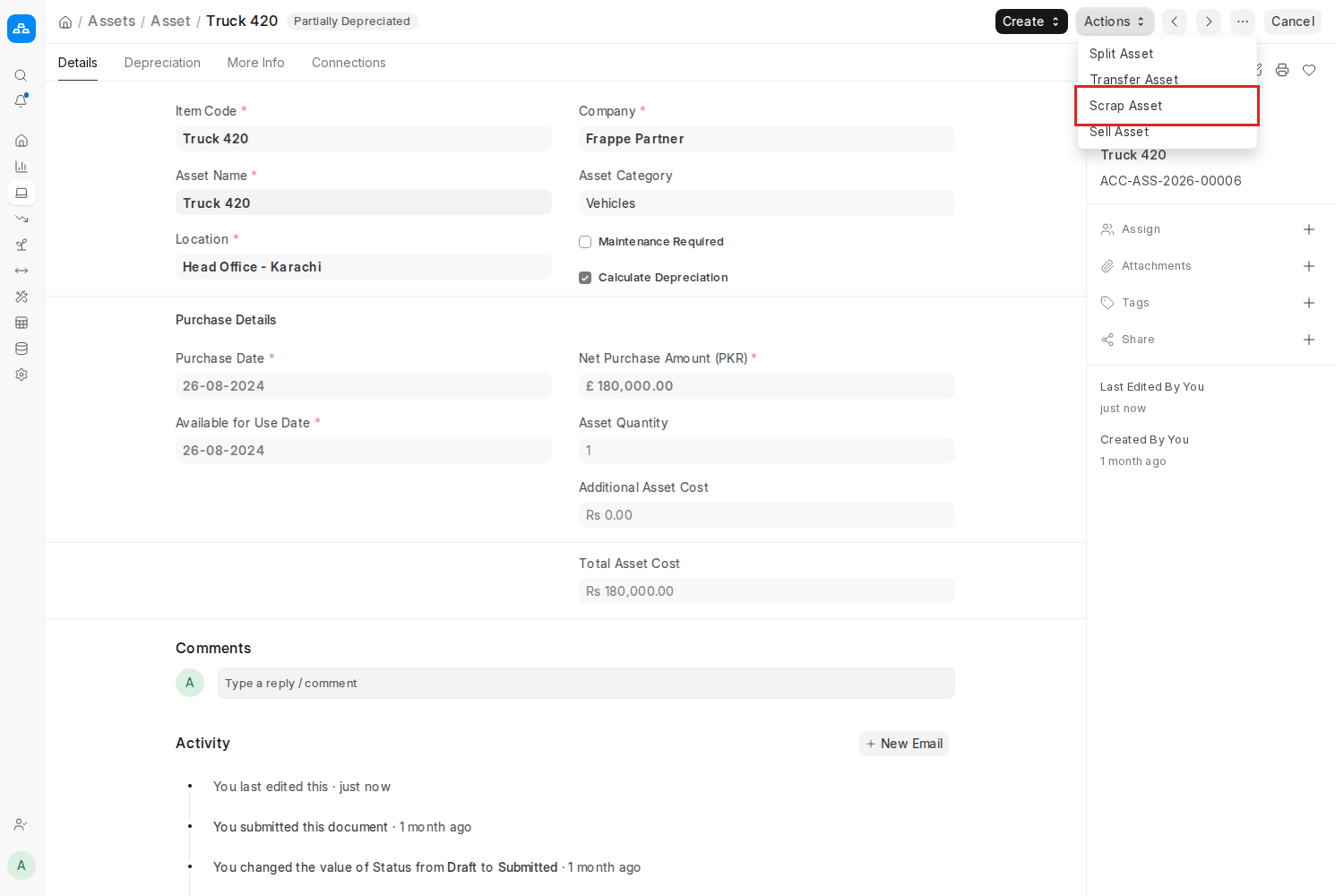
Prior to scrapping an asset, check that all depreciation entries have been posted since this will ensure that there is accurate financial reporting. Also, check that the asset is no longer in service and is removed from any location or employee assigned to it. Documenting the reason for Scrapping an Asset—i.e., damage, obsolescence, or end-of-life—by entering a comment or file attachment within the asset record for clear Audit trails is advisable.
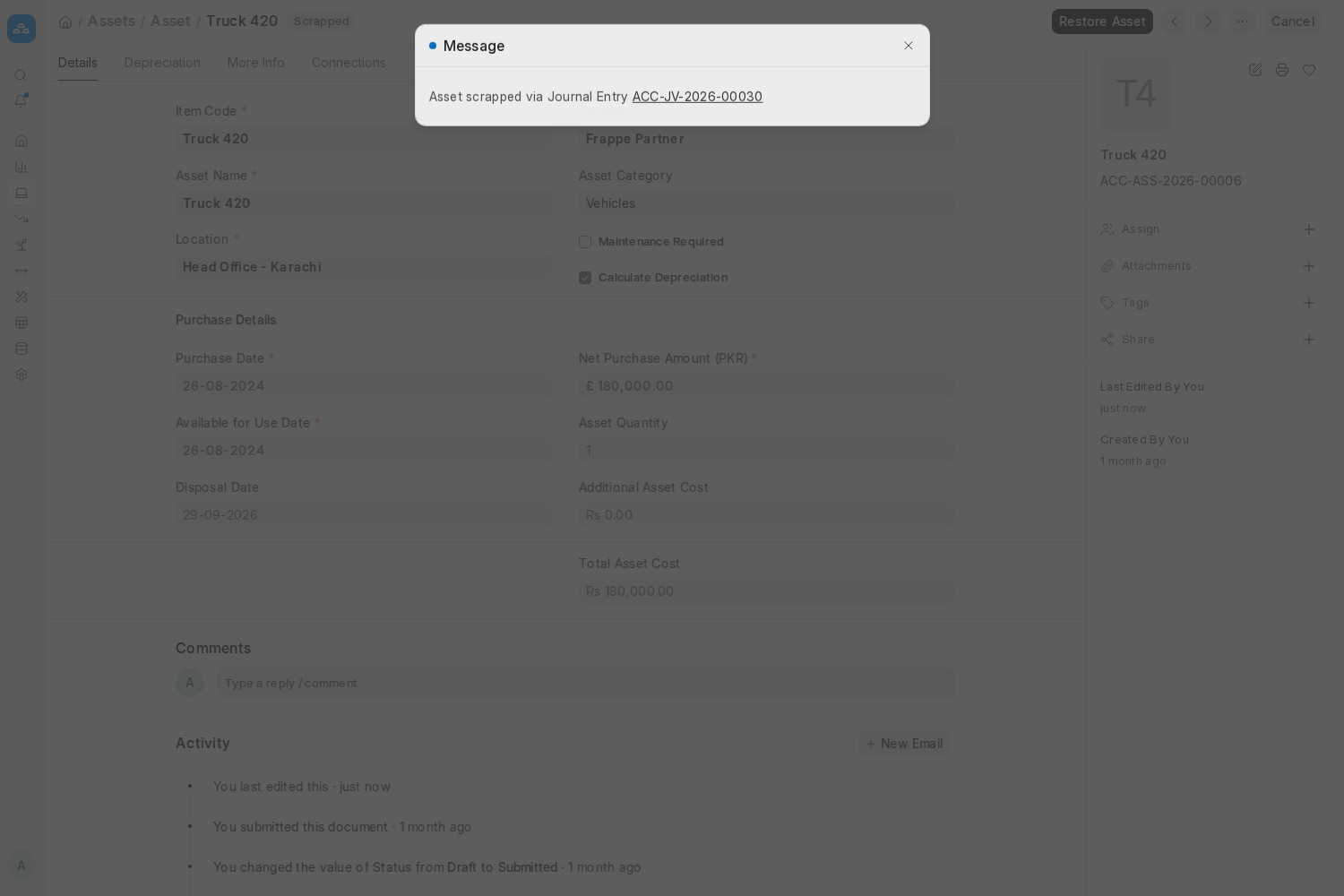
The “Gain/Loss Account on Asset Disposal” account referred in the Company is debited by the Current Value (After Depreciation) of the asset. This is done to facilitate clear financial reporting, particularly during auditing or internal examination.
A Journal Entry will be prepared if you salvage an asset:
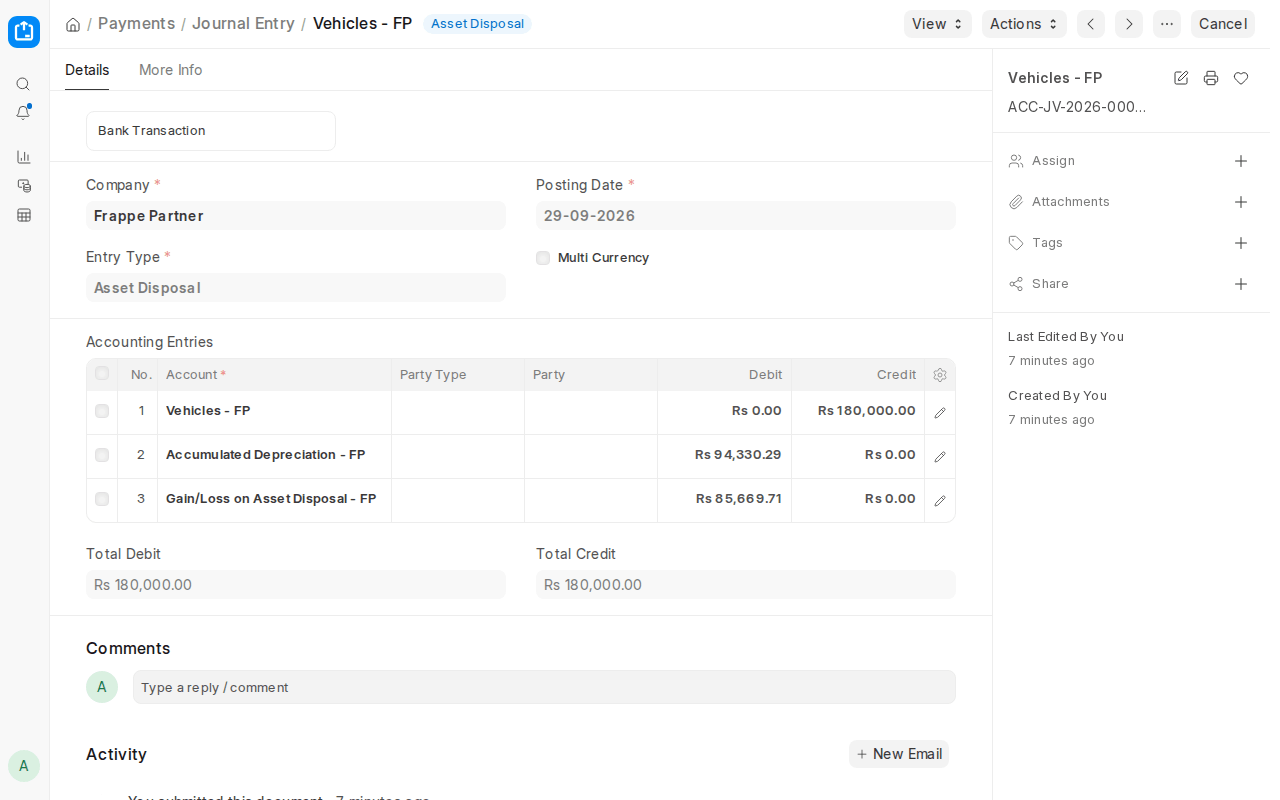
This entry will credit the Fixed Asset Account and debit the Gain/Loss on Asset Disposal account with the net book value. If Capital Work In Progress Accounting is turned on and the asset is not yet in use, the journal entry will instead credit the CWIP account appropriately.
Once scrapped, you can also bring back the asset with the use of the “Restore Asset” button from the Asset master. Restoration would only be executed if the asset was scrapped in mistake or if it has been fixed and is now in working condition again. After being restored, check the asset information and confirm it before reassigned to a user or location.

