Shift Schedule
- You can use Shift Schedule in Frappe HR to schedule and manage employee shift postings based on selected days and a predefined frequency pattern. This ensures smooth operations and reduces frequent manual shift postings.
- It will be particularly useful for businesses that require a structured method of tracking working hours and operate more than one shift.
1. Requirements
A minimum of one Shift Type should be configured in the system prior to creating a Shift Schedule. This is because the Shift Schedule will be tied to a Shift Type to define the specific working hours, breaks, and attendance options for the staff.
2. Creating a shift plan
Go to: Home > Shift & Attendance > Shift Schedule (in the Setup section of the Shift & Attendance sidebar).
- Click “+ Add Shift Schedule” to create a new entry.
- Name the shift schedule something that is ideally self-explanatory enough for managers and staff to understand its intent at first sight.
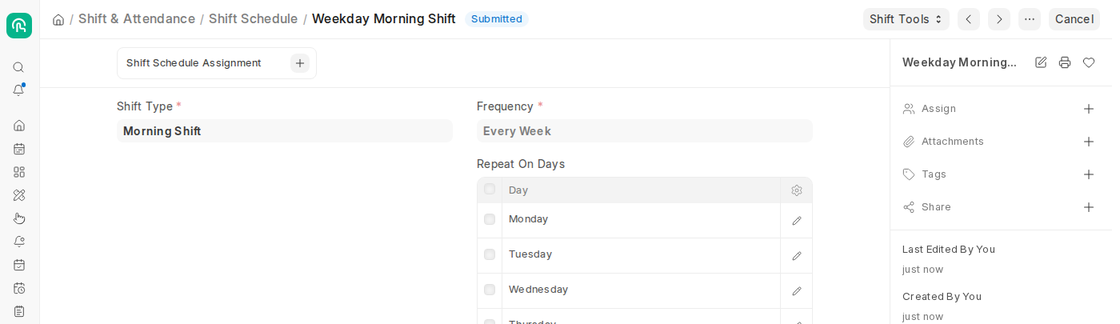
- Select the Shift Type from the drop-down options. The Shift Type holds the start time, end time and attendance rules of the shift.
- Choose the Frequency that indicates how often the shift pattern repeats: Every Week, Every 2 Weeks, Every 3 Weeks or Every 4 Weeks.
- Add rows to the Repeat On Days table to indicate which days of the week the shift must be active. You can create your plan to be only weekdays, weekends, or both, as you prefer.
- Click Save to save the schedule as a draft after filling in the required fields (Save asks for the schedule name). After that, click Submit to make it live so that employees can be assigned to it.
3. Setting up the shift schedule
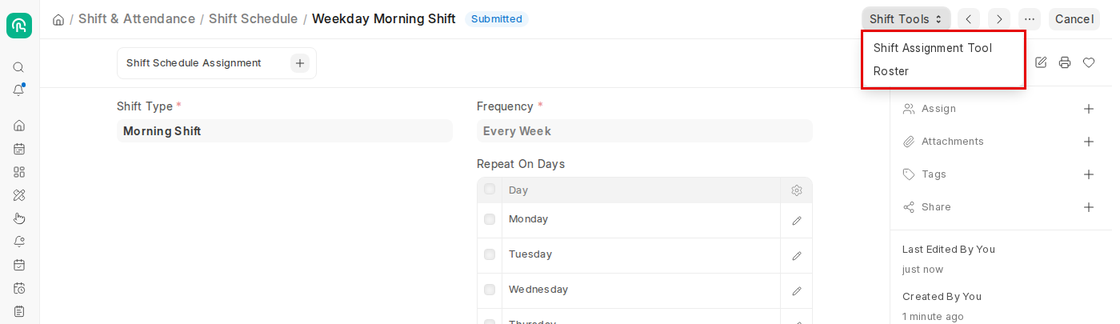
- Once you have submitted a Shift Schedule, assign it to employees with the Shift Assignment Tool. You can open it from the Shift Tools menu of the Shift Schedule (the same menu also opens the Roster).
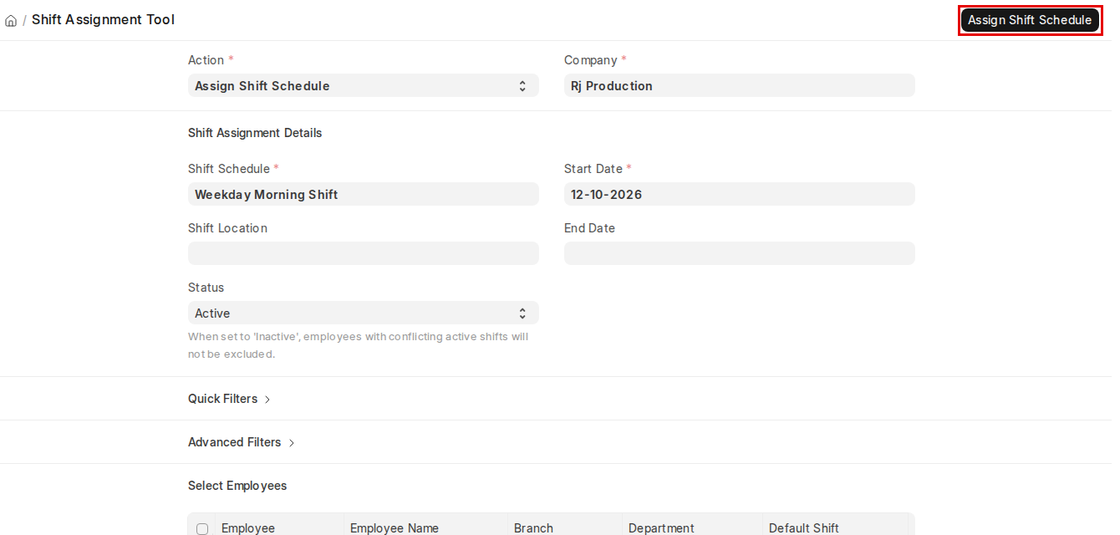
- In the Shift Assignment Tool, set Action to Assign Shift Schedule, select the Company, the Shift Schedule and the Start Date (End Date is optional).
- Use Quick Filters (Branch, Department, Designation, Employment Type, Employee Grade and more) or Advanced Filters to narrow down the employee list, tick the employees under Select Employees and click Assign Shift Schedule, then confirm.
- This makes scheduling a large number of workers more uniform and less likely to be incorrect.
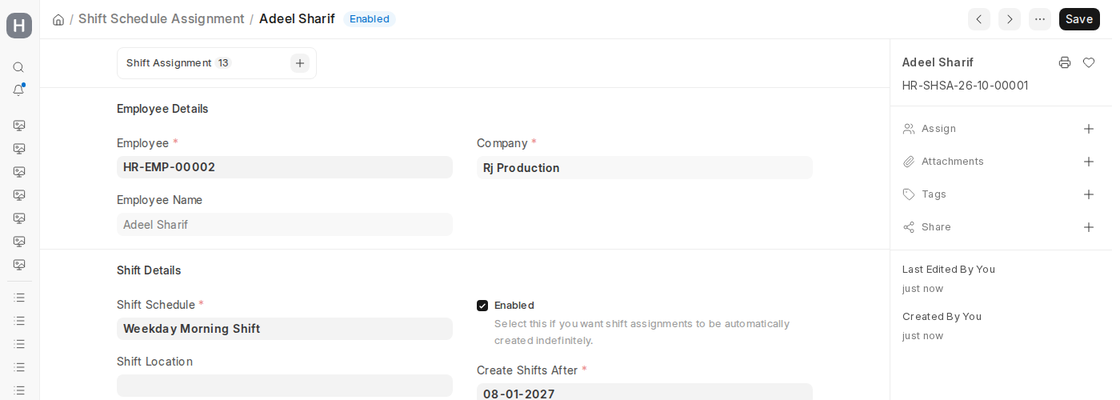
- ERPNext creates one Shift Schedule Assignment per employee (in the background). Each one creates submitted Shift Assignments for the selected days, for the next 90 days from the Start Date (or up to the End Date).
- The Create Shifts After field shows the date up to which shifts have been created. A daily background job creates the next shifts automatically after that date, as long as the assignment is Enabled.