
Supplier Quotation through Supplier Portal
A Supplier Quotation through the Supplier Portal is a quotation that a supplier enters themselves on the ERPNext website (portal), giving the prices, delivery schedules and terms for the goods or services you asked for.
The quotations can be created in two ways:
- Manually by an internal ERPNext user via the backend.
- The Supplier Portal enables the suppliers to respond to a Request for Quotation (RFQ) to which they have been assigned.
The Supplier Portal is an effective tool, as companies that frequently need quotations from different suppliers usually need to use it since it will eliminate duplicate entries, allow real-time monitoring, and create open communication.
1. Pre-requisites
A supplier, before being able to post and send a quotation via the portal, needs the following:
- A Website User for the Supplier
- The supplier needs a user account (Website User) on your ERPNext site to log in to the portal.
- You can create it yourself, or let ERPNext create it: when an RFQ is submitted with Send Email ticked for the supplier, ERPNext creates the user (if it does not exist yet) and the email includes a link to set the password.
- The User in the Supplier’s Portal Users
- In v16, portal access comes from the Portal Users tab of the Supplier. Add the user in the Supplier Portal Users table; ERPNext gives the user the Supplier role automatically.
- The supplier then sees only the RFQs, quotations, purchase orders and purchase invoices of that Supplier.

2. Process Overview
For a supplier to send in a quotation through the portal, an RFQ needs to be generated and allocated to them within ERPNext. The steps are as follows:
Step 1: Generate a Request for Quotation (RFQ)
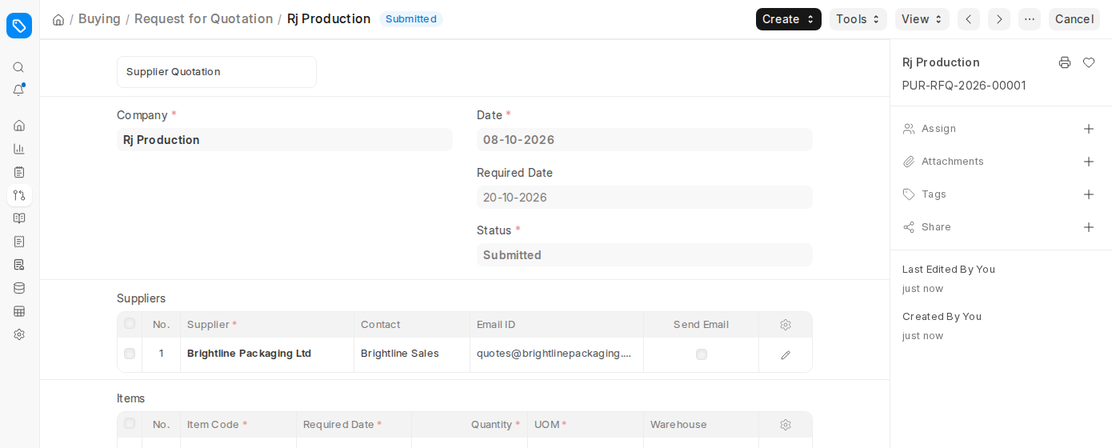
- The user logs into ERPNext (as an internal user) and creates an RFQ for the supplier (Buying > Request for Quotation).
- The RFQ is a formal request of a quote, as well as the specifics of the items required, quantity of the same, specification, and dates.
- Example: We built an RFQ for “Brightline Packaging Ltd” for 500 Cartons.
- Tick Send Email in the supplier row if you want ERPNext to email the RFQ and the portal link to the supplier when the RFQ is submitted.
- Include any terms, special instructions, or other supporting documents that the supplier ought to have in place before issuing a quotation.
Step 2: Supplier Logs into the Supplier Portal
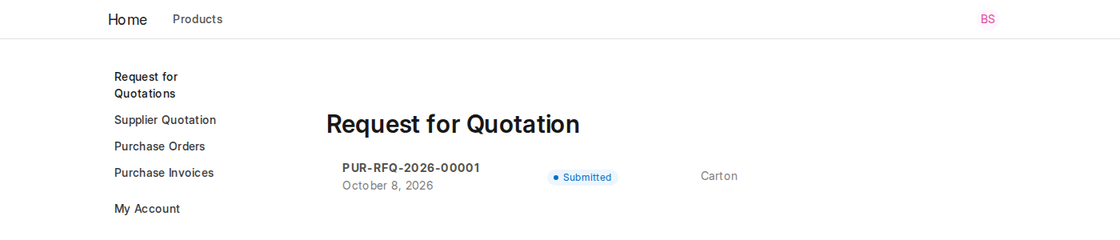
- The supplier, Brightline Packaging Ltd, logs in to the portal with their own login (email and password).
- Upon logging in, the Request for Quotations page of the portal lists the RFQs sent to them.
- The supplier selects the appropriate RFQ to see the details page, on which they can view the items, quantities and required date.
Step 3: Input Item Rates and Make the Quotation
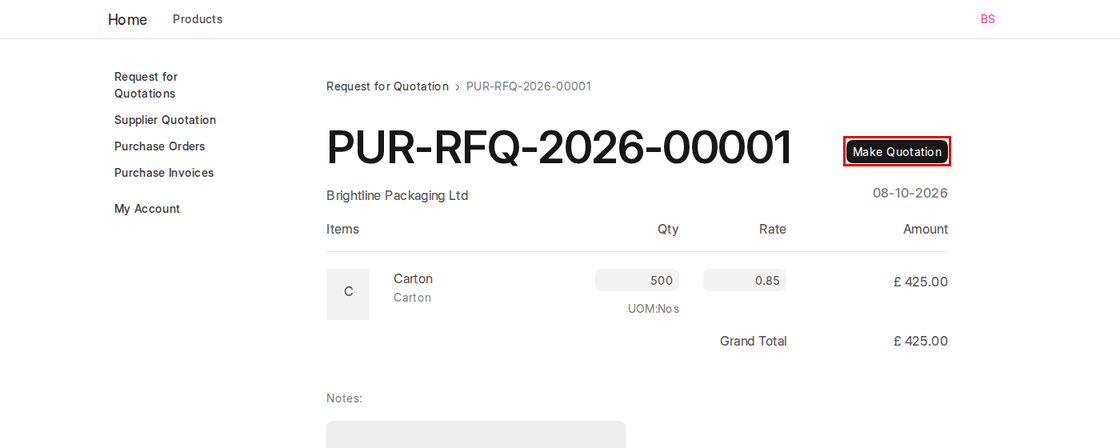
- In the RFQ form, the supplier enters the rate (price per unit) for every listed item.
- They can also change the quantity and add Notes (for example delivery time or terms).
- The supplier clicks Make Quotation after entering all rates and notes.
- ERPNext then creates a Supplier Quotation in Draft, linked to the original RFQ, and opens it in the portal.
Step 4: Approve and Submit the Supplier Quotation
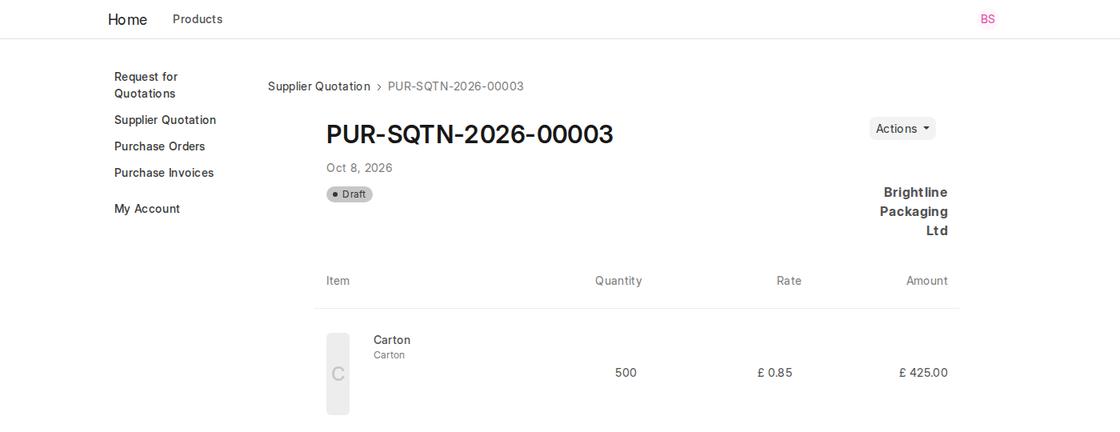
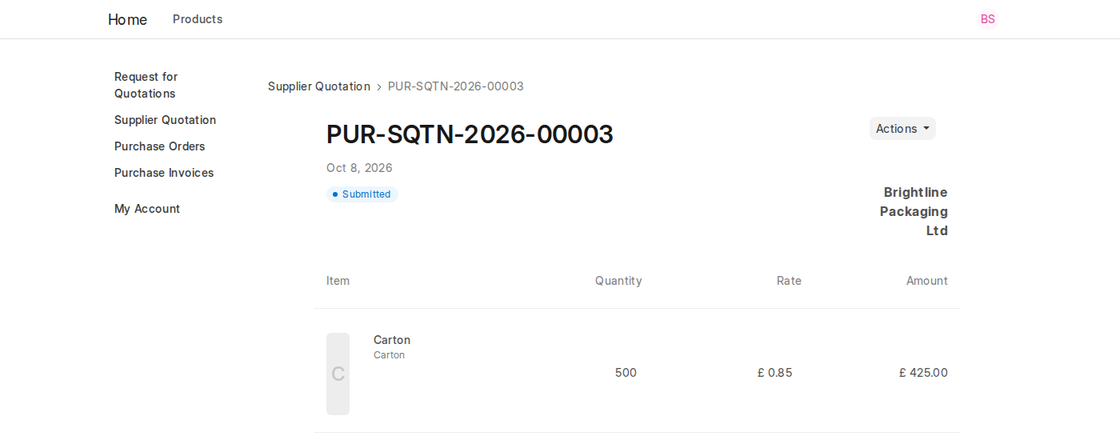
- In the portal, the new Supplier Quotation shows the status Draft. It is also listed under Quotations on the RFQ page.
- Internal users see the linked Supplier Quotation at the top of the RFQ and can open it from there. To compare the rates from several suppliers, use View > Supplier Quotation Comparison.
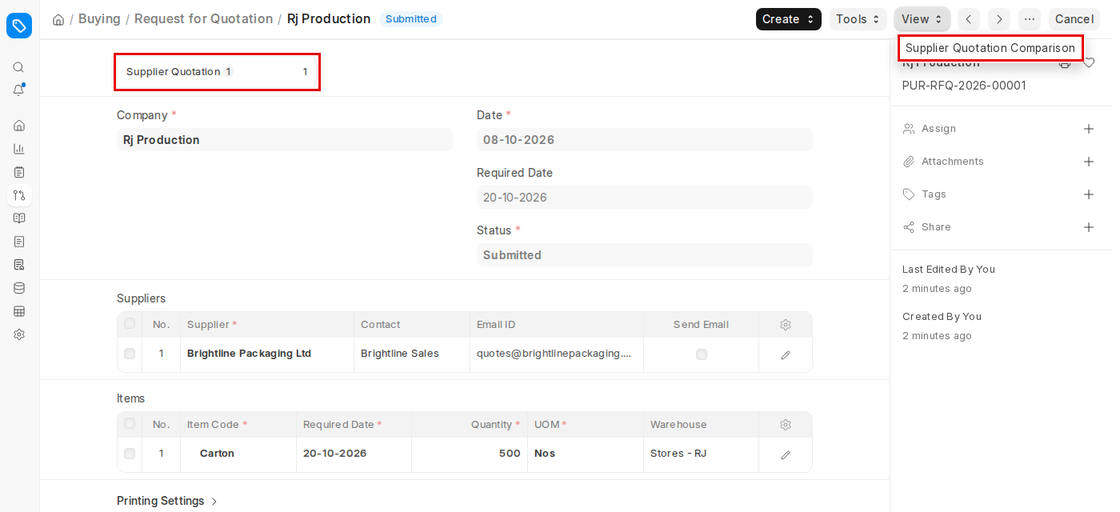
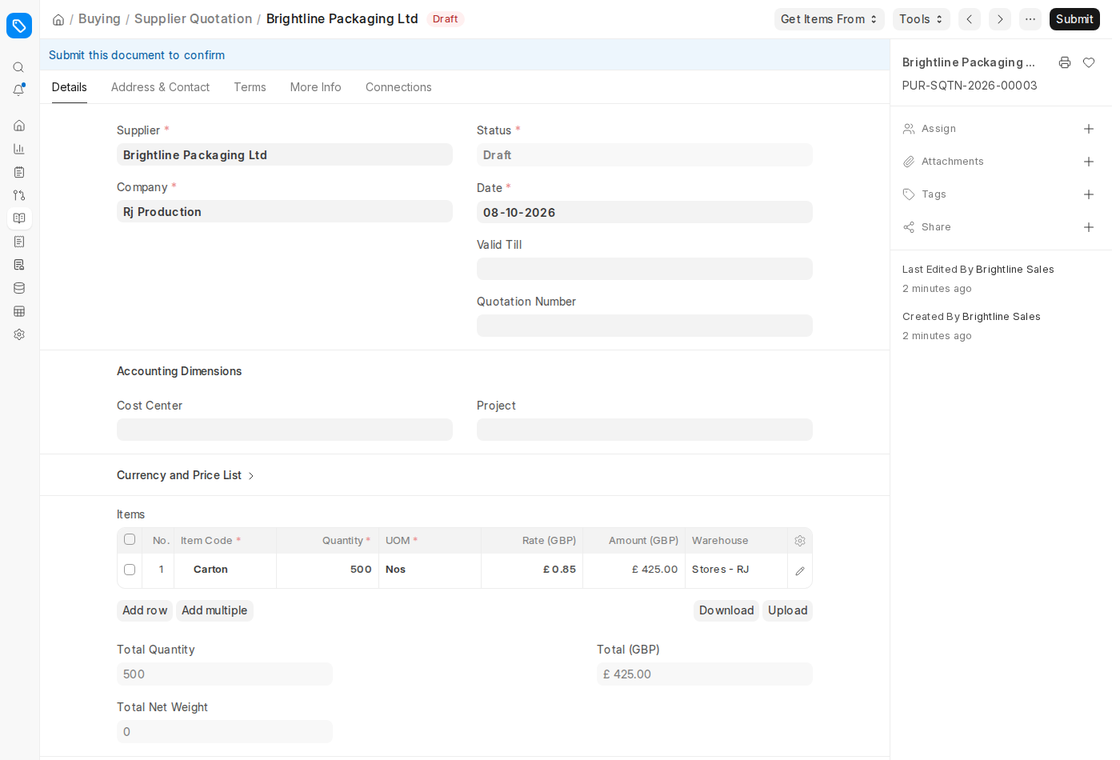
- Open the Supplier Quotation in the backend, check the details and, if they are right, Submit it.
- The Supplier Portal then shows the quotation as Submitted, confirming to the supplier that their quotation has been accepted for review.
Note for ERPNext v16: In our tests on v16.32.1, clicking Make Quotation did nothing for a supplier who only had the standard Supplier role: no quotation was created and no error was shown. The quotation was created only after the Supplier role was given Read permission on Item and Select permission on Account (Role Permission Manager). These permissions let portal users read item and account data, so discuss them with your administrator first. The safe alternative is to collect the supplier’s rates and create the Supplier Quotation from the RFQ in the backend (Create > Supplier Quotation).
Key Points to Remember
- Only assigned suppliers will be able to view RFQs, ensuring privacy and data security.
- With the Supplier Portal, the RFQ-to-quotation process becomes faster and more efficient.
- Audit trails and old reference is tracked using ERPNext on all the submissions.
Additional Tips for Using the Supplier Portal
- For Buyers (Internal Users)
- Provide All the Details of the RFQ: This gives complete information on certain products, delivery time and other quality factors to eliminate constant clarification.
- Establish Deadlines: Quote an end-date to the RFQ that helps the suppliers know the timeframe for the response.
- Attach Supporting Files: Attach drawings or specifications to the RFQ so that the supplier has everything needed to quote.
- For Suppliers
- Test Login Credentials Before Deadlines: Test the functionality of login credentials before RFQ due dates.
- Please review all items carefully: Ensuring that amounts, units, and descriptions are rechecked before entering rates.
- Maintain Open Communication: Use the Notes box on the RFQ page for conditions, and contact the buyer by email for questions before making the quotation.
With such practices, suppliers and buyers should also be able to ensure that the Supplier Quotation process in the ERPNext incurs minimal miscommunication and makes procurement decisions more quickly.

