
Tax Withholding Category
Tax Withholding Category, or TDS (Tax Deducted at Source), is a feature of ERPNext that helps your firm obey tax laws by deducting a certain percentage of tax out of payments to suppliers, contractors, or even customers in some cases. This feature is quite useful in nations where the tax authorities require businesses to collect and pay taxes on behalf of the person who gets the money.
1. How Tax Withholding Category Works?
You may have to take off a part of the payment your firm makes to a contractor for work done or a vendor for services and send it to the government as tax. The rest of the money goes to the provider.
You may make this process easy and lawful by setting up Tax Withholding Categories in ERPNext. These groups decide:
- How much tax should be taken out? For example, 2%, 5%, 10%, etc.
- The type of payment that the tax applies to, like rent, contractor fees, or professional services
- What accounts will show the amount that was withheld?
For Instance:
- If you employ a consultant for PKR 100,000, you’ll have to pay 10% TDS.
- Tax Taken Out: 10,000 PKR.
- Paying the Consultant: PKR 90,000.
- Your business gave the government: PKR 10,000.
When you set up the Tax Withholding Category in ERPNext, the system will automatically do this math when you make a payment or a purchase invoice. It will also keep track of the money.
To access tax withholding category, go to:
2. Prerequisites
Before creating and using a Tax Withholding Category, it is advised to create the following first:
3. How to Create a Tax Withholding Category
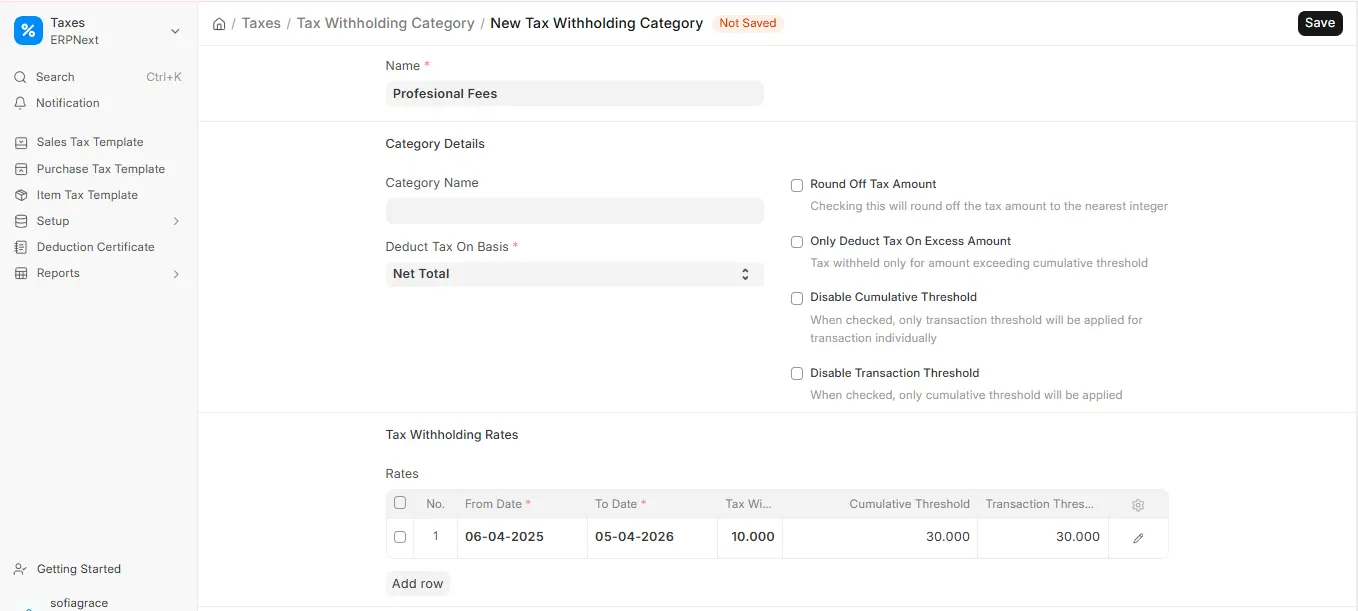
ERPNext has numerous default categories but you can create new ones as required:
- Navigate to the list and click on Add Tax Withholding Category.
- Pick the category name that best depicts the type of payment that will have taxes taken out of it.
- For example: “Professional Fees.”
- If you want the calculated tax to be rounded to the nearest whole number, tick Round Off Tax Amount. This will assist you avoid having to deal with decimal tax numbers in your entries.
- Choose Deduct Tax On Basis: Net Total (default) or Gross Total.
- If you do not want ERPNext to check one of the limits, tick “Disable Cumulative Threshold” or “Disable Transaction Threshold.”
- By default both limits are checked.
- If you only want tax to apply to the amount that is more than the cumulative threshold, not the whole invoice, check “Only Deduct Tax on Excess Amount.”
- Helpful when TDS only applies to the part that goes beyond a specific limit.
- In the Rates table, add a row for each period. You can optionally select a Tax Withholding Group in the row.
- To set when this withholding rate starts, change the “From Date” to something like 06-04-2023.
- Set the “To Date” to show how long this withholding rate will be in effect.
- For example:05-04-2024.
- Please enter the tax withholding rate (%) that should be used for payments in this group. For example, 10%
- Set the single transaction limit below which no tax will be taken out of each invoice. For example, 30,000
- Set the cumulative transaction threshold to figure out the total amount for the year after which TDS should be imposed.
- For example: 30,000.
- In the Accounts table, set the company and the account where the withheld tax is booked, then click Save.
3.1 Assigning to a Supplier
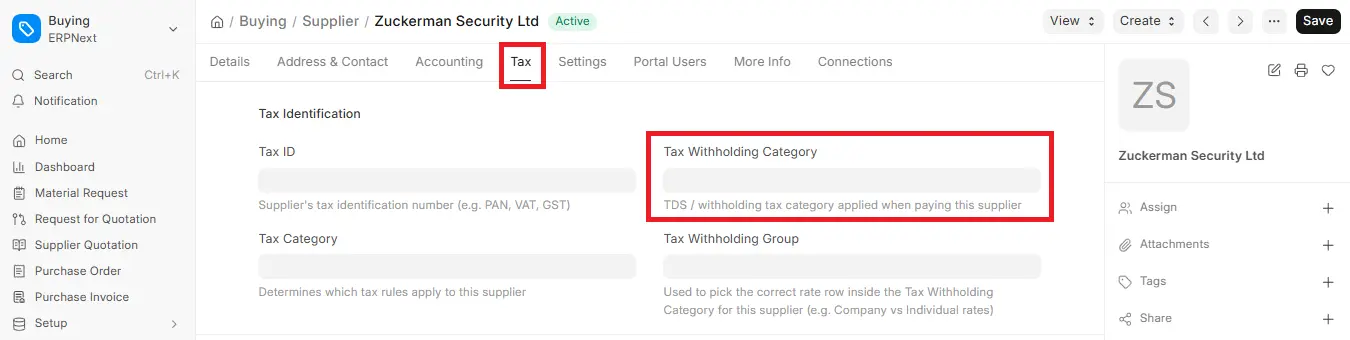
After you save your Tax Withholding Category, you need to connect it to the supplier it pertains to. Simply go to the Tax tab of that supplier’s record in ERPNext and pick the category you want.
This way, you won’t have to type anything by hand every time you make a payment or produce a purchase invoice. ERPNext will automatically apply the tax regulations you create.
3.2 How Thresholds Work?
You have set a tax rate of 5%, a single invoice limit of ₹20,000, and a total limit of ₹30,000.
1. Bill for ₹20,000: This invoice is equivalent to the single threshold, so tax will be added.
2. A bill for ₹15,000: This is below the single threshold, so there won’t be any tax taken out of this one.
3. A second bill for ₹15,000: The total of both ₹15,000 invoices is now ₹30,000, which is the cumulative level. This means that tax will now be charged.
4. Using Tax Withholding
4.1 On Purchase Invoices
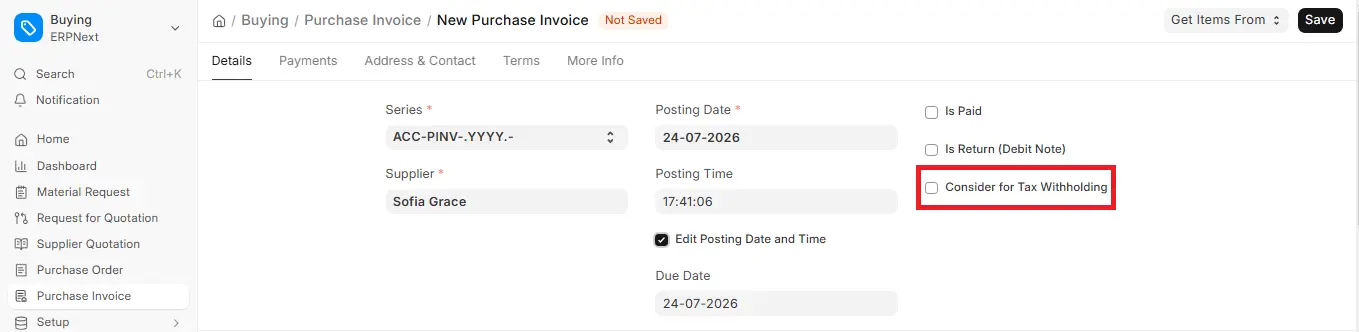
When you choose a supplier that is associated to a Tax Withholding Category, ERPNext will show the Consider for Tax Withholding checkbox on the Purchase Invoice. To apply TDS, tick the box. ERPNext will figure out the tax for you based on the rules you define (such the rate, threshold, etc.).
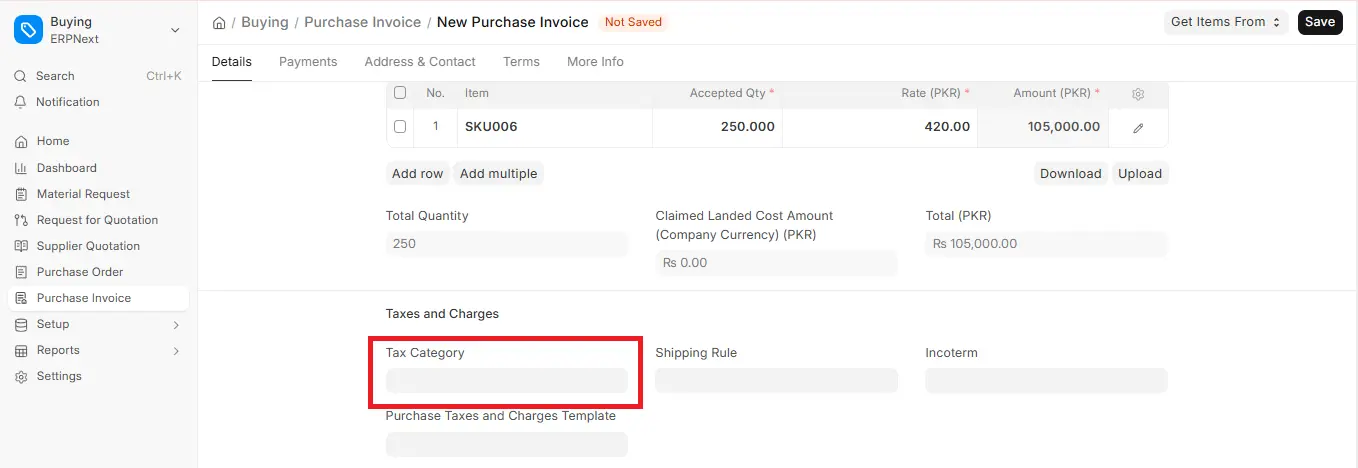
The system takes care of the bookkeeping for you. When you save the invoice, ERPNext makes three entries in the ledger:
- Takes money out of the expense account (like consultancy fees).
- Gives the provider credit for the amount you owe them after TDS.
- Adds money to the TDS account, which is the amount of tax you owe the government.
4.2 Withholding on Advances
4.2.1 Through Purchase Order & Payment Entry
- Configure the withholding category of the supplier
- Create a Purchase Order. In the Payment Entry made against the order, tick “Consider for Tax Withholding”
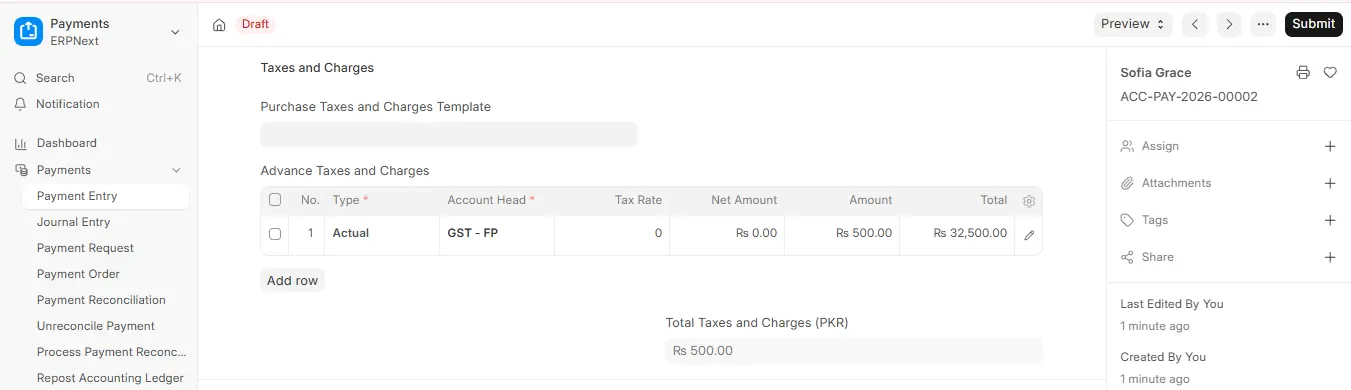
- Make Purchase Invoice and allow “Set Advances and Allocate (FIFO)”. TDS will be applicable only for amount over pre-paid advance, if already withheld
4.2.2 Directly in Payment Entry
- Make Payment Entry (Payment Type = “Pay”)
- Make selection of Supplier and fill payment amount prior to TDS
- Tick “Consider for Tax Withholding” and select the Tax Withholding Category. ERPNext auto-calculates TDS and displays it in the Tax Withholding Details report
- Click on save. TDS will be auto applied.
- Submit the entry.
- Same will also be visible in the Tax Withholding Details report.
4.3. Advanced Withholding Options
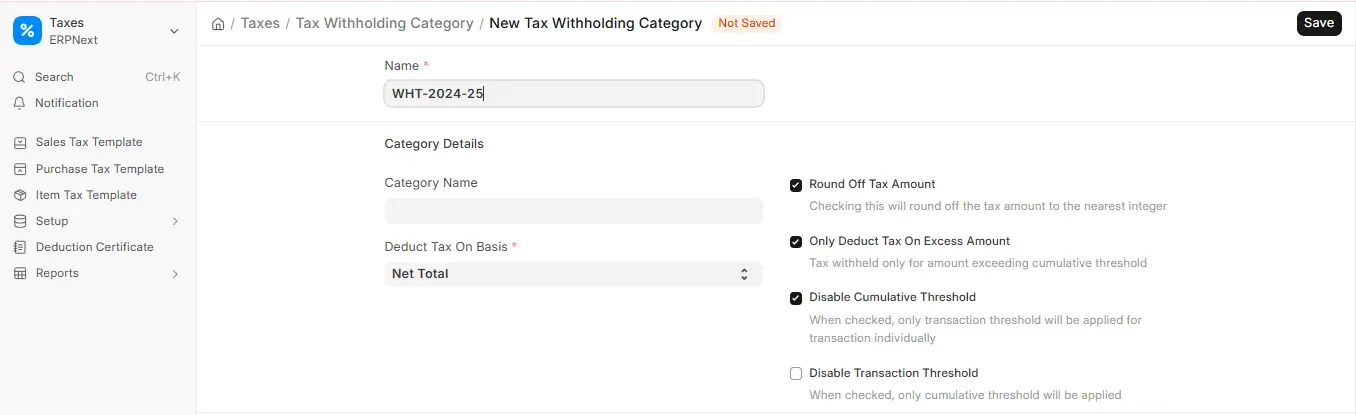
1. Disable Cumulative Threshold / Disable Transaction Threshold: Turn these on if ERPNext should not check the yearly cumulative limit or the single transaction limit before deducting tax.
2. Only Deduct Tax on Excess Amount: This indicates that ERPNext will only take tax off the amount that is beyond the limit, not the whole invoice. If the limit is ₹30,000 and your total is ₹35,000, just ₹5,000 will be taxed, not the whole ₹35,000.
3. Round Off Tax Amount: If you want ERPNext to round the tax to a whole number, turn this on. It makes your books look better by getting rid of strange decimals like ₹152.76. Instead, it will just show ₹153.

