
Assignment Rule
Version 12 added it (later versions made it better).
You can automatically assign documents to Users based on certain conditions and strategies with an Assignment Rule.
Assignment Rules are still a key way to fairly and consistently share work like support tickets, leads, tasks, or issues among team members in ERPNext v16.
An Assignment Rule can be used to automatically give support tickets to employees who work on support.
To get to Assignment Rules, go to:
Desktop > Framework > Automation > Assignment Rule
1. How to make a rule for assignments
To set up automatic assignment:
1. Click Add Assignment Rule on the Assignment Rule list.
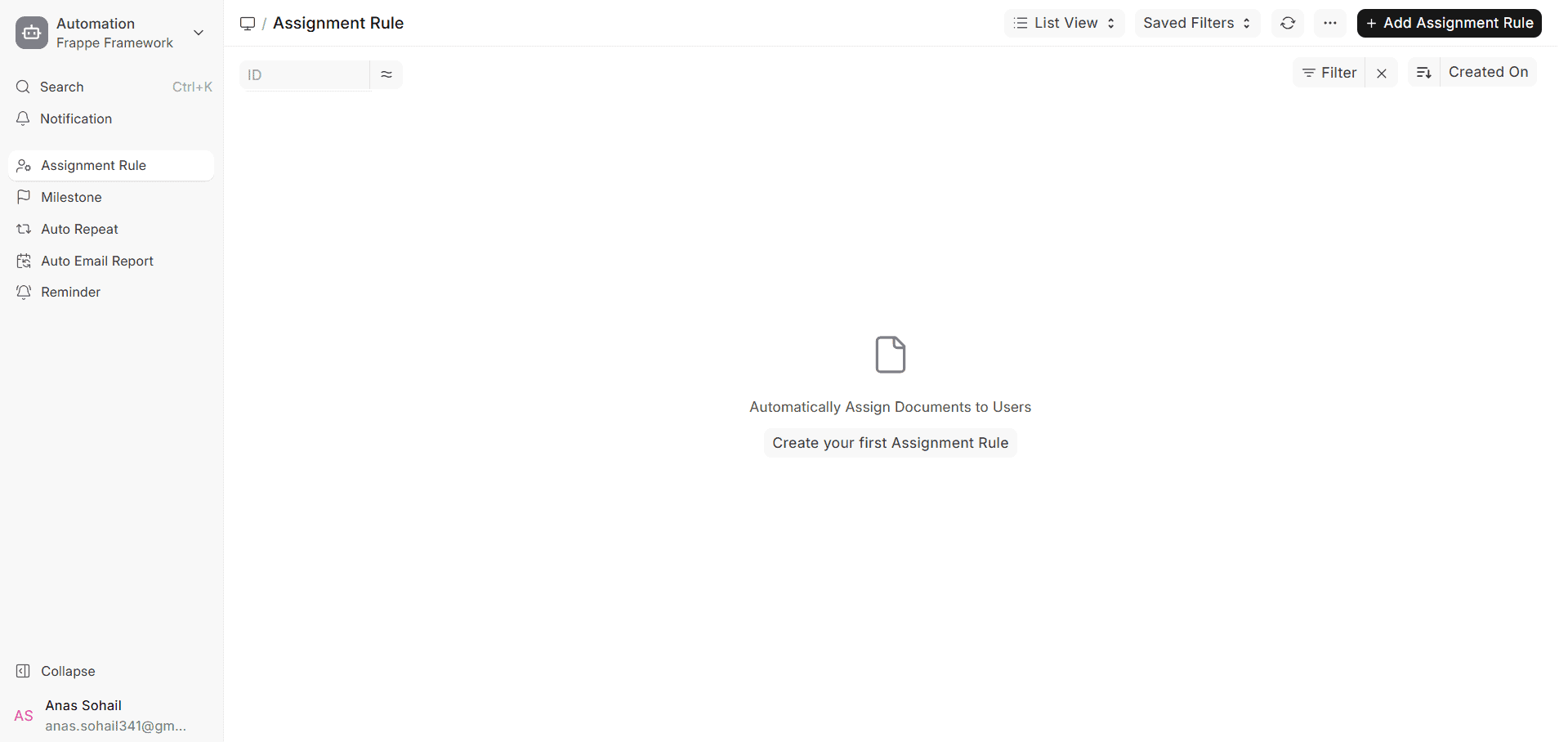
2. Choose the type of document you want to automatically assign (like an issue, lead, task, etc.).
3. Type in the description that will go with the assignment and the To Do list.
4. Set the rules for the assignment.
In the Assign Condition, Unassign Condition, and Close Condition fields, you can write simple Python expressions that will automatically assign values.
You can use logical operators like and and or, as well as operators like >, <, ==, !=, etc., to access all of the document’s properties.
For example:
- status == “Open”
- issue_type == “Technical” and priority == “High” and status == “Open”
- customer_group == “Enterprise” and docstatus == 0
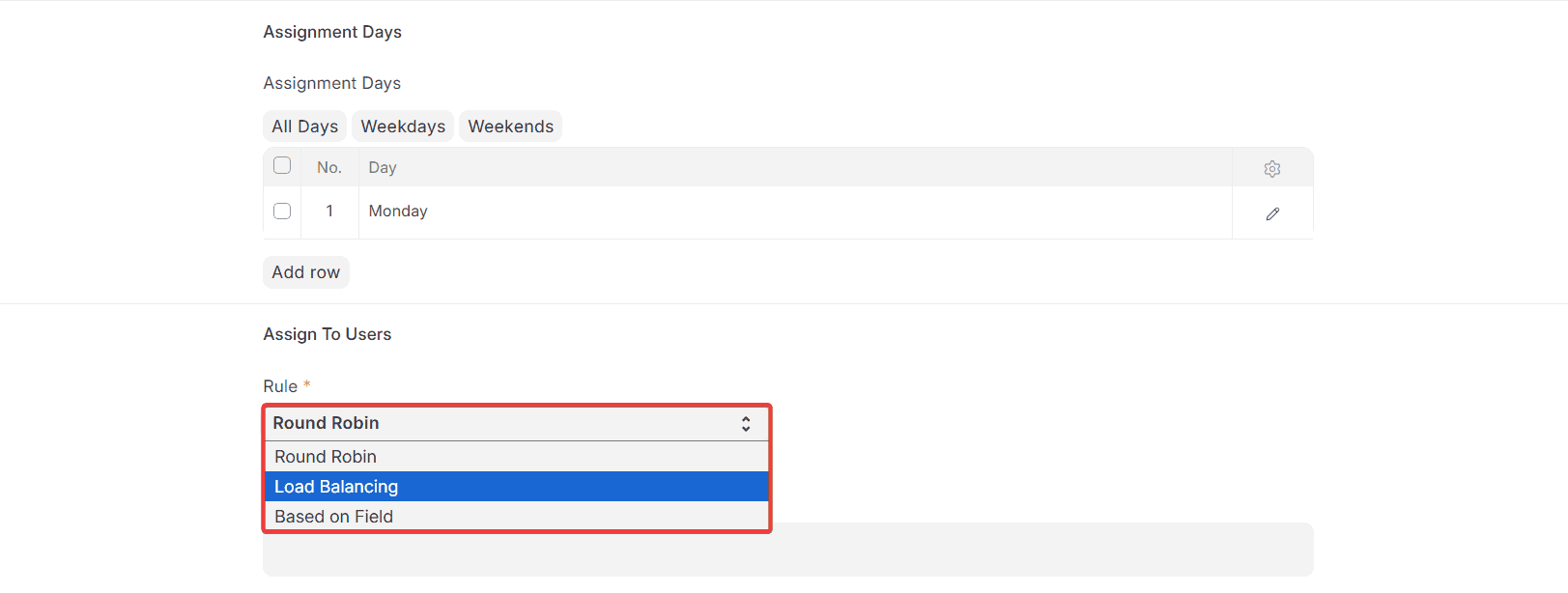
5. Choose the Strategy for the Assignment.
Round Robin
Gives each new document to users one at a time, making sure that everyone gets an equal amount over time.
Balancing the Load
Gives new documents to the user who has the fewest open assignments at the moment, which helps keep them from getting too busy.
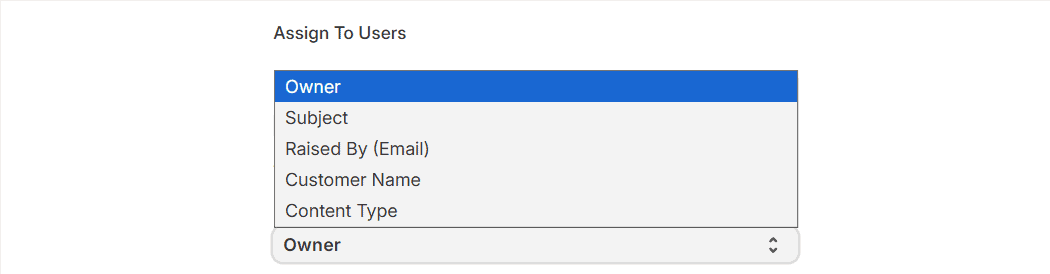
Based on Field (added in v13 and expanded in later versions)
This feature assigns the document to the user specified in a selected User Link field within the document.
Weighted Distribution
Shares new documents among the selected users in proportion to the weight given to each user.
6. Depending on the chosen strategy:
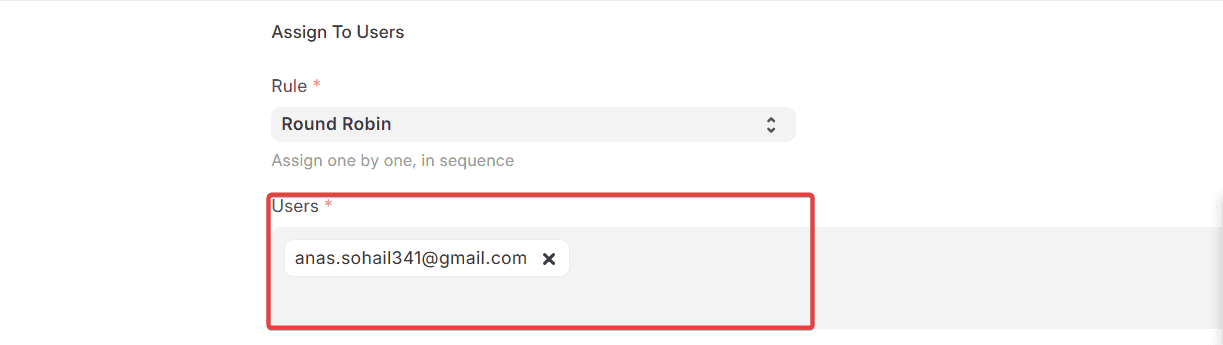
Choose the list of Users to whom this Assignment Rule will apply for Round Robin or Load Balancing.
Choose the User link field that determines who is assigned to the task. This could be assigned_to, account_manager, or a custom User field.
7. Save the Rule for Assignments
In the Description field, you can use document properties. When the assignment is made, these values will be rendered in real time.
First, the rules for assignments with a higher priority are looked at and put into action.
For example:
Important Problem You have been given the task of fixing the file upload issue.
1.1 Rules for Multiple Assignments
You can make more than one Assignment Rule for a single Document Type. If a Document meets more than one rule, the one with the highest Priority is used first.
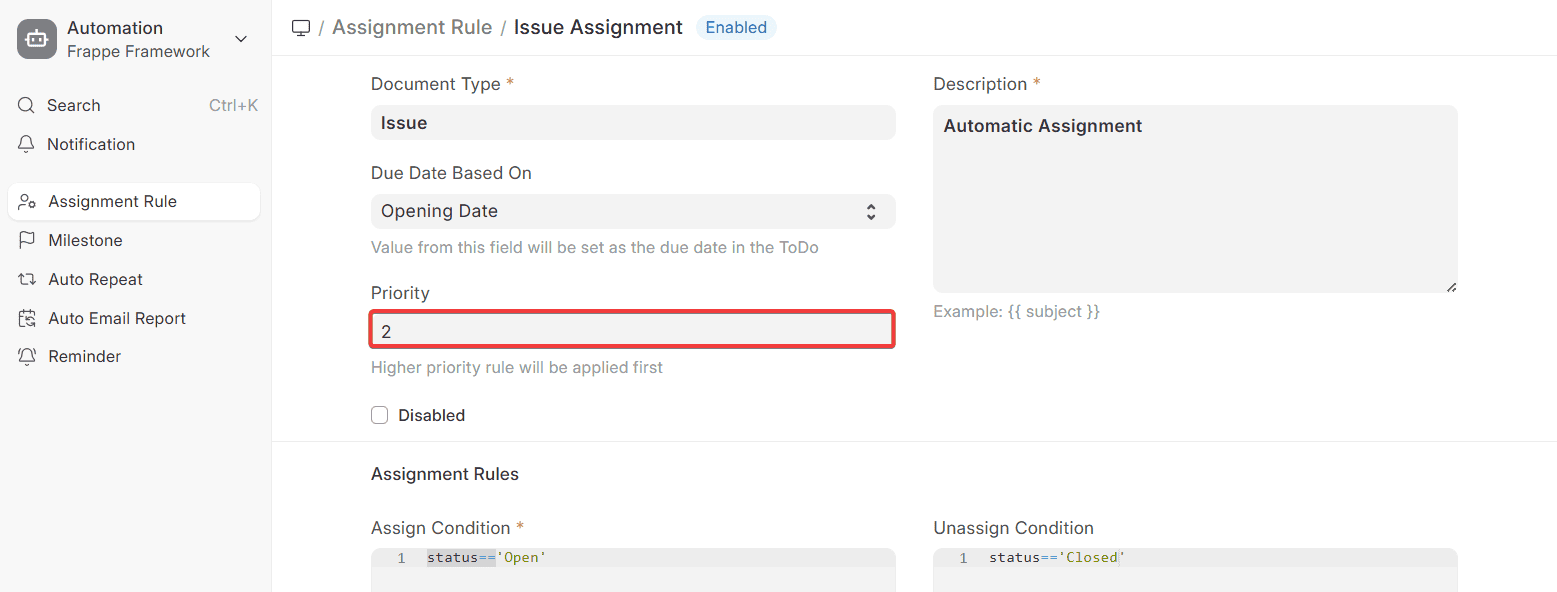
This lets you set:
- Rules for high-priority or VIP cases that are clear
- General rules for all other documents to fall back on
- Different assignment rules based on the fields in the document
- assignment-rule-with-more-importance
1.2 Setting a due date for the assignment
You can automatically set due dates for assignments using a Date or Datetime field from the reference document.
For example:
Choose the Resolution By field in the Due Date Based On option in the Assignment Rule if you want the assignment due date to be based on the Resolution By date of an Issue.
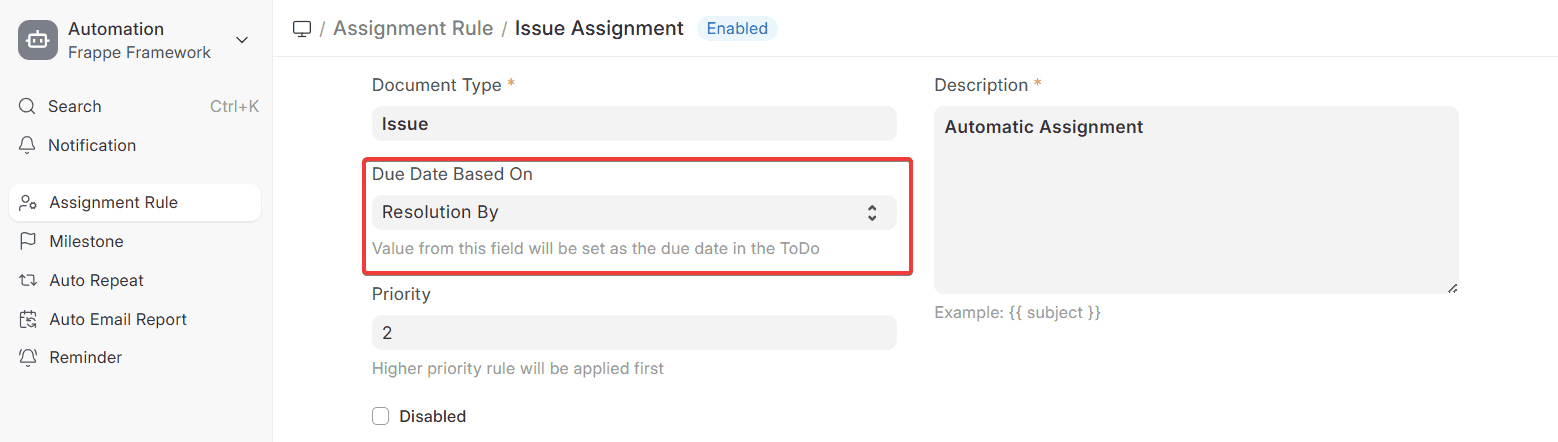
This makes sure that the people who are assigned see the correct deadlines that match the document’s timeline.
Please Note:
- You can only see the Due Date Based On option after you choose a Document Type.
- At least one Date or Datetime field must be present in the chosen Document Type.
- When the referenced date field in the document changes, the due date in the assignment (To Do) will automatically change as well.
- Depending on how the rules are set up and the state of the document, Assignment Rules are triggered when a document is created or updated.
2. Topics that are related

