
Auto Repeat
The Auto Repeat feature lets you make documents automatically at set times.
In ERPNext v16, Auto Repeat is often used for accounting entries, invoices, payroll-related entries, subscriptions, and other transactions that happen on a regular basis. This cuts down on manual work and makes sure that everything is done the same way every time.
Starting with Version 12, you may change any supported form to use Auto Repeat to make its documents repeatable.
If you employ a deferred expense system, you might have to make the identical journal entry every month to debit the expense account and credit the delayed expense account. You may make this Journal Entry once and then select Auto Repeat to have it repeat automatically every month instead of having to make it by hand.
To utilize Auto Repeat, go to:
Desktop > Framework > Automation > Auto Repeat
1. How to Set Up Auto Repeat
1.1 Make the Form Your Own
Before you can utilize Auto Repeat for a document type, the form must specify allow it.
- Go to: Desktop > Framework > Build > Customization > Customize Form
- Pick the Form (Document Type) you want to be able to do again and over again, like a Journal Entry, Sales Invoice, or Purchase Invoice.
- Check the box that says “Allow Auto Repeat.”
- Keep the customization.
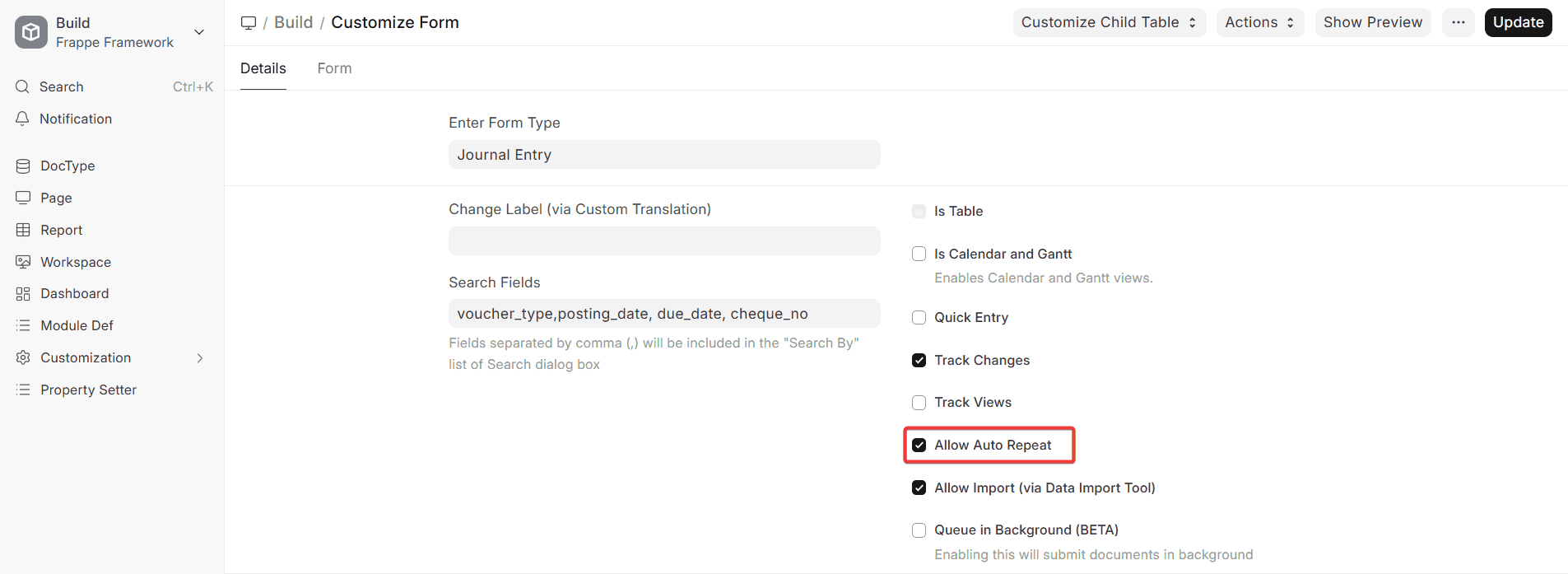
This is an important step. The Reference Document Type box in the Auto Repeat form will only show Document Types that have the Allow Auto Repeat option turned on.
Note: In newer versions of ERPNext, Auto Repeat is already turned on by default for most standard accounting and transaction DocTypes.
1.2 Set Up Auto Repeat
When the form’s auto-repeat feature is turned on:
1. Go to: Automation > Auto Repeat > Add Auto Repeat
2. Pick the kind of reference document: you want, like
- Journal Entry
- Bill for Sales
- Bill for Purchase
- Papers about subscriptions
- Any custom DocType that has the Auto Repeat feature turned on
3. Pick the Reference Document: This document will be replicated every time a new recurring document is made.
4. Choose a date to start: Auto Repeat will start making documents on or after this date, depending on the frequency you choose.
5. (Optional) Choose the End Date: If you choose this date, papers will no longer be made after this date. If the Auto Repeat entry is left blank, papers will be made forever until it is turned off or cancelled.
6. Set how often repetitive documents are made:
- Every day
- Every week
- Once a month
- Every three months
- Every six months
- Every year
- Every two weeks (Fortnightly)
- You should save the Auto Repeat record.
7. After saving: ERPNext makes new documents on its own at set times. Every document that is created is a fresh draft unless the DocType has auto-submit logic built in either workflows or custom scripts.
1.3 Set up Auto Repeat what the text says.
You can also set up Auto Repeat directly from an existing document, which is often faster and easier to perform.
- Open the document you want to copy, like a journal entry or a sales invoice.
- Choose the Menu (three dots) from the toolbar.
- Select Repeat.
Important: The Repeat option won’t show up if the document is already set up to Auto Repeat.
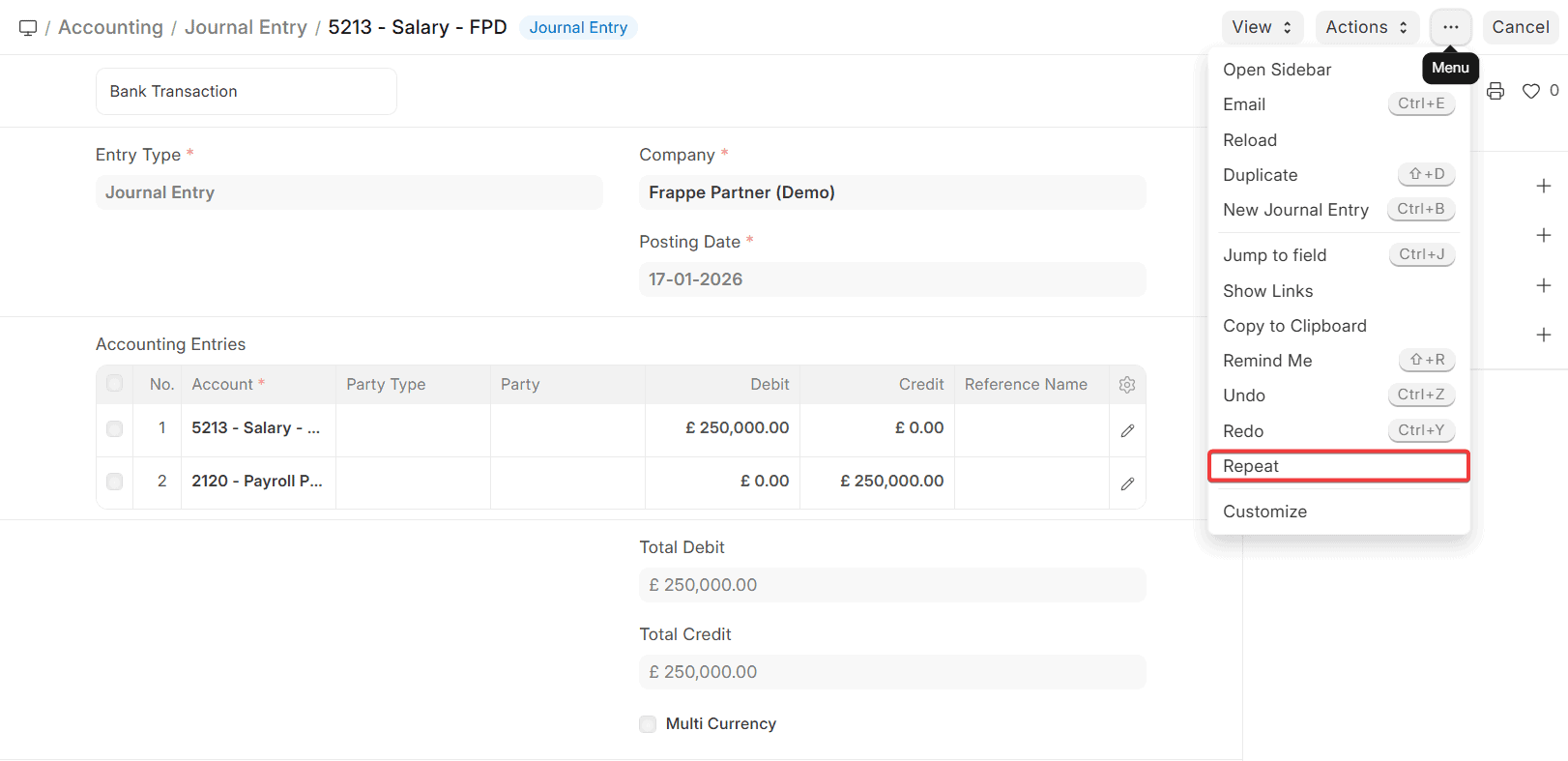
After you click Repeat:
- There will be a prompt for Auto Repeat.
- Fill in the frequency, start date, and end date (if there is one).
- Click Save to turn on Auto Repeat.
- The system will then automatically make papers in the future based on this setup.
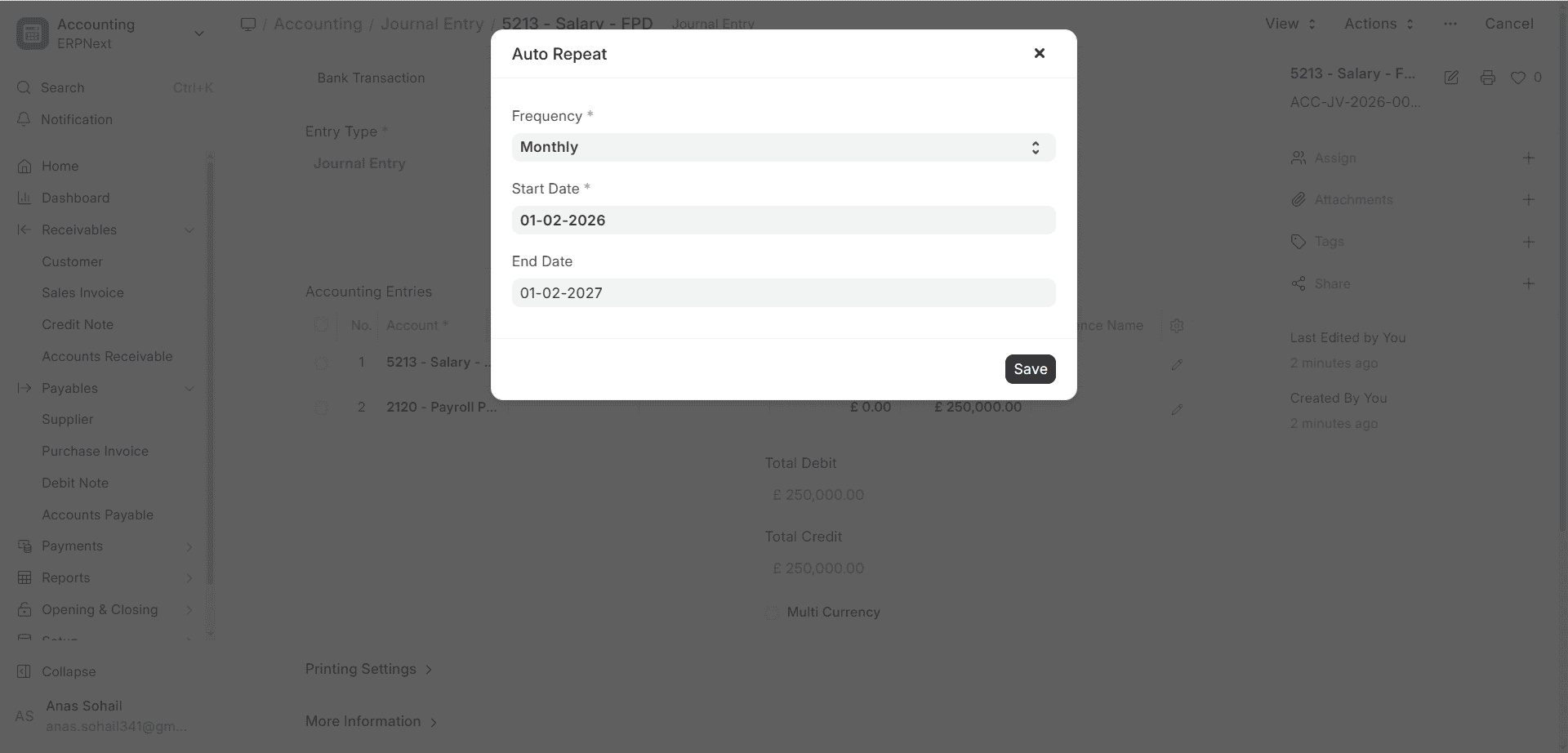
More Information:
- Using the original document as a guide, Auto Repeat Duplicates most of the field values.
- The dates on the resulting page are automatically modified based on how often they occur.
- Generated documents are linked to the Auto Repeat record so that you can trace them.
- You can stop or cancel an Auto Repeat entry at any moment to stop new documents from being created.
- Subscriptions and Auto Repeat work on their own, but they can also work together in some situations.
- The permissions of the person who made the Auto Repeat record apply when making documents.
2. Traits
2.1 Send in the creation
If the Reference Document Type (such a Journal Entry, Sales Invoice, or Purchase Invoice) can be submitted, the Auto Repeat form contains a Submit on Creation option.
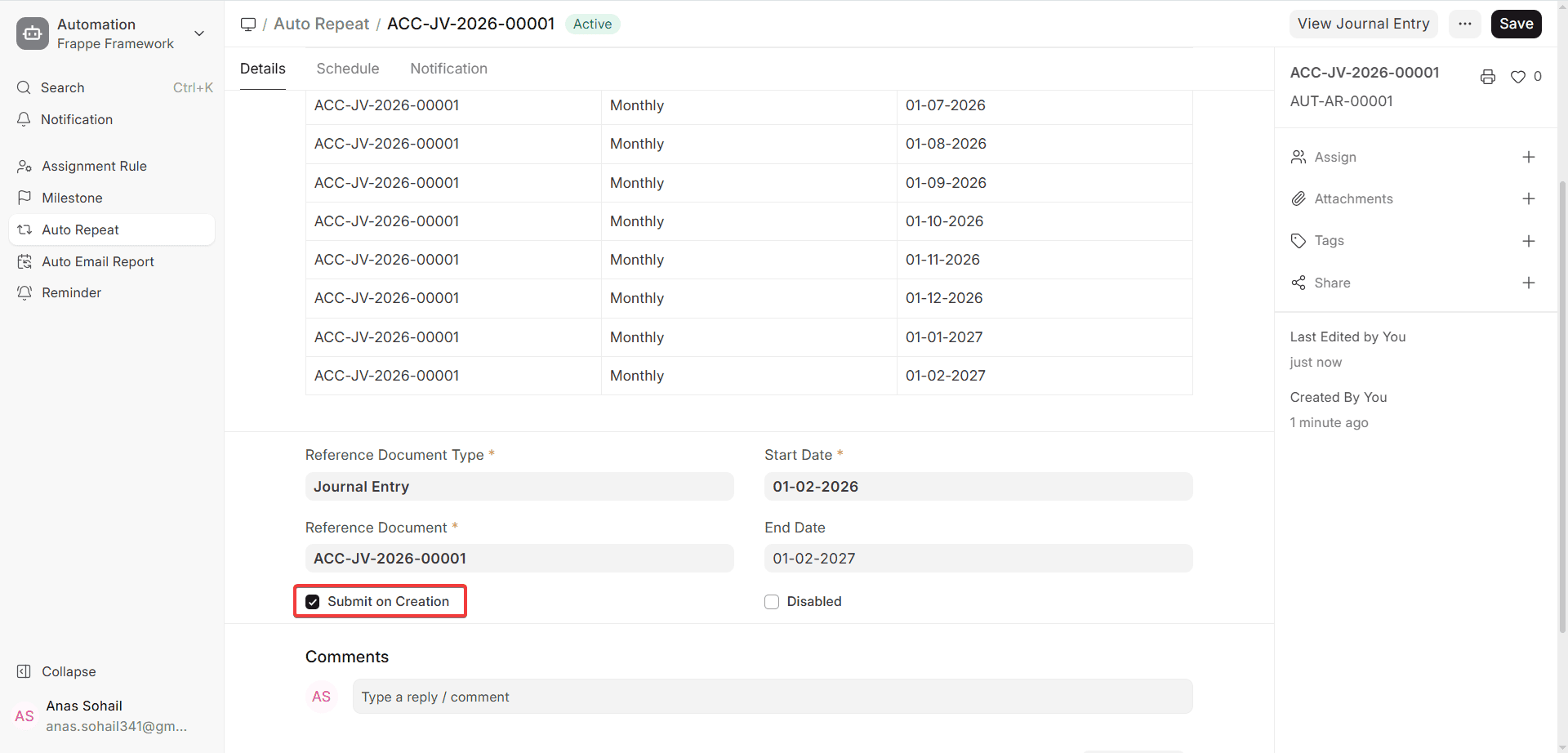
- If you turn on the option, every recurring document will be sent immediately as soon as it is made.
- When disabled, recurring documents will be prepared as drafts, which can be reviewed or edited before they are sent.
- People often use this option when system-generated or fully vetted recurring transactions don’t need any human input.
If you don’t turn in the reference document, the recurring document won’t be made. So, make sure all the required data, taxes, and validations are filled out.
2.2 Send an email alert
You can utilize Auto Repeat to send out email warnings every time a document that happens again is made. To turn on alerts:
- Choose “Notify by Email” in the Notification section of the Auto Repeat form.
- This will email the automatically created document to the people who need it.
You can get to the following fields:
People who get it: Please provide the email addresses (separated by commas) that should be notified every time a document is made.
Get Contacts: Automatically fills up the Recipients field with email addresses from Contacts that are linked to the reference document, like the Customer or Supplier.
Template: Pick a template for your email. When you choose the template, it immediately fills up the Subject and Message areas.
Subject: The subject line of the email notice. For example, a document that comes up again and again was made.
The email’s body is the message: You can utilize the dynamic placeholders in the document.
Message Preview: lets you get a preview of the email before you send it.
Format for Printing: Choose a Print Format to tell the email how to attach or show the document.
Please pay attention:
If the document type is submittable and documents are made in draft state, make sure that Allow Print for Draft is turned on in the following:
Framework > Printing > Print Settings
If this setting is not turned on, the email notice will just include a creation alert and not the document.
2.3 Repeat on a certain day
When the frequency is set to Monthly, Quarterly, Half-Yearly, or Yearly, ERPNext automatically sets up recurring documents depending on the Start Date.
By default:
The recurring document is made on the same day as the Start Date during the relevant time period. You can change this behaviour by using one of the following options:
Do it again on Day: Tell us which day of the month the document that happens every month should be made. For example:
- Every month, regularly
- On the seventh day of every month that applies, the document will be made.
Do this again on the last day of the month: This feature lets you create documents on the last day of each month, no matter how many days are in that month. This is good for:
- Entries for accounting at the end of each month
- Rent, depreciation, or accruals postings
For example, February will make documents on the 28th or 29th, depending on whether it is a leap year.
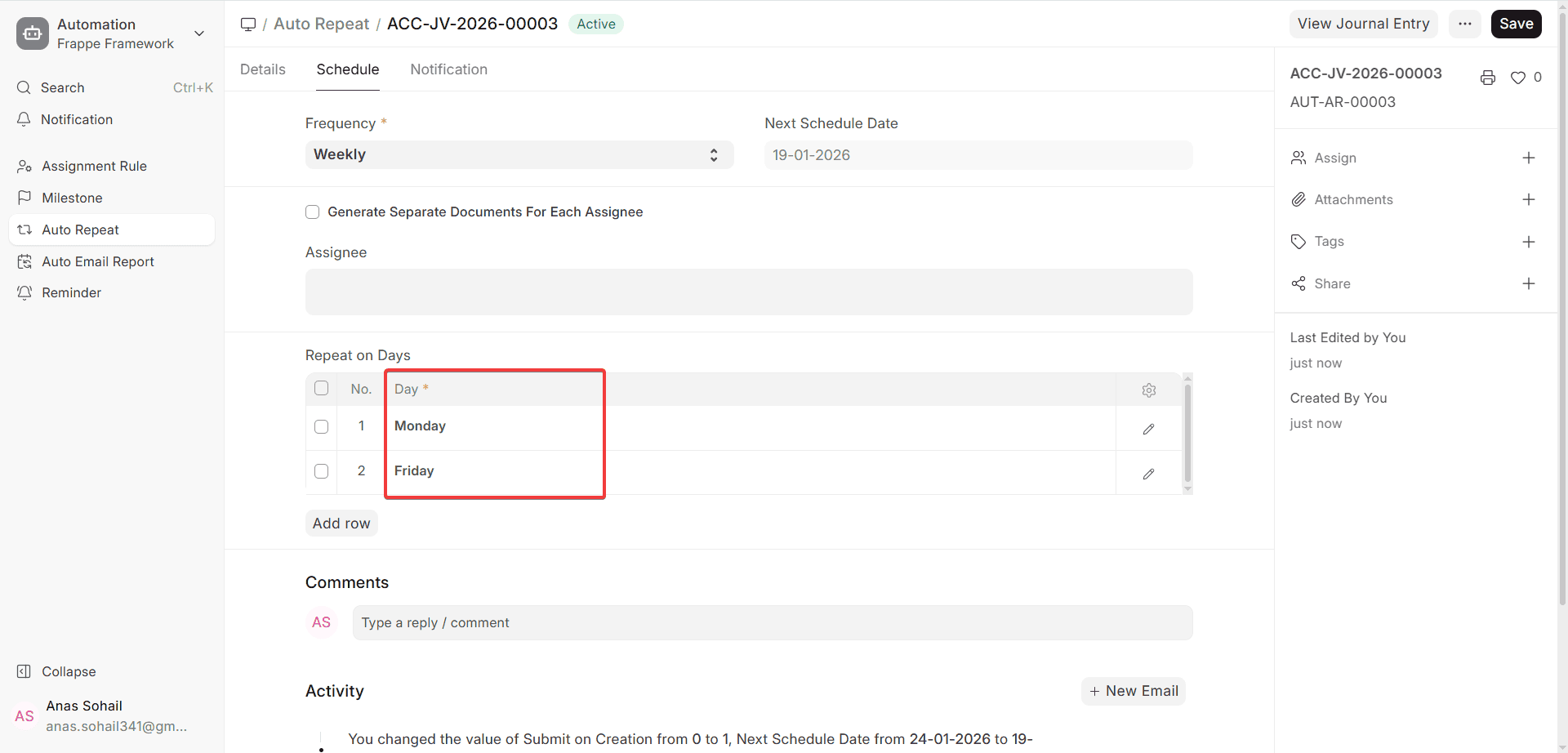
2.4 The ability to choose weekdays for Auto Repeat
First came out in Version 13
When the Frequency is set to Weekly, Auto Repeat allows you specify one or more weekdays for making documents that happen again and again.
- You can choose specific days, such as Monday, Wednesday, and Friday.
- Documents will only be made on the days that have been set aside for them.
This is really beneficial for:
- Tasks that have to do with operations
- Every week, reminders
- Repeating internal logs or to-do lists
If you don’t choose a weekday, the system will utilize the Start Date’s weekday by default.
2.5 Dashboard
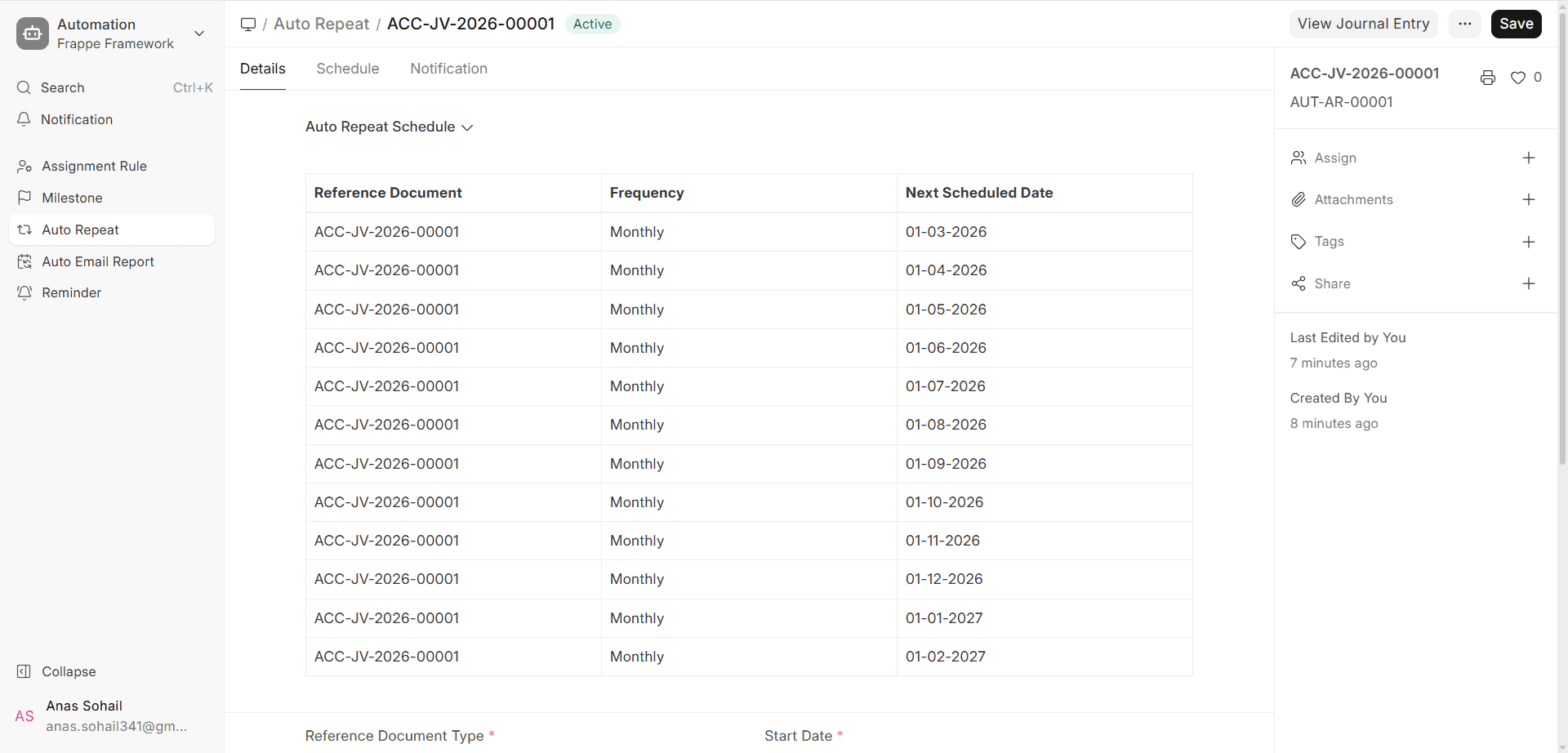
The Auto Repeat Dashboard gives a short overview of the schedule and status of papers that are sent out on a regular basis. You can see the following from the dashboard:
- Date of the Next Schedule
- Start Date
- Last Date (if given)
- The condition of the Auto Repeat setting
If there is no End Date:
- The dashboard only shows the Next Schedule Date, which tells you when the document will be made again.
- This makes it easier for administrators to quickly check and verify periodic document scheduling.
2.6 The Auto Repeat Frequency of the sidebar
When you connect an Auto Repeat setting to a document:
- The Auto Repeat Frequency and status are shown in the sidebar of the paper.
- This makes it simple to tell if a document is repeating.
- When you click on the frequency or state, the Auto Repeat document appears right away.
- As a result, it is easy to find the configuration source for recurring documents.
2.7 Stop Auto Repeat
To stop making documents that keep coming back:
- In the Auto Repeat form, tick the “Disabled” checkbox.
- When you tick this box:
- There won’t be any more documents that come up again and again.
- The Auto Repeat configuration is no longer linked to the reference document.
- Documents that are generated now don’t alter.
This is useful for:
- A contract comes to an end
- A subscription has been cancelled
- Stopping a process that happens over and over again, either for good or for a short time

