
Promotional Scheme
Introduced in version 12
A promotional scheme is a temporary discount on one or more products. Promotional schemes help businesses achieve success by offering lower prices for a limited period to attract more customers. They can be configured easily in ERPNext. A Promotional Scheme is linked to one or more Pricing Rules, and through each slab system generates the underlying Pricing Rule. On creating a Promotional Scheme, the system generates a corresponding Pricing Rule. A Promotional Scheme can have multiple Pricing Rules associated with it. In ERPNext, a Promotional Scheme offers an intuitive interface for managing pricing on multiple Items/Groups based on different parties and conditions. Overview:
To access the Promotional Scheme list, go to:
1. Prerequisites
Before you create and use a Promotional Scheme, it is a good idea to set up the following in advance:
2. How to Create a Promotional Scheme
- Go to the Promotional Scheme list, then click on Add Promotional Scheme.
- Enter a Title for the rule.
- Choose Apply On, such as Item Code, Item Group, Brand, or Transaction. (Selecting Transaction will apply the scheme on the total amount of the transaction.)
- The system will provide, based on the ‘Apply On’ choice, a table to select the Item Code / Item Group / Brand accordingly.
- Choose if the scheme is to be applied for Selling, Buying, or Both, and select the party information that applies.
- In the Price Discount Slabs table, specify the price discount percentage, amount of discount, or a flat rate.
- Users can also apply the discount on other Item Code / Item Group / Brand by selecting the value for Apply Rule On Other field.
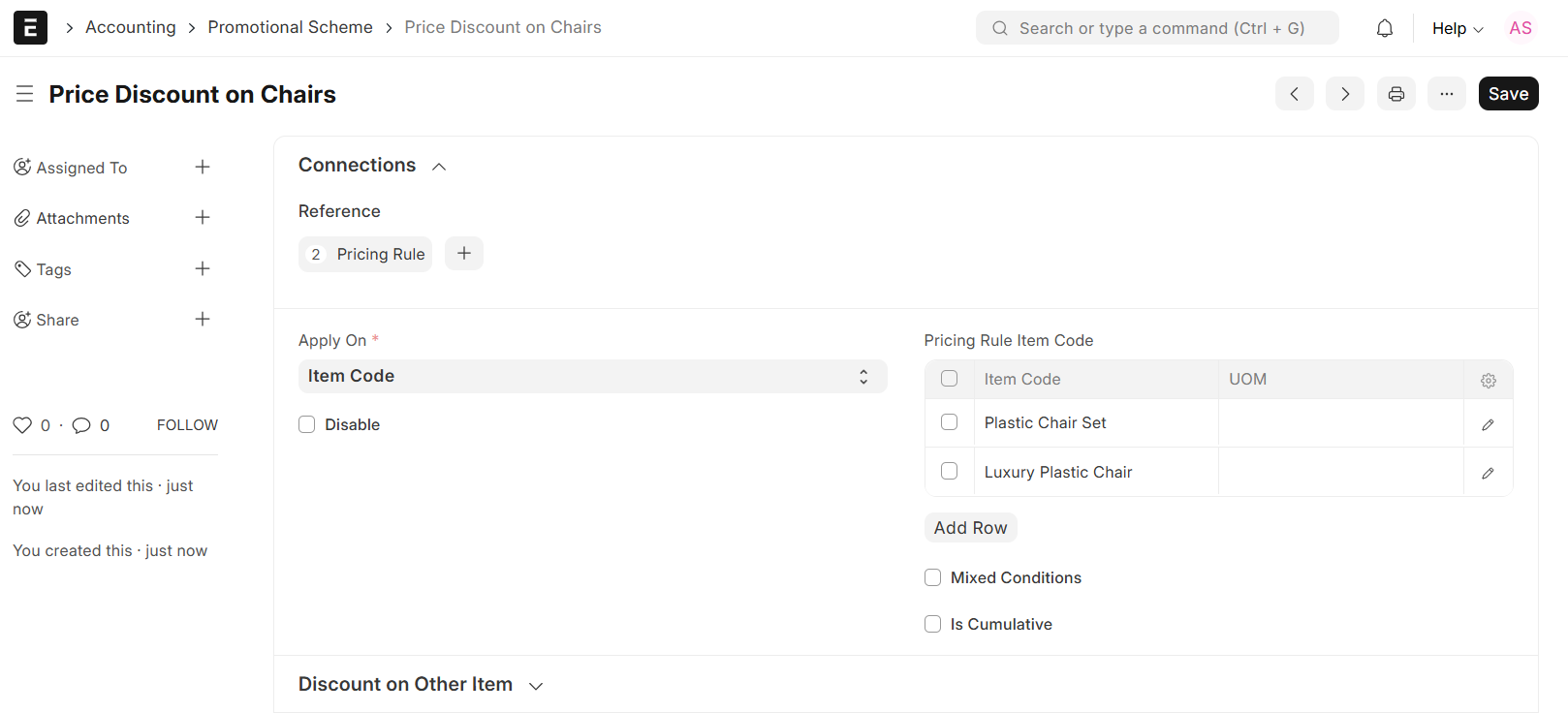
- Save the Promotional Scheme. On saving, a new Pricing Rule will automatically be created and associated.
2.1 Extra fields while creating a Promotional Scheme
Mixed Conditions
If you select two or more Items and set the Min Quantity and Max Quantity, the Promotional Scheme will apply only when the total sum of these Items in the transaction matches the set quantity threshold.
Example: If you are creating a Promotional Scheme on Item 1 and Item 2 and setting the Min and Max Quantity as 30, then the Promotional Scheme will apply only if the total quantity of Item 1 + Item 2 is 30.
Is Cumulative
If this option is enabled, the Promotional Scheme will consider cumulative totals of transactions (rather than one transaction alone). You set Min Amt and Max Amt.
Example: Min Amt = 1,500 and Max Amt = 2,000. If one invoice is created for 1,400 then the scheme will not be applied. However, on creating a second invoice for 600 (making cumulative total 2,000) the scheme will be applied. In that case the discount will apply only to the latest transaction that crosses the cumulative limit.
3. Features
3.1 Apply Scheme On Other Item
This allows you to check a condition on one item(s) but apply the discount/offer on another item.
For example: you set Item 1 and Item 2 in the ‘Apply On’ table and set Apply Rule On Other to Item 3. The scheme’s discount/rate will be applied on Item 3 when the transaction includes Item 1 and Item 2.
3.2 Party Information
You can specify whether the Promotional Scheme is for Selling or Buying of the item. Depending on the choice, you can link the scheme with one or more of the following masters:
- Customer, Customer Group, Territory, Sales Partner, Campaign – for Selling
- Supplier, Supplier Group-for Buying
3.3 Validity
You can set a date interval in which the Promotional Scheme will be valid start date and end date. If you do not insert dates, the scheme will have no time-frame limitation – it will apply indefinitely unless it is deactivated.
You can also optionally specify a Currency filter: if a currency is entered, the scheme will only apply when the transaction currency matches.
3.4 Price Discount Slabs
Within this you set up thresholds and the discount/rate to apply:
- Quantity and Amount: Indicate minimum quantity, maximum quantity, minimum amount, maximum amount of an Item when this Promotional Scheme should be applicable. If the quantity or amount falls short or exceeds the limits set, the scheme will not be applied (unless Mixed Conditions or Cumulative apply).
- Setting Discount/Rate:
- Rate: set a specific new rate for the Item, for example you normally sell at 100 and you have set rate as 90 for this scheme.
- Discount Percentage: set a % discount (for example 10% off).
- Discount Amount: set a fixed discount amount (example, discount of 7 on a 100 price). * Filters for setting discount: * **Warehouse: Setting this will make the scheme apply only if the Item is selected from the specified Warehouse.
- Priority: When you have rules for an Item Group and also particular rules for an item in that group, you can grant higher priority to the particular rule so it takes precedence.
- Threshold for Suggestion: If the Min Quantity is set, you can also set a “Threshold” such that if you are just short of the min quantity, the system will alert you to add more.
For example, if Min Qty is 10 and Threshold is 9, the system will notify you to add 1 more item so that the scheme becomes applicable. Same applies for amount thresholds.
Validate Applied Rule : If any manual entry of price in transaction is not according to the Pricing Rule created via scheme, the system can raise validation message.
3.5 Product discount slabs
This is used when you want to give free product(s) instead of a price discount. Many fields are the same as Price Discount Slabs. Additional options include:
- Same Item: If you want to give the same item free on purchase of that item check this checkbox. If you want to give another item free, uncheck it and select the “Free Item” code.
- Apply Multiple Pricing Rules: If there is more than one Pricing Rule on an Item (for example one scheme gives 10% off and another gives 5% off), with this option selected they can be combined (i.e., total discount applied).
- UoM: The scheme applies only in the case where the transaction is using the specified Unit of Measure.
- Rate: If the free item is given but you want the customer to pay taxes or a minimal rate, you can specify a “Rate” for the free item. Example: free but charges taxes apply.
4. Types of promotional schemes
4.1 Price Discount
Such a promotional scheme allows the user to select the discount either by percentage, fixed amount, or flat rate based on the minimum and maximum quantity or amount of a product. The discount is also made to be applied automatically during the transaction once the quantity or amount conditions are met as specified.
A user can define multiple discount slabs so that different ranges of quantities or amounts get different levels of discounts. For instance, for every purchase from 10–20 units, there is a 5% discount, and for purchases between 21–50 units, there can be a 10% discount.
Users can also set a flat rate for a product that supersedes the regular price list rate for the product, if the conditions that are set are met. Such a scheme can be employed to control promotional pricing, without having to manually change the price every time there is a sale.
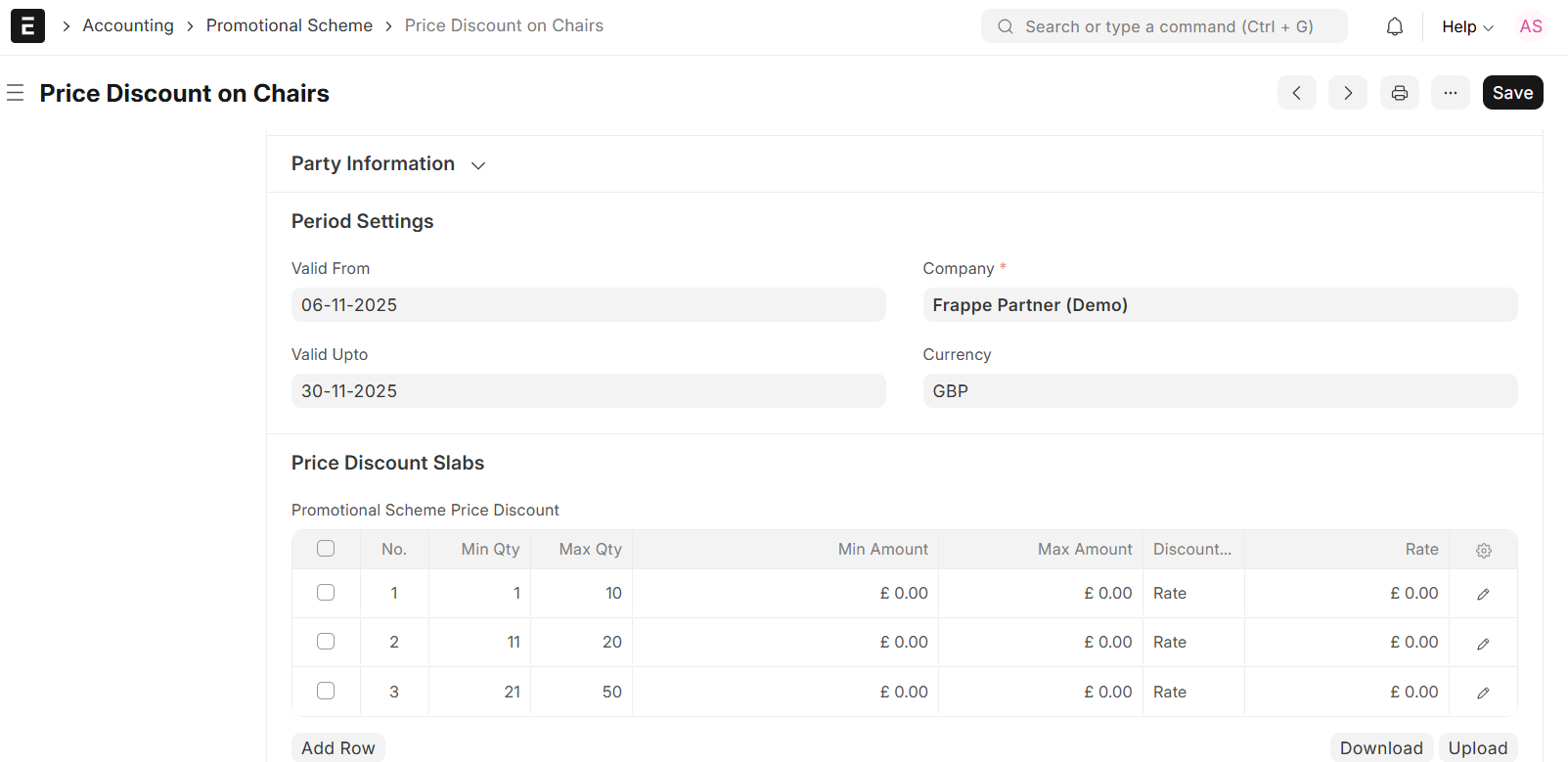
Users are allowed to decide if the discount applies to particular customers, groups of customers, or all customers. It can be further restrained by currency, territory, or validity period, thereby allowing the discount to apply only when particular conditions exist.
4.2 Product Discount
This type of promotional scheme means that a user can offer a free product if the end customer purchases the same or different product on specific conditions such as minimum quantity, maximum quantity, minimum amount, or maximum amount of purchased product.
For instance, a supplier can set up a scheme where with every sale of 10 units of certain products, a customer gets one free. The system automatically adds the free item in the transaction if the set conditions are met.
Users can also select the same product as free, for example – “Buy 10 Get 1 Free” of the same item, or different products, for instance, “Buy 10 of Product A Get 1 of Product B Free.” The quantity of the free product, its rate in case it is chargeable, and whether the scheme is to be applied only within a specific date range or to selected customers can also be defined by the user.
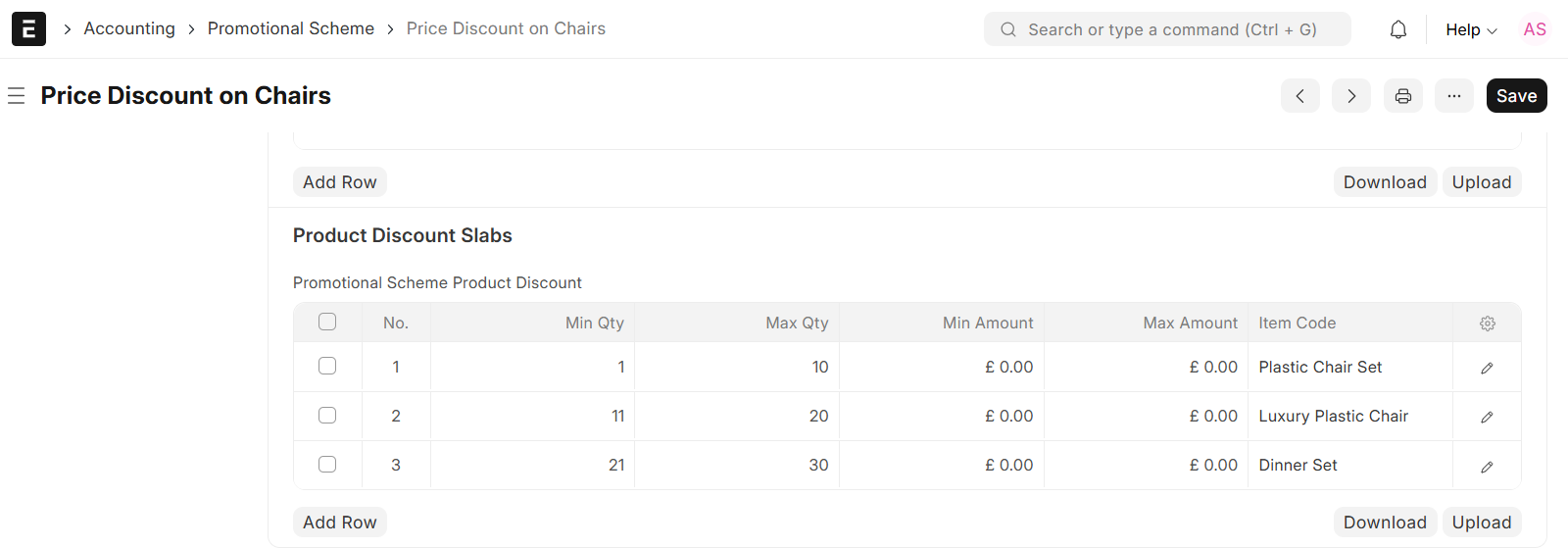
Schemes of this type are very often used to promote new products, clear inventories, or enlarge the volume of sales by encouraging bulk purchases.
5. How to Set Up a Promotional Scheme-Examples
Let’s understand how to configure a Promotional Scheme in ERPNext through some examples.
5.1 Mixed Conditions Schemes
Customer A has bought 10 quantities of Britannia Cake 5 GBP packet and 5 quantities of Britannia Cake 10 GBP packet. The Supplier wants to give a 10% discount to Customer A. The Supplier wants to provide a 10% discount to Customer B, too, who has bought 15 quantities of Britannia Cake 5 GBP packet.
The Supplier wants to apply the discount on the products Britannia Cake 5 GBP and Britannia Cake 10 GBP only if the Customers have purchased 15 quantities in total either of one product or the sum of both products.
To configure this in ERPNext, please follow these steps:
- Set Apply On as Item Code.
- Add the Item Codes Britannia Cake 5 GBP and Britannia Cake 10 GBP in the Pricing Rule Item Code table.
- Select the Mixed Conditions field to enable the system to consider the combined quantity of items listed.
- In the Price Discount Slab table, set Minimum Quantity and Maximum Quantity as 15.
- In the Discount Type, select Discount Percentage; enter 10 in the Rate field.
- Save the Promotional Scheme.
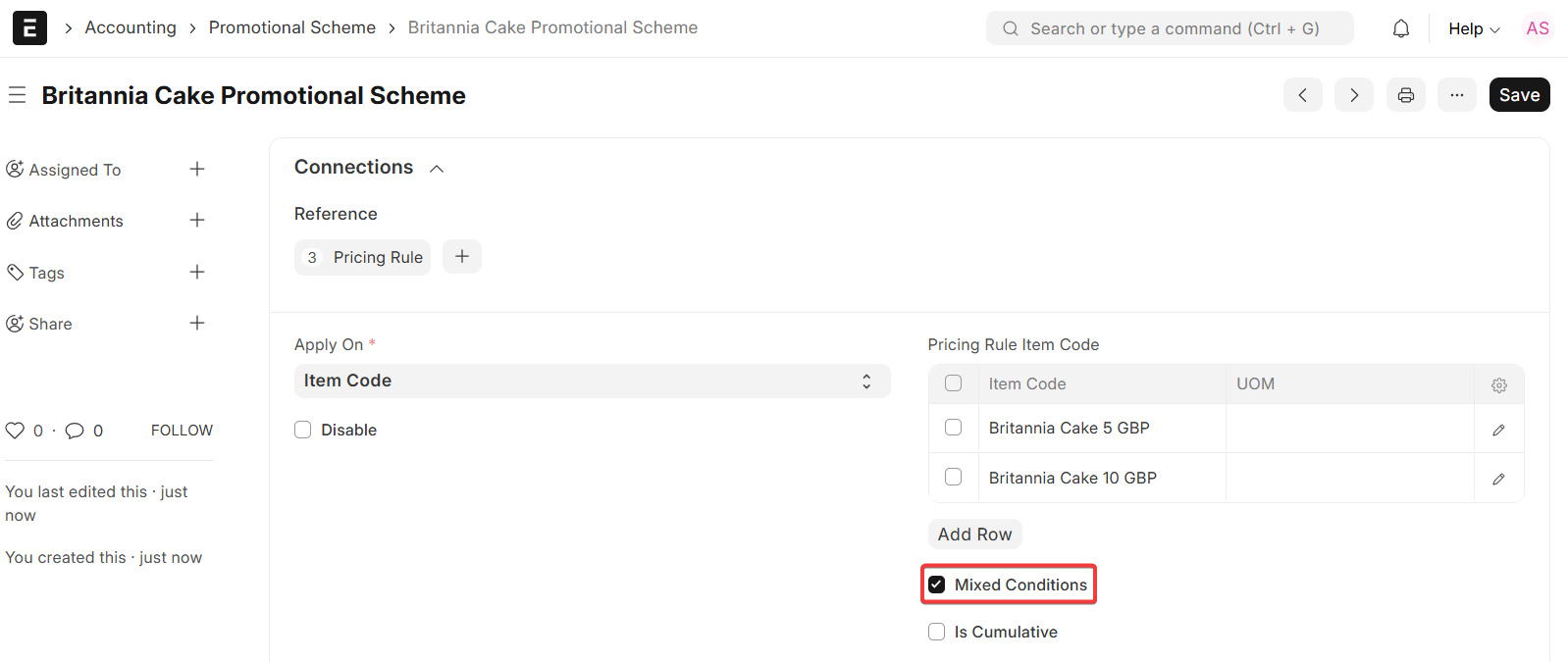
Once saved, the system will automatically generate the related Pricing Rules. When any transaction meets the defined mixed condition, a 10% discount will be applied to the specified products.
5.2 To Apply a Discount on Another Item
Customer A has bought 30 quantities of Britannia Cake 5 GBP packet and 2 quantities of Britannia Cake 15 GBP packet. The Supplier wants to sell the product Britannia Cake 15 GBP at a flat rate of 12. The original price of the product is 15.
The supplier wants to apply this rule only if the customer has purchased at least 30 quantities of Britannia Cake 5 GBP or Britannia Cake 10 GBP.
To configure this in ERPNext, follow these steps:
- Set Apply On as Item Code.
- Add the Item Codes Britannia Cake 5 GBP and Britannia Cake 10 GBP in the Pricing Rule Item Code table.
- Set Apply Rule On Other as Item Code and select Britannia Cake 15 GBP as the target item.
- For the Price Discount Slab table, enter the value Minimum Quantity as 30.
- In the Discount Type, select Rate. In the Rate field, enter 12.
- Save the Promotional Scheme.
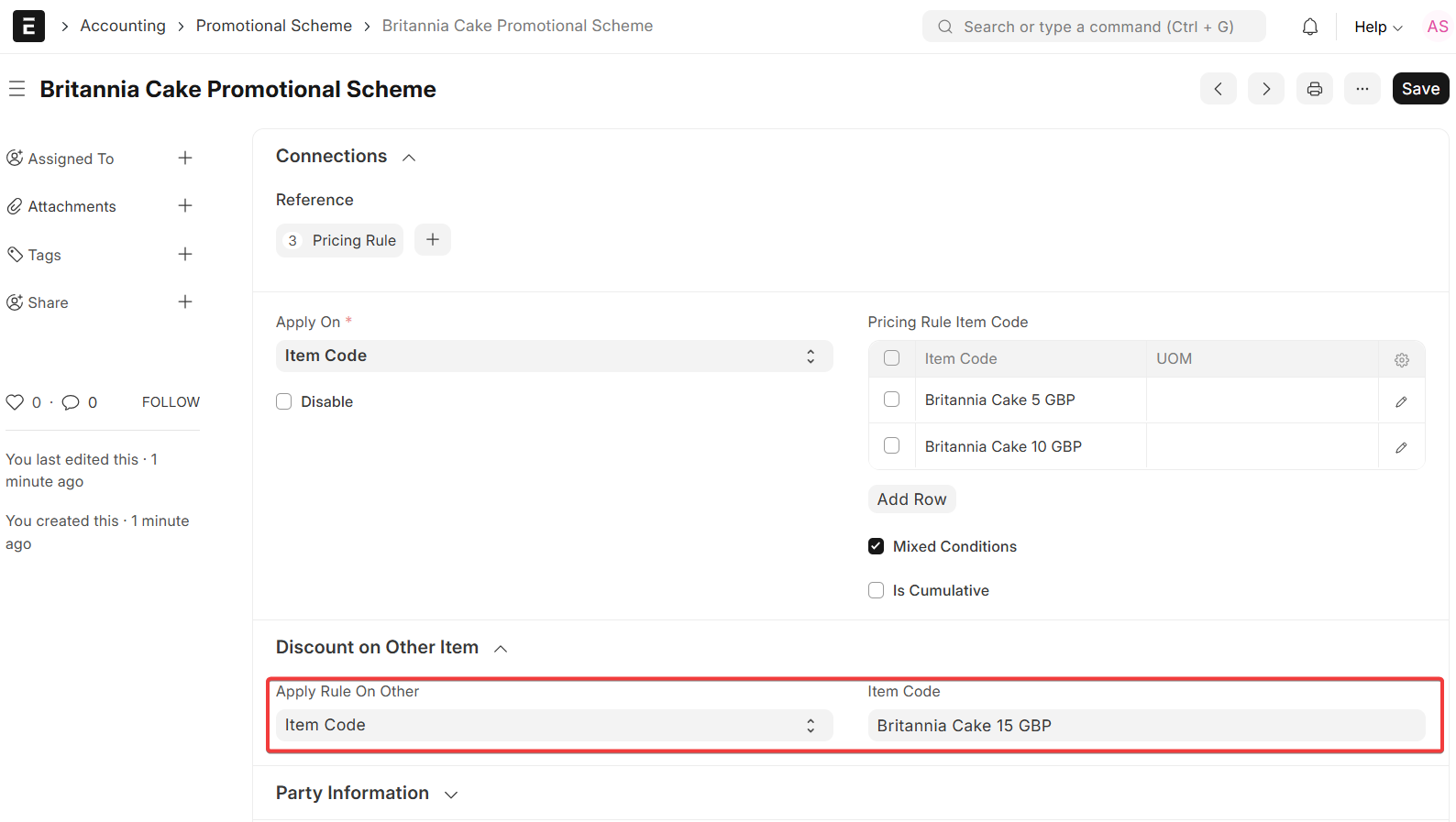
When the Customer buys 30 or more units of Britannia Cake 5 GBP or Britannia Cake 10 GBP, the system will apply the flat rate of 12 automatically on Britannia Cake 15 GBP at the time of the transaction.

