
Tasks
In project management, a Task is an actionable, defined piece of work that needs to be accomplished to meet a project goal or milestone. Tasks enable decomposition of a project into smaller chunks so that work can be assigned, followed up, and completed efficiently.
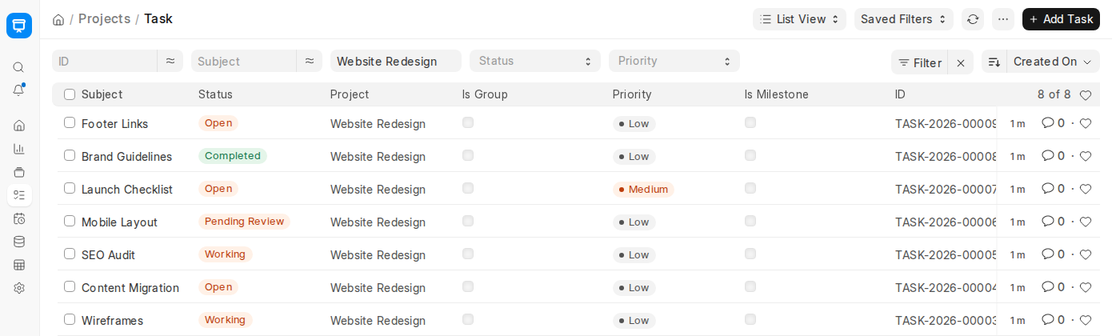
Accessing Tasks
To view Tasks in ERPNext:
This page enables users to view, create, edit, and manage all tasks related to various projects in the Organization.
1. Creating a Task
Two methods for creating a task in ERPNext:
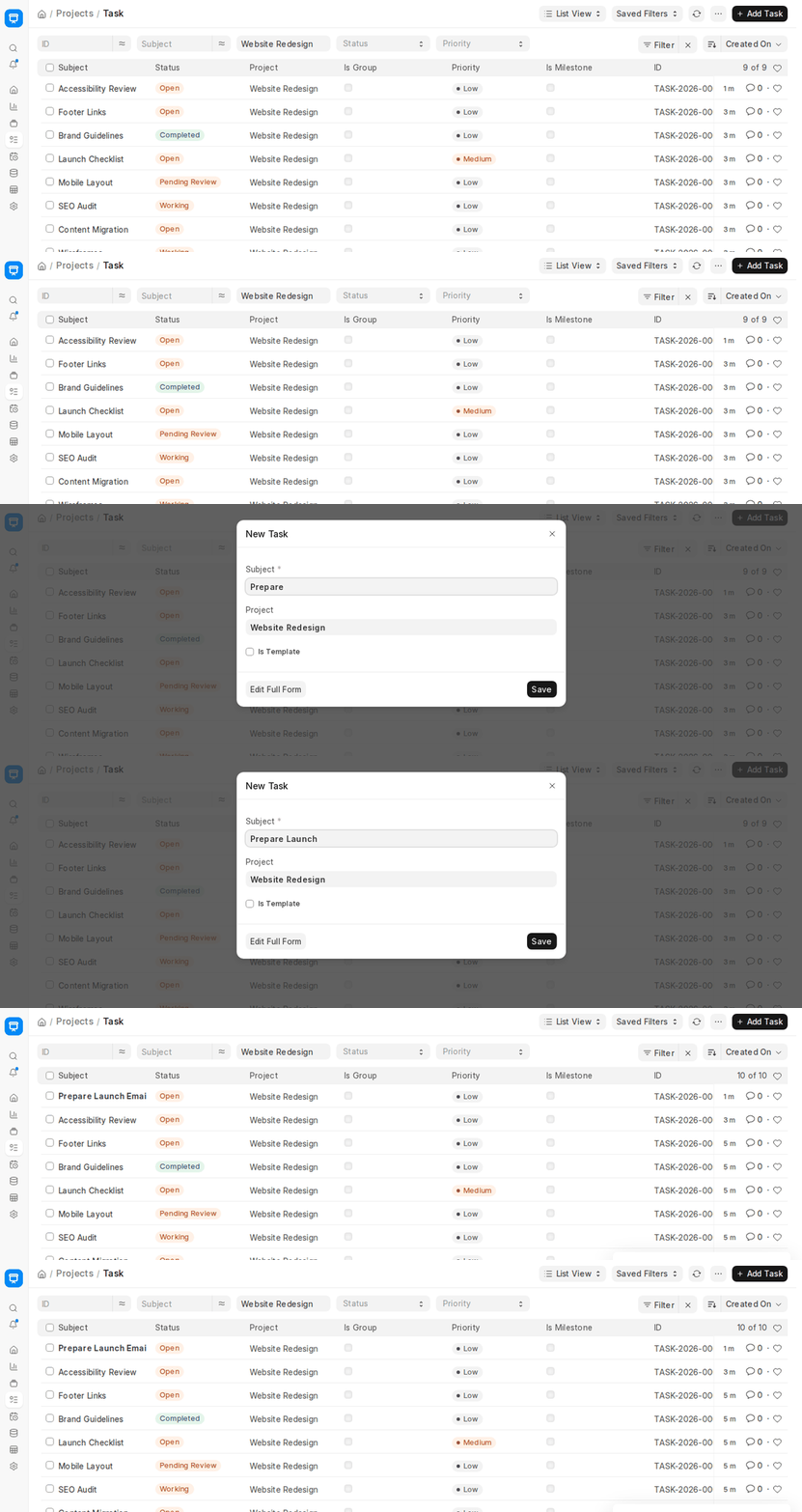
Method 1:: Via the Task List
- Go to the Task List.
- Click + Add Task. A New Task dialog opens with Subject, Project and Is Template.
- Fill in the Subject of the task, which is the task title. If the list is filtered by a project, the Project is filled in already.
- Click Save to store the new task, or Edit Full Form to fill in all the fields.
This is the most straightforward approach and comes in handy for independent tasks or tasks designed prior to linking them with a project.
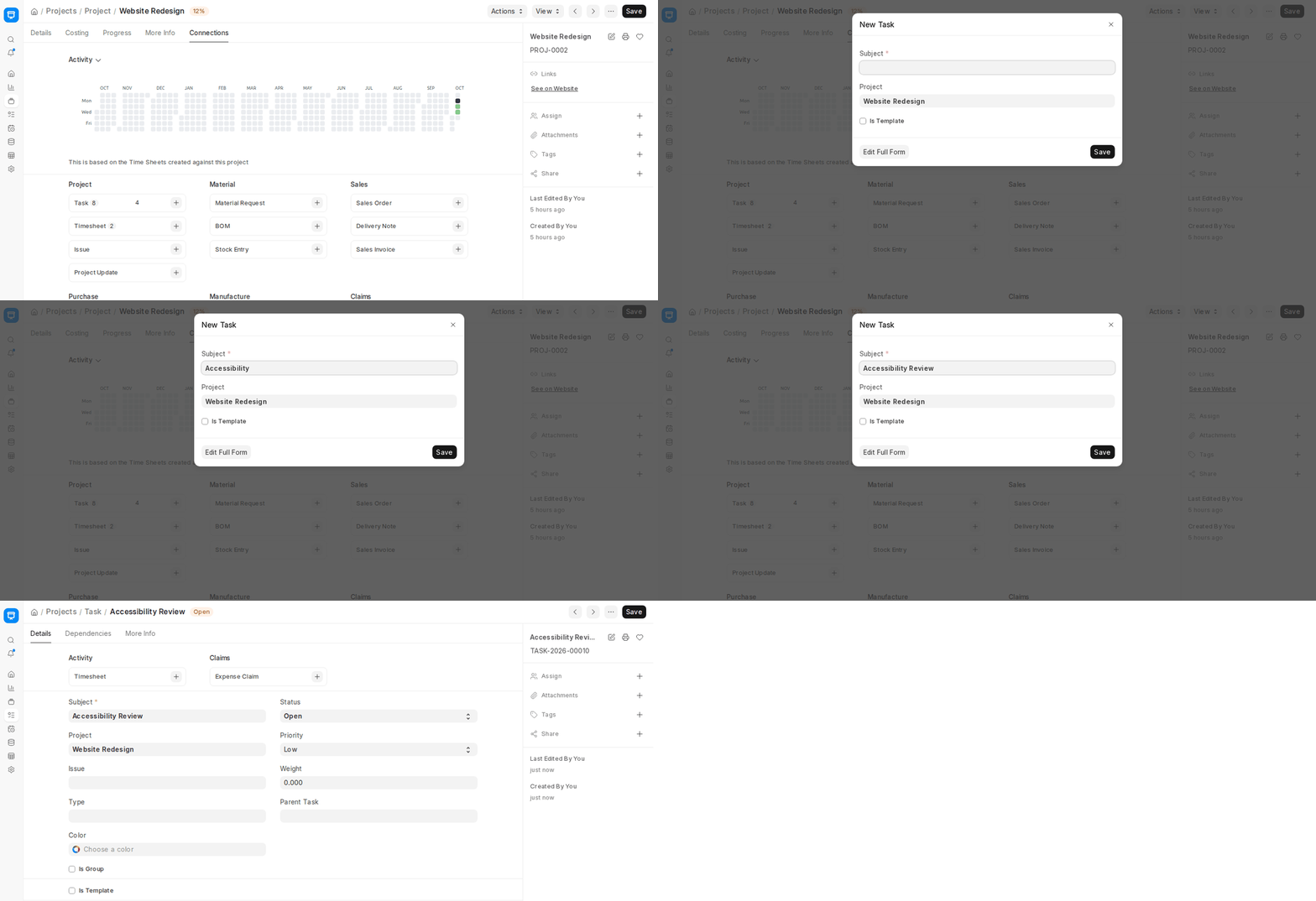
Alternatively, a task can also be created from a Project in the following way:
- Navigate to the individual Project on which the task is being created.
- Open the Connections tab of the Project and click the ‘+’ (plus) icon next to Task. The New Task dialog opens with the Project already filled in.
- Enter the Subject and any other information needed.
- Click Save.
1.1 Extra Options When Creating a Task
When editing or creating a ‘Task’, ERPNext has some fields to capture detailed data. These enable very fine-grained control and tracking of tasks in projects.
Status:: You can change or adjust the task Status to reflect the current task progress. Standard status values are:
- Open
- Working
- Overdue
- Pending Review
- Template
- Completed
- Cancelled
Status values are visible in reports and dashboards, allowing for effective workflow tracking.
Project: When it is a task created independently, you can manually identify that task with a specific project through this field. When the task is created from the project’s Connections tab, the Project field is filled in automatically.
Priority, Set the task priority level as:
- Low
- Medium
- High
- Urgent
This facilitates stakeholders in prioritizing work and allocating resources as well.
Issue: You can set the related Issue document in case the task is a continuation of a customer issue. This association facilitates traceability and allows the support or development staff to visualize how problems are closed with project tasks.
Weight: Enter a weight as a figure to reflect the proportion of significance or effort that the task requires. ERPNext uses the weight to compute project progress when the project’s % Complete Method is Task Weight.
Heavier task will have more contribution to total project completion compared to lighter ones.
Type: Select a Task Type (you create the types yourself), such as User Training, Documentation, Development or Implementation. You are able to sort tasks by type and prepare type based reports to analyze them.
Color: Take a visualization identification color label. Colors particularly come in handy when looking at Gantt Charts, Kanban Boards or task trees to enable faster recognition.
Is Group: Indicate this box in case the task is a parent task. Group tasks are non-tracked containers and do not have a direct time or cost correlation. It is possible to use several sub-tasks on top of a group task to create task hierarchies.
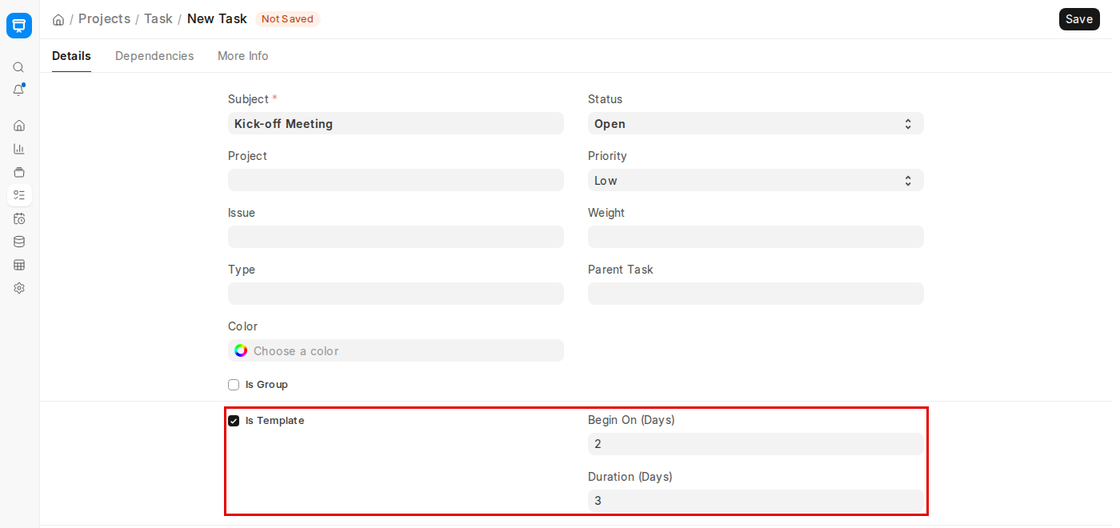
Is Template: Mark this checkbox if the task is a template task, meant to be part of a Project Template. When it is ticked, Begin On (Days) and Duration (Days) appear. Template tasks are reusable pieces for standardized project routines.
Parent Task: If the task belongs to a group task or an overarching activity, you can define the Parent Task here. This field makes it possible to create nested task structures, which is particularly helpful with intricate projects.
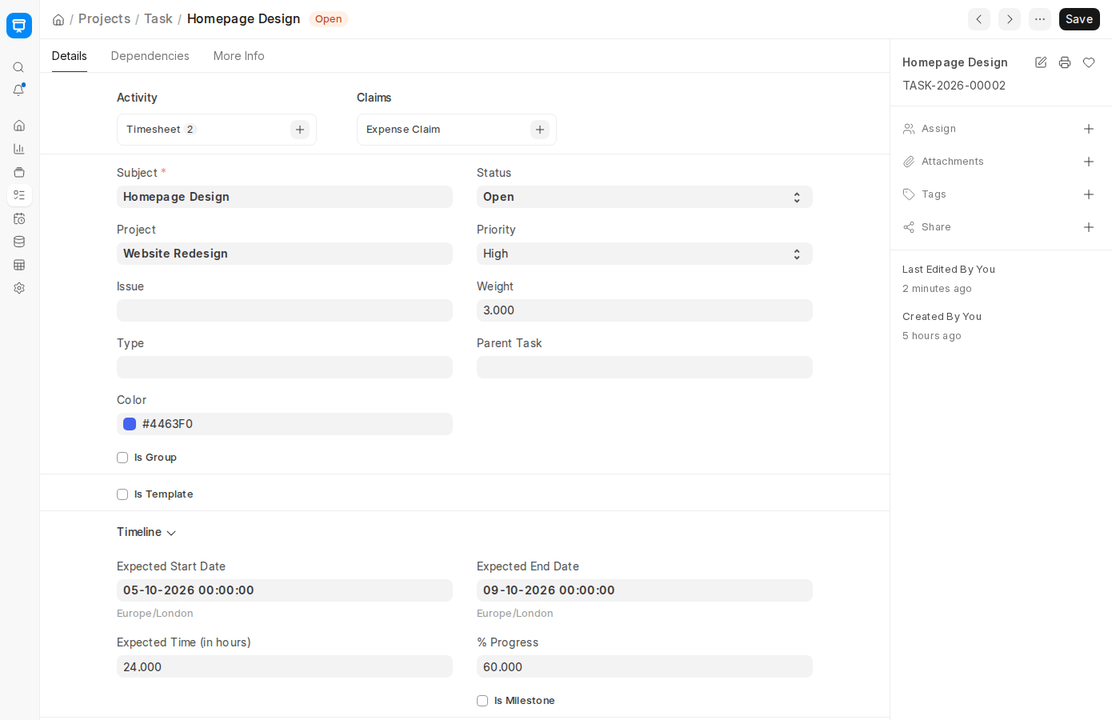
2. Features
2.1 Timeline and Details
The Timeline section is used to plan the time of an activity. It assists in the sketching of timelines, estimating work and the general execution plan.
Expected Start Date
- You can enter the planned date on which the activity is expected to start by using this field.
- It is needed in timeline planning and is done in project displays such as Gantt Charts, which rely on this date to locate the task.
Expected End Date
- You may enter here the target completion date of the task.
- It is a milestone to track progress and for calculating delays or early finishes.
Expected Time (in hours)
- You can enter the number of hours or effort which needs to be put in order to complete the task.
- This number is utilized for calculating utilization of time, productivity reports, and project costing on the basis of completed timesheets.
% Progress
- You can enter the percentage of progress of the task directly (e.g., 0%, 50%, 100%).
- This proves to be helpful for tasks not monitored automatically by means of timesheets.
- It assists in determining which tasks are behind or progressing in reports.
Begin On (Days)
- Only for template tasks, this field enables you to mark on which day (e.g., Day 2, Day 5) after the project begins this task ought to be initiated.
- Handy with project templates when tasks are defined in relation to the project start date.
Duration (Days)
- Also unique to template tasks, this determines the amount of days allocated to complete the task.
- When a project is created from the template, ERPNext calculates the task’s Expected Start and End Dates from the project’s start date, Begin On and Duration.
Is Milestone
- Checkbox to make a task a milestone.
- Milestone tasks are employed to mark major milestones or key points of delivery during the life cycle of a project.
- Milestones are marked in project reports and Gantt views for instant visibility.
Description
- A rich-text field to enter long description of the task.
- This may be instructions, expectations, document links, or anything reference to help the assignee.
Holidays
- When those dates are calculated for a Project Template, a start or end date that falls on a holiday (from the project’s Holiday List, or the company’s default Holiday List) is moved to the next working day.
2.2 Dependencies and Actual Time
The Dependencies tab of the task defines the logical order among activities and shows the actual time taken.
Dependent Tasks
- You can make this task dependent on some other task, i.e., it should not be initiated until the specified task is finished.
- This enables you to specify task dependencies, which are very crucial while creating realistic workflows and timelines.
Types of Dependencies Supported
- Setting dependency type (Finish-to-Start, Start-to-Start, etc.) is not supported in ERPNext as of now, but by default it’s Finish-to-Start.
- It is up to you to schedule dependent tasks manually in sequence.
- Dependency Visualization Using Gantt Charts
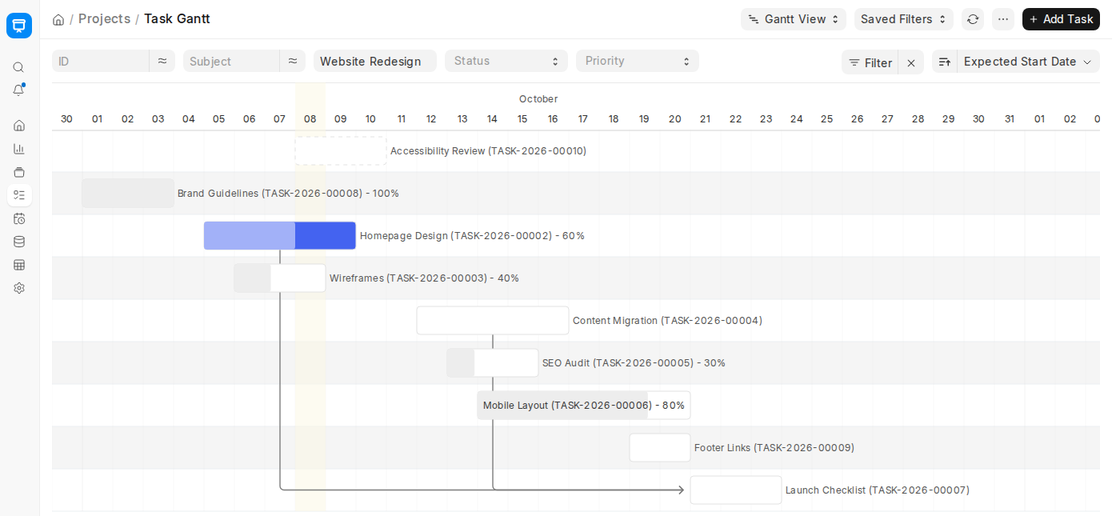
- All dependencies are shown in the Gantt view of the Task list, where:
- Linked tasks are shown with arrows.
- Overlaps or delays are clearly visible visually.
- You can drag a bar to change the task’s expected start and end dates, and drag its progress handle to change % Progress. Dependencies are added in the task’s Dependent Tasks table.
Real Time Tracking
Actual time is tracked through Timesheets. As soon as a Timesheet has been entered for a task, the system updates:
- Actual Start Date (via Timesheet)
- Actual End Date (via Timesheet)
- Actual Time in Hours (via Timesheet)
All of this information can be accessed immediately within the Task or within Timesheet Reports.
Actual Start Date
- This will automatically record the actual date of beginning the task, from the very first Timesheet entry that pertains to this task.
- You don’t have to fill in this as well. ERPNext takes it from the very first recorded work in Timesheets.
- This helps to monitor task drift between Expected Start Date and Actual Start Date, which gives a measure of project planning accuracy.
Actual End Date
- It is the date of the most recent activity for the task, automatically taken from the most recent Timesheet entry on the task.
- It enables you to track if the task is on time, and how much behind it is from the Expected End Date.
- This also assists in total task duration calculation to cost and report efficiency.
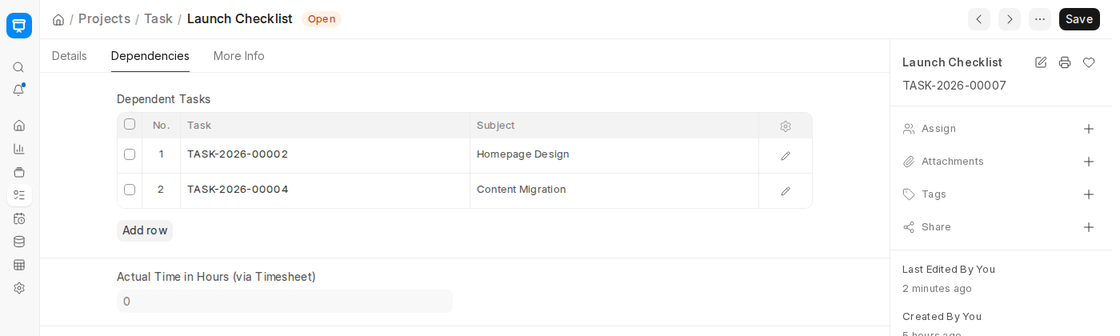
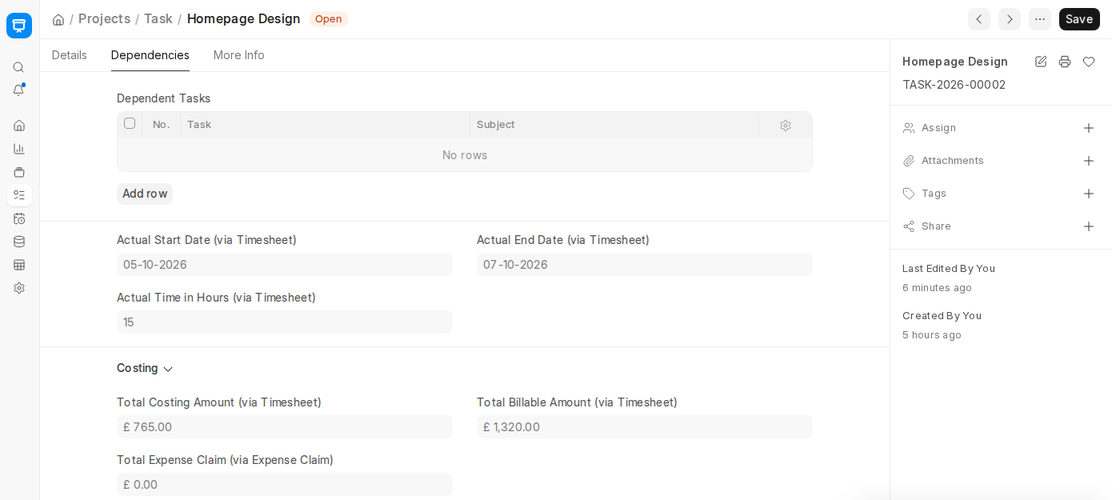
The actual dates, actual time and costing are on the Dependencies tab, below the Dependent Tasks table.
2.3 Costing
All information pertinent to cost data of the task is recorded here. All the values are auto-calculated based on Timesheets and Expense Claims.
Total Costing Amount (via Timesheet)
- Computed automatically from the hourly cost rates of the resources or workers employed on the task, as inputs in the Timesheets.
- The company cost incurred internally to finish the task.
- Helpful in profitability analysis and calculation of gross margin at the project and task levels.
Total Billable Amount (via Timesheet)
- The Total Amount with which the Customer is to be billed via this task gets recorded here from the Timesheets.
- The system adds the amount to the Sales Invoice if billing is to be created from Timesheets.
Total Expense Claim (via Expense Claim)
- If an employee has raised an Expense Claim (e.g., travel, tools, materials) and attached this task, the total appears here.
- They are totaled and accumulated here to be used as indirect costs incurred on the task.
- They are not Timesheet hours but are part of total project cost.
2.4 More Info
The Additional Info section of the More Info tab holds the task’s organisational details. When the task is Completed, the Review Date and Closing Date are also shown here.
Department
- You can allocate the task to a department, although the project as a whole may belong to some other department.
- It facilitates planning of resources whenever inter-departmental cooperation is involved.
- Departmental allocation is presented in the form of department-wise task reports and is appropriate for internal budgeting.
Company
- You can define the Company on which the activity is being performed.
- It comes in handy in multi-company setups, e.g., when a parent company acts on behalf of its subsidiary, sister concern, or another internal business unit.
- ERPNext uses this field for filtering, reports and company-based permissions.


