Project Template
A Project Template is a predefined organization that consists of a series of tasks laid out in a predetermined schedule. Templates are useful for duplicating typical projects for teams or clients and are most beneficial in project planning, where tasks often follow the same patterns. When you’re creating a new project with a template, all the tasks contained in the template are automatically filled out in the new project with already applied durations and offsets.
This enables your organization to ensure task planning consistency, reduce setup work, and avoid errors by executing proven workflows.
Go to the Project Template by accessing:

1. How to Create A New Project Template
- Go to the list of Project Template and click Add Project Template to start creating a new template.
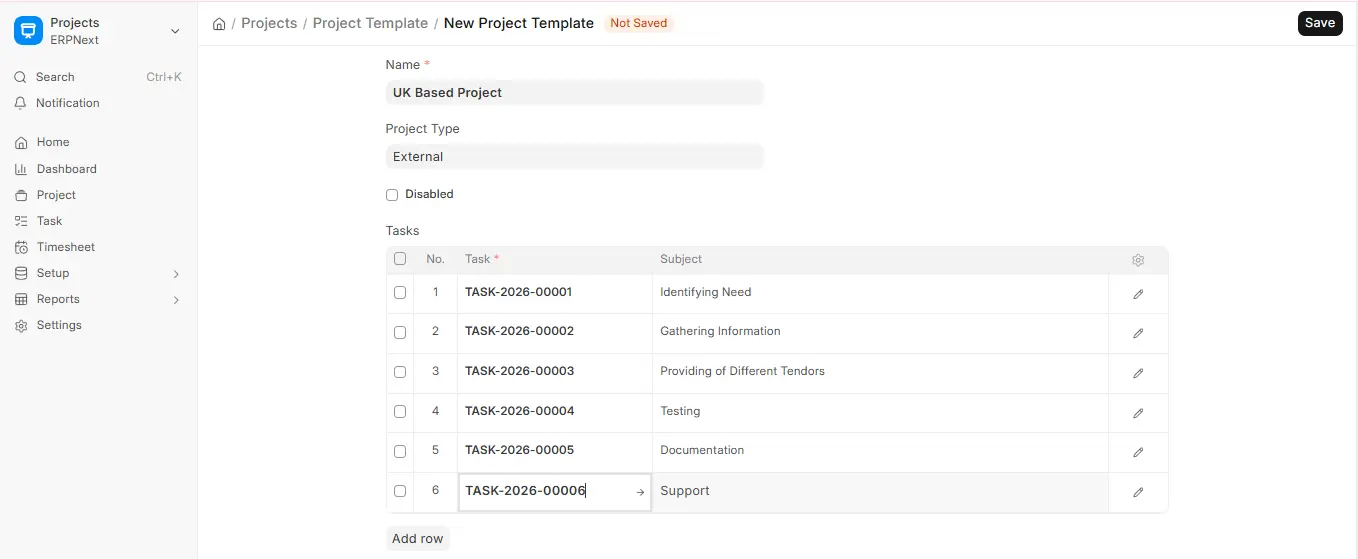
- Complete the following fields to set up your template:
Project Template Name: Provide a descriptive name to the template so that it can be recognized and identified while creating the project.
Project Type: Similar to individual projects, templates can also be typed as Internal or External, based on the usage scenario. This classification assists in filtering templates when creating projects and in reporting.
2. Define the Tasks Table
This section enables you to predefine the order of tasks that belong to this template. Each row links a Task marked Is Template (its Subject is shown in the row). The following fields are set on that template Task:
- Subject: This is the name or title of the task. Keep it concise and action-oriented so that the users get a clear idea of the task’s nature.
- Begin On: Specify the number of days after the project start date when this task must be started. This number assists with task scheduling against the project start and allows for automatic generation of the timeline when using the template.
- Duration: Put the number of days between when the task will be completed. This enables the system to automatically calculate the end date for the task when creating the project from the template.
- Type: Each template Task can have a Task Type. You can label tasks as Administrative, Operational, Development, etc., to easily filter out.
- Dependent Tasks: Dependencies are defined on the template Task’s Dependencies tab, so that the resulting project has correct sequencing of tasks. Task execution is not possible unless the previous (dependent) task has been finished, if set.
- Is Milestone (Retained): Identify a task as a milestone when it is a critical phase of the project. This assists in tracking milestones while running the project.
3. Save the Template
After all details have been Input and tasks have been added, click Save. The template will now show up when starting a new Project and automatically fill all tasks included.