
Service Level Agreement
A Service Level Agreement (SLA) in ERPNext is an official agreement between a service provider (internal or external) and the customer or end user, specifying the expected response and resolution times for support-related incidents. This creates a standard support experience, increases accountability, and helps organizations to meet customer expectations in an efficient and standardized way.
SLAs in ERPNext are result-oriented, i.e., they don’t dictate how the services are to be delivered but define what the expected response or resolution time is once an Issue is raised by the customer.
To view the list of SLAs in ERPNext:
1. Prerequisites
Before creating and making use of SLAs in your system, ensure the following have been done:
- Holiday List: Set up or edit your company’s holiday list. SLA timers will ignore holidays, so issue deadlines will take into account only working time.
- Enable SLA Tracking: In Support Settings (search for it in the search bar) check that the Track Service Level Agreement option is enabled. Tick Allow Resetting Service Level Agreement as well if users should be able to reset the SLA on an Issue. This enables SLA capabilities in all support workflows and allows SLA fields in the Issue doctype.

These steps help ensure that SLA tracking is in sync with actual Operating schedules and that your system is prepared to record SLA metrics correctly.
2. Creating a Service Level Agreement
To make a new SLA record in ERPNext:
- Go to the Service Level Agreement list and click + Add Service Level Agreement.
- Select Apply On (the document type the SLA is for, for example Issue) and enter a Service Level Name. It has to be descriptive (e.g. Gold Tier SLA, Standard SLA – North Region).
- Select the Default Priority for documents under this SLA.
- Define a Holiday List: In the Working Hours section, select the holiday list that is applicable to this SLA. ERPNext will not consider the holidays listed when determining response and resolution due dates.
- The “Enabled” check box determines whether the SLA is enabled or disabled temporarily.
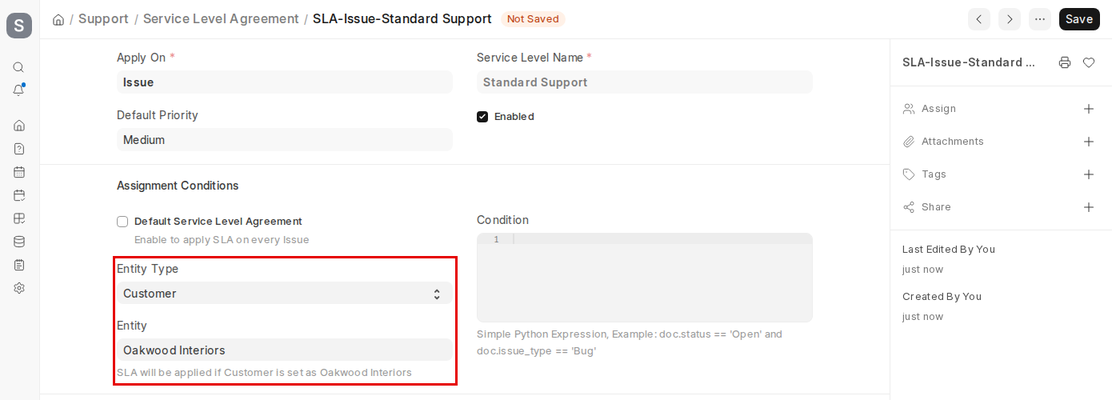
- If this SLA should be applied to every document that no other SLA matches, check the Default Service Level Agreement box (in Assignment Conditions).
- Otherwise, untick it and assign the SLA according to an Entity Type:
- Customer
- Customer Group
- Territory
- Select one of the above as the Entity Type and then the Entity. You can also add a Condition (a simple Python expression, e.g.
doc.status == 'Open'). This allows different SLA policies for VIP customers, specific regions, or segments of customers. - Establish the validity period of the SLA by entering the Start Date and End Date. This enables version control and accommodates time-limited or temporary agreements.
- In the Response and Resolution section, tick Apply SLA for Resolution Time if resolution should be tracked too. In the Priorities table, set the SLA per issue priority (e.g., Low, Medium, High) and specify:
- First Response Time
- Resolution Time
These are the areas that guarantee ERPNext can accurately track SLA compliance during both the initial response and final resolution levels.
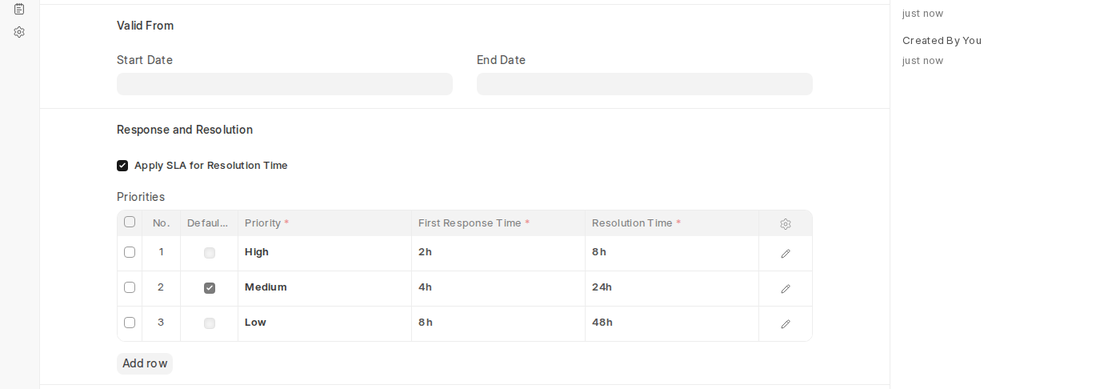
- Tick Default Priority on one row of the Priorities table; it is used for issues under this SLA when no priority is picked. In Status Details, set SLA Fulfilled On (for example Resolved and Closed) and, optionally, SLA Paused On (see section 3.4).
- The Working Hours table lets you specify your support schedule. You can set:
- Working days of the week upon which the support is available (e.g., Monday through Friday)
- Start Time and End Time for every working day
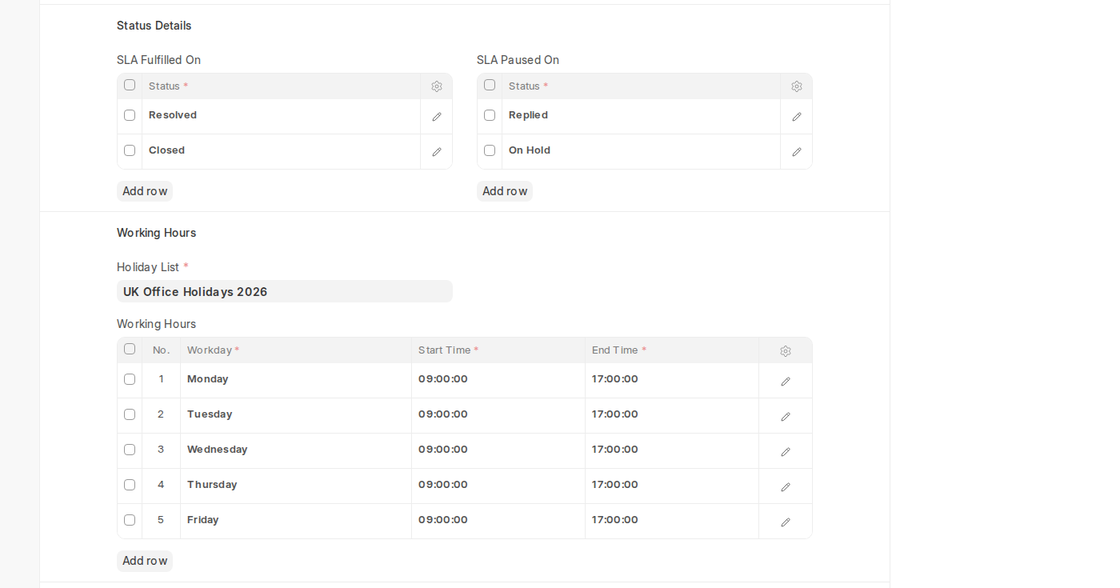
ERPNext counts SLA time only during these working hours (and skips holidays), so issue response/resolution expectations are calculated only when support is actually available.
- Once all Fields are established based on your need in business, you need to Save the Service Level Agreement.
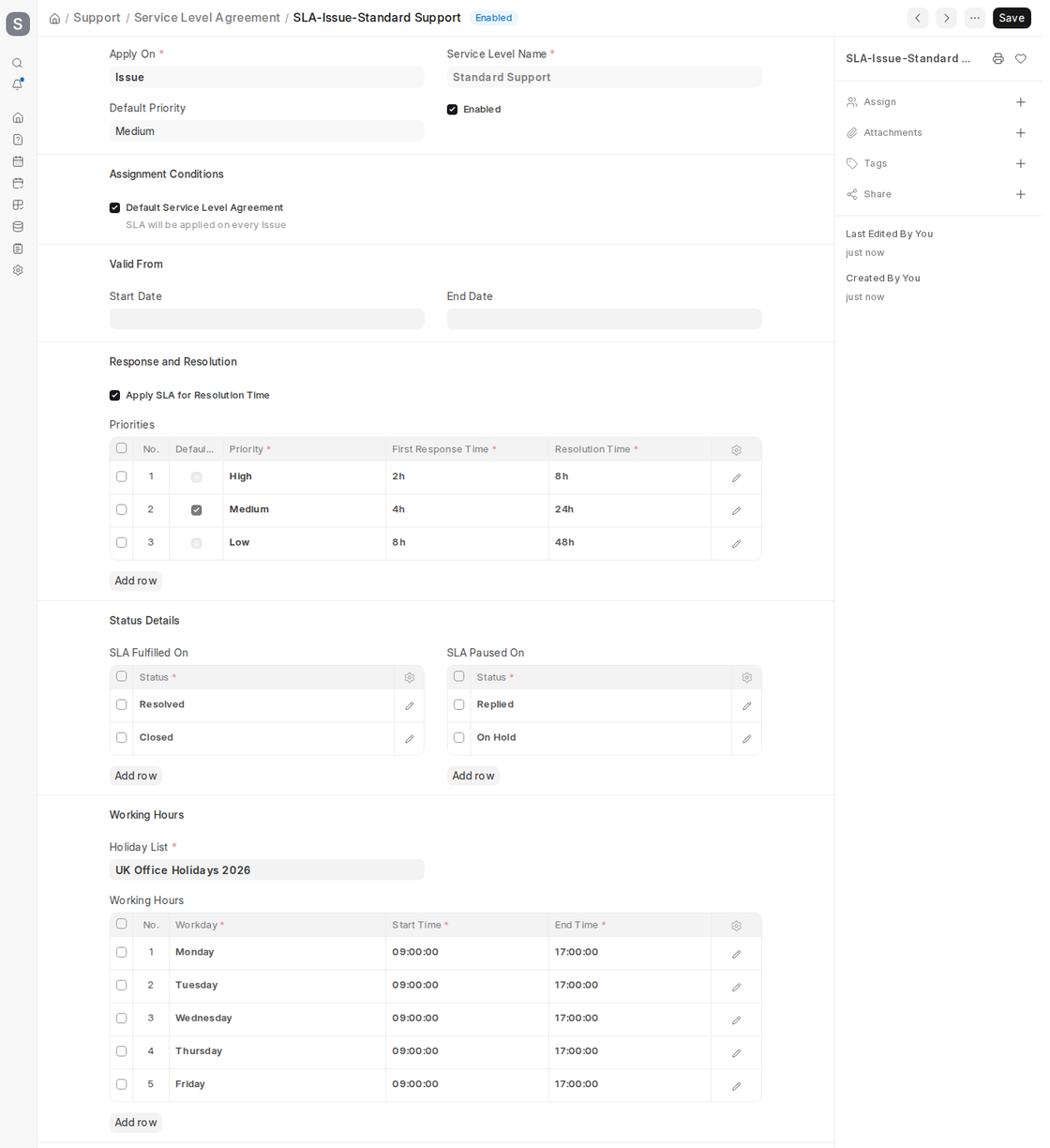
ERPNext will automatically apply the right SLA to Issues based on the assignment conditions (or the default SLA) and track SLA adherence on each Issue.
3. Features
3.1 Applies to New Issues
After a Service Level Agreement (SLA) has been created and saved in ERPNext, it will automatically be assigned to newly created Issues depending on the Assignment Conditions of the SLA. This implies, based on whether the SLA is the default one or linked to a Customer, Customer Group, or Territory, the system will automatically use the appropriate SLA when an Issue is created. This will help track support response and resolution times correctly and consistently from the time the issue is created.
3.2 Resetting an SLA
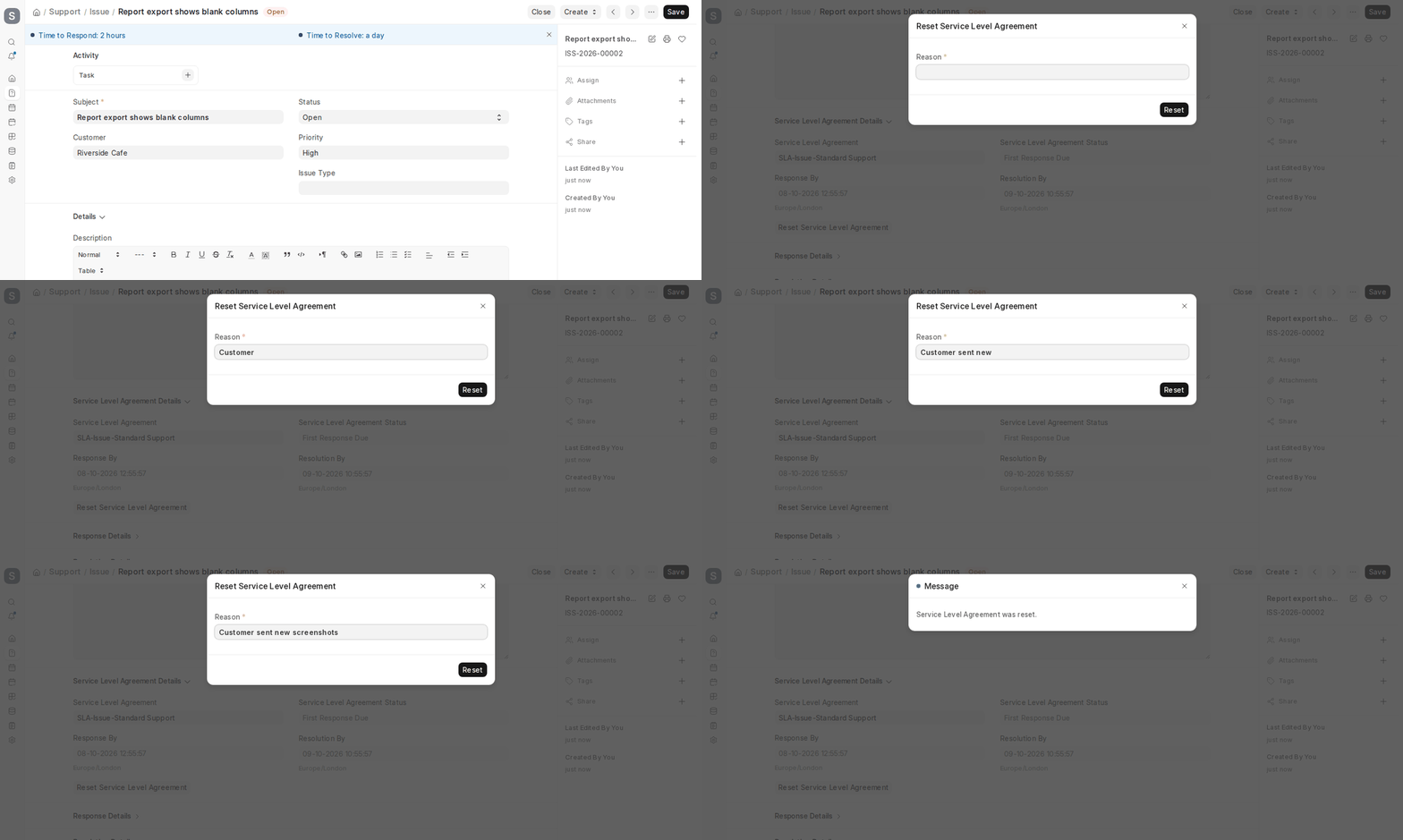
ERPNext enables you to reset the SLA on an Issue when Allow Resetting Service Level Agreement is ticked in Support Settings. In the Issue’s Service Level Agreement Details section, click Reset Service Level Agreement, enter a Reason and click Reset. The SLA timers start again from the current time, and the reason is recorded in the Issue’s activity, so every reset stays traceable.
3.3 Response / Resolution Time in Issues
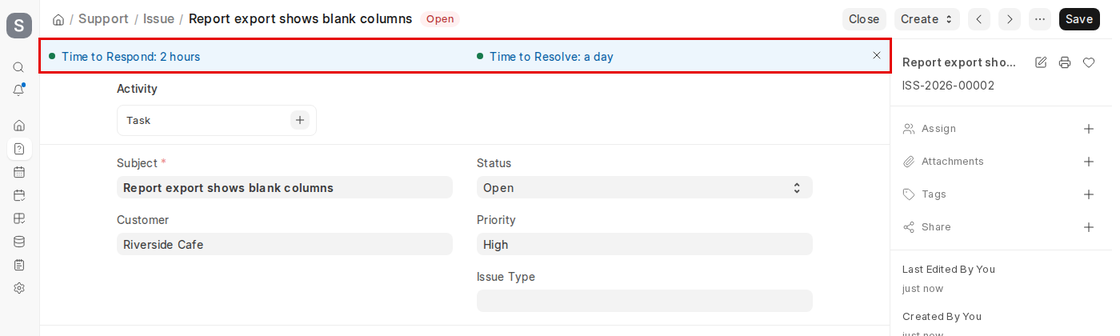
Every Issue in ERPNext shows Time to Respond and Time to Resolve indicators at the top of the form, and Response By and Resolution By in the Service Level Agreement Details section, depending on the SLA used. These durations are automatically pulled from the Priorities table defined in the SLA. For instance, if a problem is tagged as “High Priority”, the SLA would exhibit the precise time (in hours and minutes) for when the initial response should be completed, and the problem should be fixed. Having real-time visibility lets support teams track service deadlines and respond quickly to meet or exceed customer expectations.
3.4 Pause SLA on Statuses
Since ERPNext Version 13, you are able to stop SLA tracking when some conditions are met, typically when the issue is awaiting customer input, or some other outside influence.
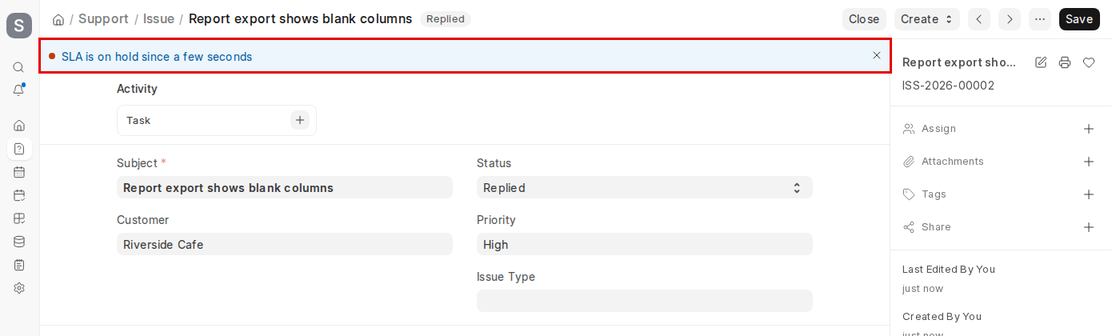
- The “SLA Paused On” table in the SLA document lets you choose the Issue statuses (for example Replied or On Hold) on which SLA timers will be paused.

- Once a problem gets moved into a paused state, there is a temporary hold on the resolution timer, and the Issue shows “SLA is on hold since …” at the top.
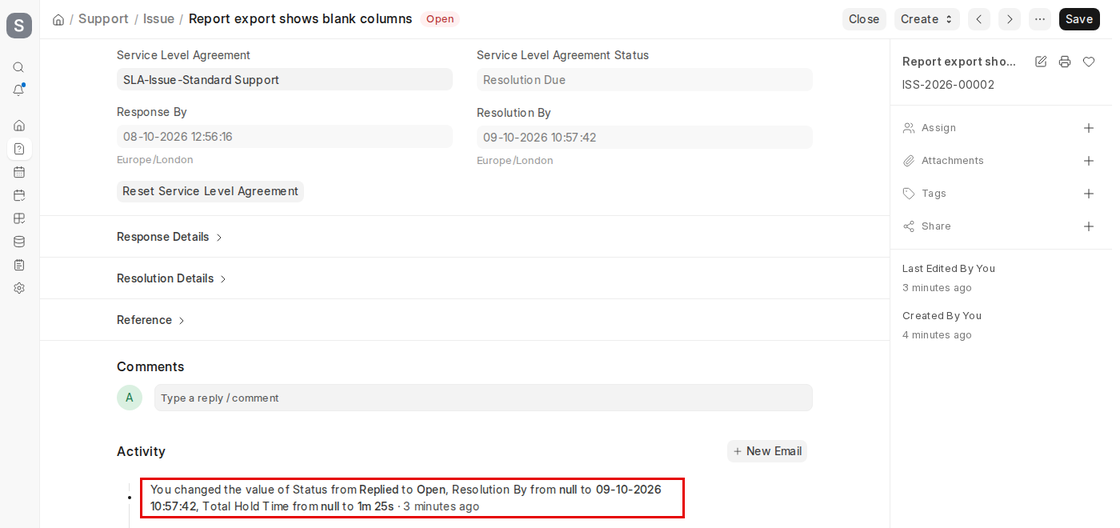
- When the issue is brought out of the pause state, ERPNext records the Total Hold Time and moves Resolution By forward by that time, so the pause is not counted against the SLA.
- This dynamic timer setting ensures equitable SLA tracking, particularly in situations where delay is not controllable by the support team.
Note: In ERPNext Version 13 the legacy DocType Service Level was deprecated. Today, all SLA features are handled directly under the Service Level Agreement DocType, making configuration less of a redundant process.

