Holiday List
A Holiday List is a document that specifies all the holidays in a specified time period, usually for a fiscal year. This facilitates organizations to deal with employee leave, shift planning, attendance, and payroll without any conflicts.
There can be different Holiday Lists in ERPNext that can be assigned to employees, departments, or locations. An example would be that two different parts of the same company can have different holiday calendars.
To refer Holiday List, proceed to:
Home > Frappe HR > Leaves > Holiday List
1. How to create a Holiday List
- Navigate to Holiday List, and choose New.
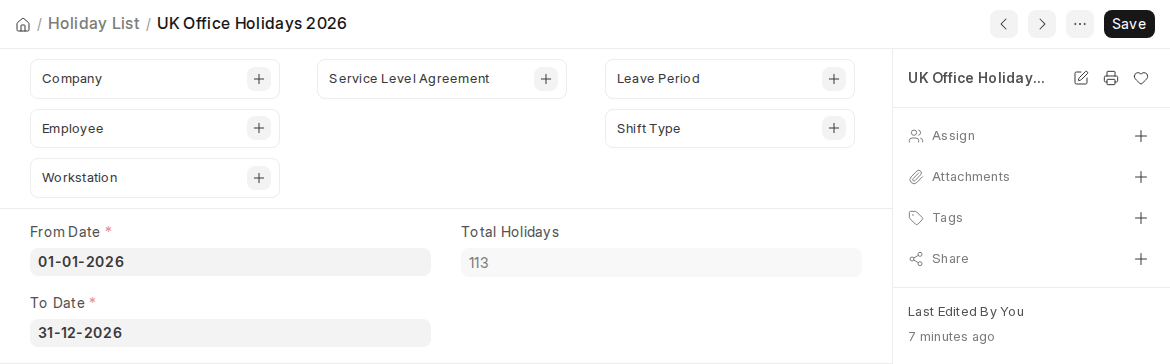
- Enter a Holiday List Name e.g. it might be Fiscal Year-based (Holiday List 2025), Location-based (UK Office Holidays), or Department-based ( Factory Shift Holidays ).
- Select the From Date and To Date that specifies the duration of Holiday List being operated.
- They typically span a complete fiscal or calendar year.
- Overlapping or duplicate records are automatically checked to ensure consistency.
- Manually add or use batch functions (weekly holidays or local holidays).
- Save, then assign the Holiday List to an Employee or a Company through a Holiday List Assignment so that attendance and leave records are in line with the proper calendar.
2. Features
ERPNext has several features in the Holiday List to reduce and automate the holiday creation.
2.1 Adding Weekly Holidays
Weekly offs like Sundays or alternate Saturdays may be easily added.
Steps:
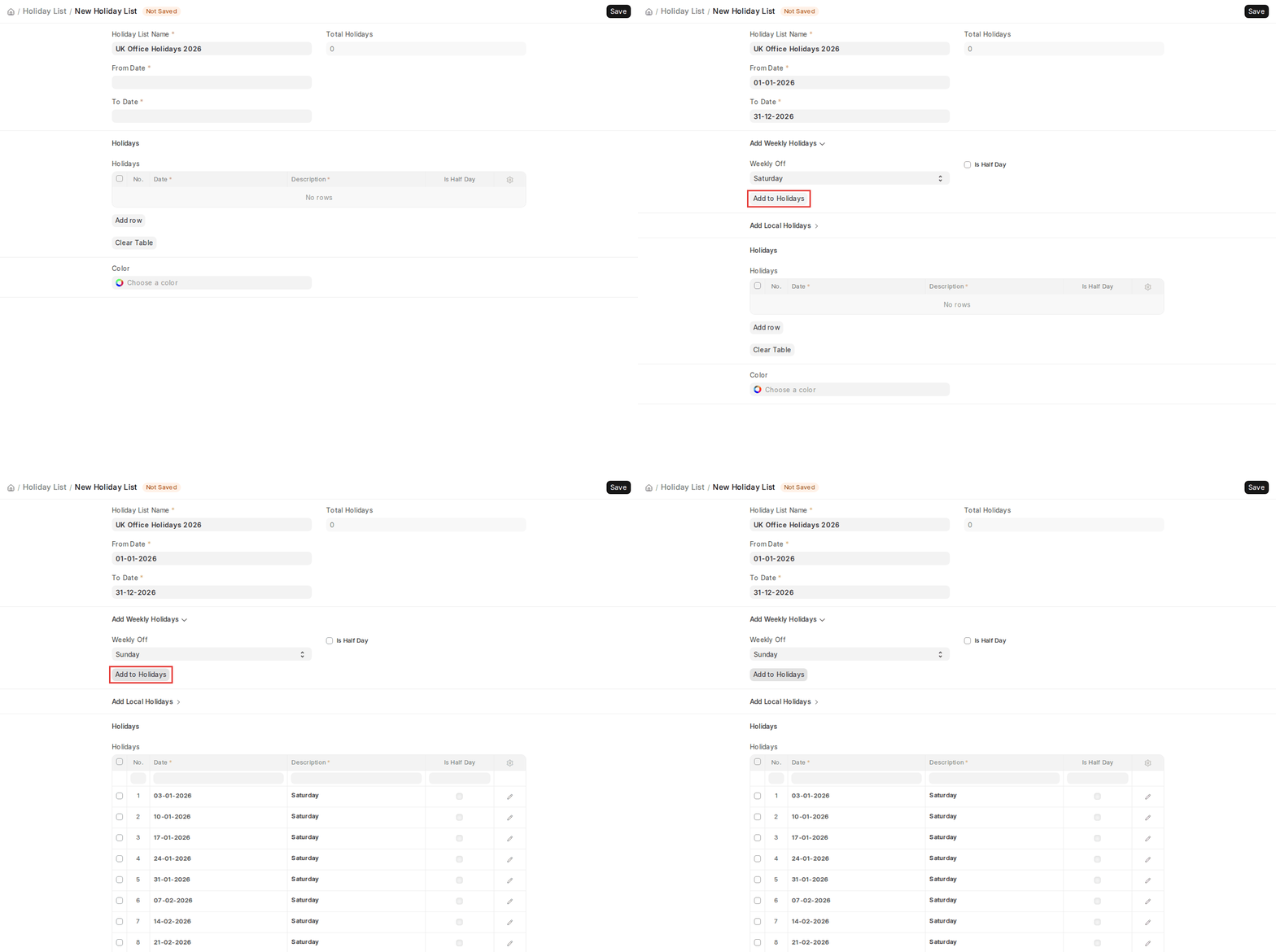
- In the Add Weekly Holidays section, select the day in Weekly Off (e.g., Saturday).
- Click on the Add to Holidays button, and the system will create holiday entries automatically for all weeks between the specified From and To dates.
- Several weekly offs can also be defined (e.g., both Saturday and Sunday): select the next day in Weekly Off and click Add to Holidays again.
- In ERPNext v16, tick Is Half Day before clicking Add to Holidays if the weekly off is only a half day.
- In case your company has alternate-week holidays (such as 2nd and 4th Saturday off), you can manually update the entries after automatic generation.
2.2 Adding Local Holidays
Local or regional holidays may be bulk-added.
Steps:
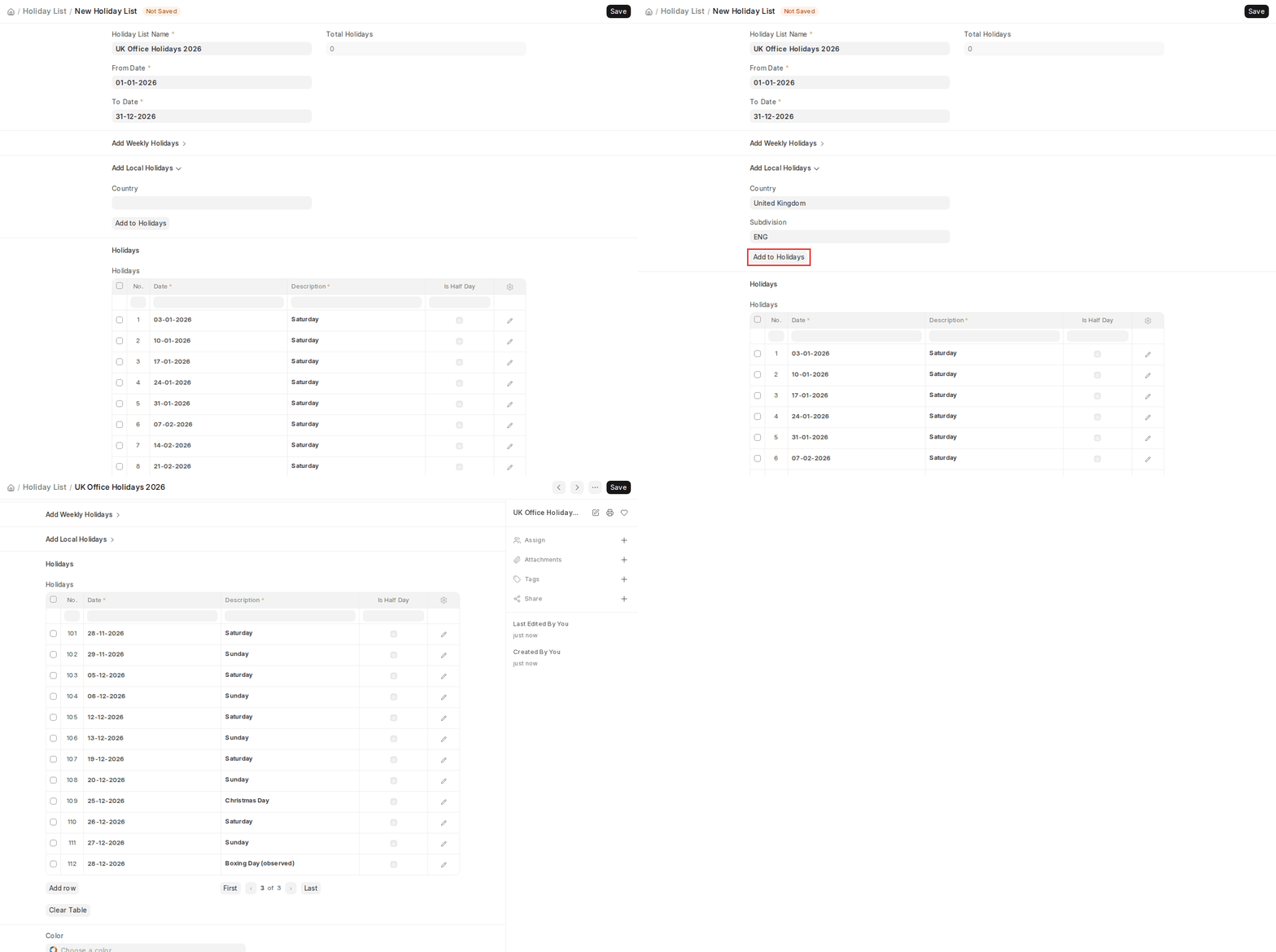
- Under the Add Local Holidays option, you will have to select the Country.
- Choose a Subdivision (province, state or region) if needed to obtain the appropriate list of holidays.
- Selecting Add to Holidays puts the ERPNext to fill the list of known public holidays in your location.
- You can further edit the list by removing the undesired holidays or add company holidays.
2.3 Manually Adding Holidays
You can define both automatic weekly and local holidays, as well as manually define holidays.
- Navigate to the Holidays table in the Holiday List.
- Click on the Add row button in order to add a new holiday.
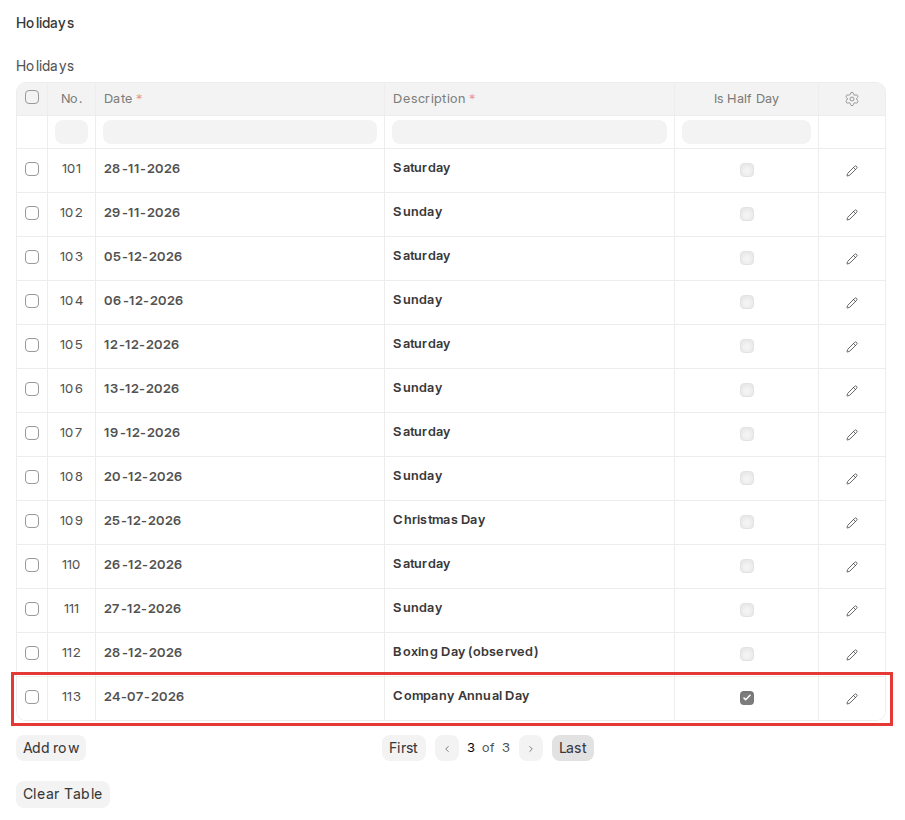
- Fill in the Date and Description (e.g. Founder day, Company Annual Event), and tick Is Half Day if it is only a half-day holiday.
- Manual entries give the flexibility to add organization specific holidays that may not be covered by standard weekly or regional holiday options.
- To prevent the errors, each hand-added holiday is compared to the date range of the Holiday List.
3. Holiday List in Company
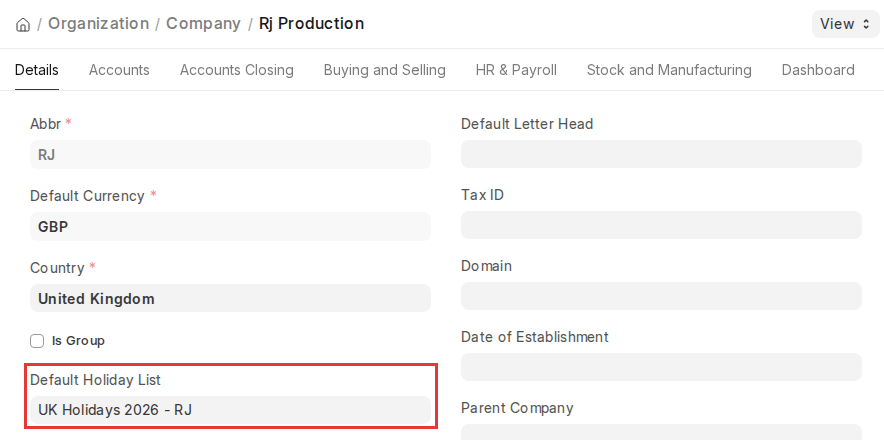
Under the master level of the Company, you may create a Default Holiday List:
- In the master table Company, in the field (Default Holiday List) is assigned the Holiday List, which is to be used in all cases on the default of the employees of the company.
- This provides consistency in leave administration, payroll administration and structuring of attendance, board wide.
- In ERPNext v16 with Frappe HR, leave, attendance and payroll take holidays from Holiday List Assignment. To make a Holiday List the default for all employees of a company, create a Holiday List Assignment with Applicable For set to Company.
- Every employee will follow the Holiday List assigned to their company unless the employee has their own Holiday List Assignment.
- When upgrading to v16, Holiday Lists already set on Companies and Employees are converted into Holiday List Assignments automatically.
4. Holiday List in Employee
ERPNext is flexible in that it allows more than a single Holiday List in a given organization.
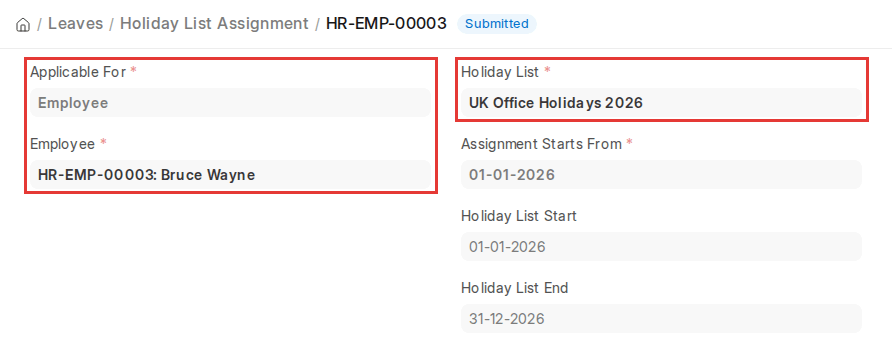
- With 2 or more Holiday Lists, you can assign a particular Holiday List to an employee. In v16 the Holiday List field is no longer shown on the Employee form; instead go to Home > Frappe HR > Leaves > Holiday List Assignment, set Applicable For to Employee, select the Employee, the Holiday List and the Assignment Starts From date, then Submit.
- Because assignments are dated, an employee can move to a new Holiday List from a given date while earlier periods keep the previous list.
- The system will check the Holiday List assigned automatically when Employee requests Leave and will not consider the holidays as leave days.
- Priority Rule: In case a Holiday List is assigned at the Employee level, it will override the Holiday List assigned to the company.
- It is helpful in situations where:
- Factory workers and office people have different holiday calendars.
- Various places or branches of the company observe various regional calendars.
- ERPNext has an unlimited number of Holiday Lists so that there is fine-grained control over departments, shifts, or regions.
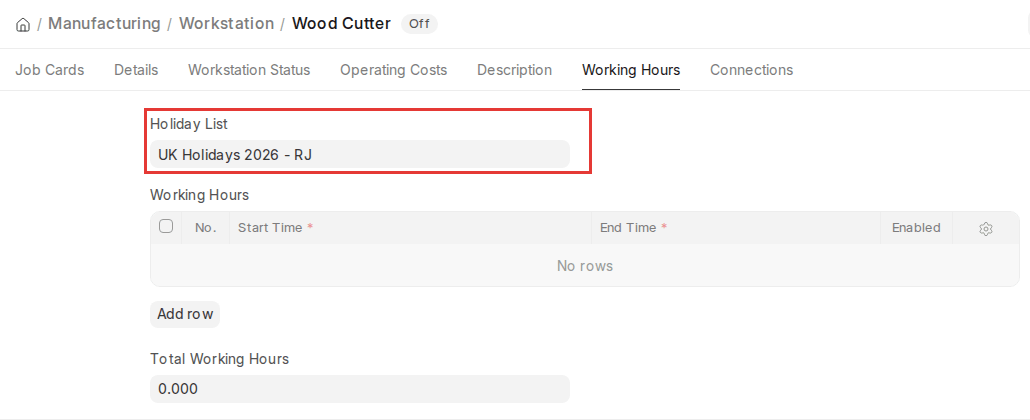
5. Holiday List in Workstation
Holiday Lists can also be allocated to Workstations within the Manufacturing module.
- Within the Workstation master, you can choose a Holiday List that is specific to that workstation.
- The system will take the tagged holiday dates into account as non-working days for the workstation.
- It will ensure that production schedules, capacity planning, and job cards honor the holiday calendar of the workstation.
- For instance:
- A workstation in one area might celebrate local holidays that do not pertain to another workstation.
- Equipment that is serviced during regular holidays can have those dates automatically placed in the workstation calendar.