
Leave Allocation
Leave Allocation allows you to provide an Employee with a specified number of leaves of a specific type.
To access Leave Allocation, go to: Desktop > Frappe HR > Leaves > Leave Allocation
1. Requirements
It is wise to prepare the following documents prior to creating a Leave Allocation
2. How to make a Leave Allocation
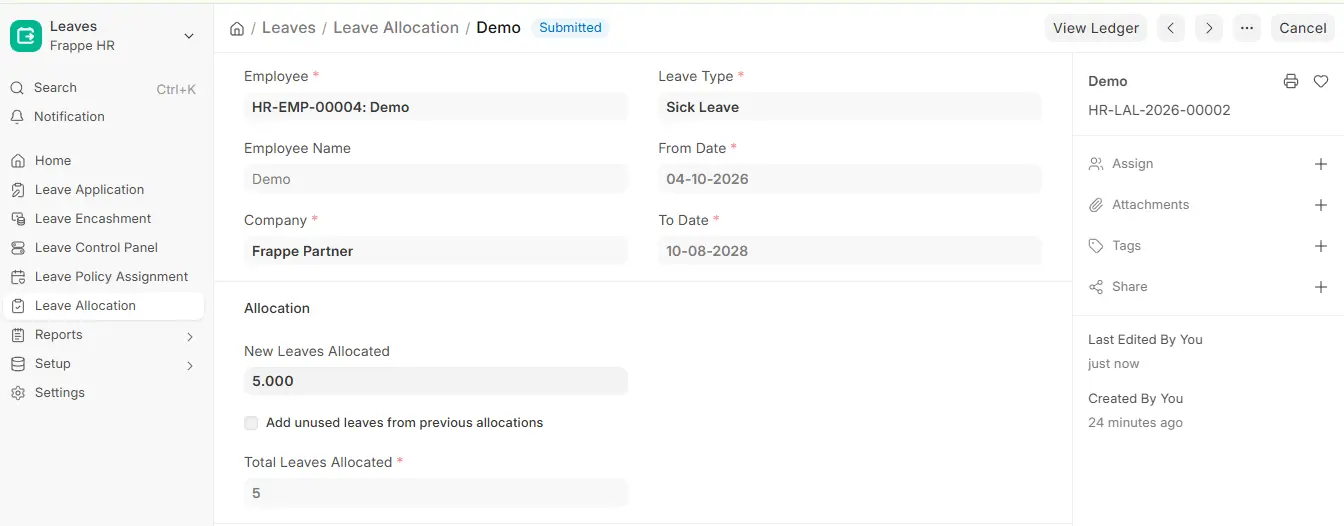
- Click on Add Leave Allocation in the Leave Allocation list.
- Choose the Employee, Leave Type, From Date, and To Date.
- Please type in the number of New Leaves that have been given to that Leave Type.
- Save and Submit.
If you wish to bring forward unused leaves from the previous allocation period for this Leave Type, check the box beside “Add unused leaves from previous allocations.”
3. Characteristics
Adding leaves to the current allotment manually
If your earned leave allotment failed for whatever reason, such as background jobs not running, you can manually award leaves for an allotment.
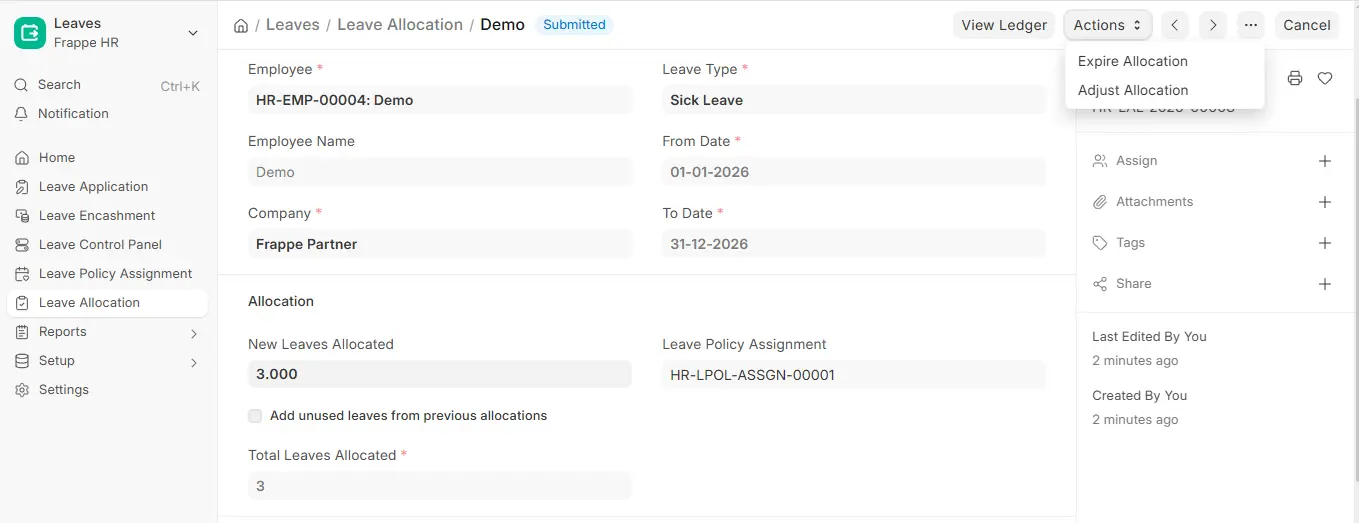
- Click on Actions and then Adjust Allocation, and choose the adjustment type Allocate (or Reduce).
And select how many leaves you want to distribute. You can also select the From Date, which is the date that they will begin to be applied. It will default to today’s date.
Manual Leave Setup
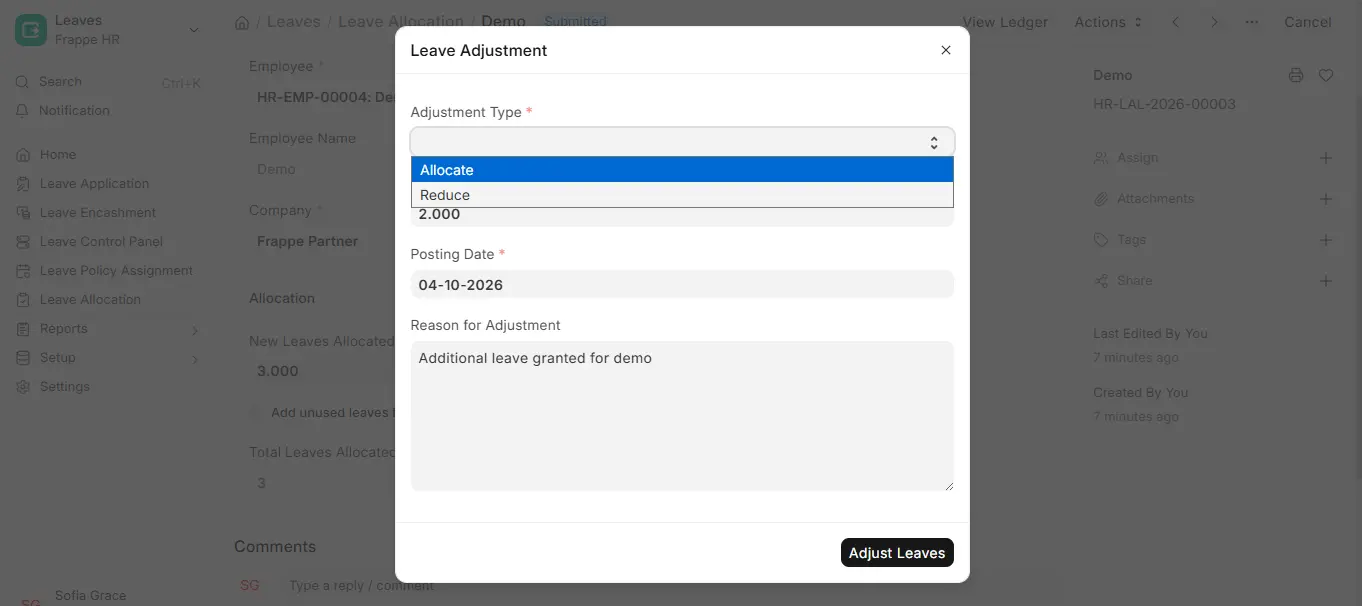
To put leaves in the balance, click on “Allocate.”

