
Item Variants In ERPNext
A version of an item that differs in size, colour, or manufacturer is called an Item Variants.
In ERPNext, item variant management allows businesses to standardize products using a consistent, automatic variant naming structure.
For example, the T-shirt itself is referred to as the Item Template if it is available in the following sizes: Small, Medium, Large, Red, Blue, and Green. Each of these variations, such as the Blue T-shirt in Small, is referred to as an Item Variant.
This structure is especially powerful for ERPNext product variants in apparel and clothing businesses, where size and colour combinations must be managed efficiently.
In the absence of item variants, you would have to make distinct items for every combination, which would make data more complicated and require more upkeep.
1.Variant Naming in ERPNext
ERPNext names variants automatically. For attribute-based variants, the variant’s item code is built from the template’s item code followed by the abbreviation of each attribute value (for example, TSHIRT-BLU-S). For manufacturer-based variants, a number is added to the template code (for example, Screwdriver-1). There is no separate naming setting for variants in Item Variant Settings.
By building variant names from the template and its attributes, ERPNext ensures consistency across all generated item variants. This helps maintain a professional SKU structure and avoids duplication.
1.1 Benefits of Item Variants
- Combines several variations into a single template.
- Enables all variations to receive bulk updates from the template.
- Makes inventory management and reporting easier.
The same naming structure automatically applies to every newly created variant.
2. Using Item Variants
It is possible to create variations based on:
- Item Attributes (e.g., size, colour, material)
- Manufacturers (such as versions tailored to a particular supplier)Tip: All of an item’s Variations can automatically receive the updated item template.
For attribute-based variants, the system dynamically builds the item code using the abbreviations of selected attributes like Size and Colour (set on each Item Attribute value).
3. Creating an Item Variant Template
- Go to:Home > Stock > Item
- Open an existing item or create a new one.
- In the Details tab, turn on the Has Variants checkbox.
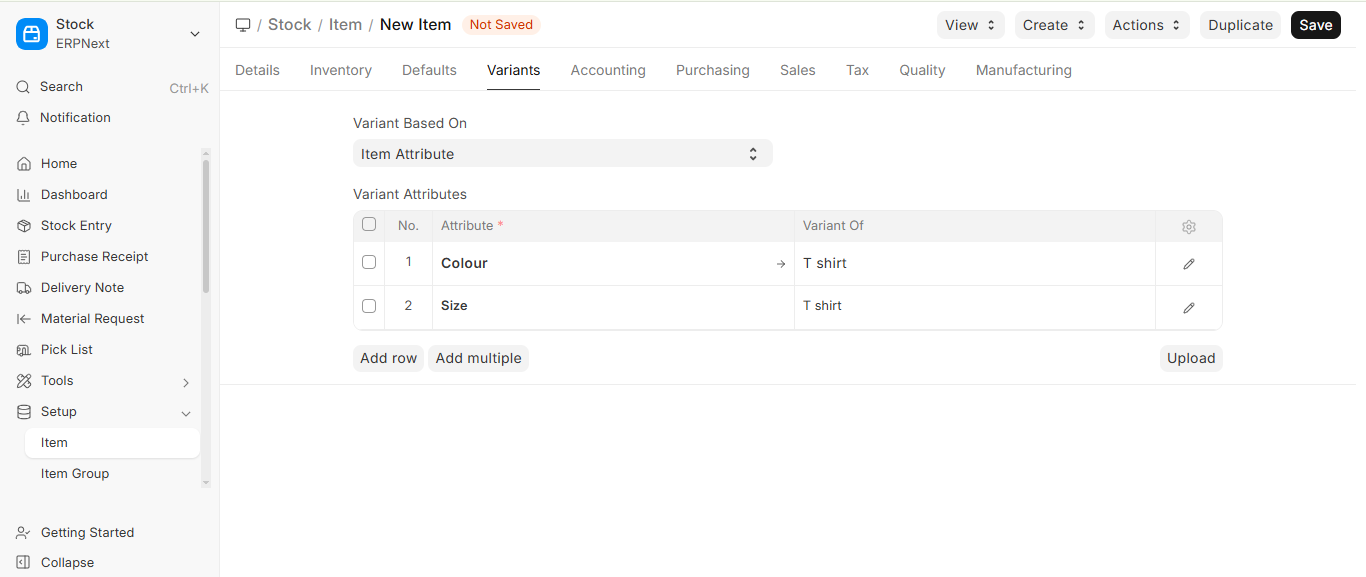
Once Has Variants is on, the Variants tab shows the Variant Based On field and the Variant Attributes table.
- Include the Variant Attributes, such as Colour and Size.
- You can specify ranges and intervals for numerical attributes (e.g., Size: 30-40, increment 2).
- Save the template.
The generated variant name follows the parent template structure with attribute differentiation.
Important:
- Templates cannot be used in transactions like Sales Orders or Purchase Invoices.
- Only their variants can be sold, purchased, or manufactured.
4. Creating Item Variants
4.1 Based on Item Attributes
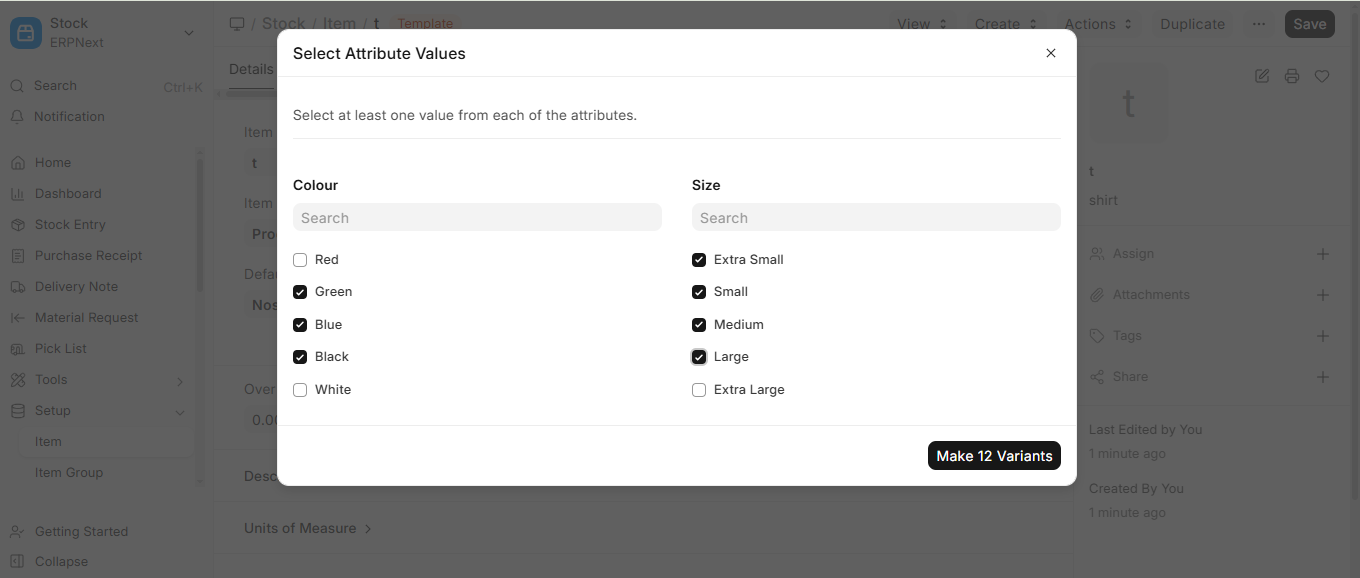
- After opening the template item, click Create > Single Variant or Create > Multiple Variants.
- Select:
- Single Variant: Pick just one set of characteristics (e.g., Colour: Blue, Size: Small).
- Multiple Variants: Choose more than one attribute, and the system will generate every possible combination.
Example:
Colours: Red, Green, Blue and Black.
Size: Small, Medium, Large.
Each item variant is named from the template code and the abbreviations of the selected attribute values.
4.2 Based on Manufacturers
- Set Variants Based On = Manufacturer in the template item.
- Choose a manufacturer by clicking Create > Variant.
- Enter a Manufacturer Part Number if you’d like.
In this case, the system appends a numeric suffix to the template name.
- The template name with a number suffix (such as Screwdriver-1) will be automatically used to generate variant names.
5. Using the Template to Update Item Variants
Go to:
Decide which template fields should be replicated across all variations.
Within ERPNext Item Variant Settings, administrators can also choose Do not update variants on save, Allow Rename Attribute Value, and Allow Variant UOM to be different from Template UOM.
These settings ensure that variant data stays consistent with the template throughout ERPNext.
Any fields that you do not want to be updated automatically should be removed.
6.Best Practices for Managing Item Variants in ERPNext
To make sure that managing ERPNext variants goes smoothly, follow these best practices:
Always say what colour, size, and material the item is before making templates.
All variants should follow the same naming rules.
Give every attribute value a clear abbreviation, because it becomes part of the variant item code.
When you use bulk variant generation, be careful not to make too many combinations.
Check for unused variants every once in a while, to keep the database clean.
By following these best practices, businesses can keep a professional SKU structure and an efficient way to manage their stock.
7.Conclusion
Item Variants in ERPNext make it simple to keep track of a lot of different product combinations without making things too hard. Setting up Item Templates, Item Attributes, and Variant Naming rules the right way can help businesses keep their inventory records clean, their stock tracking accurate, and their SKU structures professional.
No matter what you do—making clothes, manufacturing, or trading—ERPNext item variant management makes sure that your business can grow and run smoothly.

