
Journal Entry Template
A Journal Entry Template enables you to set up a pre-defined list of accounts and choices that you will be able to use when you are creating a Journal Entry. This streamlines the process by saving Frequently used entry setups.
How to Access the Journal Entry Template
Go to:
1. How to Create and Use a Journal Entry Template
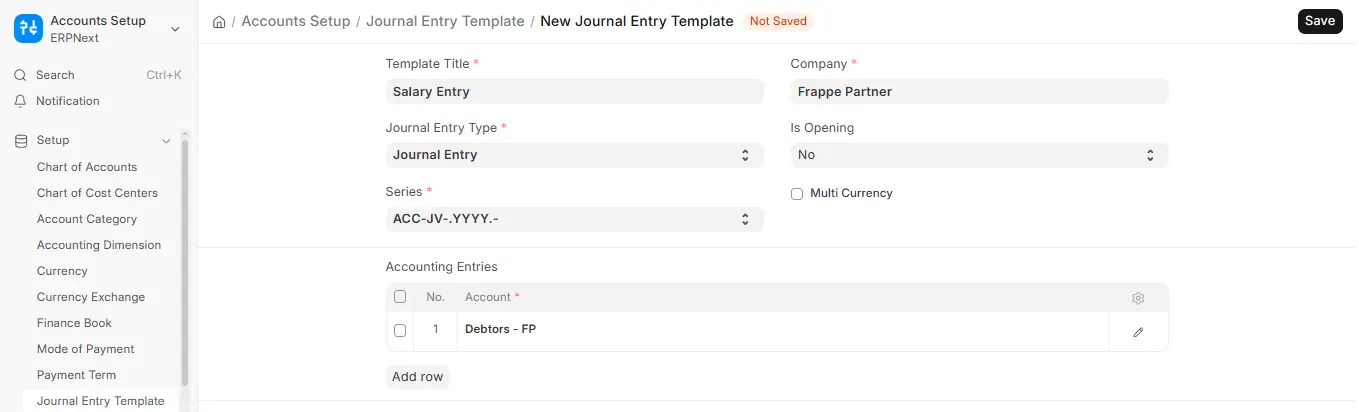
Steps:
- First, visit the Journal Entry Template List and click on Add Journal Entry Template to create a new template.
- In Template Title, enter the title of the template.
- Example: “Salary Entry” – this indicates that this template will be utilized to enter salary records.
- In Journal Entry Type, select the entry type.
- Example: “Journal Entry” – this is for everyday entries such as salary, rent, etc.
- In the Series field, pick how your journal entry numbers should be made.
- Example: “ACC-JV-YYYY-” – this will become something like ACC-JV-2025-0001 when saved.
- In the Company field, the system will display the default company name.
- Example: “alpha (Demo)” – you can modify this if necessary.
- If you select “Opening Entry,” the system will prefills all accounts for you.
- Is Opening will also turn to “Yes” automatically when you select “Opening Entry” above.
- Example: If you’re entering balances from a previous year, this will be “Yes”. For normal entries like salary, it stays “No”.
- In Multi Currency, tick the box if you’re working with different currencies.
- Example: If your company is paying someone in USD but your base currency is PKR.
- Under Accounting Entries, select the accounts you wish to add.
- Example: “Debtors – AD” – it indicates someone owes money.
- You can click “Add Row” to enter additional accounts such as “Salaries Expense – AD” or “Bank – AD”.
- After entering all, press Save to save the template.
- Now, go to Journal Entry and click Add Journal Entry.
- In the From Template field, select your saved template.
- Example: Select “Salary Entry” – the system will automatically fill in all the details and accounts for you.
1.1 Special Entry Types:
There are three entry types in particular to select from:
- Opening Entry: It is employed in case of fresh start in the system or migrating from some other software. It imports all your current balances such as assets, liabilities, equity, etc., and auto-populates them in the Accounting Entries table.
Example: When you are initially setting up your company in ERPNext and input the opening cash, inventory, and payables balances from your old records.
- Bank Entry: This is employed when you are entering transactions that involve a bank, such as deposits and withdrawals. If you have a default bank account in your company settings, it will be filled automatically in the entry.
Example: When you’re depositing cash into the bank or moving money from one bank to another, by choosing “Bank Entry”, your main bank account will get filled automatically.
- Cash Entry: Used for making cash payments like minor office expenses or accepting payment in hand. If a default cash account exists, the system will add it to the entry.
Example: While paying office supplies in cash, choosing “Cash Entry” will automatically fill up the cash account in Accounting Entries.
2. Best Practices for Journal Entry Templates
- Clear Naming: Use descriptive names for templates to easily identify their purpose (e.g., “Monthly Rent”, “Annual Depreciation”).
- Regular Updates: Periodically review and update templates to reflect changes in accounts or amounts.
- Balance Check: Ensure that the total debits and credits are balanced in the template.
- Documentation: Maintain documentation for each template, explaining its purpose and usage.

