
Point of Sale POS
A Point of Sale (POS) is a time and place where a transaction in a retail business is concluded.
In a retail enterprise, product delivery, sale acceptance, and payment are all performed at the same time at the so-called ‘Point of Sale’ (POS). Sales Invoices in ERPNext can be generated via POS. Implementing the POS has two general steps.
To access POS, go to:
1. Prerequisites
Before creating and using Point of Sale, it is advisable to create the following first:
- POS Profile
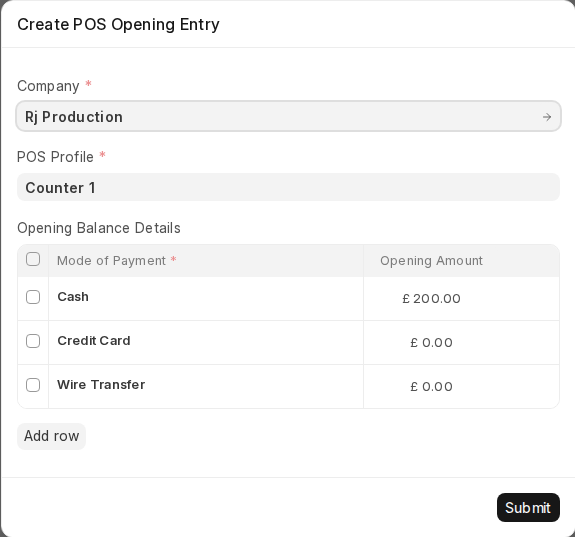
- POS Opening Entry: When you open the POS screen and no shift is open for you, ERPNext shows Create POS Opening Entry. Select the Company and POS Profile, enter the opening amount for each mode of payment and click Submit.
2. How to create a POS Invoice
2.1 Once you create a POS profile, you may start creating invoices using the POS system.
- Go to the POS screen and select a Customer (the POS Profile’s default customer is filled in; click it to change it).
- Choose Items by clicking on them in the All Items list on the left; they are added to the Item Cart on the right.
- Ensure all Items have Selling Price assigned to them in the Item Price list.
- Update quantities if needed.
- To change the Rate and give Discounts, make sure these are turned on in POS Profile settings.
- A default Warehouse needs to be set to complete the transaction. If a Warehouse is referenced in both Item and POS Profile, the POS Profile’s will override.
- Do be aware that Items must be in your Warehouse before selling. Items that are out of stock show a red dot; items in stock show a green dot with the available quantity.
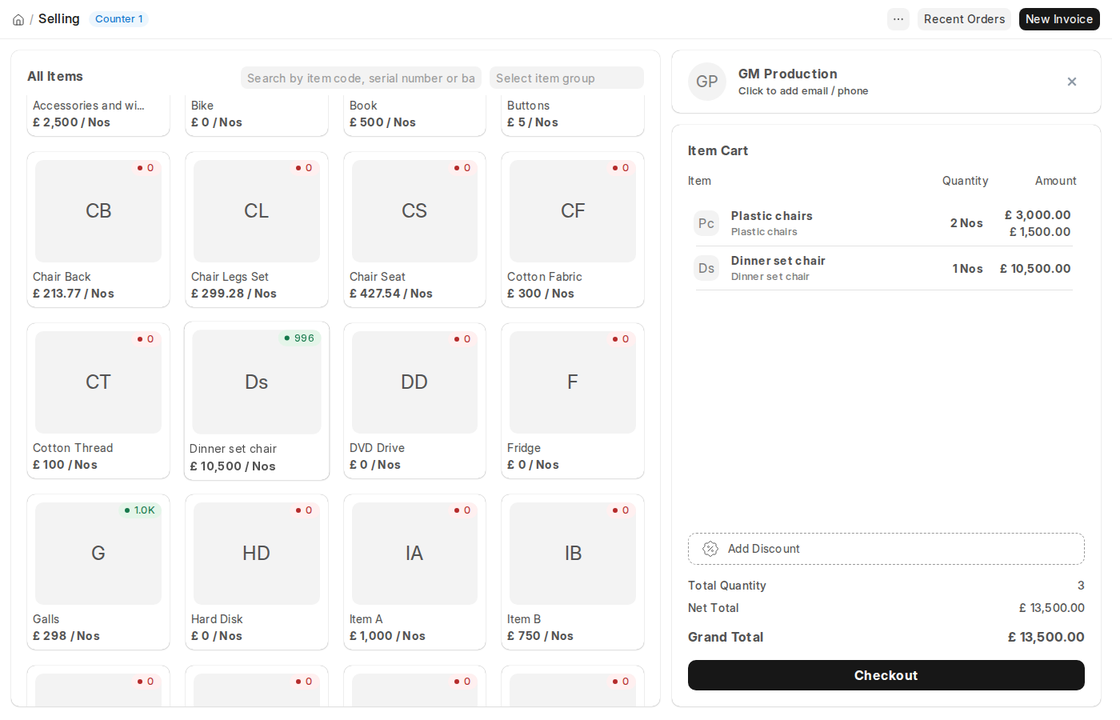
- After adding all items, cross verify the net and grand totals and also the bottom summary total quantity.
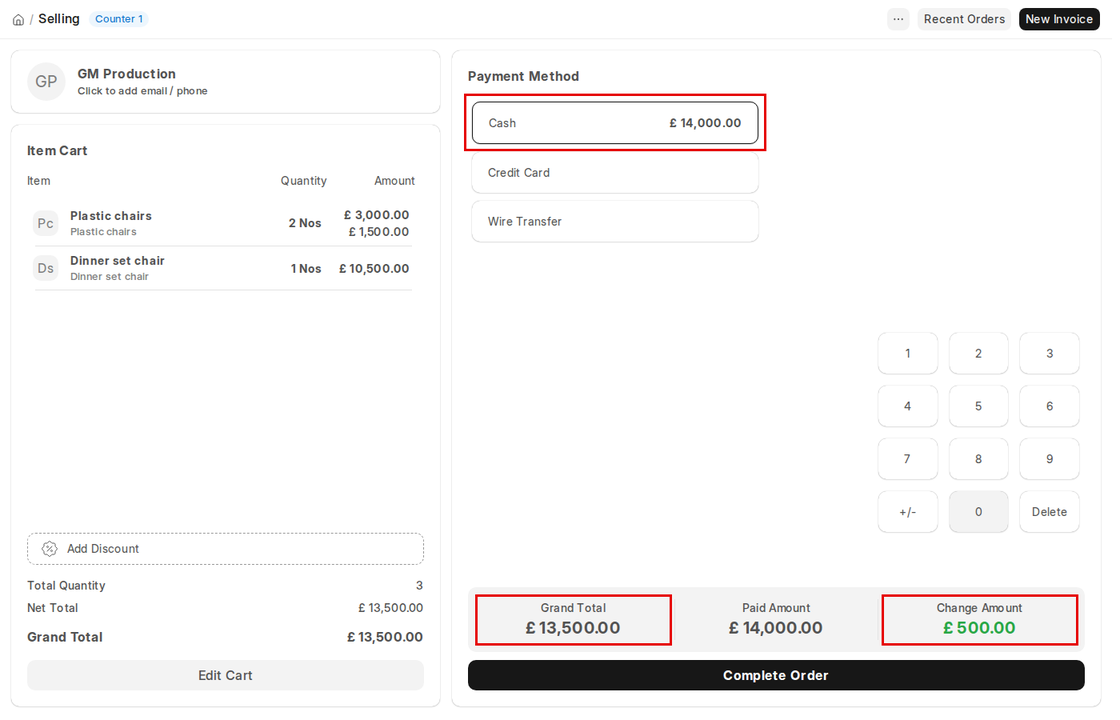
- Click Checkout. The full amount is pre-filled in the default mode of payment (for example Cash). To change an amount, select the mode and type the amount on the numpad. Then click Complete Order and confirm with Yes to submit the invoice.
- You can then print the POS invoice.
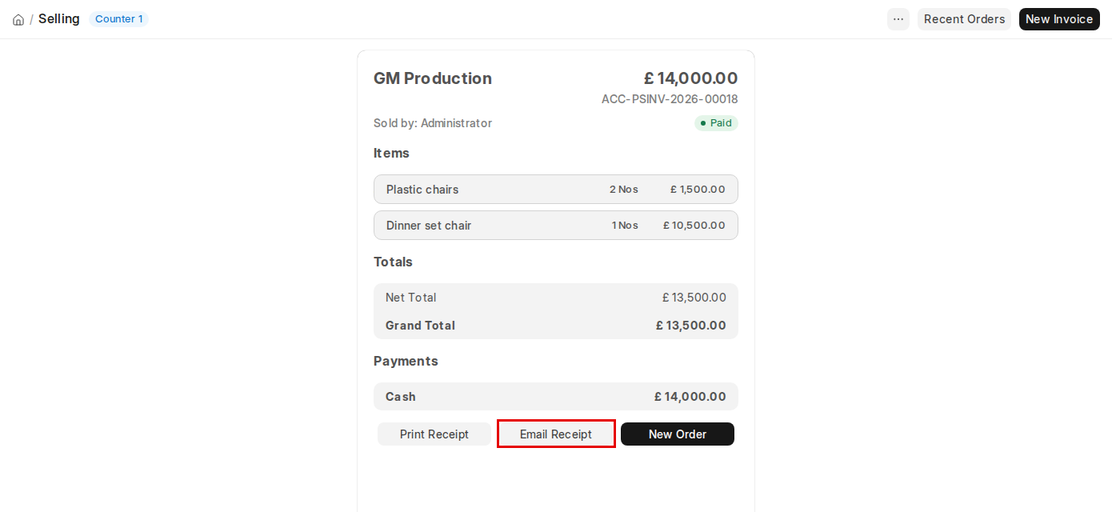
Once the Sales Invoice is submitted, you can either print or send it via email to the customer directly.
2.2 Adding an Item
On the billing counter, the store owner must choose items that the customer purchases. In the POS window you can choose an item by clicking on it, by searching or scanning its item code, serial number or barcode, or by filtering by item group.
- Select Item: To add a product to the cart, click on the item image and insert it into the cart. A cart is a section that makes a customer ready for checkout by enabling editing of product data, tax adjusting and applying discounts.
- Barcode / Serial No: A Barcode / Serial No is an optical machine-readable code representation of information pertaining to the object to which it is applied.
- Search by Item Group: The ERPNext POS enables item group selection and filtering. To choose a particular Item Group (such as beverages, electronics, or apparel), use the Select item group filter next to the search box.
- Enter Barcode / Serial No in the box as indicated in the image below and wait for a second, the product will be added to the cart automatically.

If your product list is extremely long use the Search field, enter the product name in Search box.
2.3 Removing an Item from the Cart
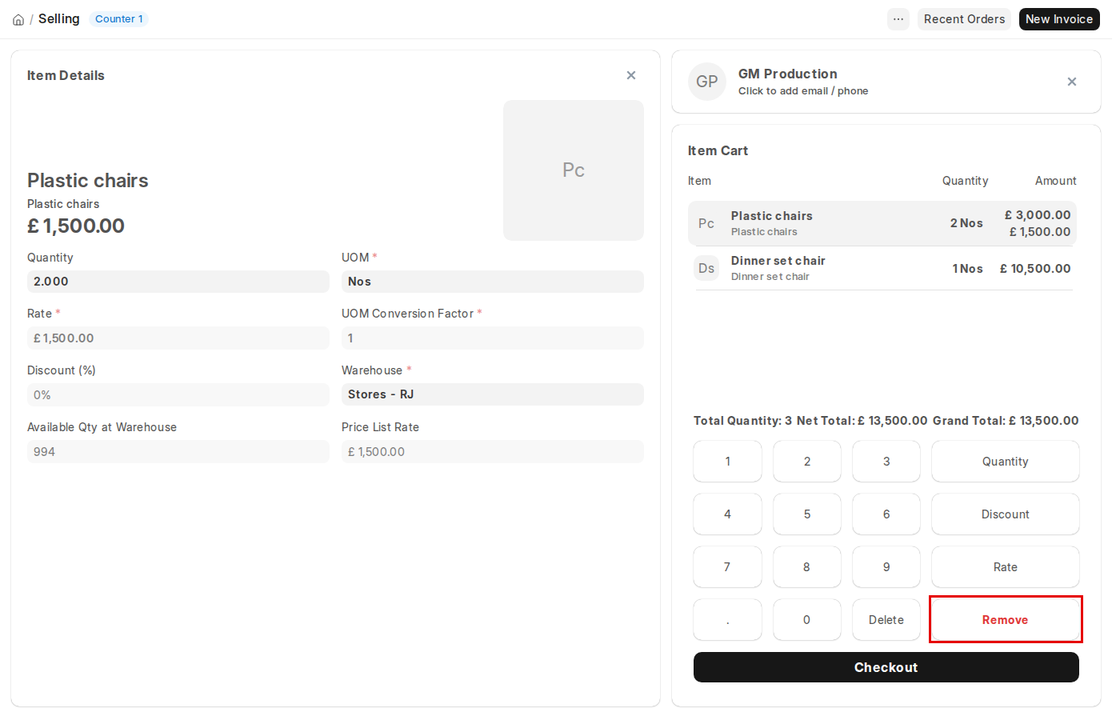
- Click the item in the cart to open Item Details, and click the Remove button on the numeric keypad.
- Or set the Qty to zero in the Item Details panel to delete the Item from the POS invoice.
2.4 Change Amount
When the customer pays more than the Grand Total, POS shows the Change Amount to be returned (for example £14,000 paid against £13,500 gives £500 change). You can set the Account for Change Amount in the POS Profile, and POS Settings has the option Create Ledger Entries for Change Amount.
3. Features
3.1 Adding a new Customer
In the POS, users can choose an existing customer while entering an order or create a new one by clicking the customer section at the top of the cart. They can also add the customer’s email and phone there.
3.2 Accounting entries (GL Entry) for a Point of Sale:
Debits: 1. Customer (grand total) 2. Bank/Cash (payment)
Credits:
1. Income (net total, minus taxes for each Item)
2. Taxes (liabilities to be paid to the government)
3. Customer (payment) 4. Write Off (optional)
5. Account for Change Amount (optional)
3.3 Email
After completing an order you can click Email Receipt to send the receipt by email, Print Receipt to print it, or New Order to start the next sale.
3.4 Create Return Credit Note
You can also generate a return credit note against a POS invoice in case of return of products or the whole order. Following are the steps for generating a credit note against an invoice:
- Click the Recent Orders button at the top of the POS screen.
- All the recent POS invoices will be listed under the Recent Orders pane. You can search for the invoice directly by its name or filter search results based on the status of the invoice, which can be Draft, Paid, Consolidated, Return or Partly Paid.
- Choose the invoice against which you have to generate the credit note, after which you will be able to view the invoice details and the buttons Print Receipt, Email Receipt and Return.
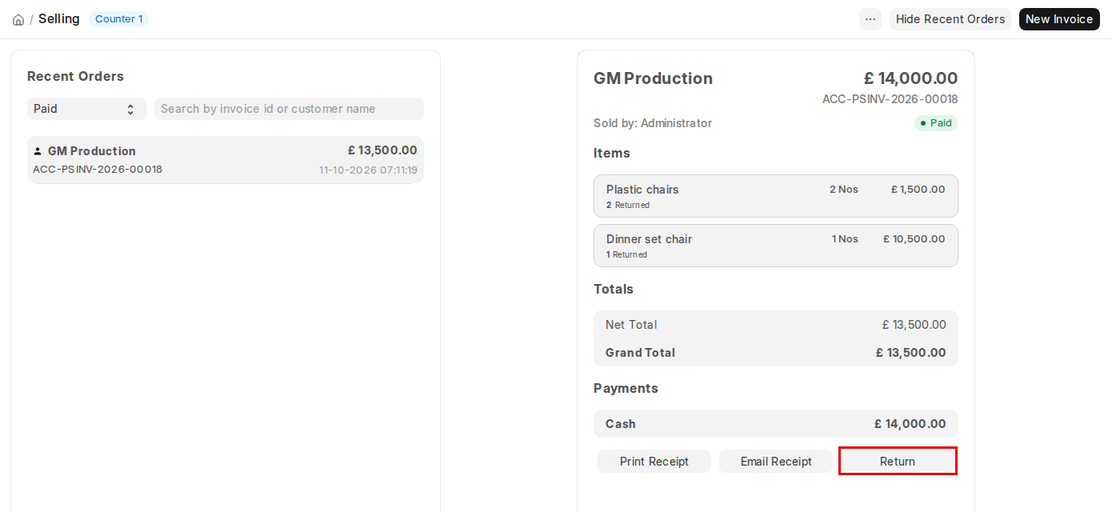
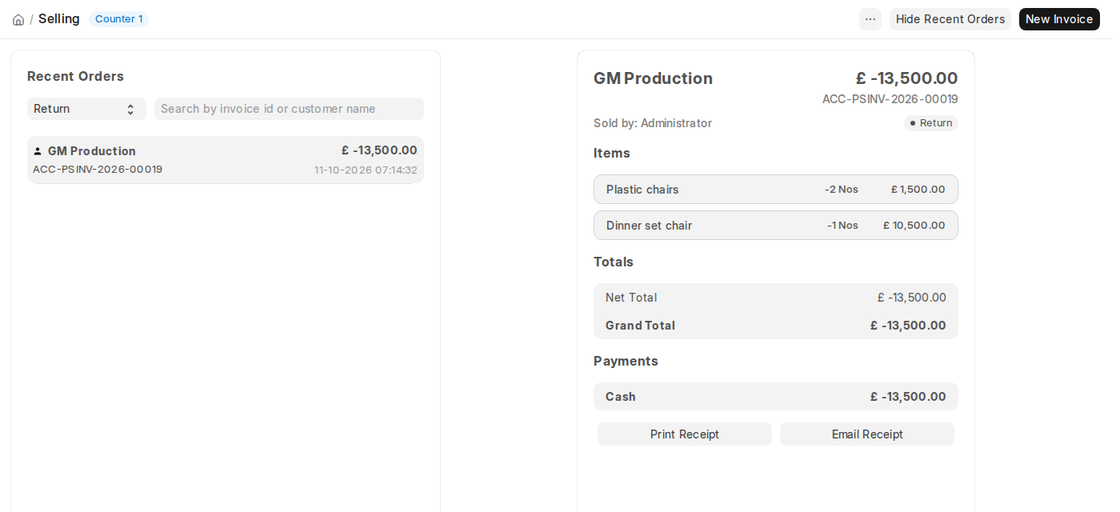
- The POS screen will show the items in the invoice, along with corresponding negative quantities and totals in the Item Cart, which shows that it is a return credit note.
- After checking out, you’ll be able to view the grand total, paid amount and taxes as well, if there are any.
- Clicking Complete Order will finish the process and generate the return invoice (status Return) and show it on the screen like a regular order.
3.5 POS Closing Voucher
At the end of the day, the cashier can close their shift by creating a POS Closing Voucher.
- To do this, click on the menu (three dots) and select Close the POS (shortcut Shift+Ctrl+C).
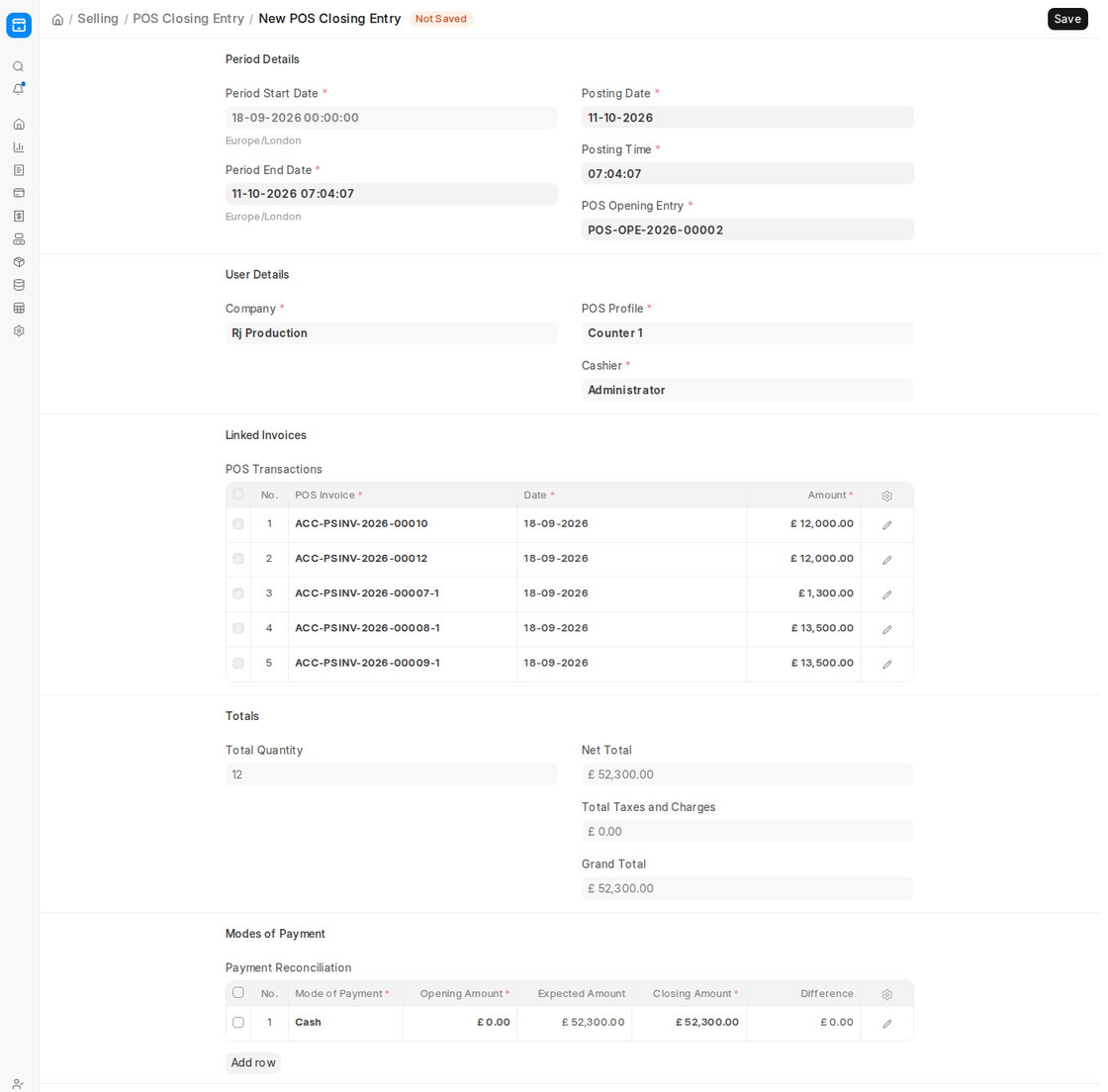
- ERPNext opens a new POS Closing Entry for your POS Opening Entry, with the period, POS Profile and cashier filled in, the shift’s invoices under Linked Invoices, and the expected amount per mode of payment under Modes of Payment. Enter the counted Closing Amount and submit.
- When a POS Closing Voucher is posted, all POS invoices of the chosen period are grouped into one final sales invoice.
- After grouping, the status of these POS invoices will change from ‘Paid’ to ‘Consolidated’, reflecting successful integration into the closing process.
If you leave a shift open overnight, the POS screen shows Outdated POS Opening Entry the next day and asks you to close it and create a new one.
If there are more than 10 invoices at POS closing, the consolidation process will be executed as a background job. The consolidated sales invoice will be submitted after the background job is finished. Accounting ledgers will be updated only after the POS Closing Voucher is successfully submitted and the Consolidated invoices are generated.
4. POS Settings
- Invoice Type Created via POS Screen: In POS Settings you can choose whether the POS screen creates POS Invoices (consolidated at closing) or Sales Invoices directly.

