Sales Invoice
A sales invoice is a document that documents the sale of goods or services performed for a customer. It acts as the bill the customer must pay.
When a sales invoice is submitted, it becomes an accounting transaction. The system will: Track the amount as accounts receivable (amount owed by customer). Recognize the income to the business. Update the customer’s account balance.
To view the sales invoice list: Home > Invoicing > Receivables > Sales Invoice
1. Prerequisites
Before creating and using a Sales Invoice, it is advised to create the following first:
Optional
2.How to Create a Sales Invoice
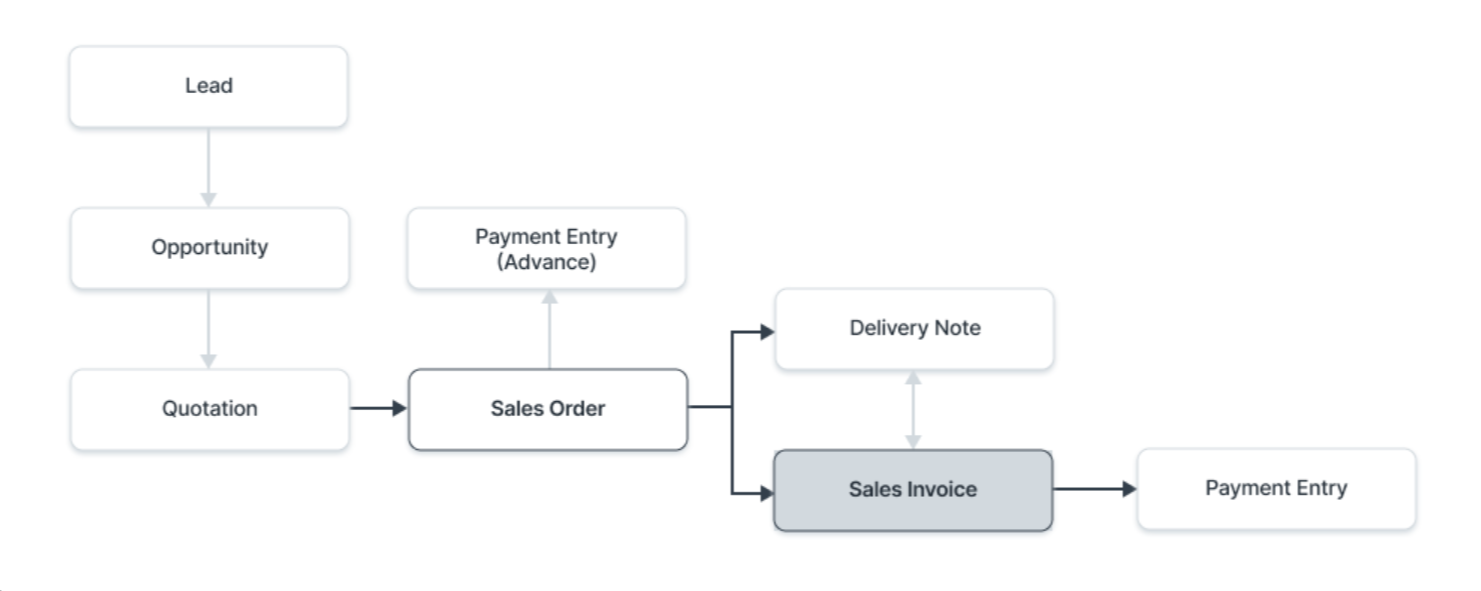
A sales invoice is raised from a sales order or a delivery note, as this automatically fetches the customer and item details into the sales invoice. Alternatively, it is also possible to create a sales invoice from scratch, for example, when recording a POS invoice.
To automatically fetch items into a sales invoice:
- Open a new sales invoice.
- Click on Get Items From.
- Choose the source document: Sales Order, Quotation, Delivery Note or Timesheet.
- The relevant customer and item details will automatically populate.
To create a sales invoice manually:
- Go to Sales Invoice List
- Click on + Add Sales Invoice
- Select Customer
- In the new Sales Invoice form, select Customer:
- Select the customer from the drop-down list.
- ERPNext will automatically fill in the default information, such as the billing address and contact.
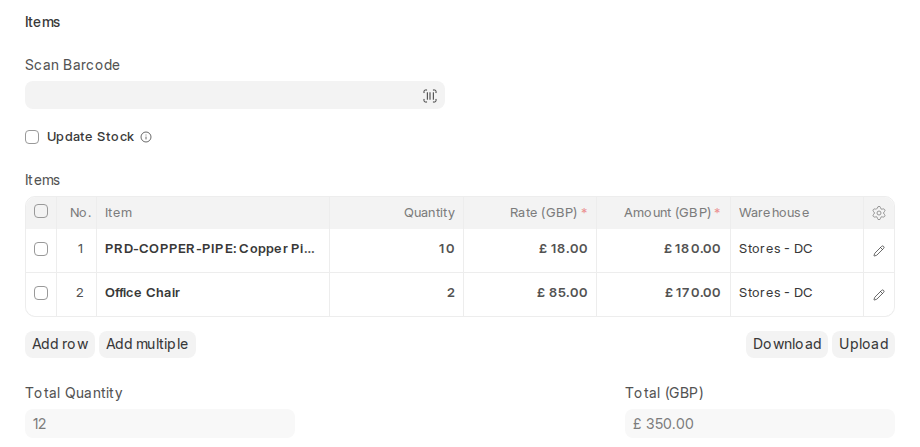
- Add items in the Items section
- Select “Add row”.
- From the list, select the item code.
- Enter the rate, quantity, and any applicable discounts.
- The total gets calculated automatically.
- Otherwise, you can enter the item rates manually.
- Taxes and Charges
- Go to the Taxes and Charges section by scrolling down.
- Select “Add row”.
- You can either manually enter the tax account and percentage or choose a tax template (such as Standard UK VAT 20%).
- The tax amounts will be automatically calculated by ERPNext.
- Payment Terms
- On the Terms tab, choose or create a Payment Terms Template if your client has credit terms.
- Custom due dates for payments can also be added.
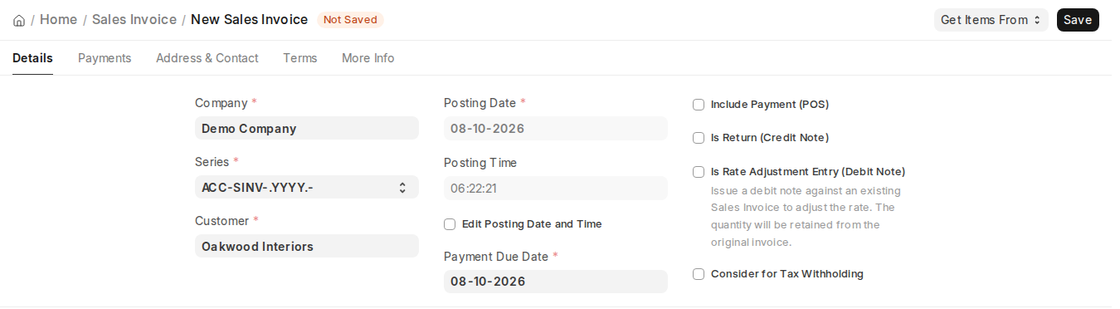
- The posting date and time will default to the current date and time.
- To backdate the entry, tick Edit Posting Date and Time and edit the values.
8. Save and Submit
- To draft the invoice, click “Save”.
- To complete and turn it into a final document, click “Submit”.
- Accounting entries are automatically posted after they are submitted.
E-mail or print
- Following submission, you are able to:
- Select “Email” to send the invoice directly to the customer.
- Select “Print” to generate a printable PDF.
2.1 Other Options While Creating a Sales Invoice
While creating a sales invoice, ERPNext provides additional options based on the transaction type:
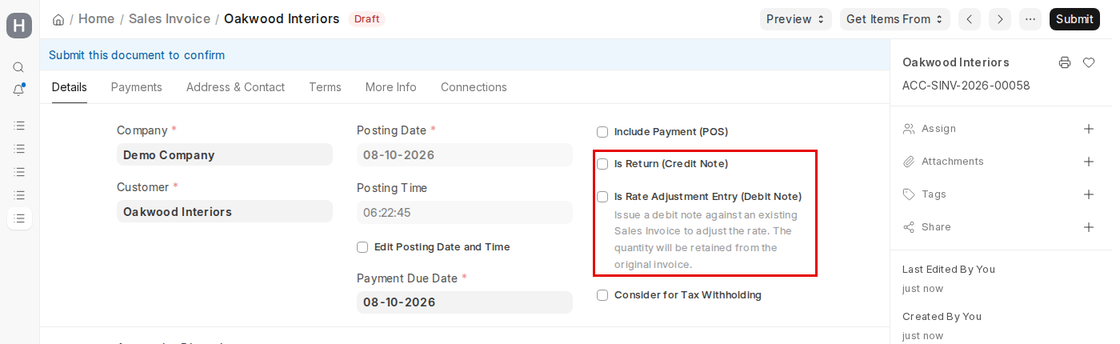
- Include Payment (POS)
Select this option if the invoice is created for a point of sale (POS) or turned into a retail transaction, where payment is made at the time of sale.
- Is Return (Credit Note)
Select this checkbox if the invoice is created for returned items. This will turn the invoice into a credit note, which reverses the original transaction.
- Is Rate Adjustment Entry (Debit Note)
Tick this to issue a debit note against an existing Sales Invoice to adjust the rate, for example when the price was undercharged. Select the original invoice in Return Against; the quantity is kept from the original invoice and only the rate difference is billed and added to the customer’s receivable.
2.2 Sales Invoice Statuses
ERPNext automatically assigns a status to each Sales Invoice according to the invoice’s progress and payment condition. The statuses are:
- Draft The invoice has been saved but has not been submitted. This invoice does not post to accounting or stock.
- Submitted The invoice has been finalized, and has been submitted. The appropriate entries are posted to the General Ledger and stock is altered(if applicable).
- Paid The invoice has been paid by the customer, and a Payment Entry has been related.
- Partly Paid If a sales invoice is marked as partially paid, it indicates that the customer has only paid a portion of the total amount.
- Unpaid The invoice has been submitted, but remains unpaid. The due date has also not passed.
- Overdue Payment has not been received, and the payment due date has passed.
- Cancelled The invoice is cancelled, and whatever effect it had on accounts and stocks (if any) is reversed.
- Credit Note Issued A Credit Note has been generated against the invoice, identifying that items were returned from the customer.
- Return This status is only for invoices which are Credit Notes generated to cancel a previous Sales Invoice. You may also create a Credit Note with no relation to prior invoice existence.
- Unpaid and Discounted The invoice is unpaid and has been discounted through Invoice Discounting.
- Partly Paid and Discounted The invoice is partly paid and has been discounted through Invoice Discounting.
- Overdue and Discounted The invoice is both overdue and discounted via Invoice Discounting.
- Internal Transfer The invoice is raised to an internal customer (another company of the same group).
3. Feature Set
Sales Invoices feature selected items to improve the accuracy of the accounting records and flexibility of reporting.
3.1 Dates
- Posting Date
This is the date the Sales Invoice will affect your General Ledger. This date determines the accounting period revenue will be recorded and the total account balances that will be affected.
Edit Posting Date and Time (Checkbox): Available while the invoice is a draft, this checkbox enables the user to edit manually both the date of posting and the actual time of the sales invoice. ERPNext, by default, adopts the date and time at which the invoice is created. However, if you tick this option, you can backdate or enter a custom time, which is particularly useful for accounting and reporting purposes accurately or while entering past transactions.
- Payment Due Date This is the date the payment is due if you sell on credit. This date indicates when you expect the customer will pay.
You can control overdue receivables through the Customer master by defining terms of credit limits as well as payment terms.
3.2 Accounting Dimensions
The Accounting Dimensions section on the Details tab allows you to tag transactions in a number of different ways and by different attributes, including:
- Cost Center
- Project
- Any custom Accounting Dimensions you create (for example Branch or Department)
Dimensions, as they are referred to, give you the power of detailed reporting and tracking of your financial records according to the dimensions which you apply.
3.3 Customer PO Details
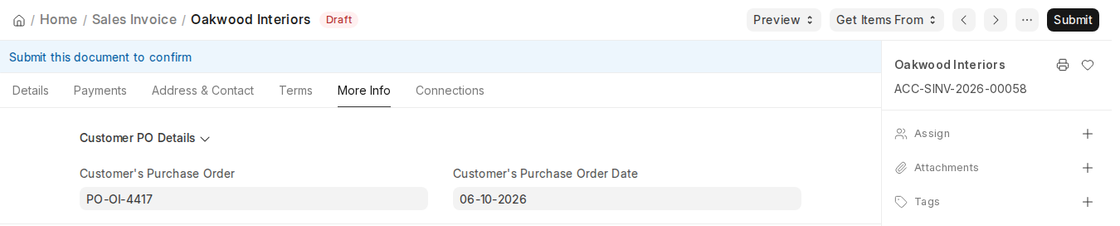
These Purchase Order (PO) details are in the Customer PO Details section of the More Info tab. They help in tracking records and avoiding duplicates.
- Customer Purchase Order
Enter the PO Number that was provided by the client. On Sales Orders, ERPNext blocks a second Sales Order for the same customer with the same PO number. To allow it (with a warning only), enable Allow multiple Sales Orders against a customer’s Purchase Order in Selling Settings.
- Customer Purchase Order Date
This is the date that the client created the PO. This will be used for records and reporting.
3.4 Address and Contact Information
These fields are on the Address & Contact tab.
- Customer Address The customer’s billing address. Taken from the Address linked to the Customer record.
- Contact Person If the customer’s record is an organisation, the contact person is automatically taken, if defined in the Customer record.
- Territory The area or region where the customer is located. For internal reporting purposes. Taken from the Customer form.
The default will be All Territories unless a specific one is defined.
- Shipping Address This address is the location the goods will be delivered. It can be different from the billing address and is selected from the saved address(es) available for the customer.
For VAT and compliance purposes, the Details tab also shows the customer’s Tax Id and the Company Tax ID. They are taken from the Customer and Company records, so UK companies can use them for the customer’s and their own VAT Registration Numbers. The Company Address section on the Address & Contact tab holds your own address for the invoice.
3.5 Currency
You can set the currency for each sales invoice in ERPNext, in the Currency and Price List section of the Details tab. This means you can deal with international customers and in multi-currency transactions.
Invoice Currency
You can specify the currency in which the sales invoice should be raised.
- The currency can be automatically loaded from the customer master or the linked documents (for example, from a sales order).
- Common currencies for businesses in the UK might be GBP (British Pound), EUR, or USD, depending on the customer you are raising the invoice for.
Exchange Rate
When the invoice currency is different from the company currency, ERPNext fills in the Exchange Rate, which you can change.
- The invoice shows values in the invoice currency, and the totals are also shown in the company currency (for example, GBP).
- All accounting entries are posted in the company’s base currency.
Multi-Currency Receivables – If you want to track your receivables in the customer’s currency, you simply need to set up a separate Receivable account in that currency.
- This will allow the sales invoice to be posted as a receivable and tracked in foreign currency, rather than converting to GBP.
3.6 Price List
If you select a price list, it will automatically pull in the item prices on the sales invoice from that price list.
If you want to ignore any pricing rules (such as any discounts or markups you have set up under pricing rules), select the “Ignore Pricing Rule” checkbox.
3.7 The Items table
- Update Stock This is a checkbox field in the sales invoice.When checked, ERPNext will immediately reduce the stock of items from the selected warehouse.
- Scan Barcode Simply scan the item’s barcode with a barcode scanner to add items quickly to the invoice.
- Grant Commission Enable this checkbox if you wish to grant commission to the assigned Sales Person and/or Sales Partner for this item line.
- Item Details ERPNext fetches automatically when you select the item from the Item Master:
- Discount and Margin You can apply item-level discounts as either a percentage or fixed amount.
- Rate The rate of each item comes from the Price List you selected. The total amount will then be calculated from the item rate x quantity.
- Drop Ship Tick Delivered By Supplier if the supplier ships this item directly to the customer (drop ship).
- Accounting Details Eventually, you can override the default Income or Expense Accounts for this item. If item is an Asset, link it here to an Asset record.
- Deferred Revenue Tick”Enable Deferred Revenue” if the revenue associated with item, will you recognize its revenue over time (for example, subscription or service contracts).
- Item Weight Details Weight per unit and weight UOM, used for example by weight-based Shipping Rules.
- Stock Information The stock related information is pulled from the Item master and wherever possible from the relevant linked records:
- Warehouse You select the warehouse from which the item will be delivered from here.
This counts towards updating stock and managing movements in the inventory.
- Available Qty at Warehouse The available whole quantity that exists for the item at the selected warehouse is indicated here.
This is a useful indicator ensure stock is available before completing the invoice.
- Batch No and Serial No If the item is batch managed or serialized, you will be required to enter:
A Batch Number (for batch managed items)
One or more Serial Numbers (for serialized items)
In v16, serial and batch numbers are recorded in a Serial and Batch Bundle linked to the item row, and the Qty must match the serial numbers selected. To type them directly into the Batch No / Serial No fields instead, tick Use Serial No / Batch Fields on the row.
- Item Tax Template Use to apply the specific tax rate or structure to this specific item via an Item Tax Template.
- References If this Sales Invoice was created from a Sales Order or Delivery Note, those references will be indicated here. The Delivered Quantity will also be indicated here to assist in verifying fulfillment.
- Page Break If Page Break is activated, it will insert a page break before this item when printing the invoice.
3.8 Timesheet
If your business runs on the basis of clients paying you on the basis of employee hours worked (for example, consulting, service, or contracted work), you can then bill the clients from Timesheet.
- Employees can enter Timesheets for the hours they have worked on a specific Project including the billing rates.
- On the Sales Invoice, click Get Items From > Timesheet. In the Fetch Timesheet dialog, filter by From / To date, Item Code and Project, then click Get Timesheets. The billable entries are added to the Time Sheet List section.
3.9 Taxes and Charges
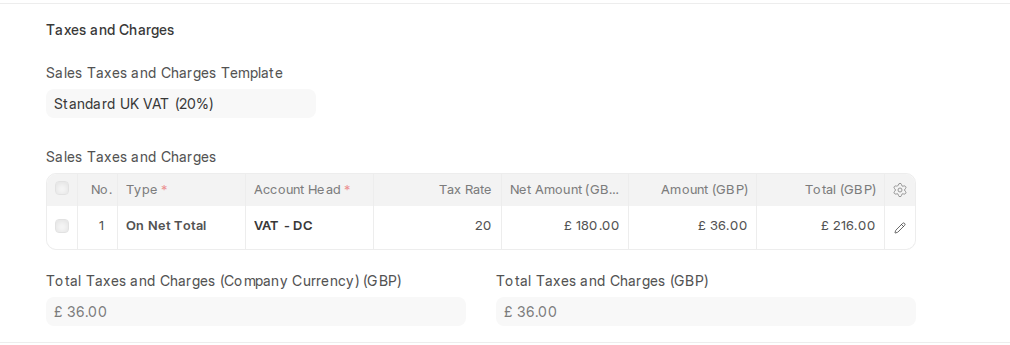
Taxes and charges in a Sales Invoice are generally derived from the Sales Order and/or Delivery Note, if applicable.
- You can also use a default Sales Taxes and Charges Template to automatically calculate the taxes.
- The total tax amount will display below the taxes table for easy review.
To automate tax selections according to rules (i.e., customer type or region), use a Tax Category.
Shipping Rule
A Shipping Rule defines what it costs to ship an Item with the cost typically increasing with the distance of shipping. To learn more, visit the Shipping Rule page.
3.10 Loyalty Points Redemption
If the Customer is enrolled in a Loyalty Program, they can opt to redeem their points in the Loyalty Points Redemption section of the Payments tab. To learn more, visit the Loyalty Program page.
3.11 Extra Discount
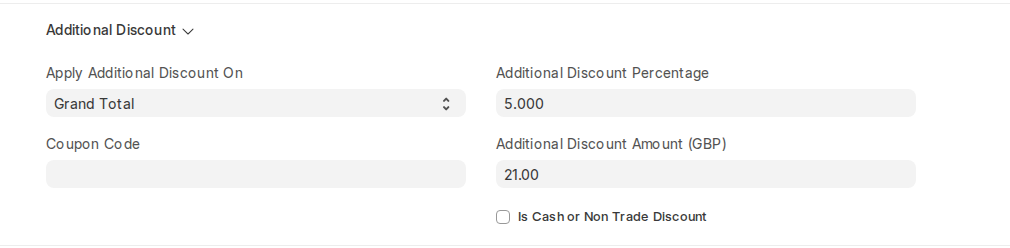
In the Additional Discount section, you can include additional discount on the entire Sales Invoice. A discount may be pegged upon the Net Total (before taxes and charges) or the Grand Total (after taxes and charges). The discount option can be fixed or percentage. The section also has Coupon Code and, for discounts on the Grand Total, Is Cash or Non Trade Discount.
3.12 Advanced Payment
For orders with large value or custom orders, you can take an advanced payment from the customer before creating the Sales Invoice. Advances are handled in the Advance Payments section of the Payments tab.
- Allocate Advances Automatically (FIFO): When “Allocate Advances Automatically (FIFO)” is checked, ERPNext will automatically use the First-In-First-Out (FIFO) method to match customer advance payments to the invoice.
- Get Advances Received: You would use the ‘Get Advances Received’ button to pull and link the advanced payment against the Sales Orders or record it directly from the customer.
3.13 Payment Terms
If the payment is in installments or scheduled over time, you can define these conditions on the Terms tab using a Payment Terms Template.
- You can apply a predefined set of payment terms to sales invoices by using the Payment Terms Template.
- Manually adding entails entering the terms of payment into the invoice itself, without the use of a template.
- Each installment has its own due date as well as the percentage or amount that would be paid.
3.14 Write Off
If a customer pays a little less than the invoiced amount (for example, there is rounding or the payment is negligibly short), you can write off the difference to close the invoice.
- On POS invoices (Include Payment (POS) ticked), the Write Off section on the Payments tab has Write Off Amount, Write Off Outstanding Amount, Write Off Account and Write Off Cost Center.
- For a normal invoice, write off the small difference when you record the payment, using the Deductions or Loss table of the Payment Entry.
3.15 Terms and Conditions
All sales terms, return terms, warranty information, or any other clauses you may want to contain as part of the contract of sale can be included in the Terms and Conditions section of the Terms tab.
- You can choose and apply Terms and Conditions from the Pre-configured templates to the invoice.
- The terms/conditions will print on the invoice, and can be different by customer, or item, or by territory.
3.16 Transporter Information
The Sales Invoice in v16 does not have transporter fields. If you use a third-party transporter, record the Transporter, Driver, Transport Receipt No and Vehicle No on the Delivery Note. The supplier must have Is Transporter ticked in the Supplier master to be selected there.
Note: This is different from Drop Shipping, where the supplier ships the items directly to the customer.
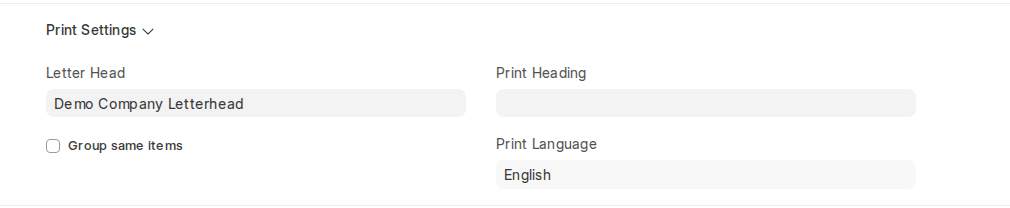
3.17 Printing Settings
You can adjust how the Sales Invoice is printed or emailed in the Print Settings section of the More Info tab.
- Letterhead: If your company has a letterhead template, then you can print a branded invoice.
- Group same items: Enabling this option will automatically combine like items indexed multiple times in the invoice into one line in the print view.
- Print Language: The language used for the printed invoice.
- Print Headings
- You may need a specific print heading (for example, “Tax Invoice”, “Commercial Invoice”). If this is necessary, you can add new print headings.
- To add new print headings, search for Print Heading in the search bar and create a new one.
3.18 VAT Details (for UK)
ERPNext does not have a separate UK VAT module. UK businesses record VAT details with standard features (tax templates, Tax Id fields) and, where needed, custom fields:
- VAT Registration Number
- Customer VAT Number
- Place of Supply
- Reverse Charge
- Invoice Format
To be compliant, it is recommended to consult or seek guidance from your tax advisor when handling VAT in ERPNext.
3.19 UTM Analytics
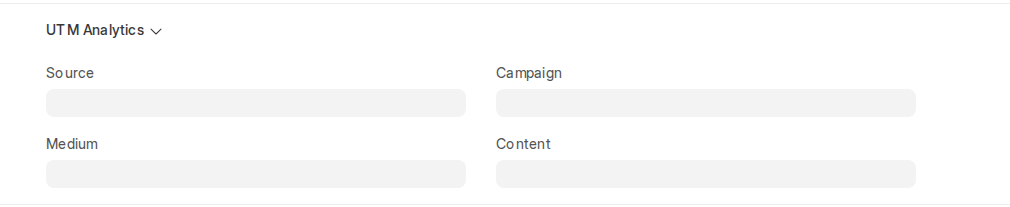
You are able to track where the sale came from in the UTM Analytics section of the More Info tab:
- Campaign: Link this invoice to a certain marketing or sales campaign and measure its effectiveness.
- Source: Note the source of the lead (for example, Google Ads, Cold Call, Referral) to help understand where the customer originated.
- Medium and Content: The marketing medium (for example, email or social) and the specific ad or content.
3.20 Accounting Information
Debit To (in the Accounting Details section of the More Info tab): This will be the Accounts Receivable account where the dollar amount will be recorded as receivable from the customer. The account will be set based on the customer’s company and currency settings.
Opening invoices: the Is Opening Entry field is not shown on the Sales Invoice form in v16. When you migrate data into ERPNext from a previous system, create opening sales invoices with the Opening Invoice Creation Tool, so that they affect the opening figures rather than current transactions.

3.21 Commission
If the sale has been made with a Sales Partner, the Commission section of the More Info tab captures their commission details. Normally this section will be auto populated if the invoice was created from a Sales Order or Delivery Note with the partner assigned.
- The commission rate can be configured in the Sales Partner master.
- ERPNext will calculate and track any contained commissions automatically based on the configuration.
3.22 Sales Team
- Sales Persons: You can assign one or more Sales Persons associated with the sale.
- In this section you can detail contribution percentage for each Sales Person, for potential reporting or commission purposes.
3.23 Automatically Select Item Batch Numbers
If an item is being managed by batch, ERPNext will attempt to auto-assign a batch number upon invoice creation where the “Update Stock” checkbox is checked.
- An applicable batch will always be selected according to FEFO (First Expiring First Out) meaning older batches will be used first.
- If the earliest valid batch cannot fulfil the order quantity then ERPNext will check the next earliest valid batch number.
- If no batch can be found that satisfies your requirements the batch number will not be auto assigned and entered manually.
3.24 POS Invoices
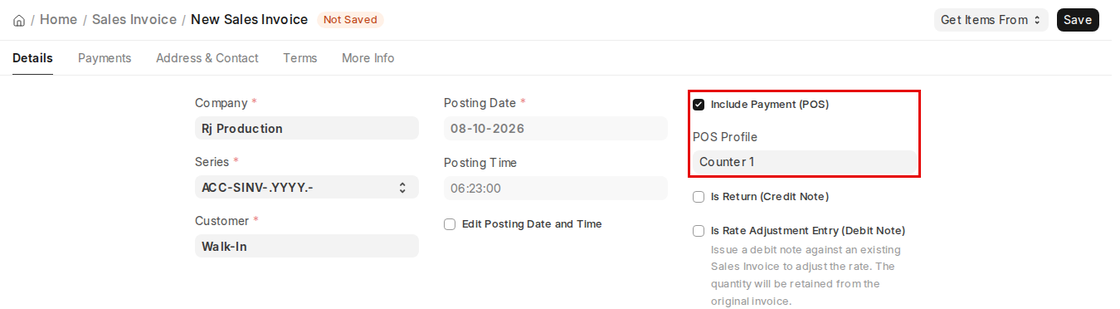
When a transaction occurs at the Point of Sale (POS), for example in a retail context, tick Include Payment (POS) and select a POS Profile:
- Default values are fetched from the assigned POS Profile – customer, warehouse, payment method, and print format.
- When the “Update Stock” box is checked, any stock adjustments will occur automatically, and a separate Delivery Note will not be created.
- Payments can be made directly on the invoice when the invoice will be issued to a walk-in sale.
3.25 After Submitting
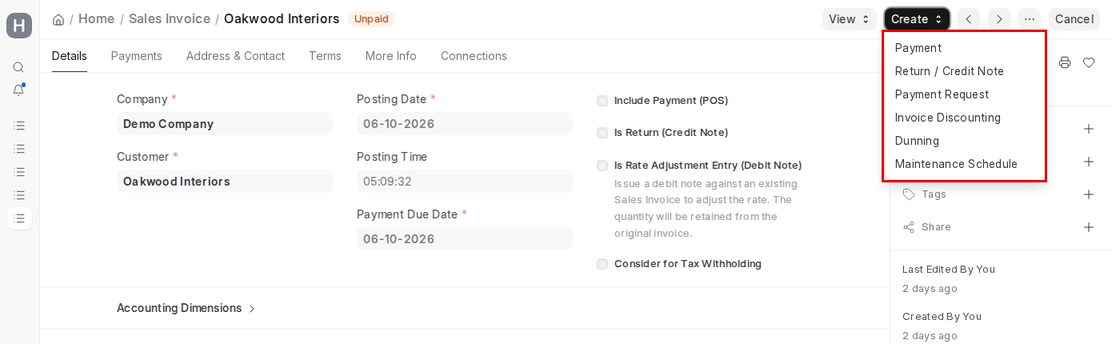
On submitting a Sales Invoice, the following documents can be created against it from the Create menu:
- Payment (Payment Entry, while there is an outstanding amount)
- Return / Credit Note
- Delivery Note (when Update Stock is not ticked and items are still to be delivered)
- Payment Request
- Invoice Discounting
- Dunning (when a payment is overdue)
- Maintenance Schedule
4. More
Accounting Impact
In ERPNext, every sale must be recorded against an appropriate Income Account which are listed in the Income section of your Chart of Accounts – we recommend classifying your income, for example Product Sales, Service Revenue, etc., for clarity in your reports.
The Customer Account will also be automatically selected using the “Debit To” field in the header section of the Sales Invoice.
You can allocate revenue to the appropriate Cost Centre in order to track profitability within each business area. Cost Centres are useful for assessing performance across departments or business units. Default Cost Centres can also be set in the Item master. If you want more granularity, think about using Accounting Dimensions.
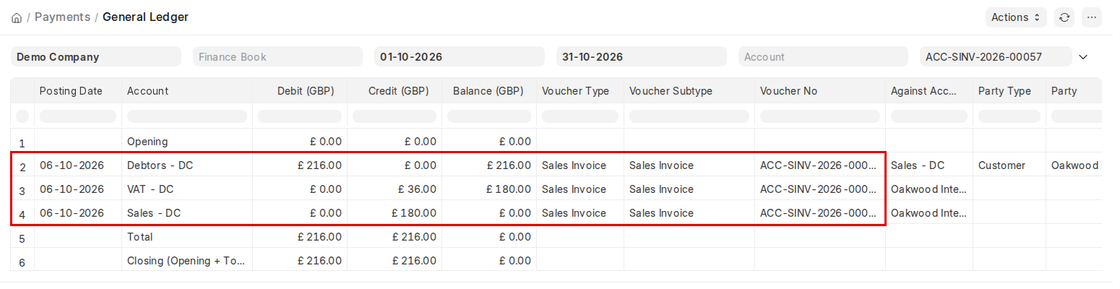
The General Ledger Entries for an expected Sales Invoice (Accrual Basis):
- Debit: Customer Account (Total Invoice Amount)
- Credit: Income Account (Net Amount per Item excluding taxes)
- Credit Tax Account (Taxes owing to relevant authorities)
This will ensure an accurate picture of the income on your Financial Statements and record keeping to Comply with accounting standards.